24.6. Permissions
The Permissions screen allows administrators to control access to individual custom audits. To access Permissions navigate to Custom Audits | Permissions.
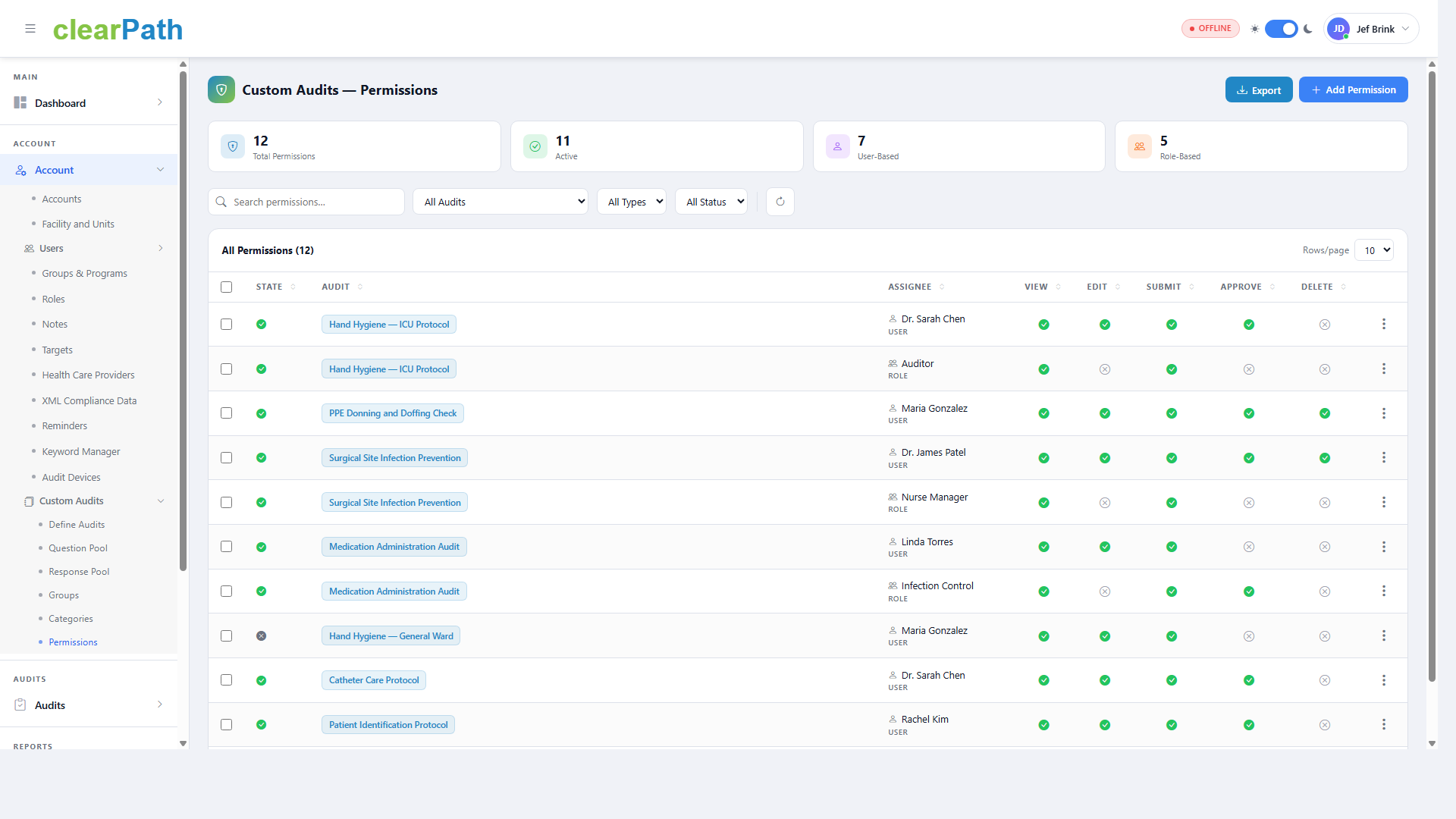
Summary cards at the top display the total number of permissions, the number of active permissions, the number of user-based permissions, and the number of role-based permissions.
Use the search bar and filter drop downs to locate permissions by audit, type, or status.
24.6.1. Permission Types
Permissions can be assigned to individual users or to roles:
User-Based – Permissions assigned directly to a specific user
Role-Based – Permissions assigned to a role, applying to all users in that role
24.6.2. Permission Matrix
Each permission entry controls access through the following actions:
Action |
Description |
|---|---|
View |
Allows the assignee to view the audit and its results. |
Edit |
Allows the assignee to modify the audit structure and settings. |
Submit |
Allows the assignee to submit completed audit responses. |
Approve |
Allows the assignee to approve submitted audit responses. |
Delete |
Allows the assignee to delete audit responses. |
24.6.3. Adding a Permission
To add a new permission click the + Add Permission button. Select the audit, the assignee (user or role), and configure the desired access levels.
24.6.4. Exporting Permissions
Click the Export button to export the permission list for backup or sharing purposes.