14. Observation Notes
Observation Notes are the short comments an auditor attaches to a hand hygiene observation or to a whole session — for example “dispenser empty on entry” or “patient in isolation, gloves already on”. They are the fastest way to surface the stories behind the numbers and show up in reports, on the session detail page, and on dashboards that track comment frequency.
The Notes page lets you manage the pool of predefined notes that auditors can pick from a dropdown while auditing, so teams record consistent wording for the situations they see most often.
To open Observation Notes, go to Account | Advanced | Notes.
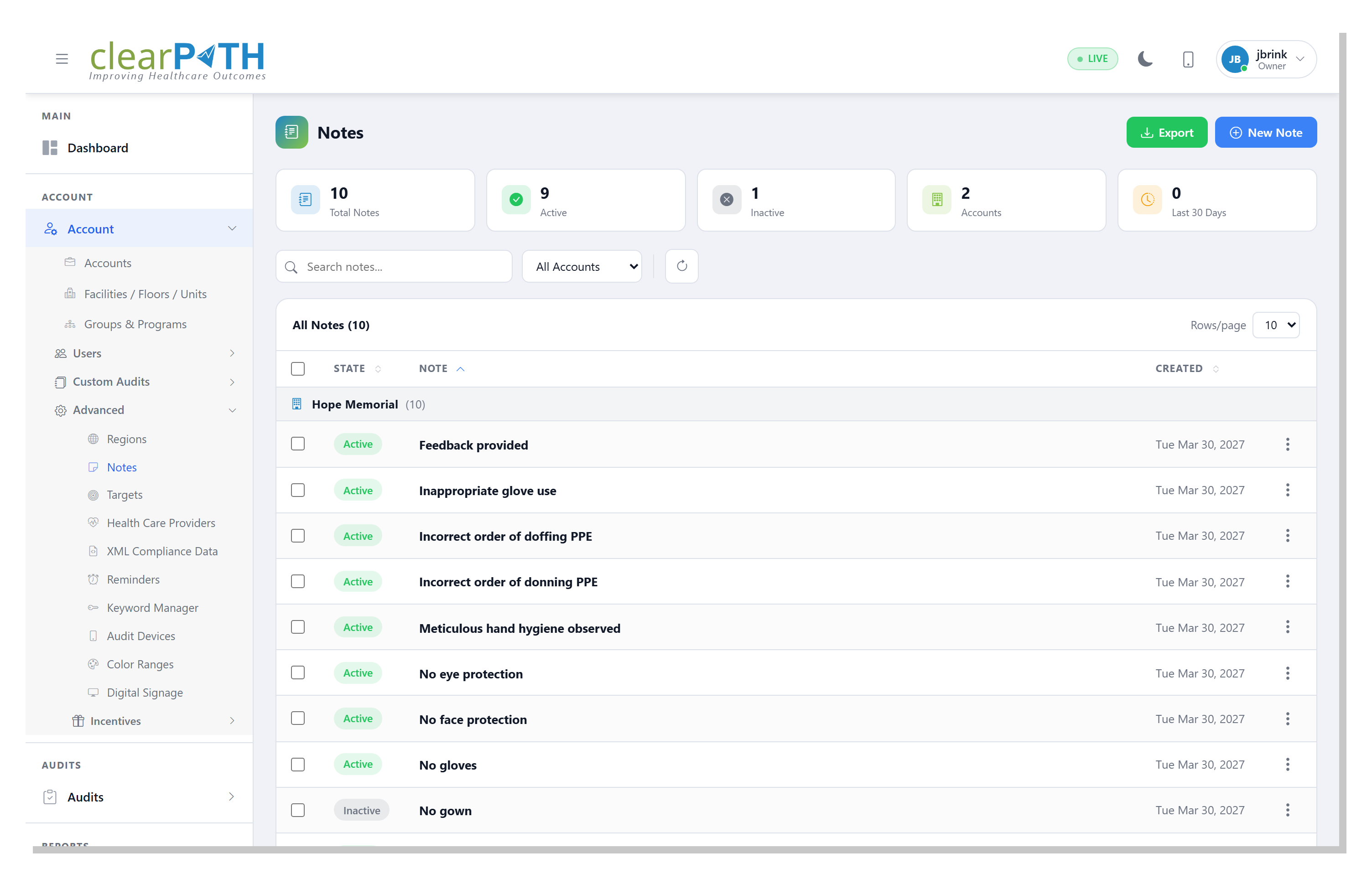
14.1. Notes List
The page header on the right offers:
New Note— opens the editor to create a predefined note.Export— saves the current (filtered) list to HTML, CSV, or Excel.
14.1.1. Filtering
Search notes…— matches text anywhere in the note content.All Accounts— scope to a single account when you manage multiple.Refresh — reload the list without losing filter selections.
Stat chips above the toolbar show how many notes are currently active, disabled, and total.
14.1.2. Row Columns
Each row shows:
State—Active(available to auditors) orDisabled(kept for history but hidden from the audit dropdown).Note— the note text itself.Created— when the note was added.
14.1.4. Bulk Selection
Tick one or more checkboxes to reveal the bulk-selection bar, then
Delete Selected to remove several notes at once. The x clears
the selection.
14.2. Adding or Editing a Note
Click New Note or select Edit from a row’s action menu to open
the note editor.
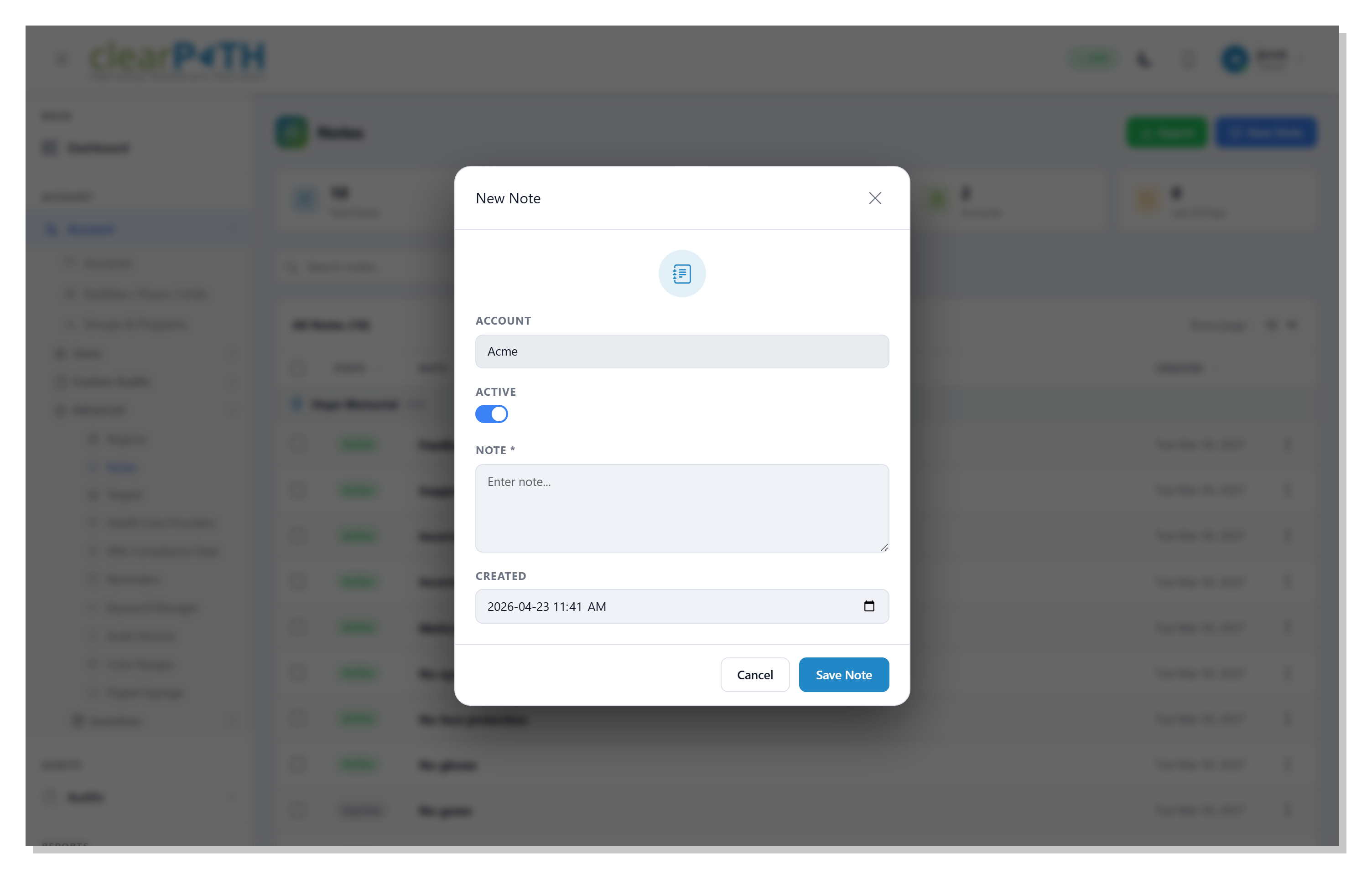
Account— the account the note belongs to. Auditors on that account see the note in their dropdown.Active— toggle the note on or off without deleting it. Disabled notes are still attached to any past observations that used them.Note— the wording auditors will see. Keep it short and specific; these appear in reports and on the session summary.Created— the date the note was added. Defaults to now.
Click Save Note to keep your changes or Cancel to discard
them.
Tip
Notes are organization-wide. Adding a note on one account makes it available to every auditor on that account, so pick wording your team agrees on. If an audit was recorded with a note you later disable, the original text is preserved on that observation — it simply stops appearing for new audits.
14.3. How Notes Are Used
During an audit. In cp2go or the web observer, the observation-level comment overlay offers a dropdown populated from this list. Picking a predefined note appends it to the observation comment; you can also type free-form text.
On a session. Session-level comments captured when an auditor finishes a session appear on the Audit Summary under
Comments and Observation Notes.On the dashboard. The Notes Frequency widget ranks the notes most commonly recorded across the filter range, so recurring problems (empty dispensers, PPE stockouts) surface quickly.
In reports. Notes are included in the observation-notes report and feed the Word Cloud report.