15. Targets
Targets are the compliance goals you set for your organization — “90% overall hand hygiene compliance this fiscal year,” “Moment 1 at 95% in the ICU,” “Custom PPE audits passing at 85%.” Once defined, targets drive the colored bands on dashboards, the pass/fail badges on widgets, the target lines drawn on charts, and the Met / Within Threshold / Missed indicators on reports.
To open the Targets list, go to Account | Advanced | Targets.
15.1. Target List
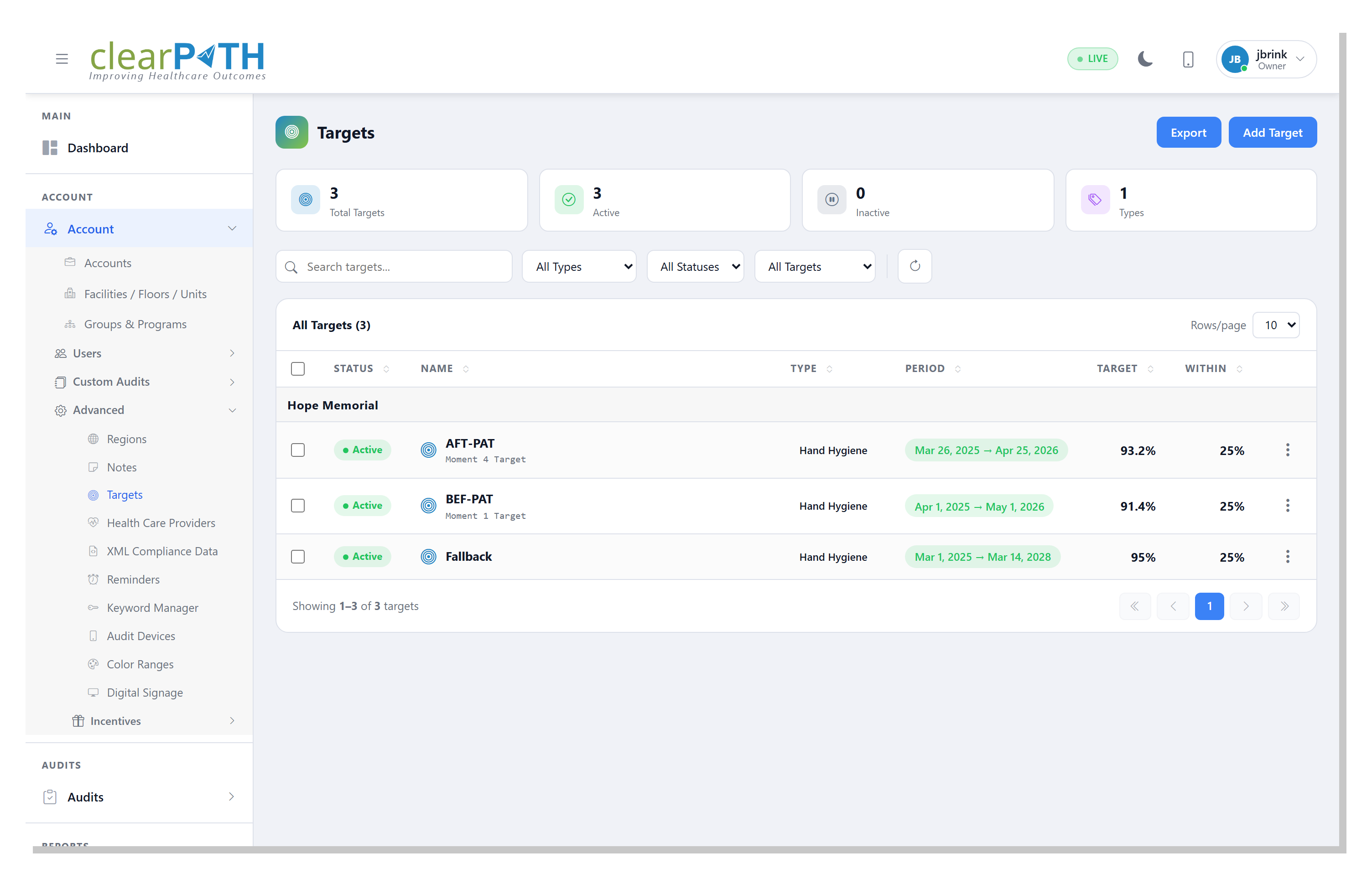
Stat chips show the total number of targets, how many are currently active, how many are inactive, and how many distinct target types are in use.
15.1.1. Page Header Actions
Add Target— opens the Target editor to create a new target.Export— saves the current (filtered) list to HTML, CSV, or Excel.
15.1.2. Filtering
Search targets…— matches text in the target name.All Types— filter by target type (Hand Hygiene,Custom Audits).All Statuses— showActive,Inactive, or all targets.All Targets— filter by period state:Active Targets(within their start/end date),Expired Targets(past their end date), orPending Targets(start date still in the future).Refresh — reload the list.
15.1.3. Row Columns
Each row groups by facility and shows:
Status—Active(green) orInactive(grey). Inactive targets are ignored by dashboards and reports. Click the pill itself to toggle the status without opening the editor.Name— the target name; the moment is shown underneath for per-moment targets (for example Moment 1 Target).Type—Hand HygieneorCustom Audits.Period— the start and end dates the target applies to.Target— the goal value (for example93.2%).Within— the tolerance band below the goal where results are still flagged as “within threshold” rather than “missed”.
15.1.5. Bulk Selection
Tick the checkbox on one or more rows to reveal the bulk-selection
bar. From there use Delete Selected to remove several targets in
one click, or the x to clear the selection without acting.
15.2. Target Editor
Click Add Target or pick Edit from a row’s three-dot menu to
open the editor. The editor is organized into three tabs.
15.2.1. General
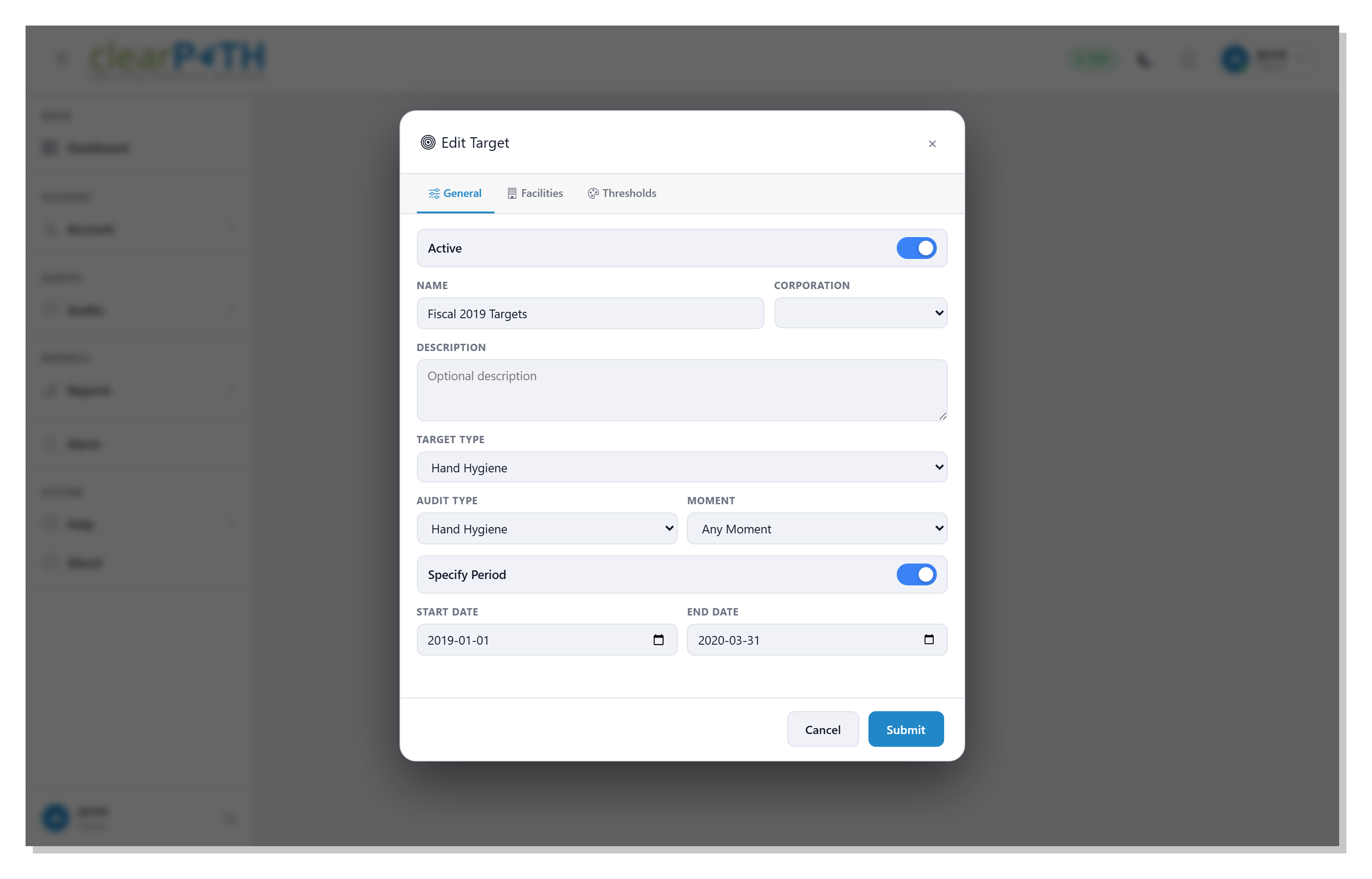
Active— toggle the target on or off without deleting it. Inactive targets are preserved for history but are ignored by dashboards and reports.Name— a label that appears on reports, dashboards, and in the target list.Corporation— the corporation the target applies to. Only facilities under this corporation can be assigned to the target.Description— an optional note describing the intent of the target.Target Type—Hand HygieneorCustom Audits. The rest of the form changes based on the type you pick.Audit Type— the specific audit the target applies to (Hand Hygienefor hand-hygiene targets).Moment—Any Momentapplies the target to overall compliance, or pick a specific moment (1 through 5) to target it individually.Specify Period— toggle on to constrain the target to a date range. When off, the target is always in effect.Start Date/End Date— the period the target is active, shown whenSpecify Periodis on.
15.2.2. Facilities
Pick which facilities under the chosen corporation the target applies to. Check each facility you want included; leave the others unchecked. A target must have at least one facility assigned before it affects reports or dashboards.
A target with no facilities assigned is harmless — it stays in the list but is ignored everywhere else.
15.2.3. Thresholds
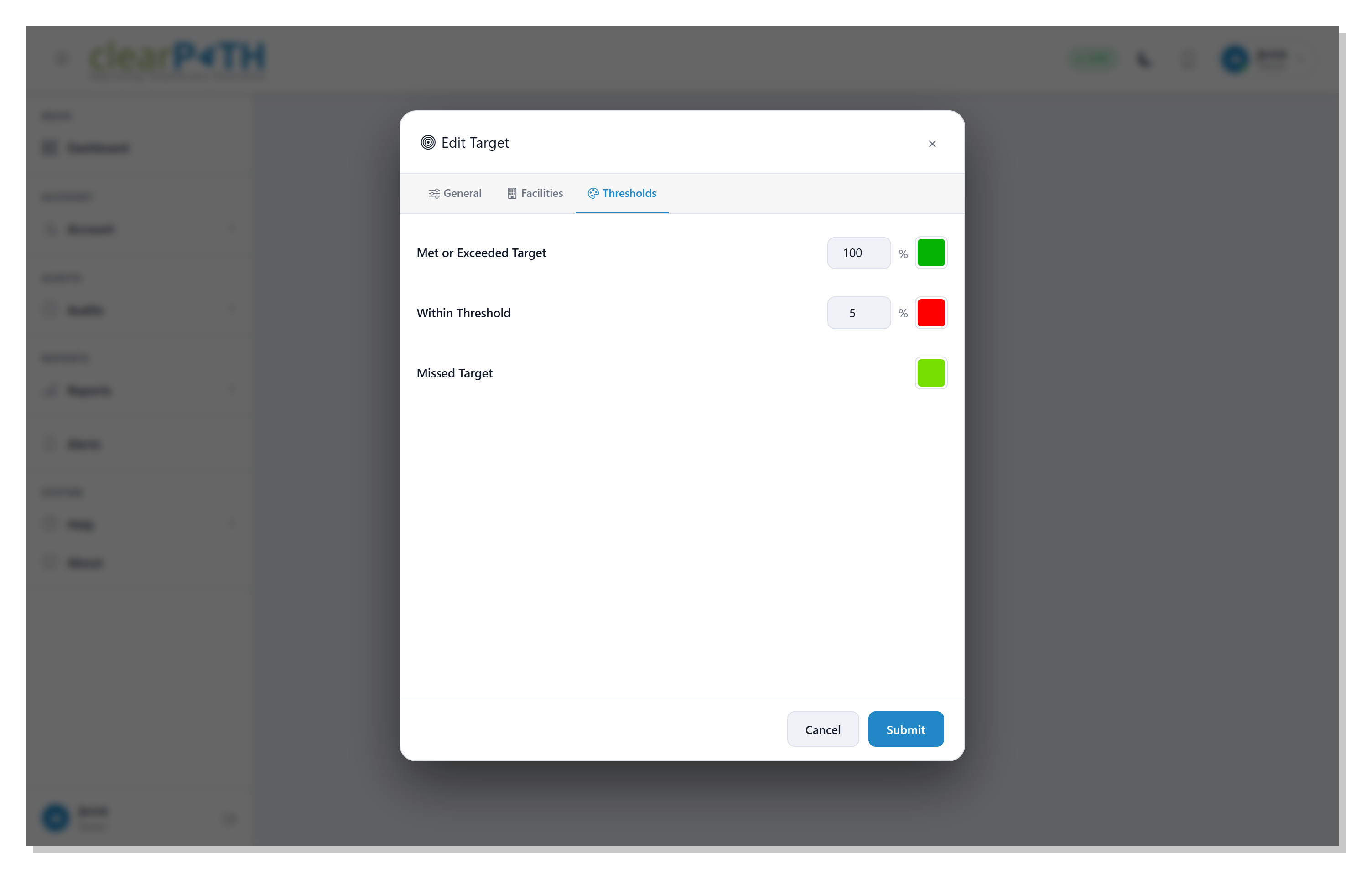
Thresholds control the three colored bands a target produces on charts, dashboards, and reports:
Met or Exceeded Target— the goal value itself. Results at or above this value are shown in the color you pick here. Typical setting: 90% or 95% in green.Within Threshold— the tolerance band below the goal. Results between (target − threshold) and target are shown in the color you pick here. Typical setting: 5% in amber.Missed Target— everything below the within-threshold band. Pick the color to highlight results that missed the goal. Typical setting: red.
Click the color swatch beside each line to pick a custom color.
Type a percentage into each numeric field; the tolerance fields
accept decimals (for example 2.5) for fine-grained targets.
Tip
Colors chosen here drive the dashboard gauges and every chart widget that uses this target. Pick colors with enough contrast to read on both the light and dark interface — the dashboard toggles between the two.
15.2.4. Saving
Click Submit to save the target and return to the list, or
Cancel to discard your changes. Dashboards pick up the new
target on the next refresh; existing reports use the target at the
time they are run.
15.3. How Targets Are Used
Dashboard widgets. Every gauge, bar, and chart widget reads from the list of active targets that match its filter and draws its goal line and color bands from them. Use the dashboard filter bar to switch facilities and see how a different set of targets applies.
Reports. The QIP Indicators, Compliance Ranked by PCA, and Certificate of Excellence reports draw target lines and apply the three threshold colors to every data point.
Color ranges. When a chart does not have a specific target to apply, it falls back to the global Color Ranges defined for the account.