19. Inter-Rater Reliability
Inter-Rater Reliability (IRR) measures how consistently two or more auditors record the same hand-hygiene event. You schedule an observation window — a date range, a facility, and an optional unit — and assign two or more auditors to it. Each auditor runs their own session inside that window, and clearPath compares the resulting sessions opportunity-by-opportunity to compute a rate-agreement score. Strong agreement gives you confidence in your audit data; weak agreement points to a coaching opportunity for a specific auditor.
To open the Inter-Rater Reliability list, go to Account | Advanced | Inter-Rater Reliability.
19.1. Observation Windows
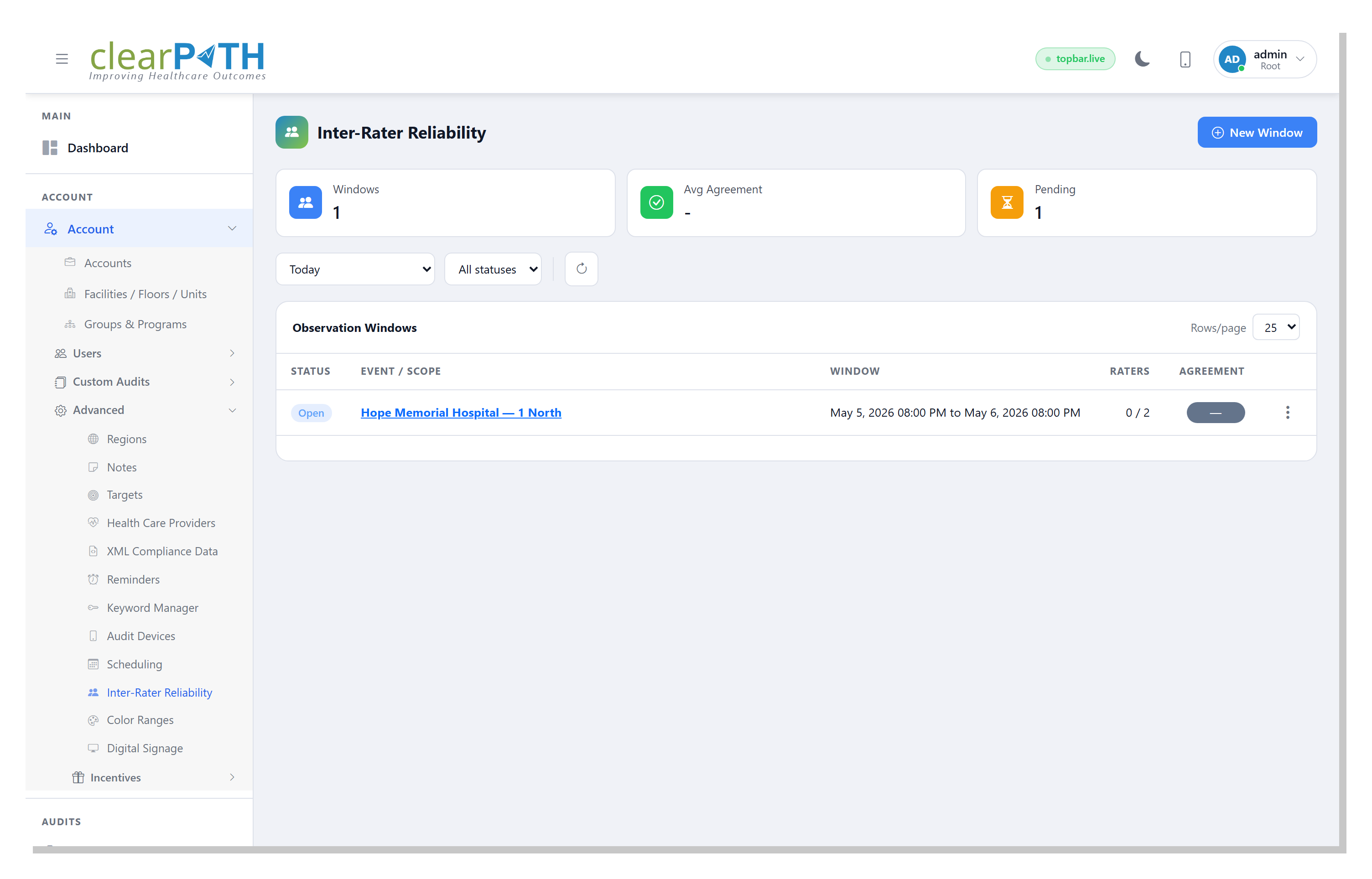
The list shows every IRR window you have scheduled. Each row is a single window — a planned period of co-observation by two or more auditors.
19.1.1. Stat Cards
Cards across the top give you a rollup of the filtered list:
Windows— the total number of IRR windows that match the current filters.Avg Agreement— the average rate-agreement score across the windows that have already been computed. Shown as—until at least one window has been computed.Pending— windows that are stillOpenorIn progressand have not yet been computed.
19.1.2. Page Header Actions
New Window— opens the IRR Window Editor to schedule a new IRR window.
19.1.3. Filtering
Time period — restrict the list to a preset window such as
Today,This Week, orThis Quarter.All statuses— filter by lifecycle state:Open,In progress,Computed, orClosed.Refresh — reload the list without losing your filter selections.
19.1.4. Row Columns
Status— a coloured pill showing the window’s current state (see Window Statuses).Event / Scope— the event label you assigned to the window with the facility (and unit, when set) underneath. Click the link to open the window editor.Window— the start and end of the observation period.Raters— assigned-to-expected count, for example2 / 2when both expected raters have been assigned.Agreement— a percentage pill once the window has been computed; shown as—while still pending.
19.1.6. Window Statuses
Open— the window has been scheduled but no sessions have been attached yet.In progress— at least one rater has attached a session; the window is still waiting on the others.Computed— every expected rater has attached a session and the agreement score has been calculated.Closed— the window is finalised. Closed windows are kept for the audit trail but no longer accept new sessions.
19.2. IRR Window Editor
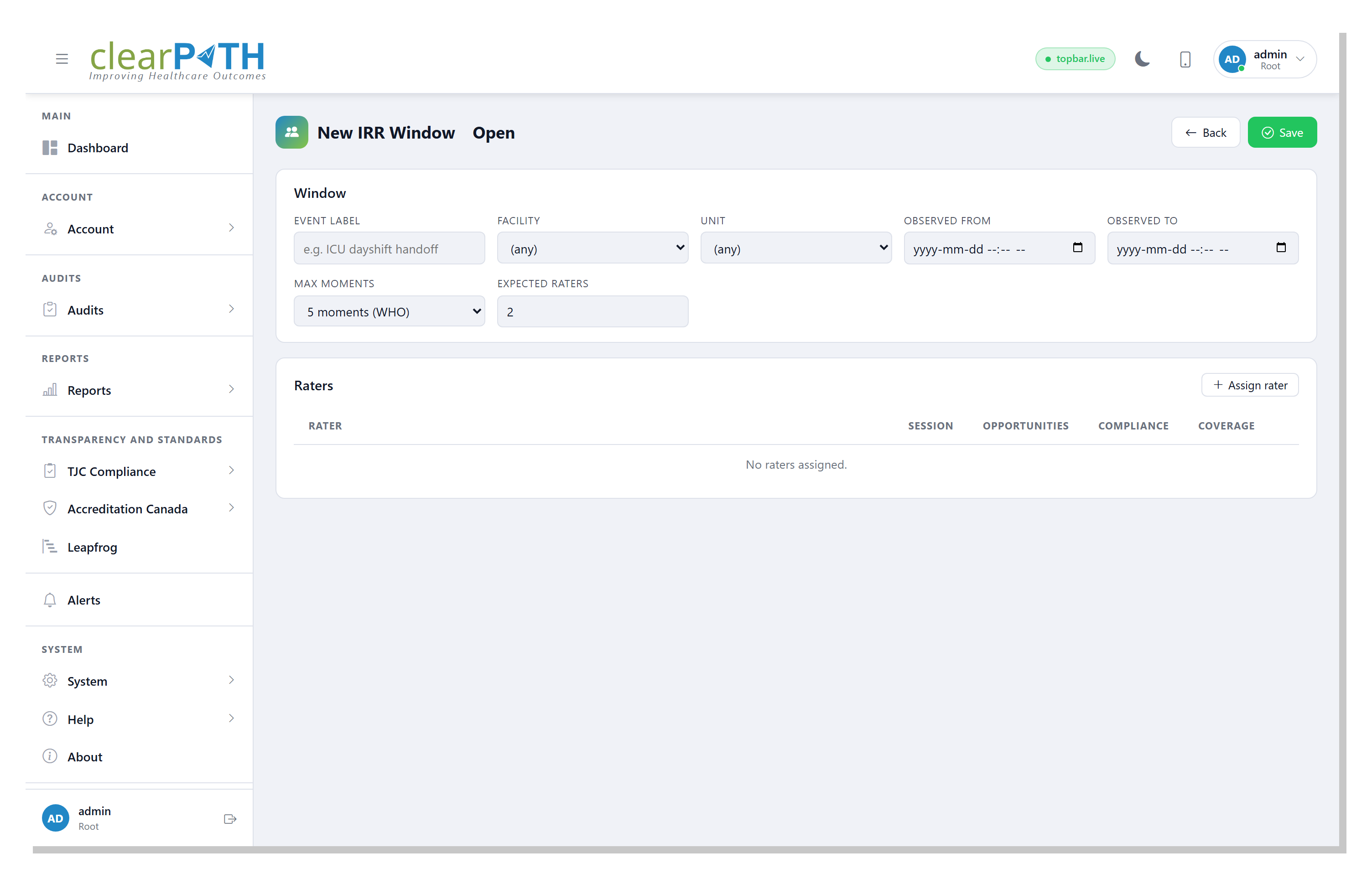
The window editor is split into three cards: the window definition, a headline metric (only shown after compute), and the rater roster.
19.2.1. Window
The top card defines the scope of the IRR exercise:
Event label— a short description, for exampleICU dayshift handoff.Facility— the facility the window applies to. Leave blank to span the whole organization.Unit— the unit within the chosen facility. Leave blank to span the whole facility.Observed from/Observed to— the date and time range during which the co-observation should happen.Max moments— which set of WHO moments to score against:2 moments,4 moments, or5 moments (WHO). Choose the set your account is configured for.Expected raters— the number of auditors you plan to have observe this event together. The window cannot be computed until every expected rater has attached a session.
19.2.2. Page Header Actions
Back— returns to the IRR list without saving.Compute— re-runs the rate-agreement calculation. Visible once enough sessions are attached.Save— saves the window definition.
19.2.3. Rate Agreement Card
After at least two raters have attached sessions and you click
Compute, the editor shows a headline card with:
The overall Rate Agreement percentage and a high / moderate / low interpretation.
The number of raters compared.
Total opportunities recorded across all raters.
Opportunity delta — how much the raters’ opportunity counts differ. A large delta is a sign that one auditor is seeing very different events than the other(s).
The timestamp of the most recent compute.
19.2.4. Raters
The Raters card lists every auditor assigned to the window. Click
Assign rater to add another auditor; choose the user, and
optionally pick the hand-hygiene session that auditor used during
the window. (The session can be linked later if it has not been
recorded yet.) Each row shows the rater’s session, opportunities
observed, individual compliance percentage, and how much of the
window they covered.
19.2.5. Per-Moment Comparison
After compute, an additional table breaks the score down by WHO moment so you can see which moments the raters disagreed on most. This makes it easy to focus coaching on a single moment rather than on overall technique.