16. Groups and Programs
Groups (sometimes called Programs) let you bundle patient care units together under a shared label — for example an ICU Care Team rolling up several step-down units, or a Surgical Program covering every OR and recovery room. Groups show up as filter options on the dashboard and on many reports, so you can track compliance for a program of care rather than a single unit.
To open the Groups list, go to Account | Groups & Programs.
16.1. Group List
16.1.1. Stat Chips
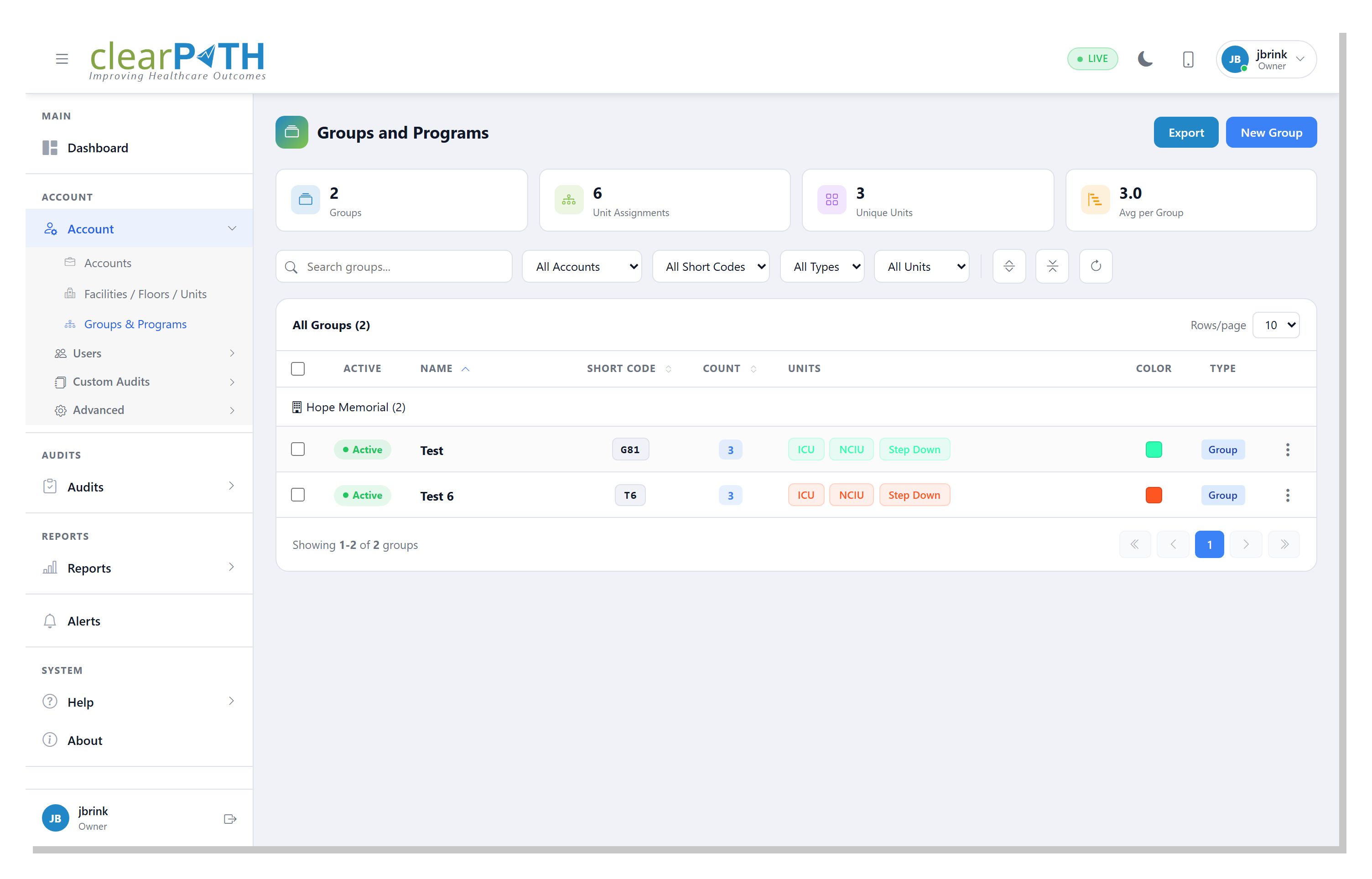
Cards across the top give you an instant rollup:
Groups— the total number of groups on the account.Unit Assignments— the total number of unit-to-group links across all groups. A single unit that belongs to three groups counts as three assignments.Unique Units— how many distinct units appear in at least one group.Avg per Group— the average number of units per group.
16.1.2. Page Header Actions
New Group— opens the quick-create modal (see New Group Quick-Create).Export— saves the current (filtered) list to HTML, CSV, or Excel.
16.1.3. Filtering
Search groups…— matches text in the group name.All Accounts— scope to a single account.All Short Codes— filter by the group’s short code abbreviation.All Types— filter by the internal type label (Group,Program, …).All Units— show only groups that contain a particular unit.Expand-all / Collapse-all — expand or collapse every
Unitscolumn so you can see all assigned units at once, or collapse long lists back to a summary count.Refresh — reload the list.
16.1.4. Row Columns
Rows group by facility. Each row shows:
Active— a greenActivebadge when the group is in use, grey when disabled. Display-only — to change the active state, open the Group Editor and toggleActive.Name— the group name.Short Code— a short abbreviation used in reports and dashboards (e.g.ICU,T6).Count— the number of units assigned to the group.Units— unit chips for each member; long lists collapse to+N more. Click+N moreto expand the full list, orlessto collapse it again.Color— the color swatch used to tint the group on dashboard charts.Type— the internal type classification.
16.1.6. Bulk Selection
Tick one or more checkboxes to reveal the bulk-selection bar, then
Delete Selected to remove several groups at once. Click the
x to clear the selection.
16.2. New Group Quick-Create
The New Group button on the page header opens a compact modal for
creating a group in one step.
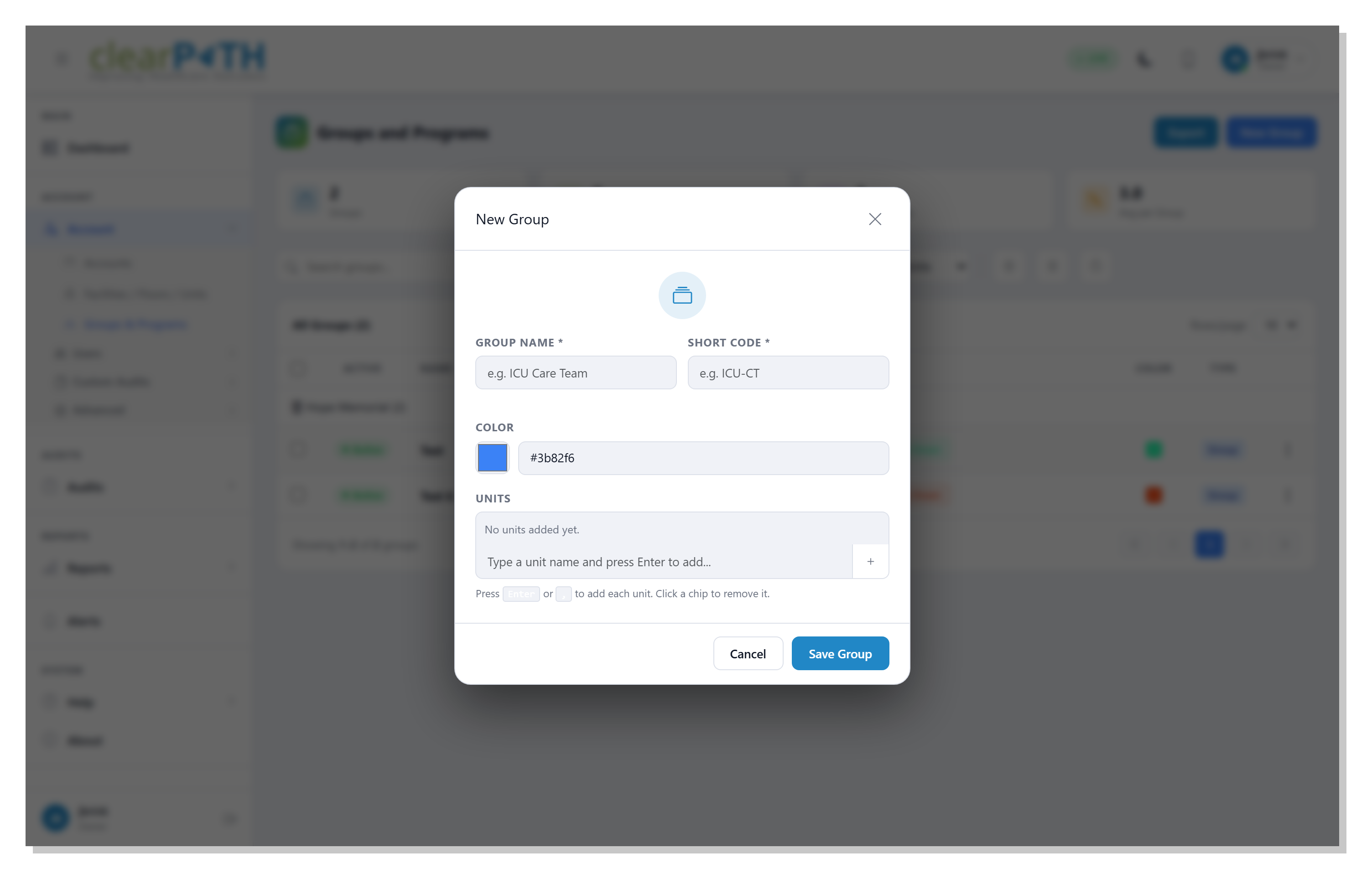
Group Name— a human-readable label, e.g.ICU Care Team.Short Code— a short identifier (up to 12 characters) automatically upper-cased as you type. Used on reports and on dashboards that need a compact label.Color— pick a color with the swatch or paste a hex value. Used to tint the group’s charts.Units— type a unit name and pressEnter(or a comma) to add it as a chip. Click a chip to remove it.
Click Save Group to create the group, or Cancel to discard.
16.3. Group Editor
Choosing Edit from a row’s action menu opens the full editor,
which includes everything in the quick-create modal plus an
Active toggle and a dedicated Members tab.
16.3.1. General Tab
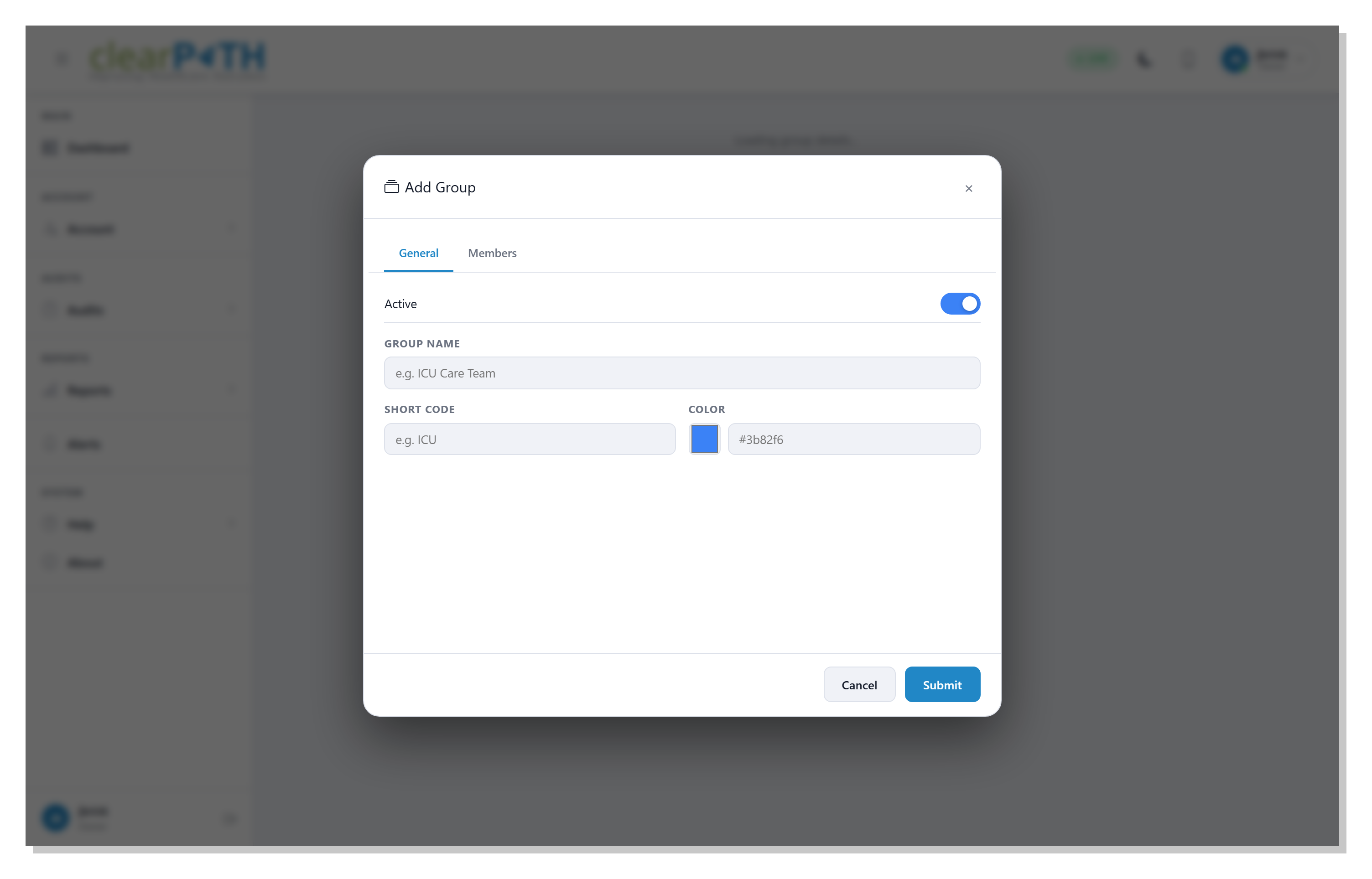
Active— toggle the group on or off without deleting it. Inactive groups are ignored by dashboards, reports, and filter pickers.Group Name— the display label.Short Code— a short identifier (up to 3 characters in the full editor).Color— pick a color with the swatch or paste a hex value.
16.3.2. Members Tab
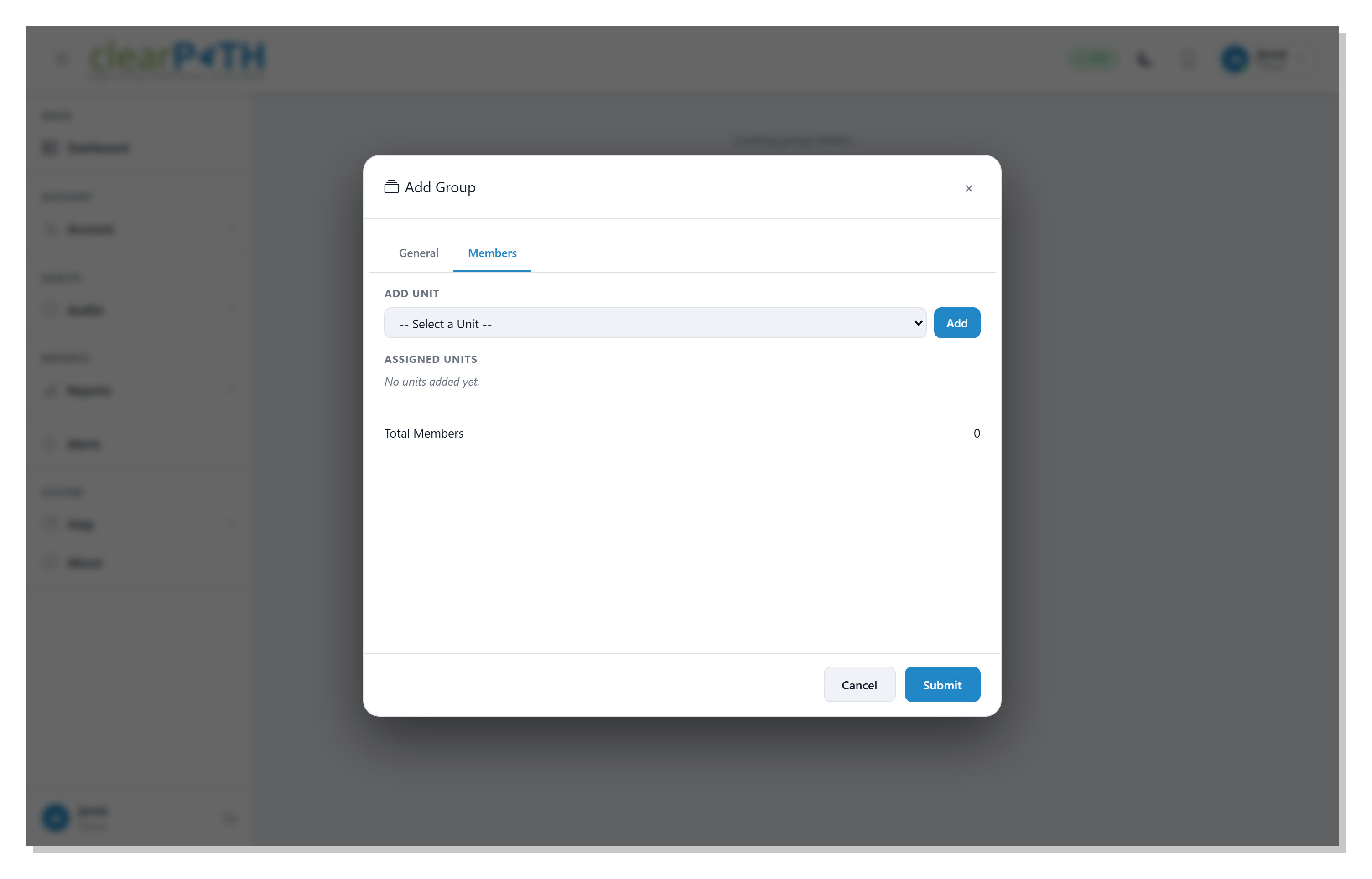
Manage which units belong to this group.
Add Unit— pick a unit from the dropdown and clickAdd. The dropdown lists every unit not already in the group.Assigned Units— the chips show every unit currently in the group. Click a chip to remove the unit from the group.Total Members— a live count of the units currently assigned.
Click Submit to save the changes or Cancel to go back
without saving.