3. Main Menu
The clearPath web interface has two persistent menus. The top bar runs along the very top of every screen and holds the product branding, system-wide controls, and your profile. The sidebar runs down the left-hand side and is your launch pad for every feature in clearPath. Between the two, you can reach anything in the application in one or two clicks.
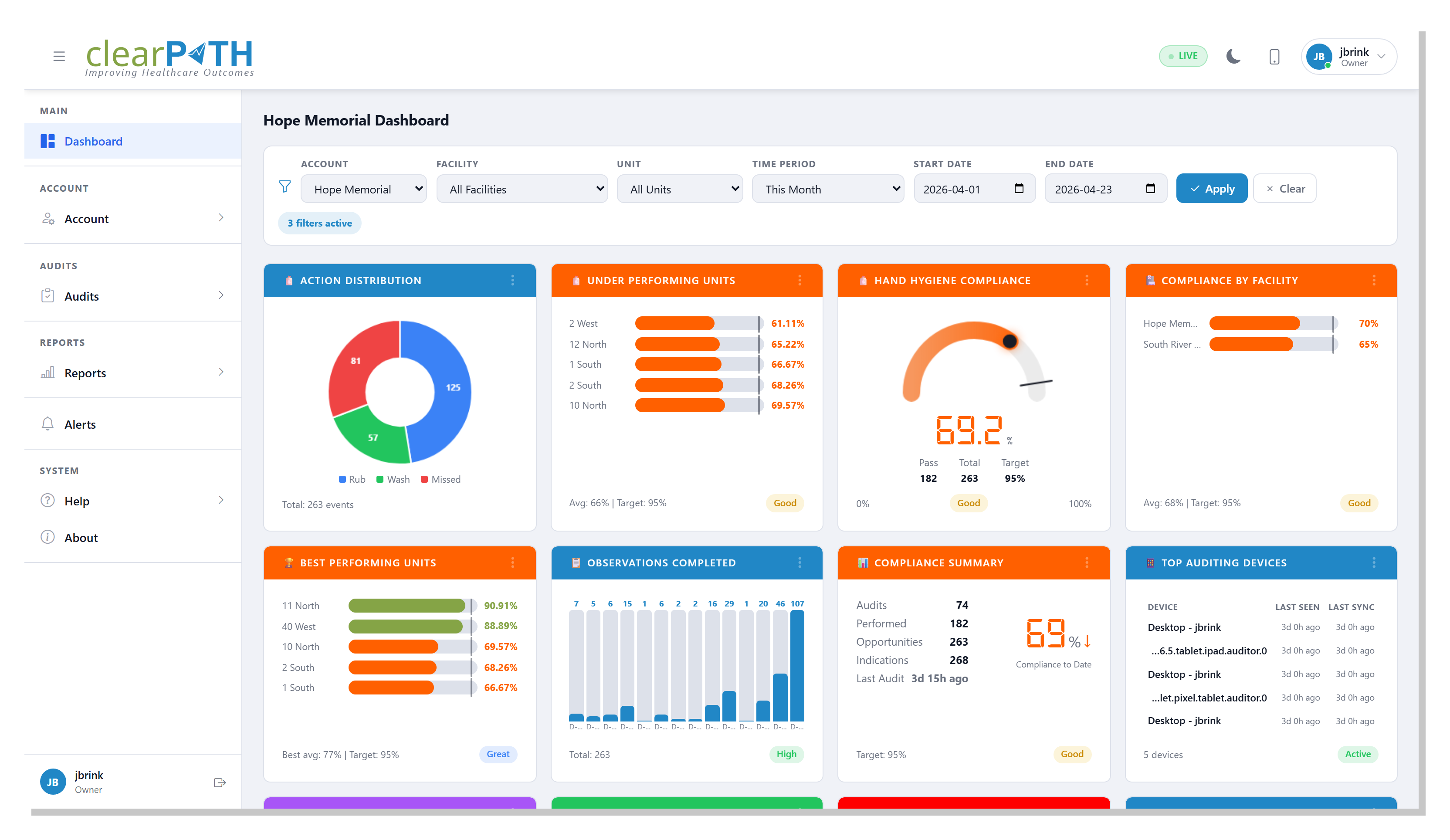
3.1. The Top Bar
Reading the top bar from left to right:
Hamburger button (
☰) — collapses the sidebar to a narrow icon strip so you have more room for the dashboard on smaller screens. Click it again to expand the sidebar back out.Product logo and slogan — a click on the logo returns you to the main Dashboard from anywhere in the application.
LIVE badge — a quick indicator that the current page is wired up to the live data feed rather than a static or cached view.
Theme toggle (sun / moon) — flips the whole interface between light and dark themes. Your choice is remembered per device.
Mobile-mode switch (phone icon) — jumps into the streamlined Mobile Mode layout. Handy for tablets when you want the auditor-friendly view without signing in on a phone.
Profile button — shows your initials on an avatar, your user name, and your role. Click it to open the profile dropdown described below.
3.1.1. The Profile Dropdown
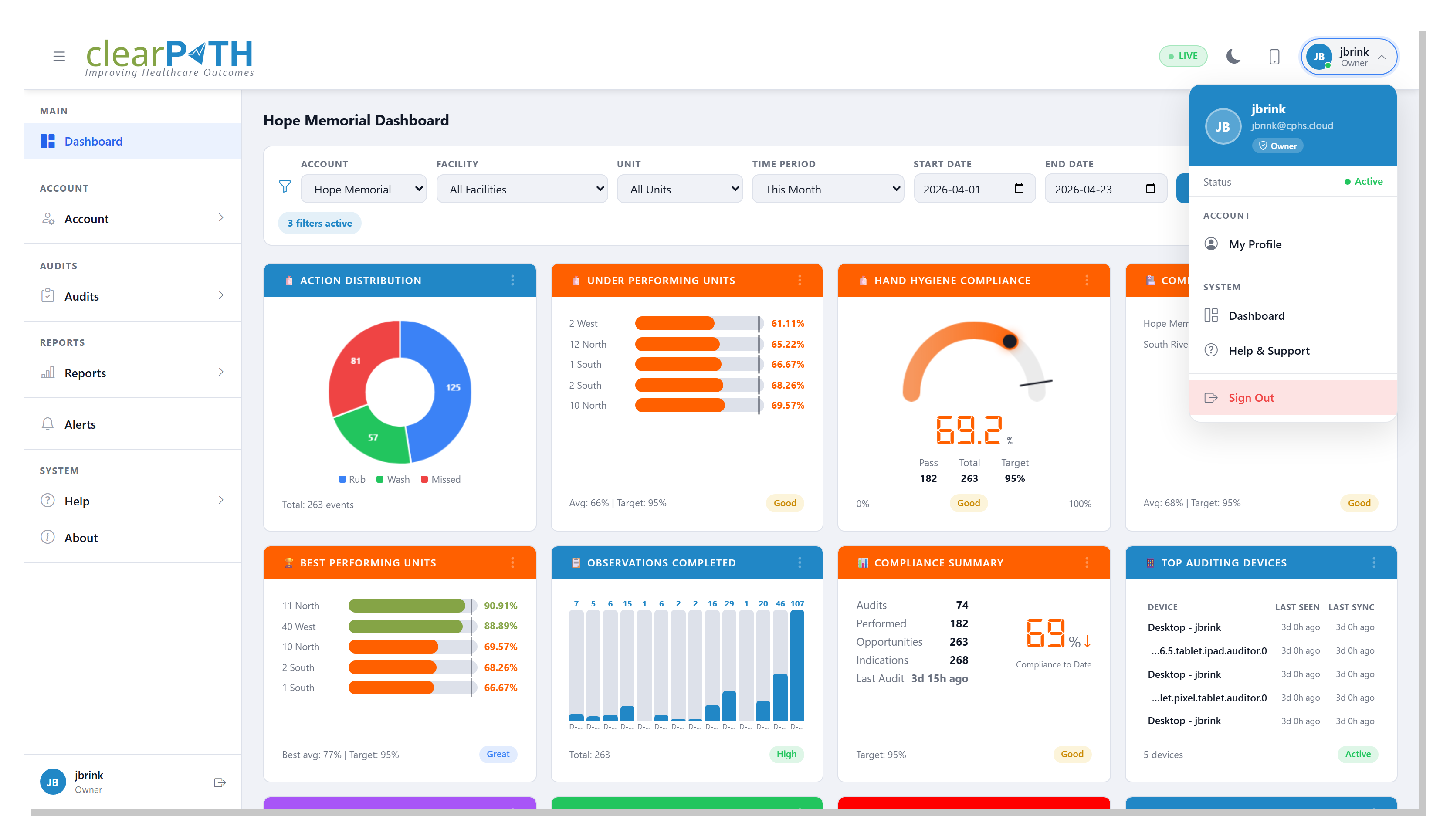
Clicking the profile button opens a dropdown that pulls together the things you are most likely to need next:
A summary card showing your avatar, user name, email address, and a coloured
Administrator/Manager/Auditorrole badge.A
Statusrow showing whether your account is Active, Suspended, or Expired.My Profile— opens your user profile where you can update your name, password, notifications, and two-factor settings.Dashboard— a one-click shortcut back to the main Dashboard.Help & Support— opens this help site in a new tab.Sign Out— ends your session and returns you to the sign-in screen.
3.2. The Sidebar
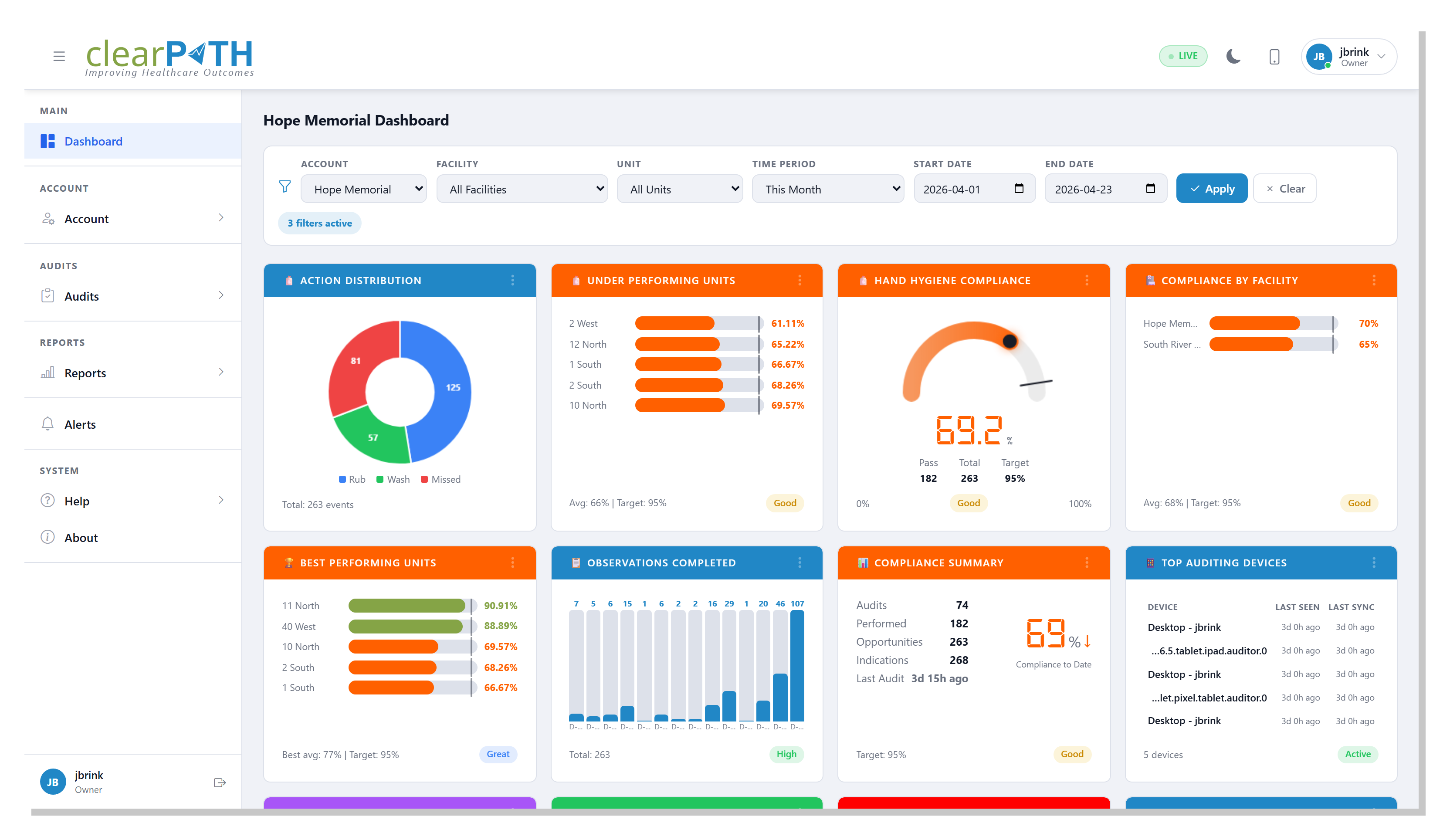
The sidebar is grouped into labelled sections so similar tasks sit together. Depending on which edition of clearPath you have, and which features your administrator has enabled, some items may be hidden or disabled.
Section |
What’s inside |
|---|---|
MAIN |
Your home base: the Dashboard. |
ACCOUNT |
Everything about who is in the system and where they work: Accounts, Facilities / Floors / Units, Groups & Programs, Users, and Custom Audits. The Advanced sub-menu below it adds Regions, Notes, Targets, Health Care Providers, XML Compliance Data, Reminders, Keyword Manager, Audit Devices, Color Ranges, Digital Signage, and the Incentives sub-group (Challenges, Badges, and Points Ledger). |
AUDITS |
The day-to-day auditing view: live Custom Audit Sessions and Hand Hygiene Sessions. |
REPORTS |
Everything to do with reports: the Reports list, Distribute, Archive, and Report Groups. |
SYSTEM |
Administrative tools — Alerts, Help, and About. |