13. Health Care Providers
Health Care Providers (HCPs) are the types of staff your auditors record observations against — nurses, physicians, dietary staff, EMS, environmental services, and any custom role your organization tracks. The HCP list controls:
the dropdown of provider types auditors see in cp2go and in the web observer,
the per-HCP colors used on dashboards and charts,
the FTE counts used to weight results across roles.
To open the list, go to Account | Advanced | Health Care Providers.
13.1. Health Care Providers List
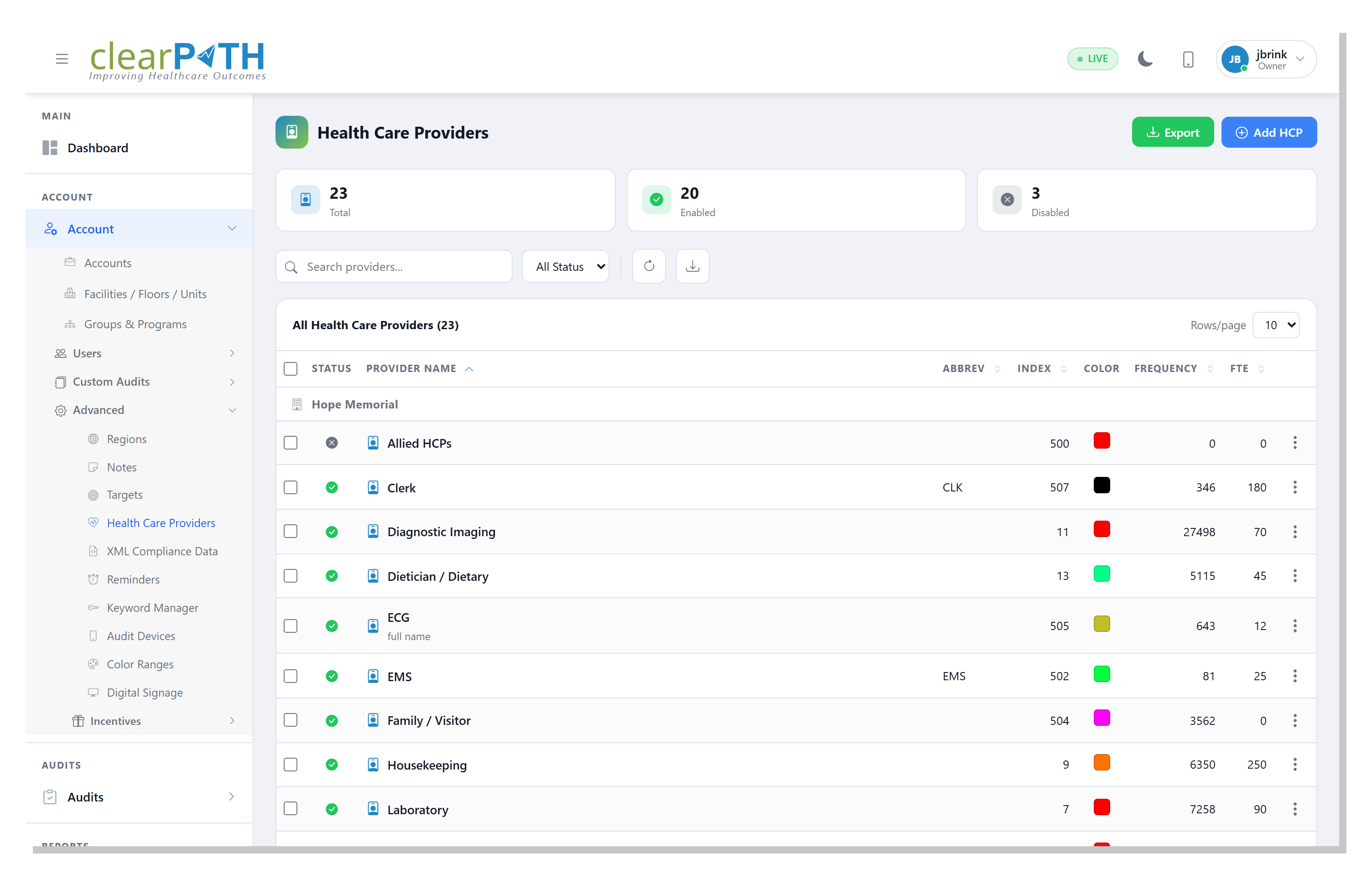
13.1.1. Stat Chips
Cards across the top give you an instant rollup:
Total— every provider type defined on the account.Enabled— types currently visible to auditors.Disabled— types kept on file but hidden from new audits.
13.1.2. Page Header Actions
Add HCP— opens the editor (see Provider Editor) to create a new provider type.Export— saves the current (filtered) list to HTML, CSV, or Excel.
13.1.3. Filtering
Search providers…— matches text anywhere in the provider name.All Status— showEnabled,Disabled, or all providers.Refresh — reload the list.
13.1.4. Row Columns
Rows are grouped by account. Each row shows:
Status— a green checkmark when enabled, grey circle when disabled. Click the icon to toggle the status without opening the editor.Provider Name— the label auditors pick from the dropdown. A second line shows an optional description.Abbrev— the short abbreviation that appears on compact reports (e.g.CLK,EMS).Index— the provider index used for ordering the dropdown that auditors see.Color— the color swatch used on dashboards, charts, and reports. Click the swatch to open the color picker and change it on the spot.Frequency— how many times this provider type has been recorded in observations (display-only, updates with new audits).FTE— the full-time-equivalent weighting used by reports and by the HCP Full Time Equivalents dashboard widget.
13.1.6. Bulk Selection
Tick one or more checkboxes to reveal the bulk-selection bar, then
Delete Selected to remove several provider types at once. Click
the x to clear the selection.
13.2. Provider Editor
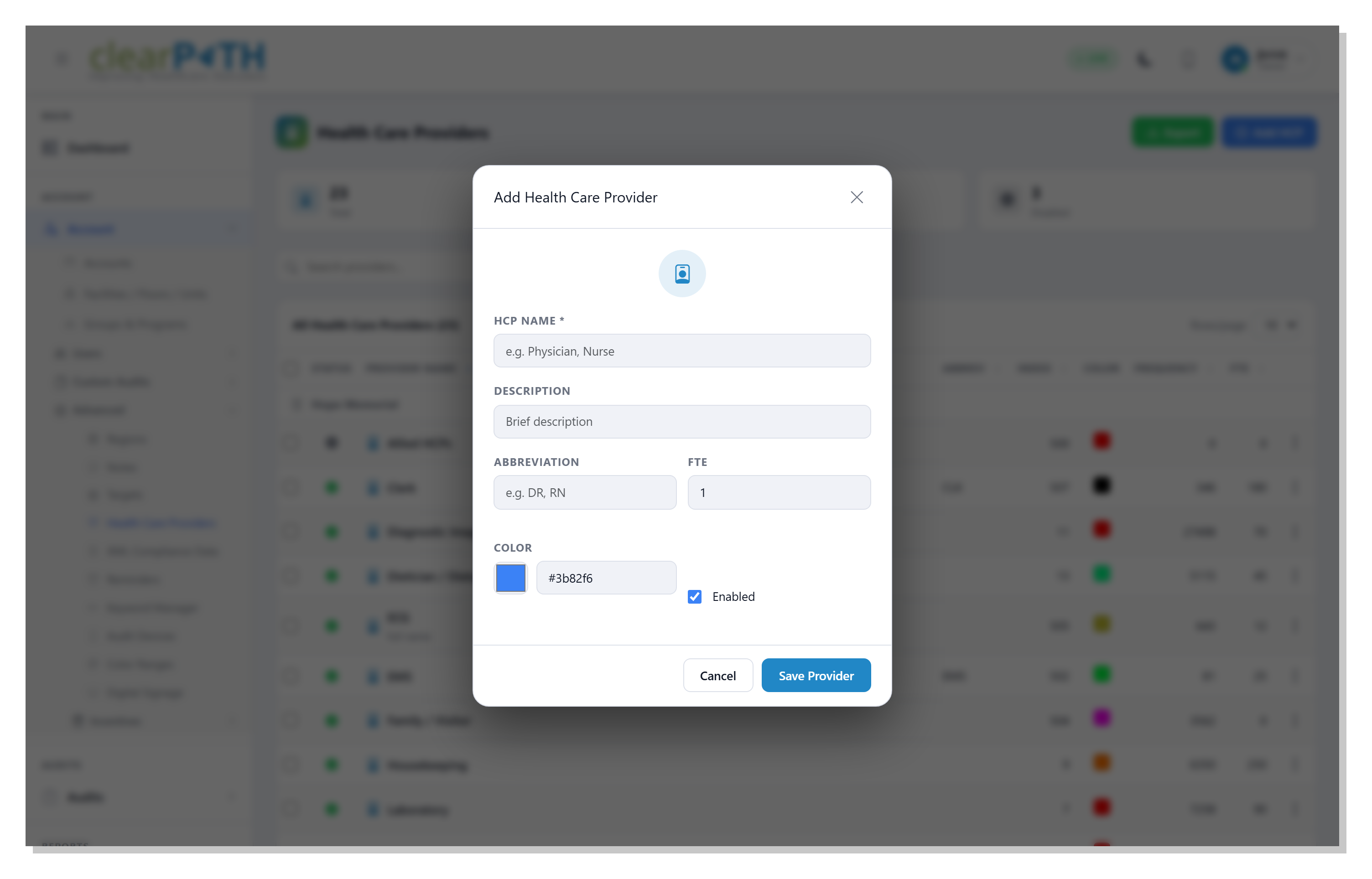
HCP Name— the display label (for example,Nurse,Physician,Dietary).Description— an optional longer description shown under the provider name in the list.Abbreviation— a short form (up to 10 characters) used in reports and on compact dashboards.FTE— the full-time-equivalent count for this provider. Reports that normalize by staffing (compliance per FTE, for example) read this value.Color— pick a color with the swatch or paste a hex value. The color ties the provider to its bars and segments on every chart that groups by HCP.Enabled— tick to show the provider in the auditor dropdown; untick to hide it from new audits without losing history.
Click Save Provider to keep your changes or Cancel to
discard them.
Tip
Disabling a provider keeps every past observation that used it intact — the past records still reference the provider by name and color. Disable rather than delete when a role is retired, so historical reports continue to read correctly.