37. Security
clearPath is used in healthcare environments that store protected health information, so the platform is built and maintained with a defence-in-depth posture. This page summarises the ongoing security testing the product undergoes and the features available to administrators for monitoring and blocking abusive traffic.
To open the security pages, go to System | Security. The Security submenu is visible to root and administrator accounts.
37.1. Penetration Testing
Every release of clearPath is reviewed against a healthcare-compliance security checklist. The review combines static source review with targeted dynamic probes and covers the following categories:
Authentication — password strength, hashing, two-factor enrolment and verification, password-reset flows, and handling of failed login attempts.
Session and token handling — session lifetime, idle timeout, session fixation, token scope, and logout behaviour.
Authorization and privilege escalation — vertical escalation (standard user raising their own privileges), horizontal escalation (one tenant reaching another tenant’s data), and insecure direct object references in record IDs passed to the REST API.
Input handling — SQL injection, cross-site scripting, command injection, path traversal, and validation of file uploads.
Transport and deployment — HTTPS configuration, certificate validation, security headers, cookie flags, and safe defaults for new installations.
Logging and observability — that security-relevant events (failed logins, manual blocks, privilege changes) are captured and reviewable by an administrator.
Findings from each review are tracked through remediation and retested before the release ships.
37.2. Two-Factor Authentication
clearPath supports time-based one-time password (TOTP) two-factor authentication. When a user enables two-factor authentication on their profile, the sign-in flow changes as follows:
The user signs in with username and password as usual.
clearPath creates a pending session and prompts for the current six-digit code from their authenticator app.
The session is promoted to a full session only after the code is verified. Every other route is denied while the session is in the pending state.
Repeated wrong codes count against the failed-login counter for the user’s IP address and contribute to automatic blocking (see Rate Limiting and Connection Limits).
Administrators can require two-factor authentication for specific user accounts from the user editor.
37.3. Password Protection
User passwords are never stored in plain text and are never visible to administrators, including system-level administrators. When a user sets or changes a password, clearPath converts it into a one-way protected form using a modern, industry-standard key derivation function with per-user randomisation. The original password cannot be recovered from what is stored — not by clearPath, not by support staff, and not by anyone who obtains a copy of the database.
At sign-in, clearPath applies the same process to the password the user typed and compares the result to the stored value. The typed password is held only long enough to perform that check and is never written to disk in a readable form.
Because stored passwords cannot be reversed, a forgotten password must be reset, not retrieved. The password-reset flow requires the user to prove control of their registered email address before a new password can be chosen.
37.4. Password Requirements
Every user account is protected by a password that must meet your account’s password policy. The policy is made up of a minimum length and a set of character-class rules. The defaults are:
Minimum length: 8 characters.
At least one uppercase letter (
A–Z).At least one lowercase letter (
a–z).At least one number (
0–9).At least one symbol (for example
!,@,#,$,%).
Administrators can tighten these rules for their account. Raising the policy does not invalidate existing passwords; users are held to the new rules the next time they change their password.
37.4.1. Password Strength Meter
As a password is typed, clearPath scores it and shows a strength indicator using one of five bands:
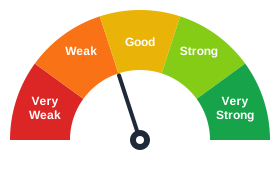
Very WeakWeakGoodStrongVery Strong
The score combines the password’s length, the mix of character types
used, and the absence of obvious weak patterns such as long runs of
repeated characters or simple sequences. A password that only just
clears the minimum requirements may still score low — aim for
Good or higher.
Tips for a strong password:
Use a passphrase of three or more unrelated words instead of a single word with substitutions.
Mix uppercase, lowercase, numbers, and symbols.
Avoid names, dates, and words that appear in your profile.
Do not reuse a password from another service.
Password protection is layered on top of the other controls described on this page: two-factor authentication, rate limiting, failed-login auto-blocking, and the blocklist. A stolen password alone is not enough to sign in to an account that has two-factor authentication enabled.
37.5. Rate Limiting and Connection Limits
clearPath tracks request volume per client IP address and enforces three guards:
Requests per second — a short-window cap that stops burst floods from a single source.
Requests per minute — a longer sliding window that catches sustained scraping or brute-force attempts that stay under the per-second threshold.
Concurrent connections — a hard cap on the number of simultaneous open connections from one IP. This prevents a single client from tying up server resources.
The limits are tuned for normal dashboard traffic, including pages that fan out to many widget requests on load. When a client crosses any of the thresholds, its requests are rejected until the window resets. Repeated violations add the IP to the blocked list automatically.
Failed login attempts are tracked separately. A client that fails sign-in too many times within a 15-minute window is added to the blocked list and must be unblocked by an administrator before it can try again.
37.6. Blocked IPs
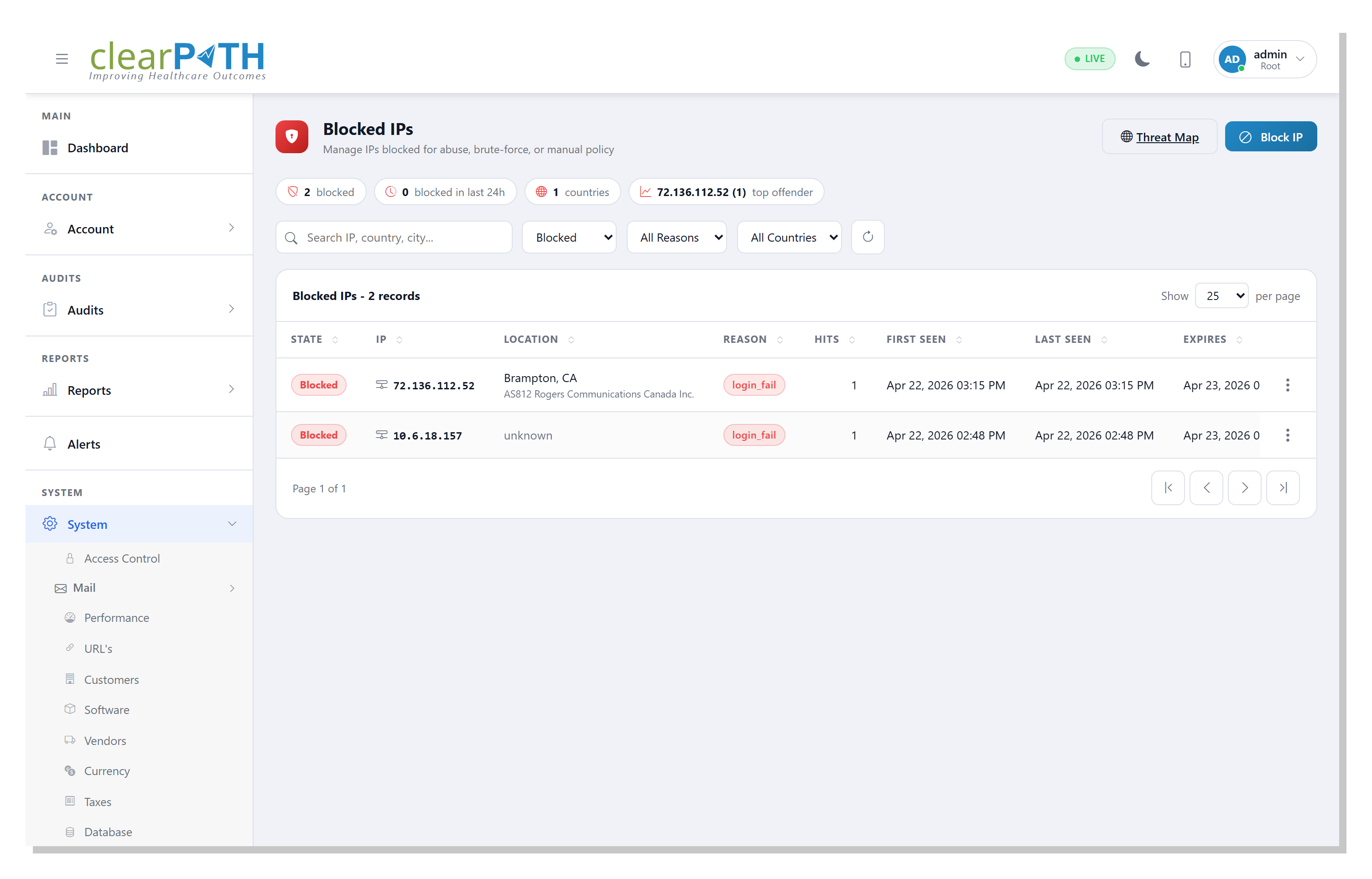
The Blocked IPs page lists every client IP address clearPath has blocked, together with the reason, when it was first and last seen, how many times it has hit the server, and when the block will expire.
37.6.1. Stat Chips
Four cards across the top of the page summarise the current state of the blocklist:
blocked— total number of IPs currently blocked.blocked in last 24h— IPs that have been seen within the last day.countries— number of distinct countries represented by the currently blocked IPs.top offender— the IP with the highest hit count, followed by its hit count in parentheses.
37.6.2. Toolbar
The toolbar above the table provides:
Search — filter by IP address, country, city, or internet service provider.
State — show only
Blockedrecords, onlyUnblockedrecords, orAll.Reason — filter by why the IP was added:
Failed Login— too many failed sign-in attempts.Manual— added by an administrator.Rate Flood— exceeded the request-rate limits.
Country — limit the table to a specific country.
Refresh — reload the list from the server.
37.6.3. Table Columns
The table has the following columns:
State —
BlockedorAllowed.IP — the client IP address.
Location — city and country if geolocation is available, with the ISP shown on a second line.
Reason — why the IP was added to the list.
Hits — how many times this IP has hit the server.
First Seen — the first time clearPath recorded traffic from this IP.
Last Seen — the most recent time this IP was observed.
Expires — when the block will automatically lift, or
Permanentif the block has no expiry.A three-dot menu for per-row actions.
37.6.5. Blocking an IP Manually
Click Block IP in the page header to add an address manually. The
dialog accepts:
IP Address — the address to block.
Reason —
Manual,Failed Login, orRate Flood.Duration —
1 hour,6 hours,24 hours,7 days,30 days, orPermanent.Notes — optional free-text context for other administrators.
37.7. Threat Map
The Threat Map is a geographic view of the currently blocked IPs. Each pin represents one blocked address placed at its approximate geolocation.
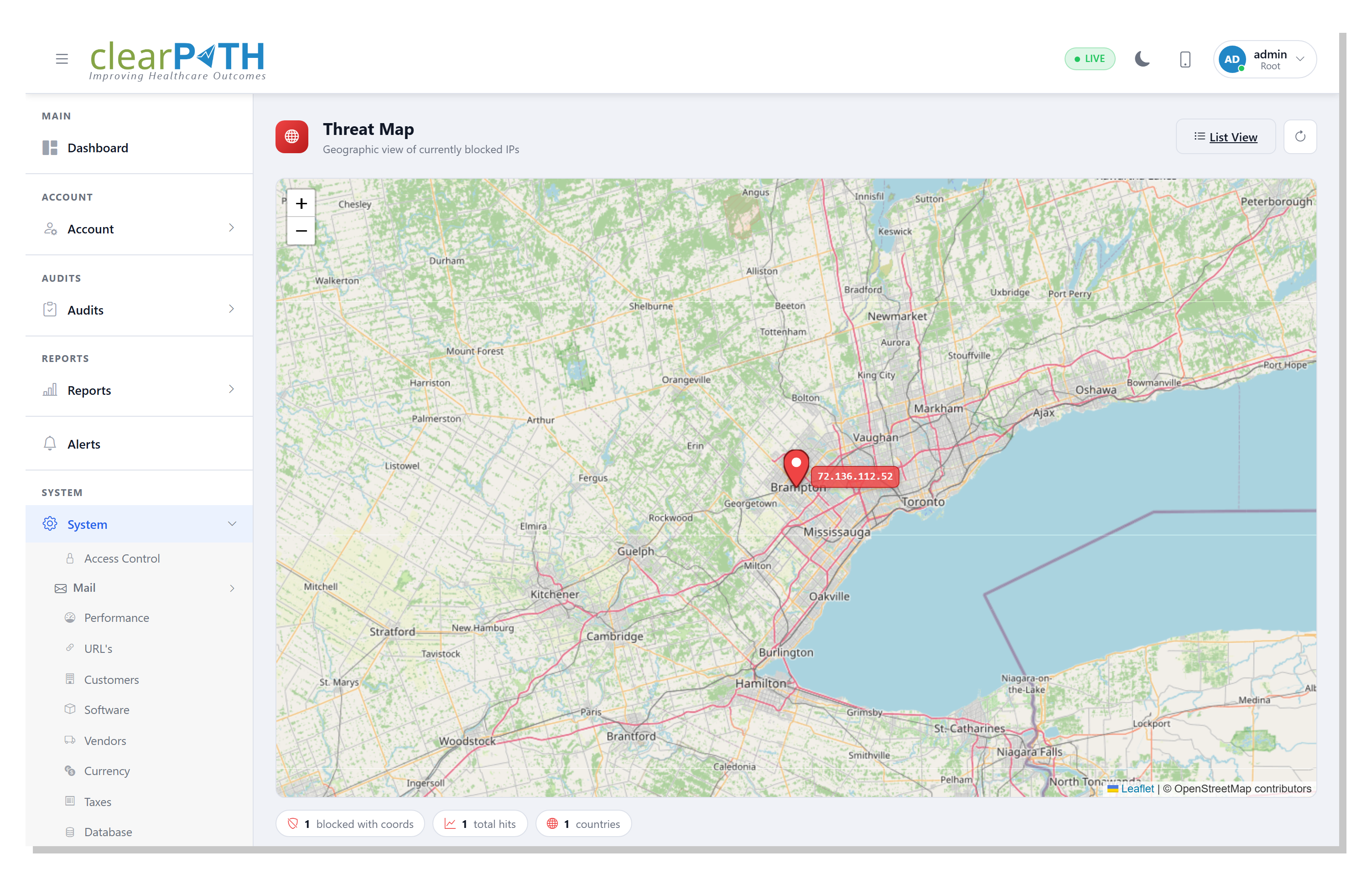
Use the List View button in the header to jump back to the
Blocked IPs table, or the refresh button to reload
the markers from the server. Clicking View on Map from a row of
the blocked-IPs table opens this page centred on that IP.
37.8. Additional Security Controls
Other security-related features documented elsewhere in this guide:
Alerts — security-related system events surface here alongside operational alerts.
If you suspect an incident or need help interpreting the blocked IPs list, contact support@clearpathhealthsolutions.com.