2. Accessing clearPath
2.1. Your URL
Your clearPath URL is https://siteid.cphs.cloud, where siteid is your three
or four digit site code. If you are not sure what your site code
is, send an email to support@clearpathhealthsolutions.com.
Tip
You can also open cp2go on a phone or tablet, type just the site code in the URL bar, and double-tap — the app expands the short code into the full address for you.
2.2. Signing In
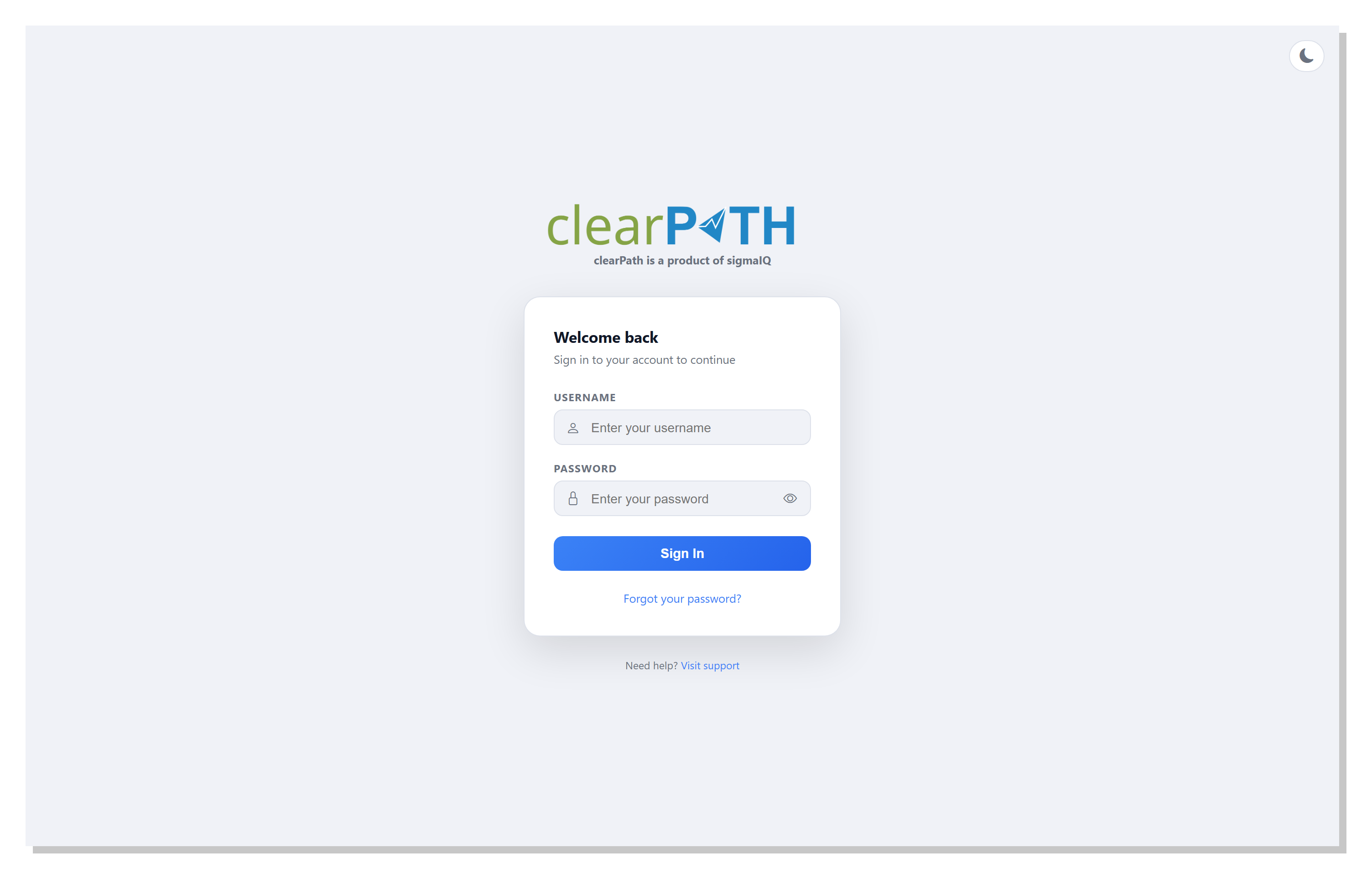
The sign-in screen asks for:
Username— the account your administrator created for you.Password— the password you set (or received with your welcome email).
Click Sign In to continue. If you have forgotten your
password, click Forgot your password? under the form; see
Resetting your Password for the reset flow.
If your administrator has enabled Two-Factor Authentication on your account, you are taken to a second screen after entering your password and asked for the six-digit code from your authenticator app.
Note
If you enter your username and password and the sign-in prompt keeps coming back, one of the following is happening:
your account doesn’t exist in clearPath,
your username or password is wrong,
your account has expired,
the role your account is in is disabled or not allowing sign-ins.
Contact us at support@clearpathhealthsolutions.com for help.
2.2.1. Theme Toggle
The sun/moon icon in the top-right of the sign-in page flips between light and dark themes. clearPath remembers the choice on each device.
2.3. Desktop and Mobile Modes
clearPath detects the kind of device you are signing in on:
On a phone or narrow screen you land in Mobile Mode, a streamlined layout optimised for running audits on the go.
On a laptop, desktop, or larger tablet you land on the full Dashboard with the sidebar and toolbar available.
Switch between the two any time from the screen-icon button in the header.
2.4. Landing Page
Once you’re signed in, clearPath takes you to the Dashboard — a live view of compliance across your organisation.
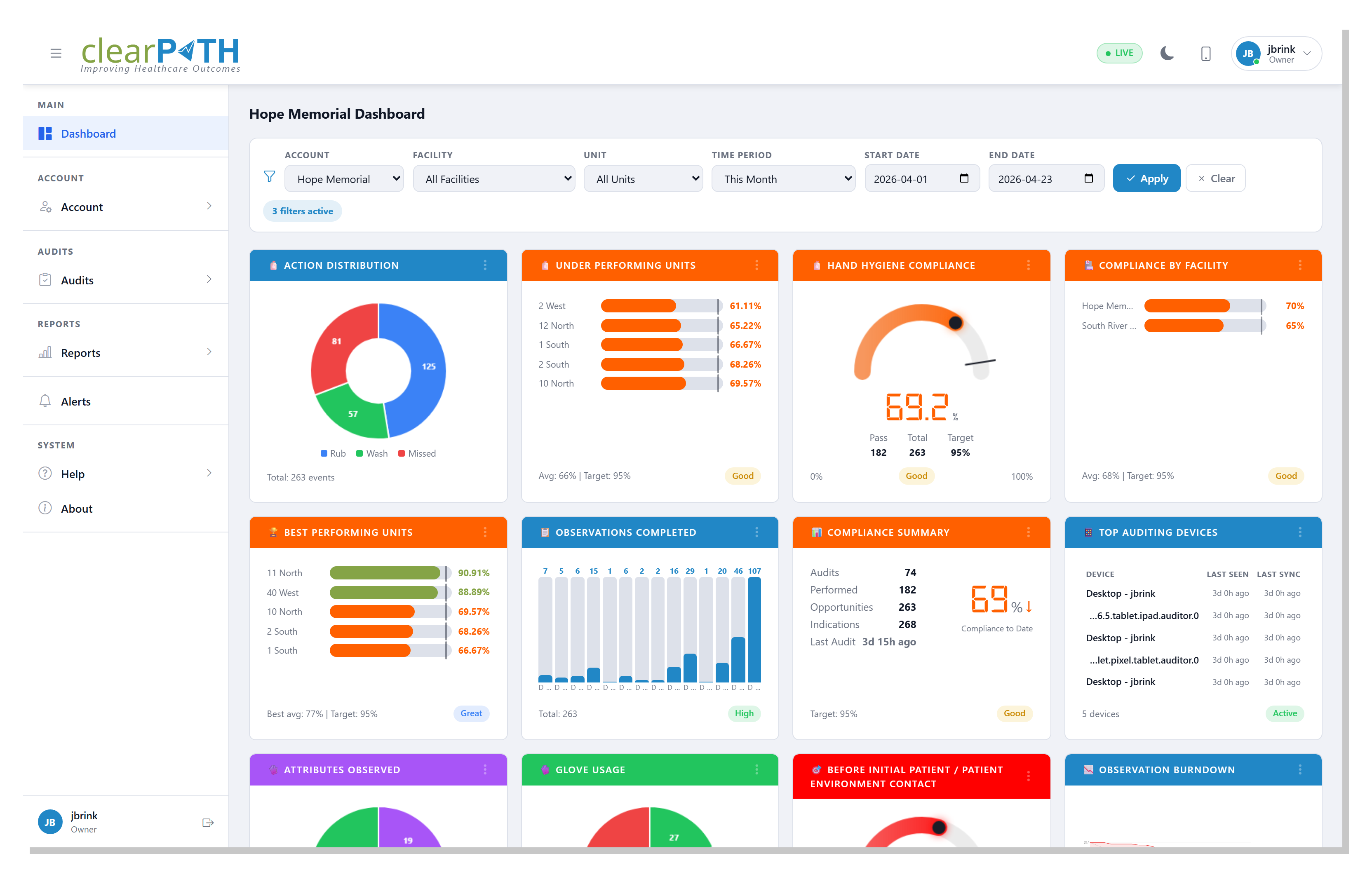
From there, the sidebar on the left is your launch pad for the rest of clearPath. See Main Menu for a tour of every item.
2.5. Signing Out
Click your avatar in the bottom-left of the sidebar and choose the sign-out icon on the right. You can also close the browser tab — clearPath times out inactive sessions automatically.