6. Accounts
An account is the top-level customer record in clearPath. Every facility, unit, user, audit session, and report belongs to exactly one account. Use the Accounts page to view the customer accounts you have access to, edit contact information, billing details, and per-account feature flags.
To open the Accounts list, go to Account | Accounts.
6.1. Accounts List
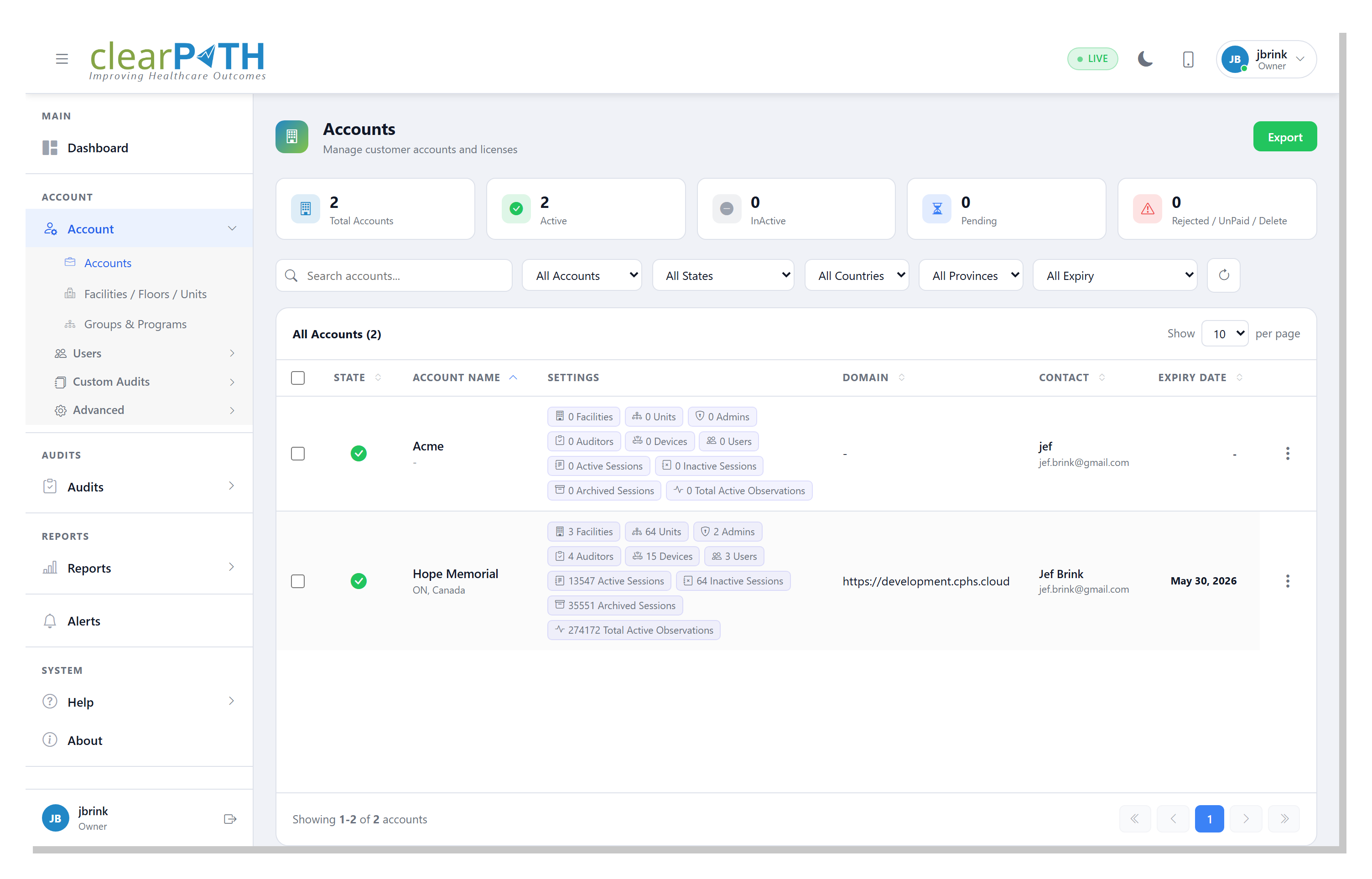
6.1.1. Stat Chips
Cards across the top give you an instant rollup:
Total Accounts— every account visible to you.Active— accounts currently in use.Inactive— accounts paused or retired.Pending— accounts waiting for approval.Rejected / UnPaid / Delete— accounts flagged for one of these administrative states.
6.1.2. Page Header Actions
Export— saves the current (filtered) list to HTML, CSV, or Excel.New Account— opens the new-account wizard (visible only to users with permission to create accounts).
6.1.3. Filtering
Search accounts…— matches text anywhere in the account name or contact.All States— filter by state (Active,Inactive,Pending Approval,Waiting For Confirm,Rejected,UnPaid,Schedule for Delete).All Countries— scope to accounts in a single country.All Provinces— scope to accounts in a single province or state. The list updates based on the country you chose.All Expiry— show accounts whose license isValid (31+ days),Expiring Soon (≤30 days), orExpired.Refresh — reload the list.
6.1.4. Row Columns
Each row is one account:
State— coloured icon showing the current state (green for active, grey for inactive, etc.). Display only.Account Name— the account name and, underneath, the province and country.Settings— compact summary chips for the account: number of facilities, units, admins, auditors, devices, users, active sessions, inactive sessions, archived sessions, and total active observations.Domain— the account’s custom domain URL, if configured.Contact— the primary contact name and email on file.Expiry Date— when the account’s license expires.
6.1.6. Bulk Selection
Tick one or more checkboxes to reveal the bulk-selection bar, then
Delete Selected to remove several accounts in one step. The
x clears the selection.
6.2. Account Editor
Click an account (or choose Edit from the row menu) to open the
Edit Account dialog. Information is organized into eight tabs. The
Leapfrog tab is shown only when the account is licensed for the
Leapfrog module, or when you sign in as a system user.
6.2.1. General
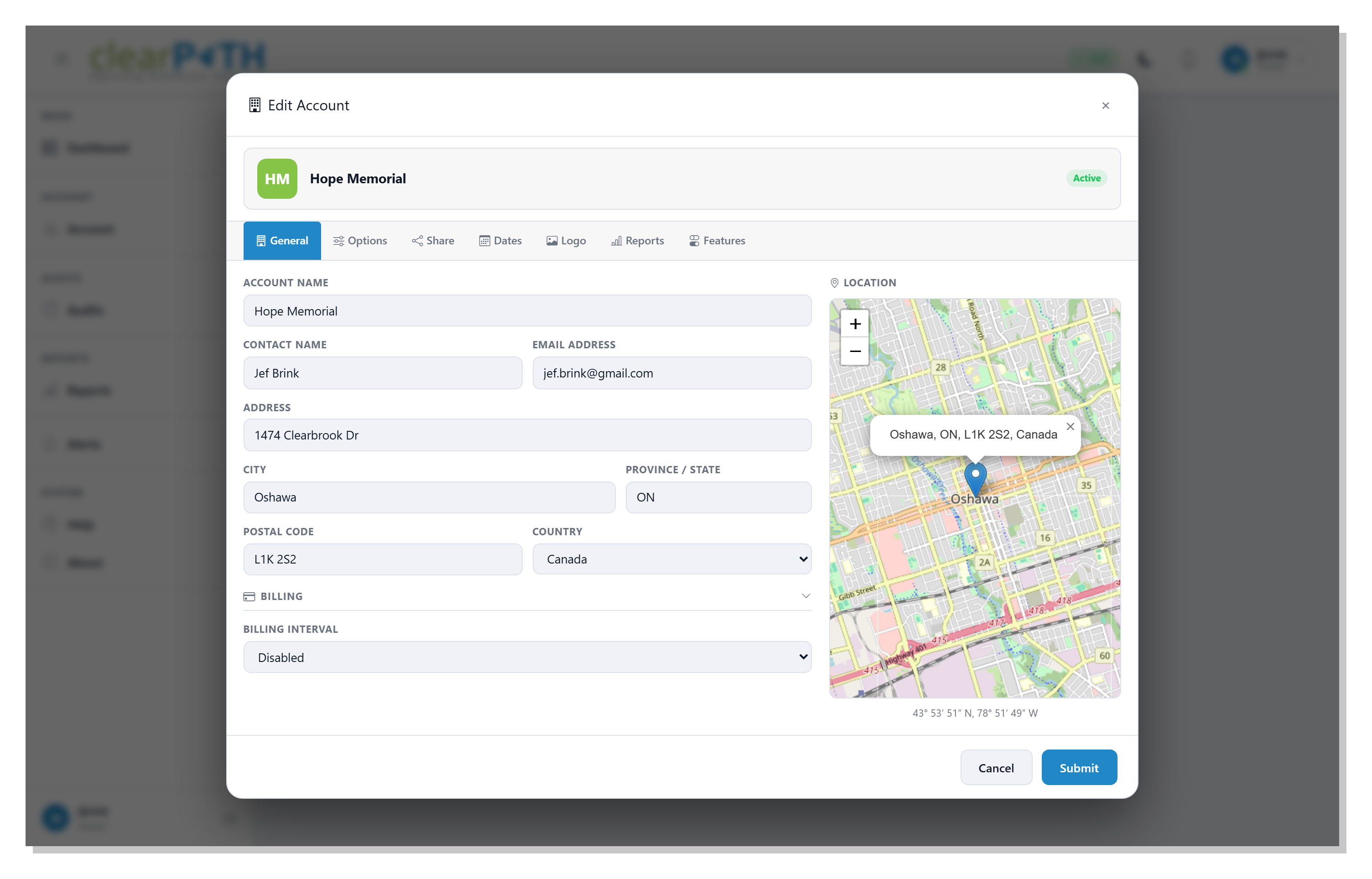
The General tab shows the account’s identity and a live map of its address on the right. Fields:
Account Name— the customer-facing name used on reports, dashboards, and emails.Contact NameandEmail Address— the primary contact clearPath emails for renewals, support, and distribution-list failures.Address,City,Province / State,Postal Code,Country— the customer’s mailing address. The map on the right updates as you edit the address.Billing Interval—Disabled(no billing),Monthly, orAnnually.
6.2.2. Options
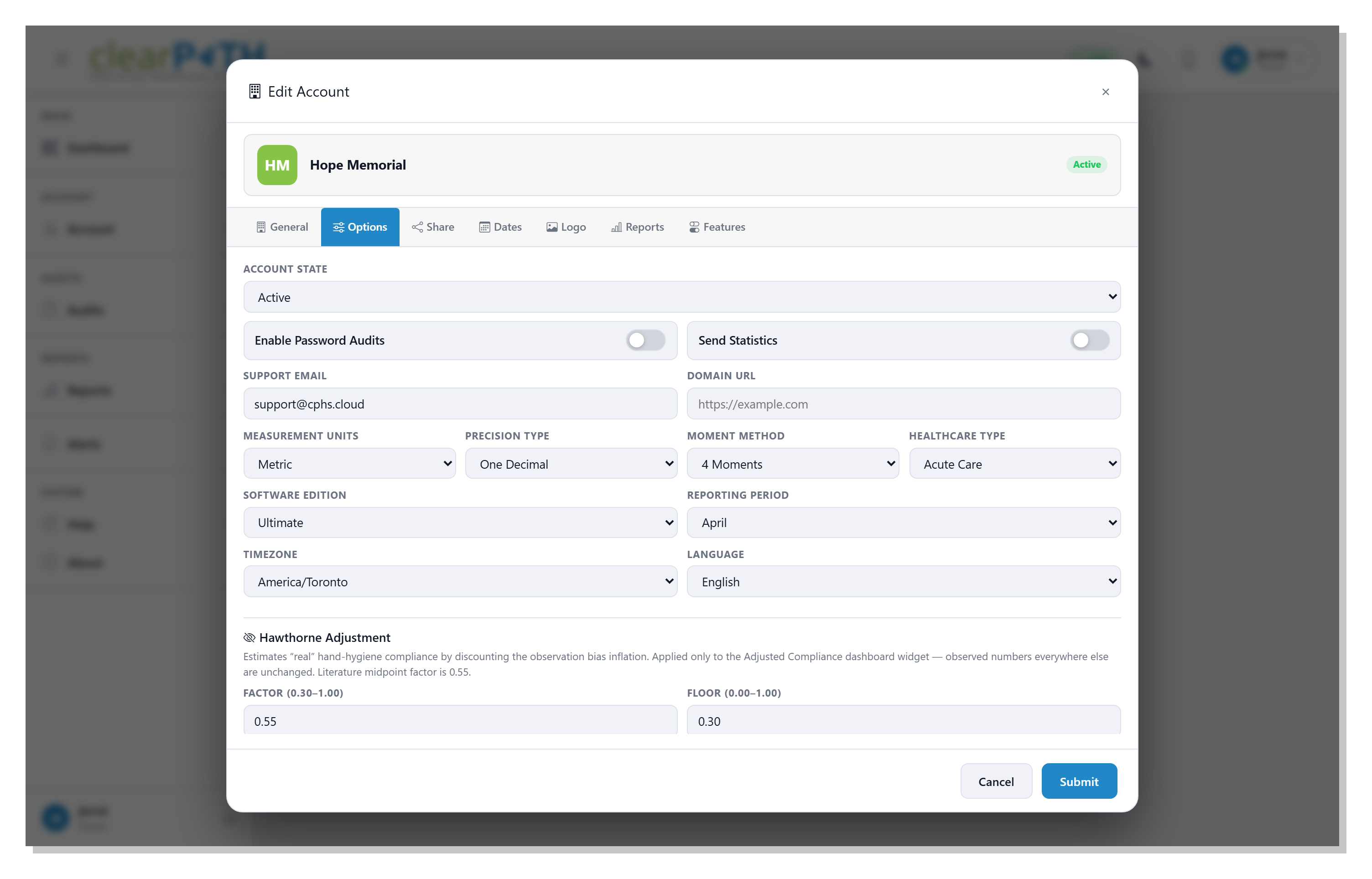
Account-wide switches and preferences.
Account State— the lifecycle state (Active,Inactive,Pending Approval,Suspended,Trial,Locked).Enable Password Audits— turn on password-policy auditing for every user on the account.Send Statistics— opt the account in or out of anonymised aggregate telemetry.Support EmailandDomain URL— the account’s branded support address and (optional) custom web domain.Software Edition—Community,Professional,Enterprise, orUltimate. Drives which features the account can reach.Moment Method—2,4, or5Moments of Hand Hygiene. Controls the set of moments auditors see in cp2go.Healthcare Type—Acute CareorLong Term Care.Reporting Period (Fiscal Year Start)— the month the account’s fiscal year begins. Every Fiscal Year dashboard and report reads from this setting.TimezoneandLanguage— the account’s default timezone and UI language.
6.2.2.1. Hawthorne Adjustment
Direct observation of hand hygiene is well known to inflate measured compliance — healthcare workers wash their hands more often when they know they are being watched. The literature calls this the Hawthorne effect [1] [2] [3] [4]. Reported gaps between observed compliance and electronically measured compliance run from roughly 1.5× to 3×, depending on the study and the unit.
clearPath does not change the raw observed numbers anywhere — the
Hand Hygiene Compliance gauge, every report, and every export
continue to show the figure auditors actually recorded. The Hawthorne
adjustment is applied only to the
Adjusted Compliance (Hawthorne)
dashboard widget, and is calculated as:
adjusted = max(observed × factor, observed × floor)
Factor— the multiplier applied to observed compliance to estimate the unobserved rate. Range0.30–1.00; default0.55. The default sits at the midpoint of values reported in the peer-reviewed literature: Srigley et al. found compliance fell from 57% under observation to 25% without it (a factor of roughly0.44) [1]; Hagel et al. reported observed-to-electronic ratios between 1.55× and 1.7× (factors of0.59–0.65) [2]; Kohli et al. found high-performing units typically showed less inflation than low-performing units [4]. SetFactor = 1.00to disable the discount and leave the widget showing the observed value unchanged.Floor— the minimum the adjusted result will be reported as, expressed as a fraction of the observed value. Range0.00–1.00; default0.30. The floor exists as a sanity guard — without it, a very lowFactorcould push the adjusted rate to a number that is not meaningful (an account with 80% observed and a factor of 0.20 would otherwise show 16%).
The adjustment is applied at display time only; raw audit data, historical exports, and benchmark sharing are never adjusted.
References
6.2.3. Share
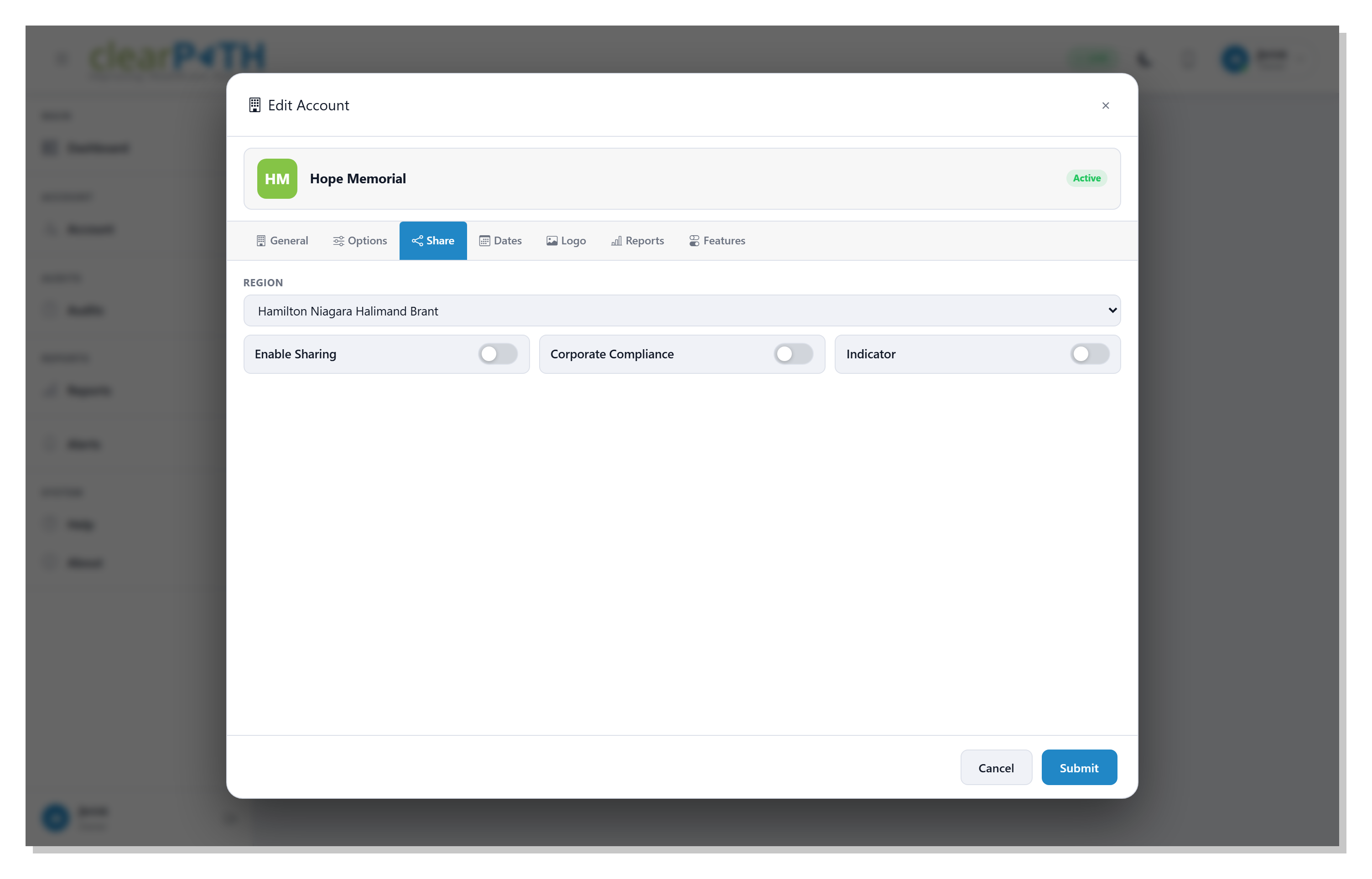
Controls how the account participates in community benchmark sharing.
Enable Sharing— opt the account in to the community benchmark pool.Region— the geographic region used for benchmark grouping.Corporate Compliance— share overall corporate compliance figures.Indicator— share per-indicator compliance figures.
6.2.4. Dates
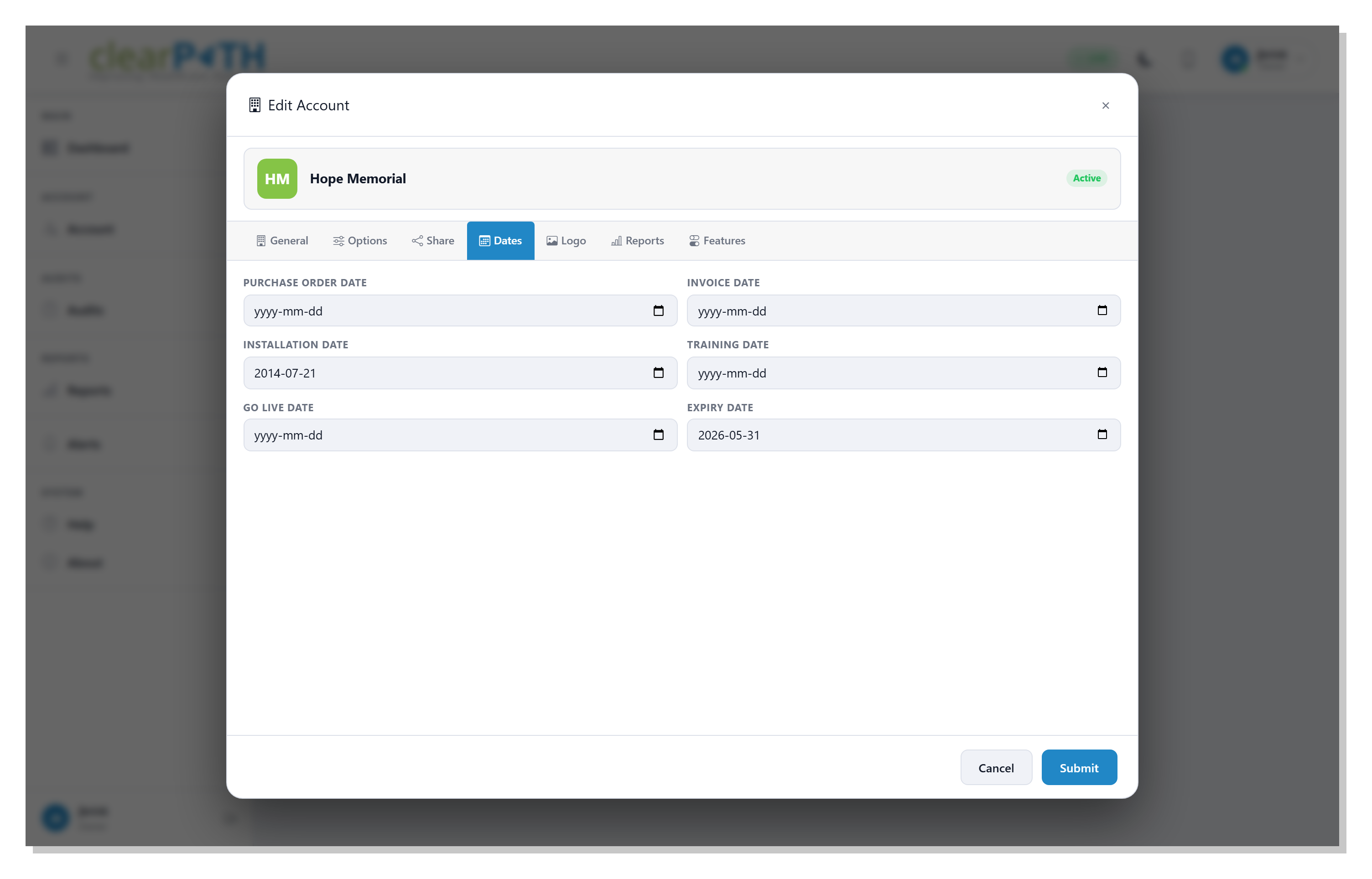
Key milestones in the account’s lifecycle, used by support and billing.
Purchase Order DateInvoice DateInstallation DateTraining DateGo Live DateExpiry Date
The expiry date drives the All Expiry filter on the list and
the expiry warnings in the header banner when a renewal is due.
6.2.5. Logo
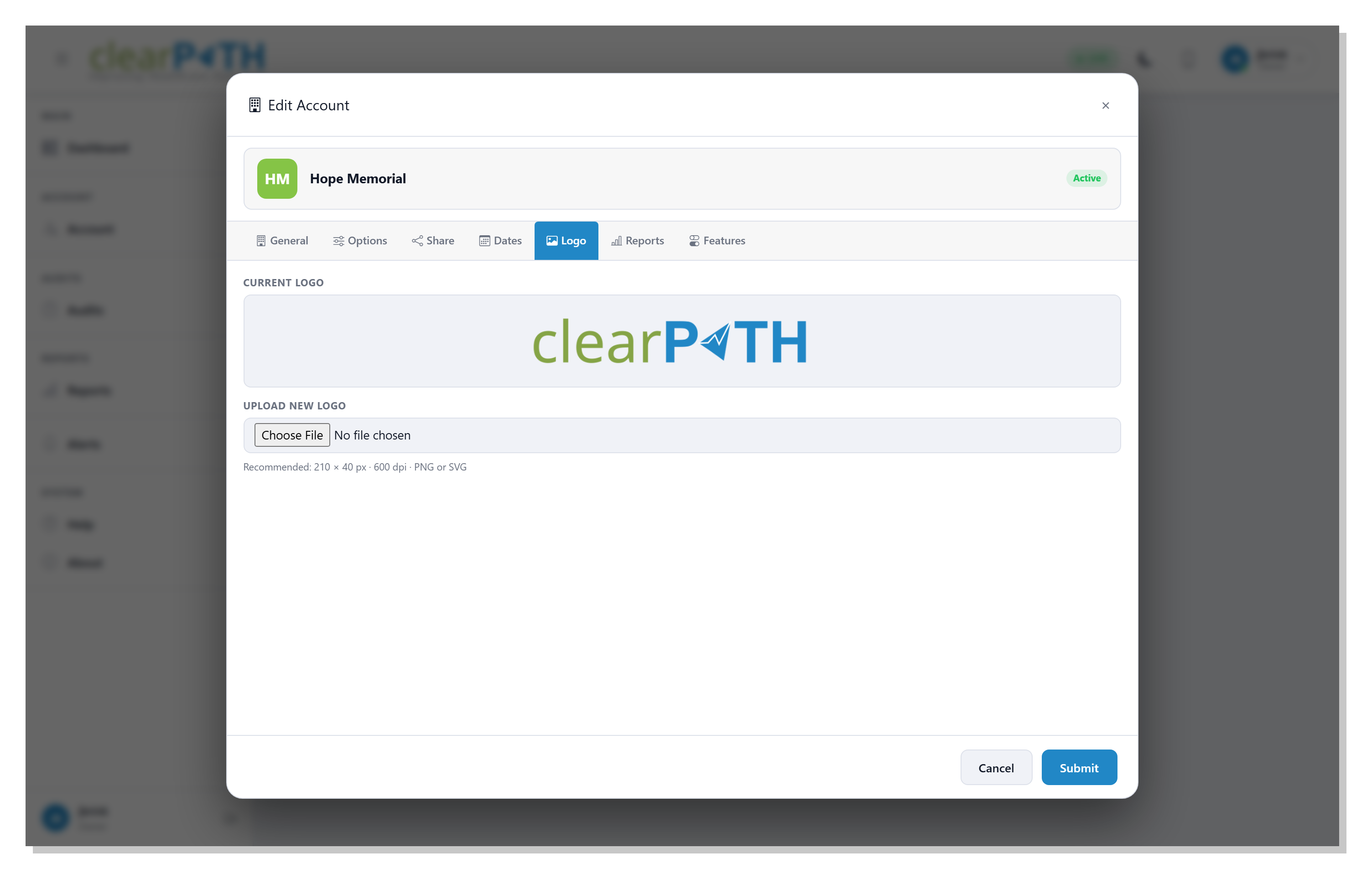
Current Logo— a preview of the logo in use on reports, emails, and dashboards.Upload New Logo— pick a replacement. Recommended spec: 210 × 40 px, 600 dpi, PNG or SVG.Logo System Path— the server-side file path where the logo is stored (read-only for most users).
6.2.6. Reports
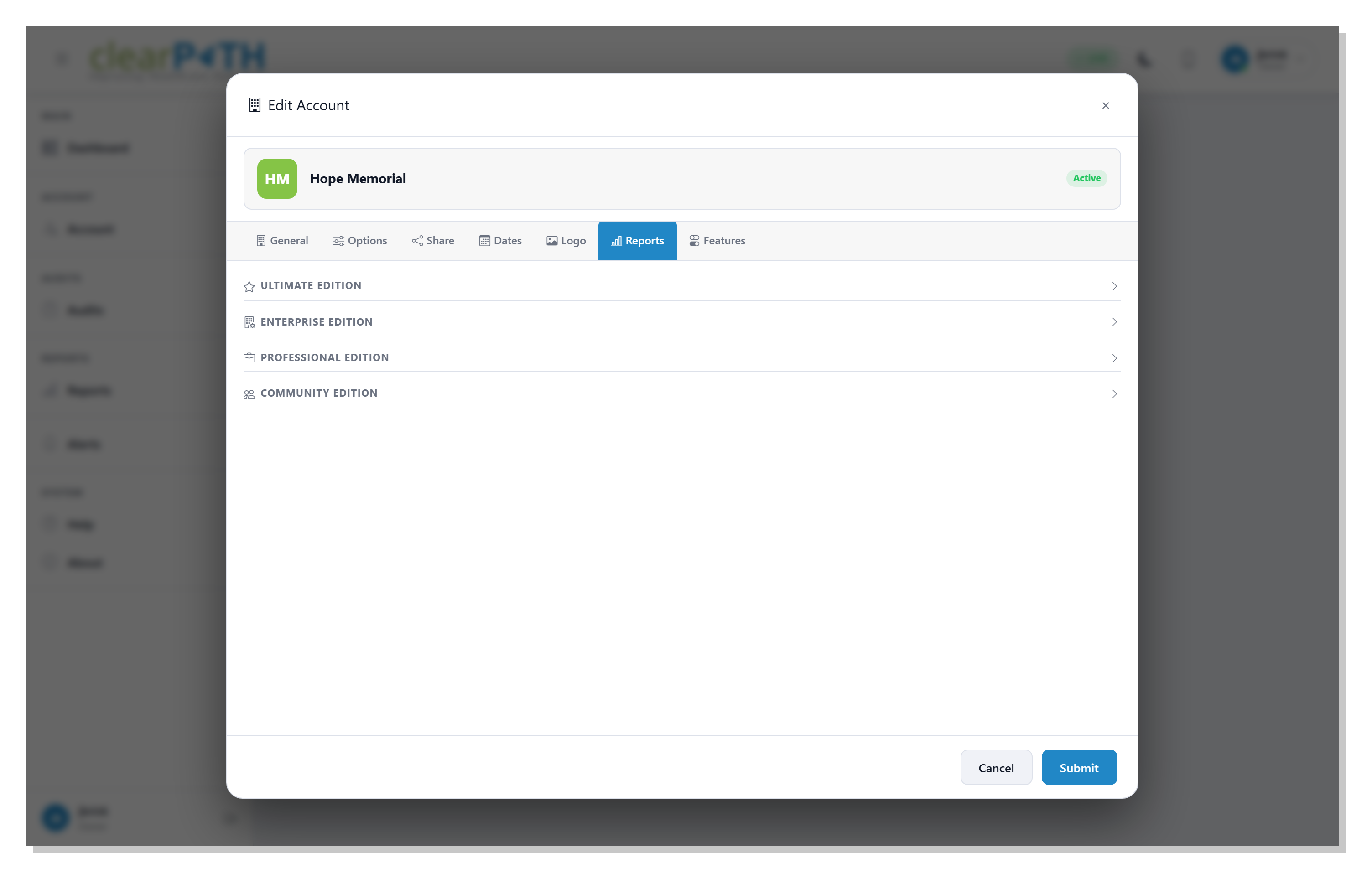
Per-account reporting defaults. Toggles here decide which reports are available to users on this account and which formats (PDF, CSV, Excel) are offered.
6.2.7. Features
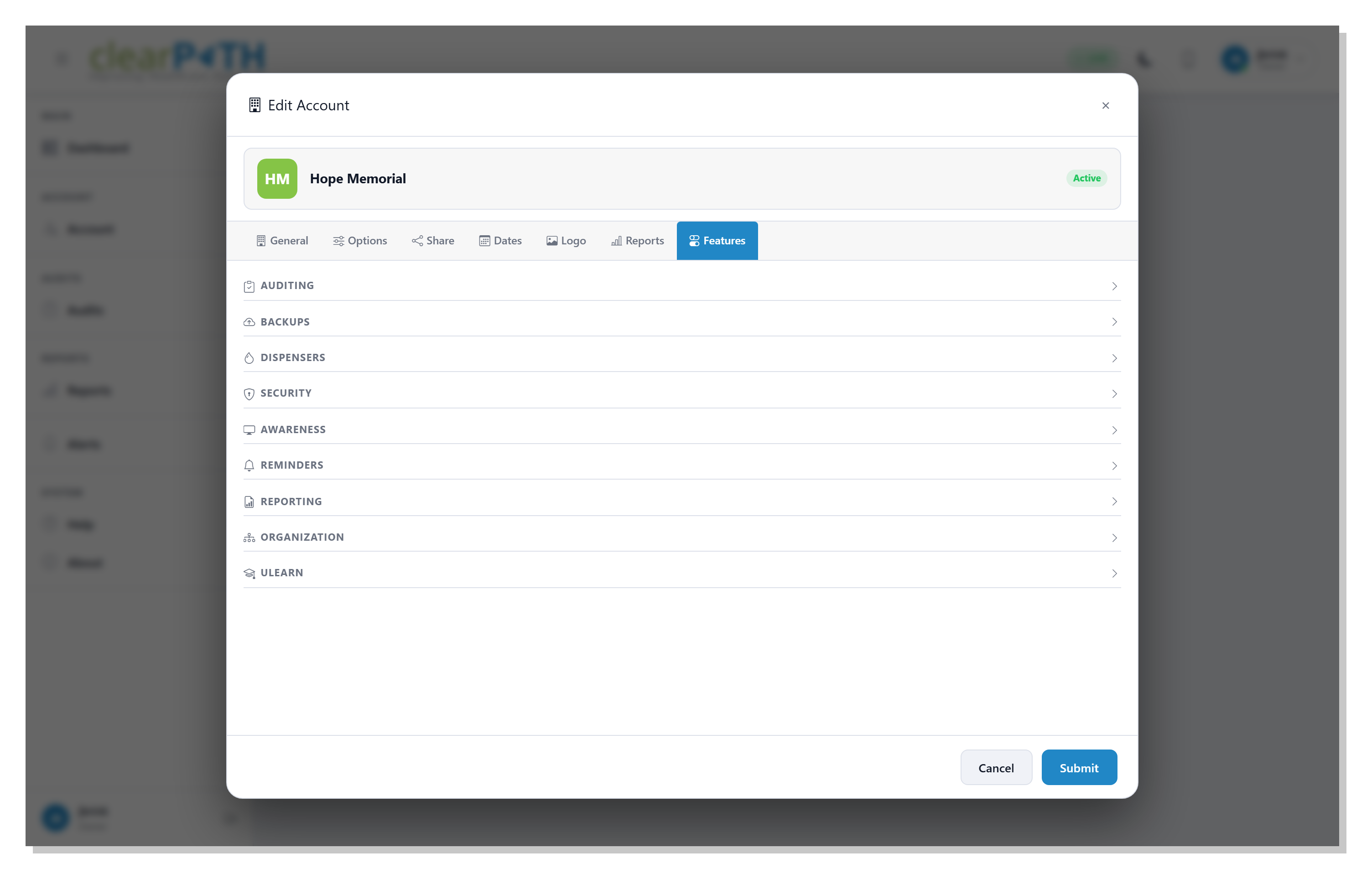
Per-account feature flags. Turn individual clearPath features on or off for this customer — for example, enable custom audits, digital signage, challenges, or MQTT integrations on a per-account basis without changing the customer’s edition.
6.2.8. Leapfrog
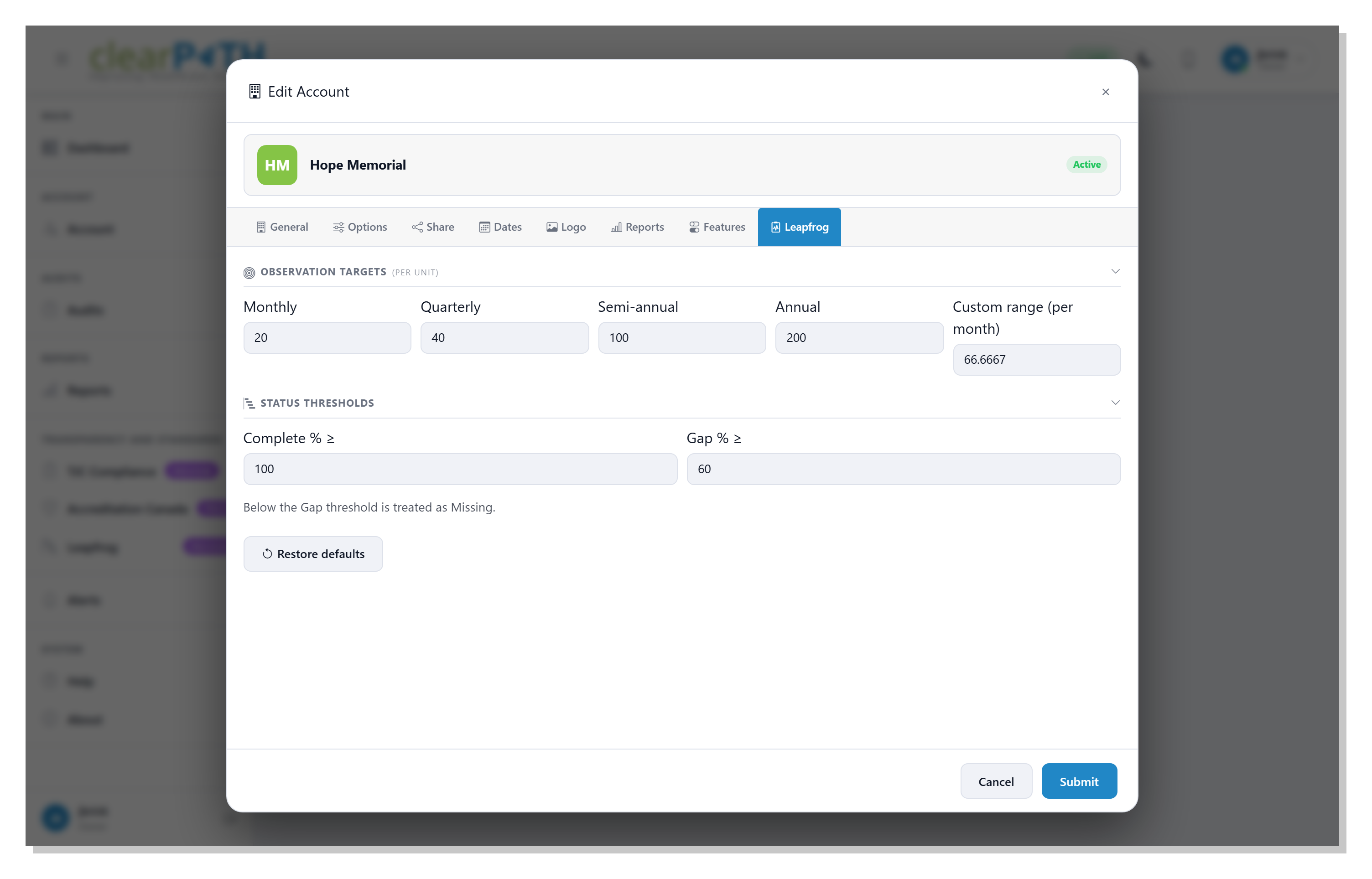
The Leapfrog tab sets the account-wide observation targets and status thresholds used by every Leapfrog widget on the dashboard and by the Leapfrog Hand Hygiene Standard report. Each unit on the account inherits these values unless an override is set on the unit (see Unit-Level Overrides).
6.2.8.1. Observation Targets (per unit)
These targets describe how many observations a unit is expected to record over each reporting cadence. The defaults match the minimum volumes recommended in Leapfrog’s 2026 Hand Hygiene Fact Sheet.
Monthly— minimum observations per unit per month. Default67.Quarterly— minimum observations per unit per quarter. Default200.Semi-annual— minimum observations per unit per six-month period. Default400.Annual— minimum observations per unit per year. Default800.Custom range (per month)— the per-month rate applied when a dashboard or report uses a custom date range that does not match one of the standard cadences. Default66.6667.
6.2.8.2. Status Thresholds
Two compliance percentages decide how each unit is classified on the Leapfrog dashboard widgets and on the report.
Complete % ≥— a unit is shown asCompletewhen its compliance reaches or exceeds this percentage. Default100.Gap % ≥— a unit is shown asGapwhile its compliance is at or above this percentage but belowComplete. Default60. Anything below theGapthreshold is treated asMissing.
Click Restore defaults to put every target and threshold on
this tab back to the values shown above.
6.2.9. Saving
Click Submit to save your changes across every tab, or
Cancel to discard them. Changes to Timezone, Language,
Moment Method, and Healthcare Type take effect the next
time each user on the account signs in.