1. Auditing Software

1.1. Getting Started
cp2go is the auditing application for performing hand hygiene audits using clearPath. cp2go is an application that must be downloaded and installed on a tablet, phone, or desktop device. cp2go is available on Windows, iPads, iPhones, and Android Tablets and Phones.
1.2. Auditing Software Downloads
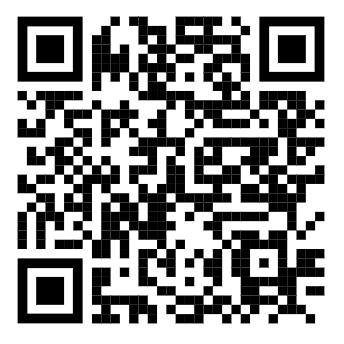
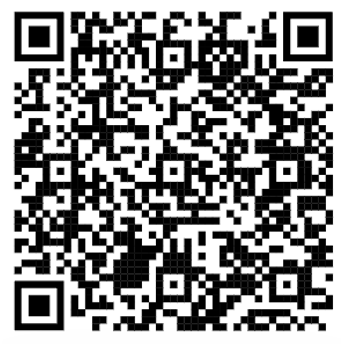
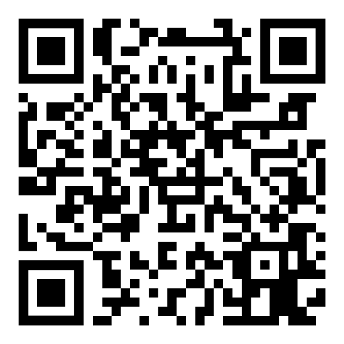
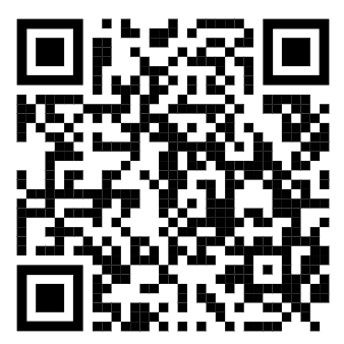
Scan the QR Code below for your given platform to download the cp2go application.
|
|
Apple iPads and iPhones |
Android Tablets and Phones |
|
|
Windows Store Download |
Windows Download (direct and unsigned) |
1.3. Supported Auditing Platforms
cp2go runs in five different forms, grouped by the device you are using rather than by the operating system. Click any of the links below to jump to the matching section.
Tablet and Desktop — Apple iPad, Android tablets, and Windows desktops and tablets
Mobile — Apple iPhone and Android phones
Browser-based Auditing — auditing through a desktop or laptop web browser
cp2go PWA — installable Progressive Web App for offline auditing without an app store
Mobile Web Interface — the responsive clearPath website running on a phone browser
1.3.1. Tablet and Desktop
The tablet and desktop walkthrough below applies to Apple iPads, Android tablets, and Windows desktops and tablets. cp2go presents the same dual-pane interface on every one of these form factors, so a single set of instructions covers them all. Where a step works slightly differently on a particular device — for example a Windows desktop using the keyboard while a tablet uses taps — the difference is called out inline.
1.3.1.1. Sign In
The first time you launch cp2go you are asked for your clearPath site URL, your username, and your password. The site URL
follows the format https://id.cphs.cloud, where id is your three or four character site identifier.
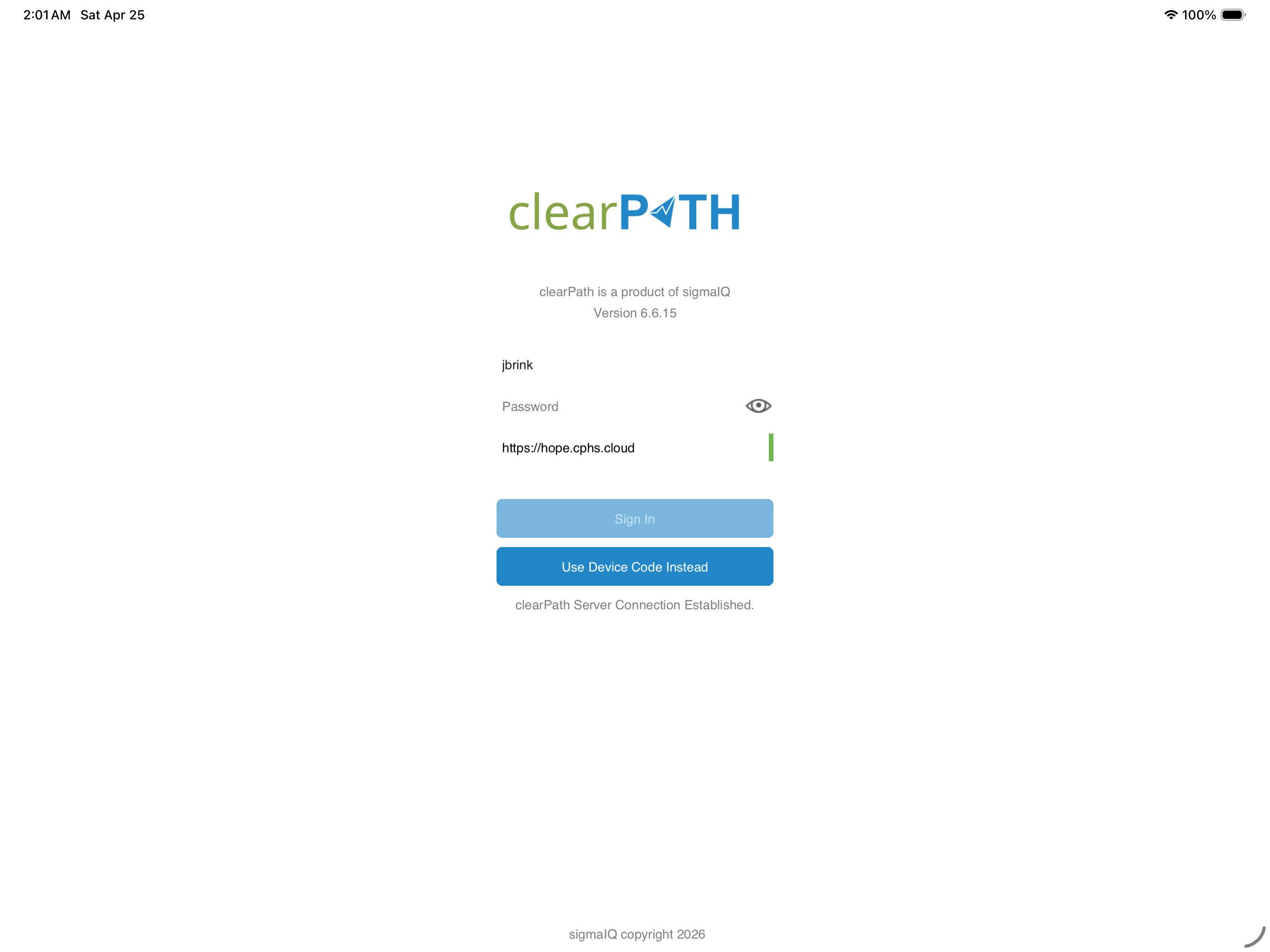
cp2go validates the URL as you type. A green bar to the right of the field confirms the URL is reachable; a red bar means the address is wrong or your network has blocked it. Tap the eye icon in the password field if you would like to see what you have typed.
cp2go remembers the last user who signed in. The password must be entered every time the application is launched.
1.3.1.2. Two-Factor Authentication
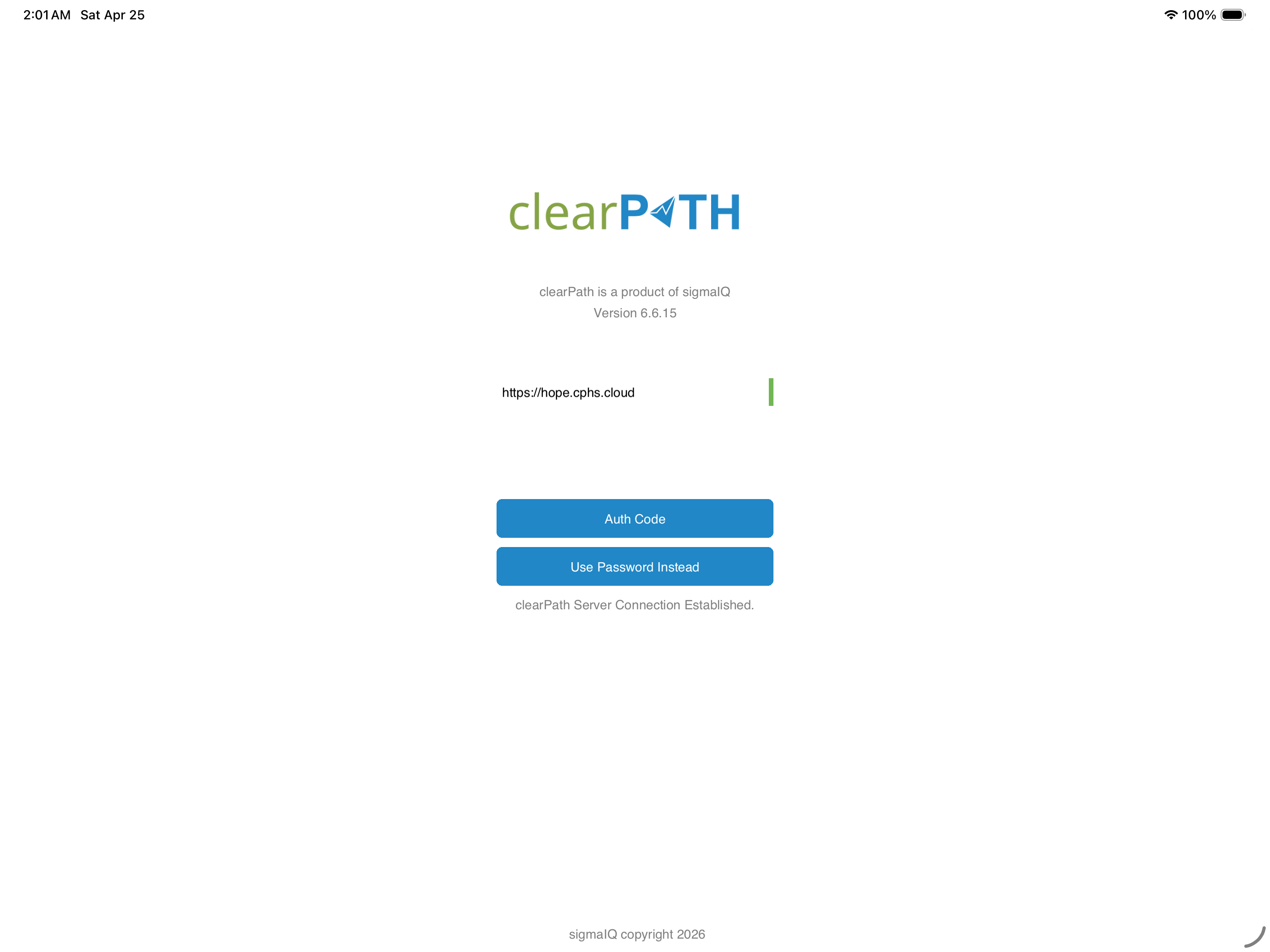
If your administrator has enabled two-factor authentication for your account, cp2go prompts for a one-time authentication code right after the password. The code is delivered to the email address on file for your account and is good for a limited time.
1.3.1.3. Home Screen
After signing in you are taken to the main cp2go screen. The screen has two panels: the Audits to Sync list on the left, and a details panel on the right that shows system information and audit summaries. When the application has just been installed, both panels are empty until you start your first audit.
Note
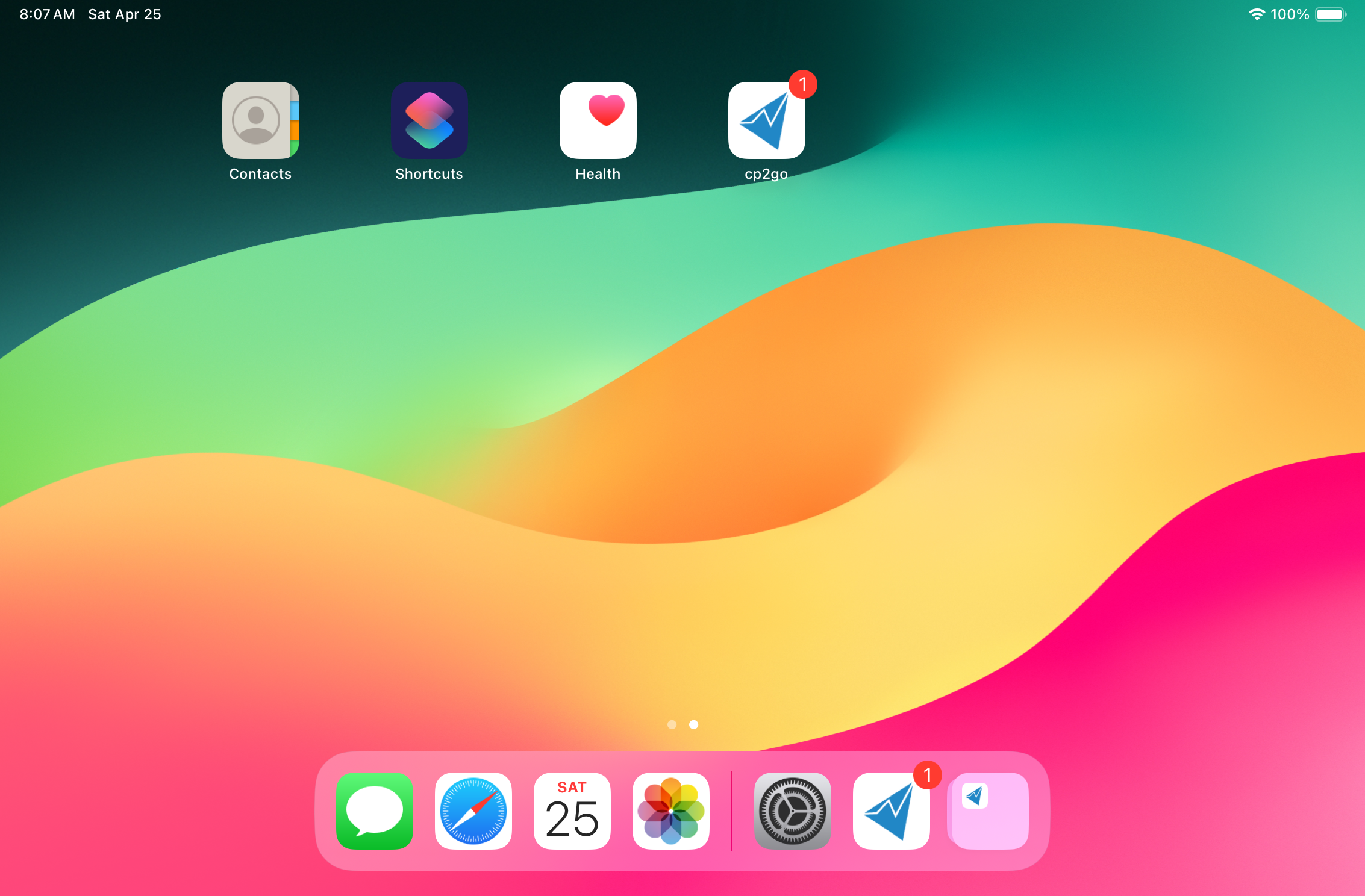
A red badge on the cp2go icon indicates the number of completed audit sessions on the device that have not been sync’d to clearPath.
1.3.1.4. Setup
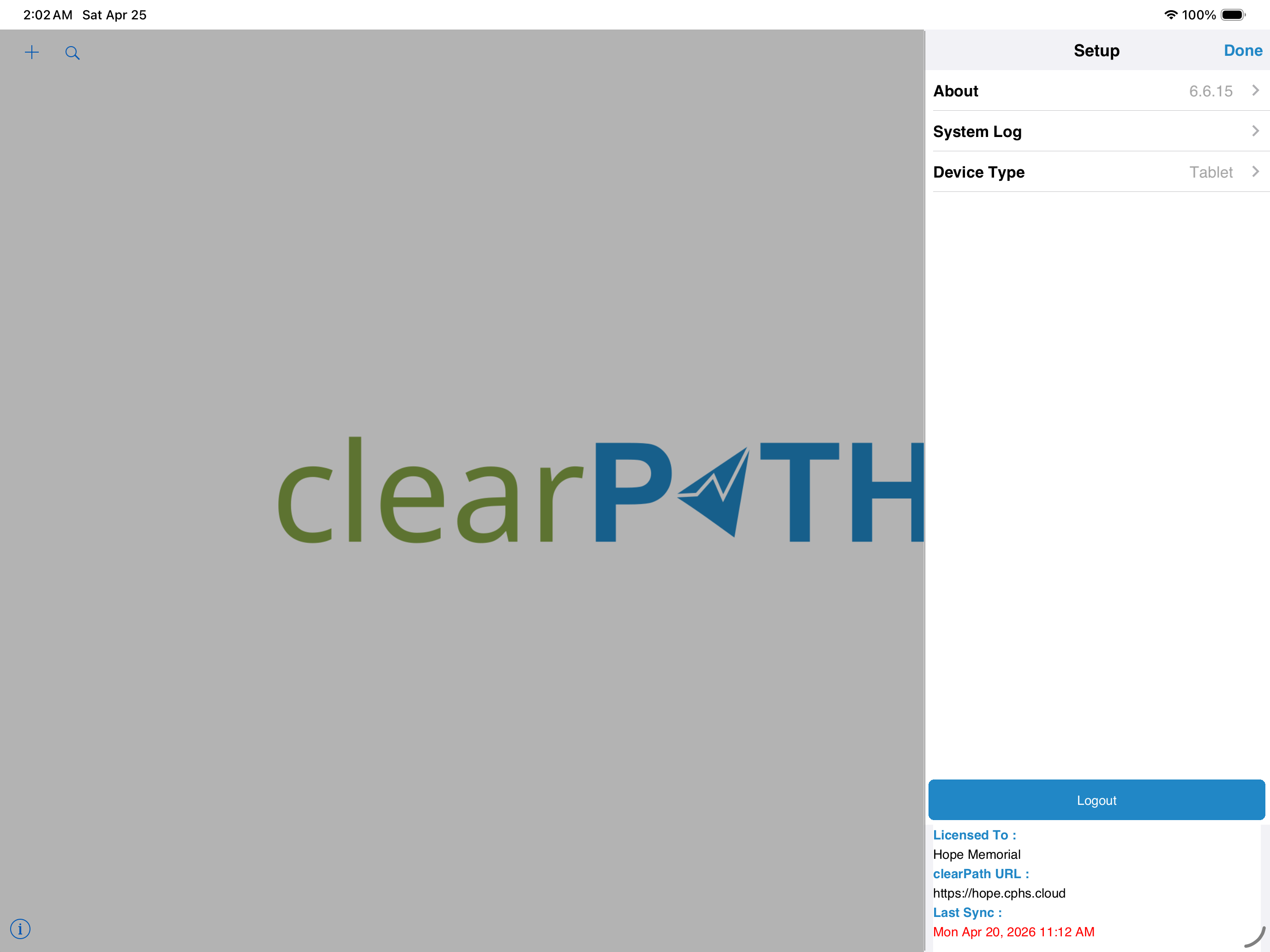
The Setup menu lets you review the device configuration, see the clearPath build details, and inspect the application log if support ever needs it. Most users only visit this screen once, when the device is first configured.
1.3.1.4.1. About
The About screen shows the cp2go version, your site URL, and contact information for clearPath. Have this information handy whenever you contact support@clearpathhealthsolutions.com.
1.3.1.4.2. System Log
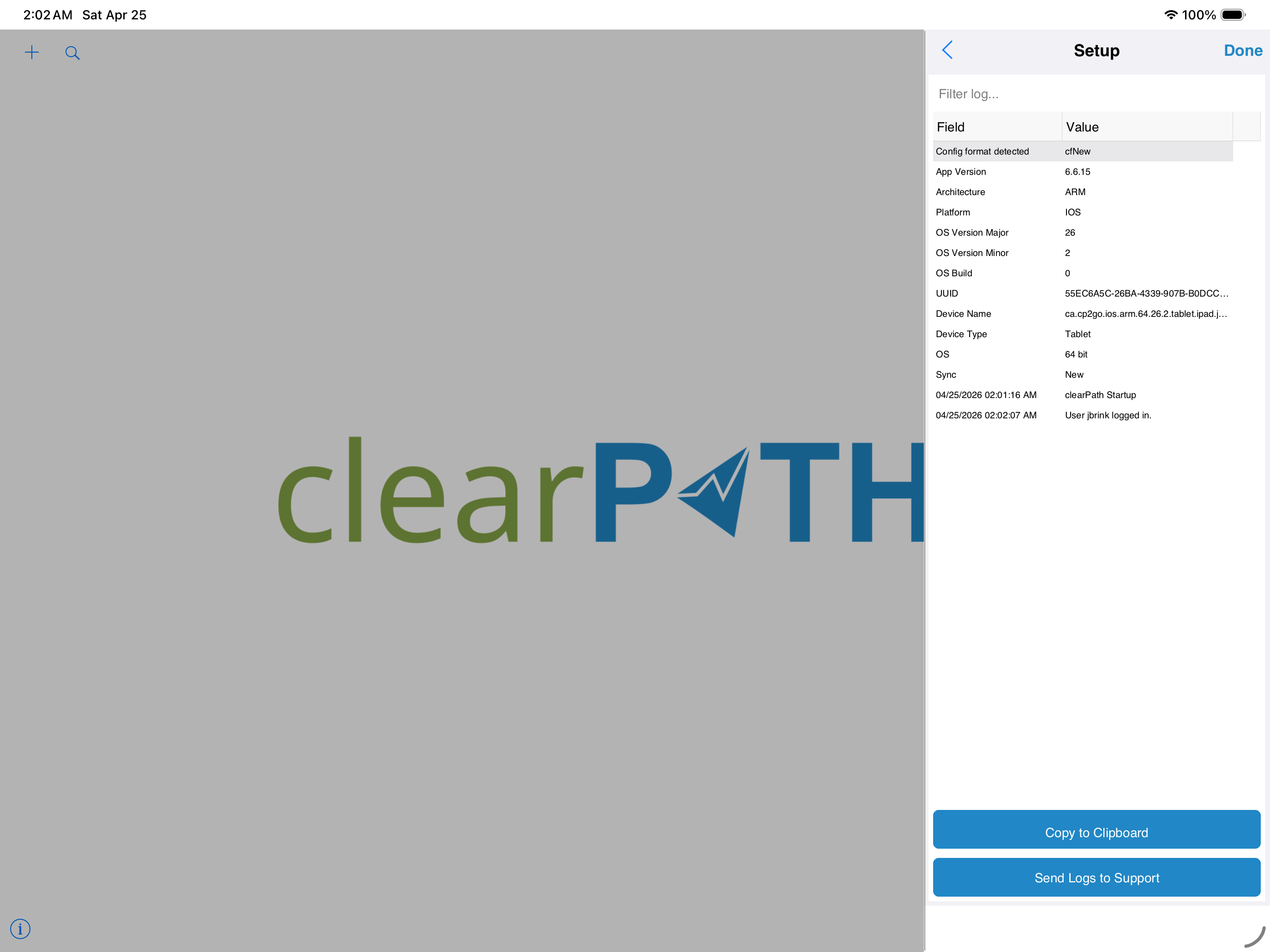
The system log records what the application does behind the scenes — sign-ins, syncs, errors. You usually only need this when support asks for it. Use the share icon to email the log to support.
Note
On Windows the device type is fixed to Desktop and cannot be changed. iPads and Android tablets always run in the tablet layout. The phone layout is covered in Mobile.
1.3.1.5. Starting a New Audit
To create a new audit session, tap the New button. Choose the facility and patient care area, and if necessary set the observer to your username. The session name field should be left blank unless you have a specific reason to set it manually — for example, when back-dating a paper audit.
The Comment field is optional and applies to the whole audit session. A typical comment might be “the unit is in outbreak”.
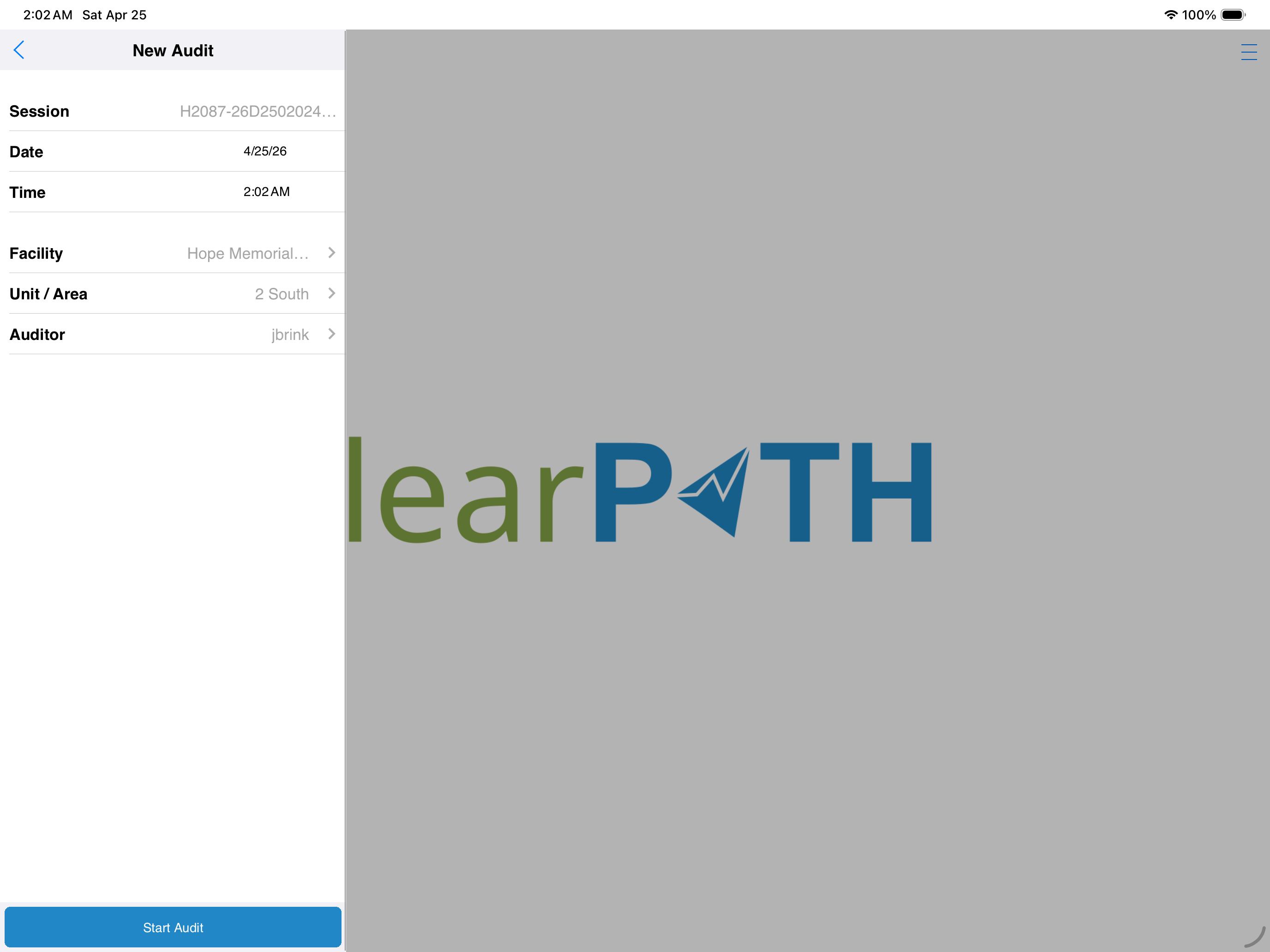
Tap Start Audit to begin.
Note
The session comment field is limited to 255 characters.
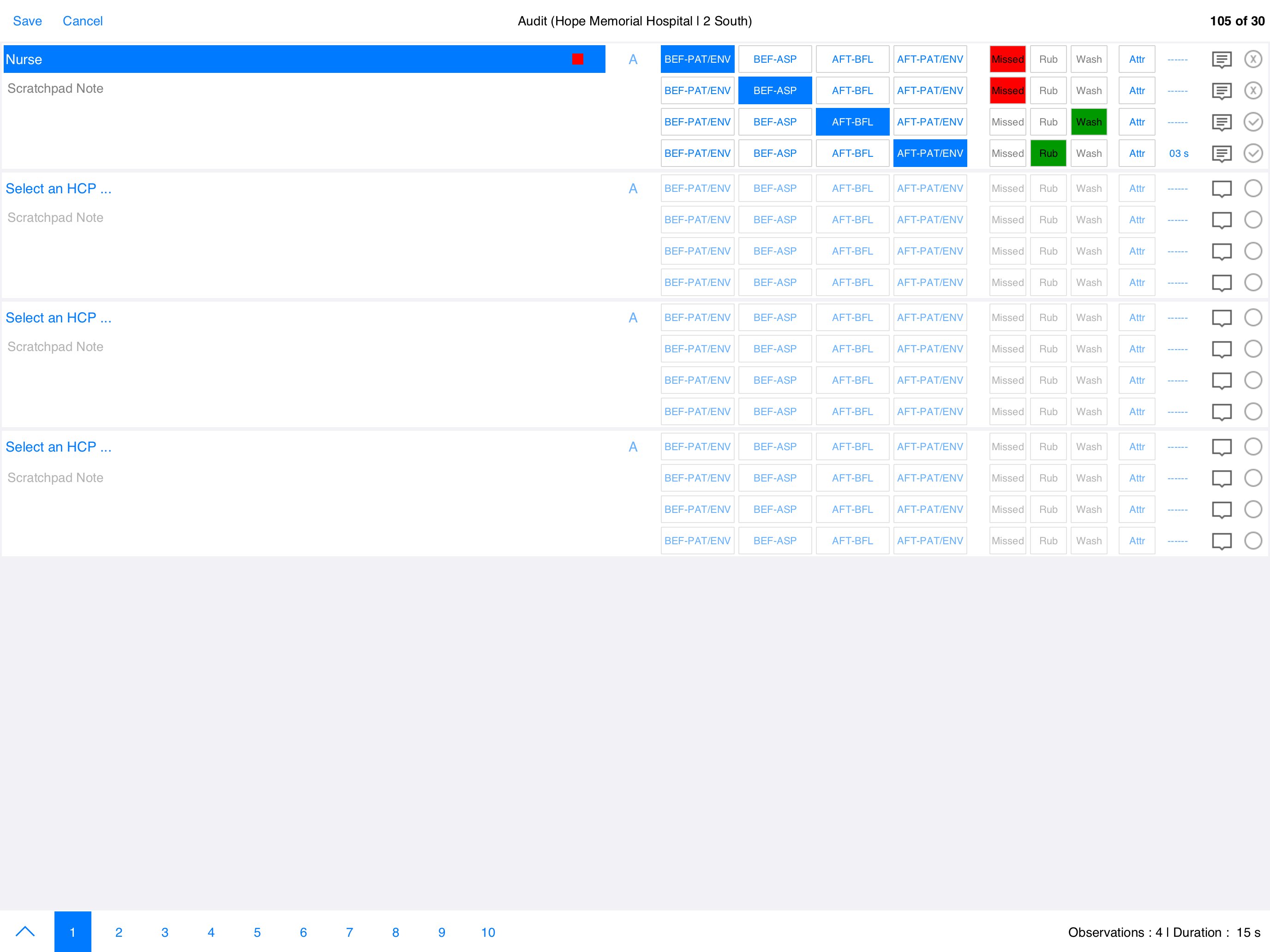
1.3.1.6. Performing Observations
The audit screen is organized into pages or sheets. Each page can hold up to sixteen observations spread across four different healthcare provider types. Depending on how your administrator has configured cp2go, an audit session can have up to ten pages, for a maximum of one hundred and sixty observations.
1.3.1.6.1. Selecting a Healthcare Provider
Pick the healthcare provider type from the drop-down list. The list shows every type that your organization has configured. If a type is missing, contact your clearPath administrator — types cannot be added directly from cp2go.
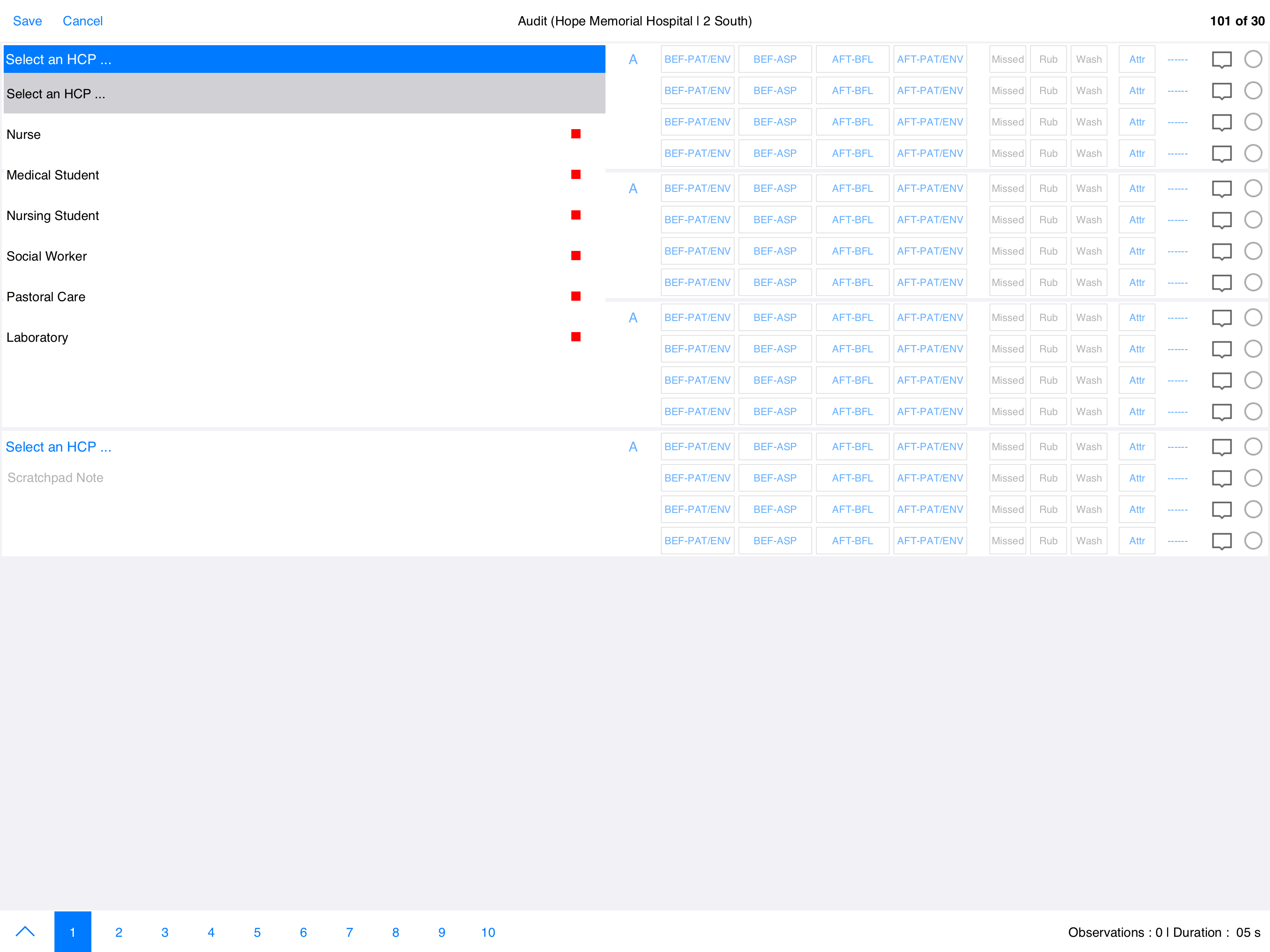
If desired, use the letter selector to differentiate between two providers of the same type ( A, B, C …). The
scratchpad area can hold a short note that helps you keep track of who you are observing.
1.3.1.6.2. Recording Observations
Choose the indicator or indicators being observed, then tap Rub and/or Wash if hand hygiene was performed. Leave both unselected if the opportunity was missed. If you watched the moment go by but are unsure whether it counted, deselect the indicator to invalidate the observation.
1.3.1.6.3. Observation Comments
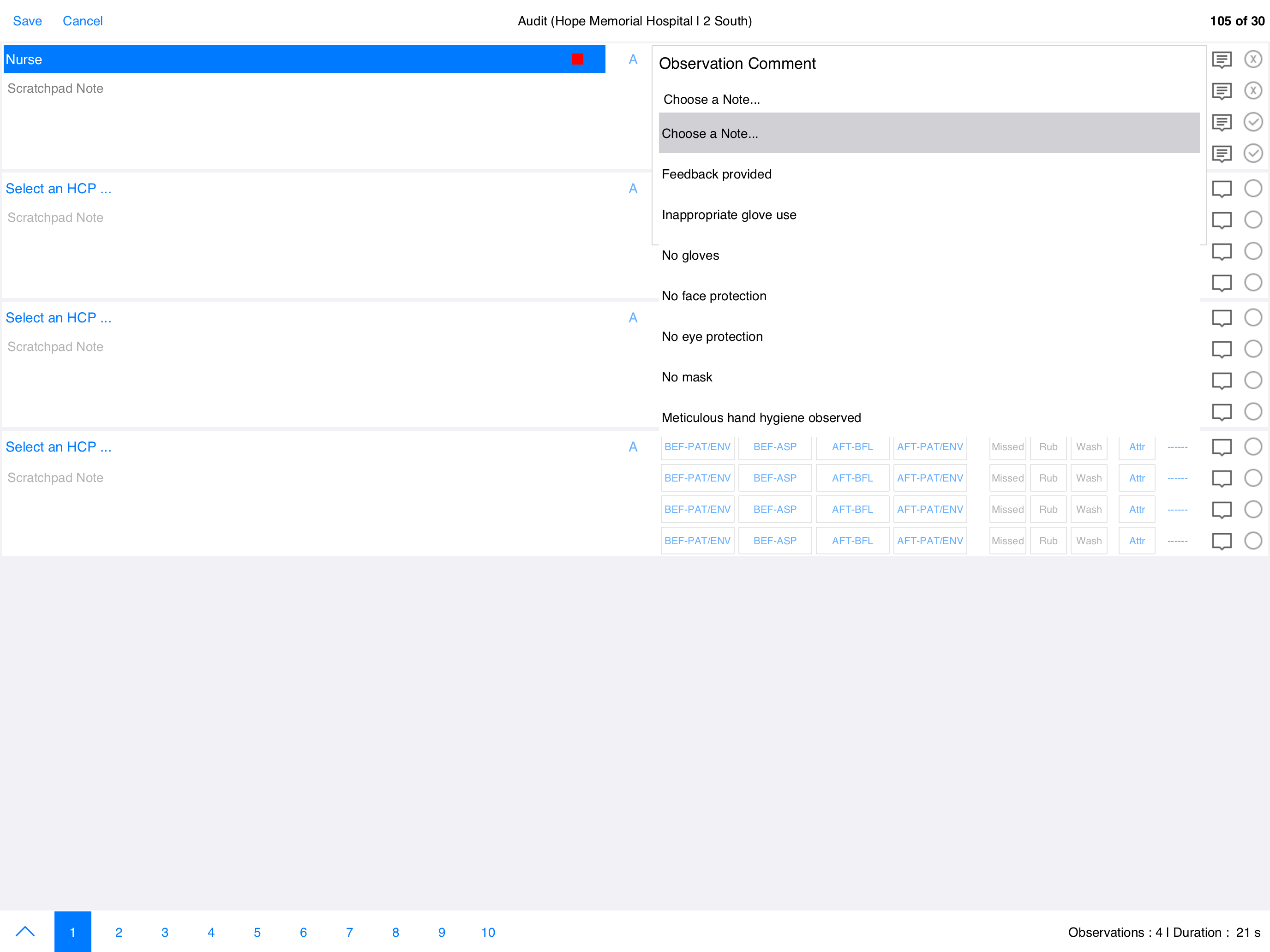
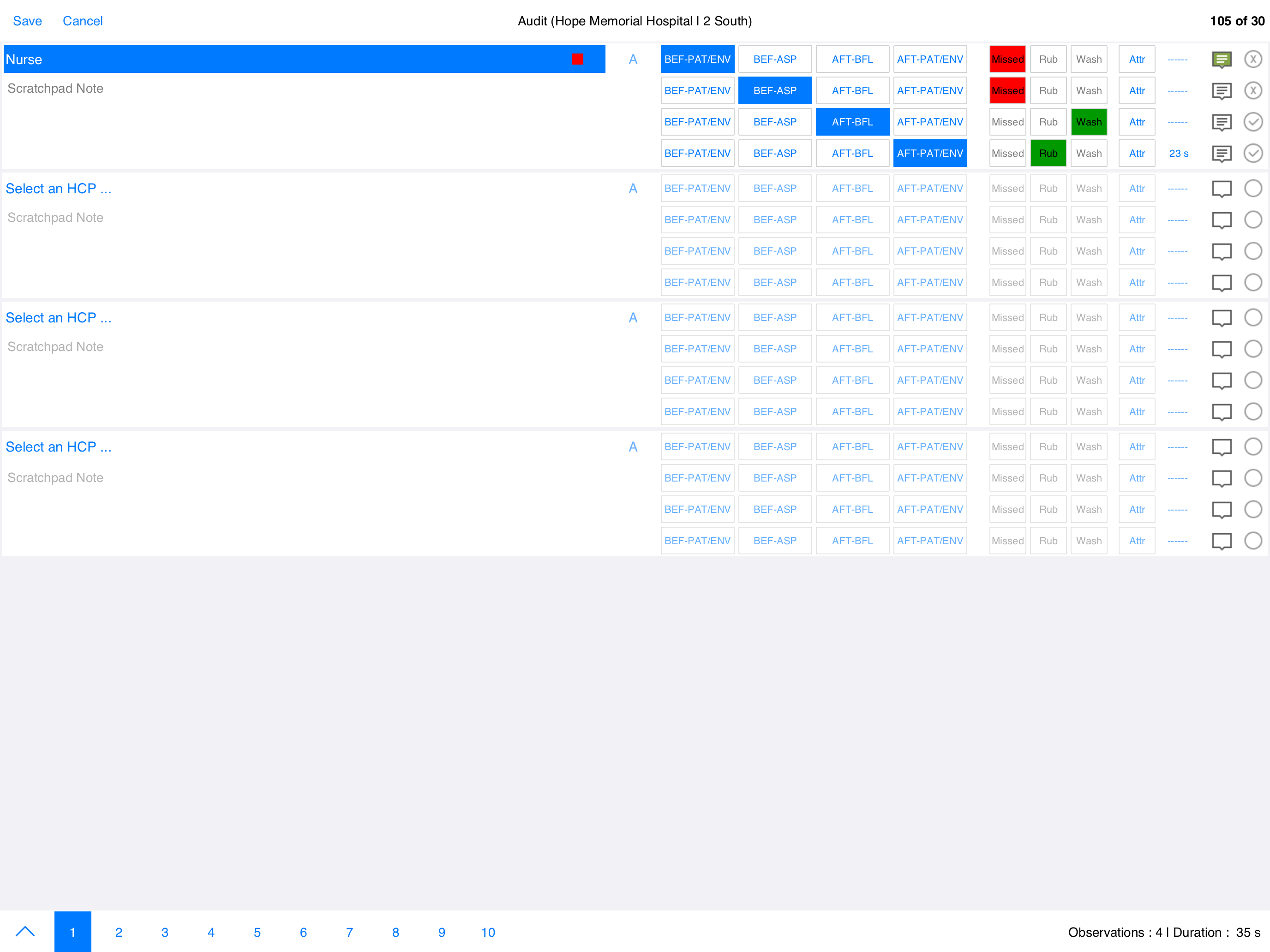
You can attach a comment to any individual observation by tapping the cloud icon. Either type a custom note or pick one of your organization’s pre-defined notes. Once a comment has been added, the icon changes from blue to green so you can see at a glance which observations carry notes.
1.3.1.6.4. Tracking Progress
The bottom-right corner shows the running observation count and the elapsed time since the audit started. The bottom-left page tabs let you flip between pages — the active page is highlighted in grey. You can move freely between pages at any time during the audit.
1.3.1.6.5. Session Comment
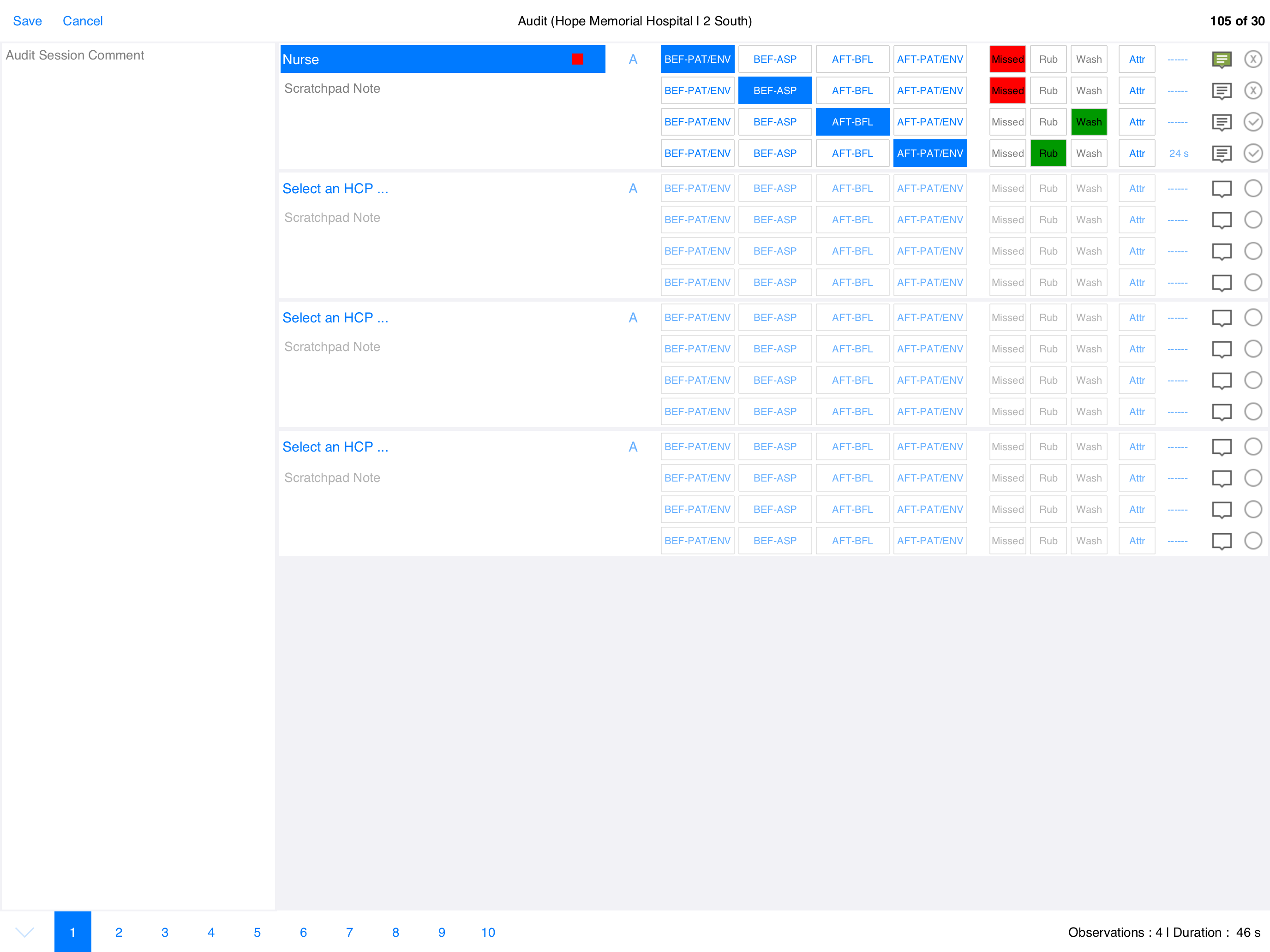
The session comment from the New Audit screen remains accessible during auditing. On a tablet, rotate the device to portrait orientation to display the comment along the bottom of the screen, where you can read it or add to it without leaving the audit.
1.3.1.7. PPE and Other Attributes
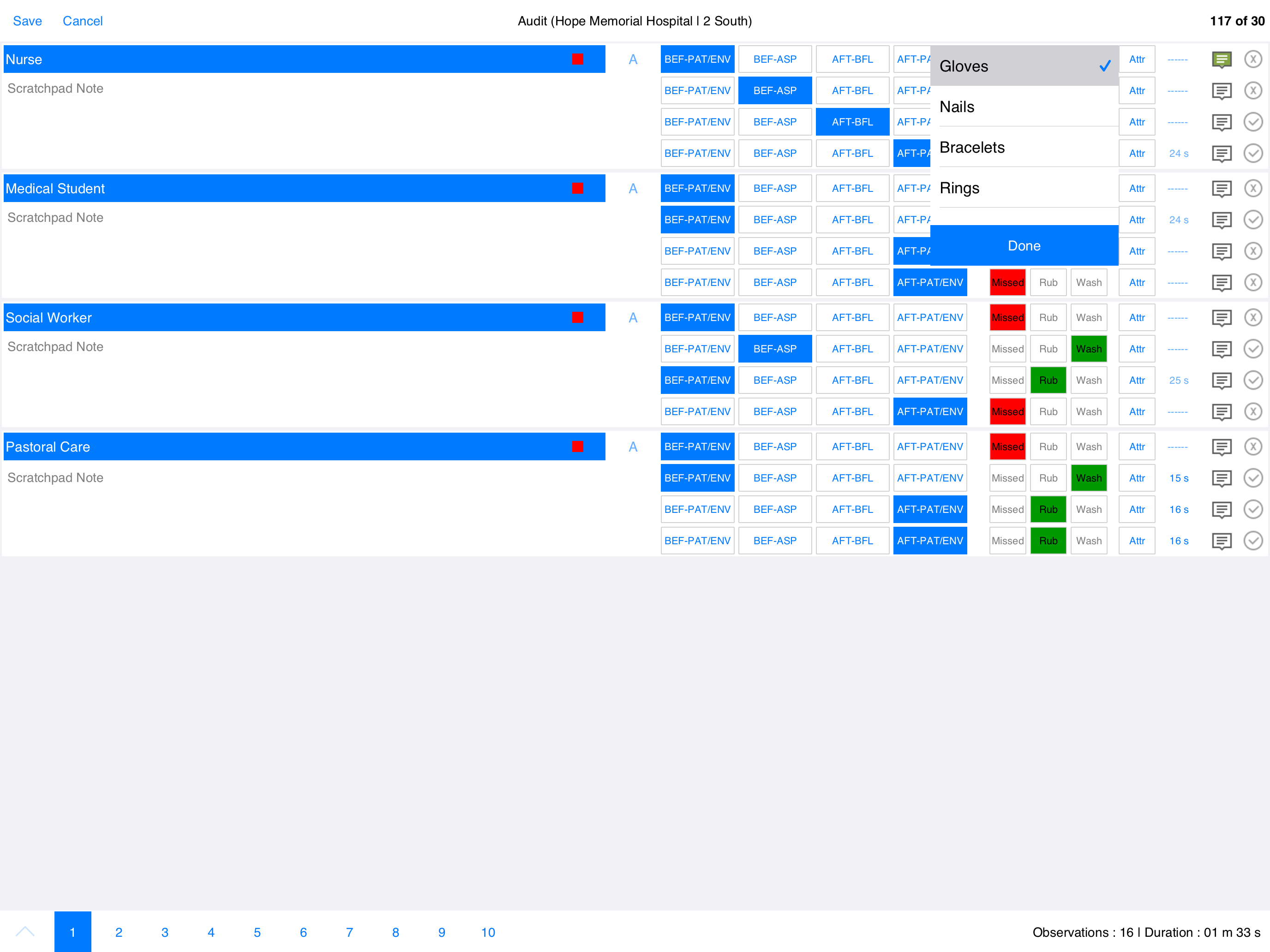
If other attributes were observed — gloves, nails, bracelets, rings, gowns, masks — tap the attributes button to bring up the PPE menu. Tick whichever attributes apply to the observation.
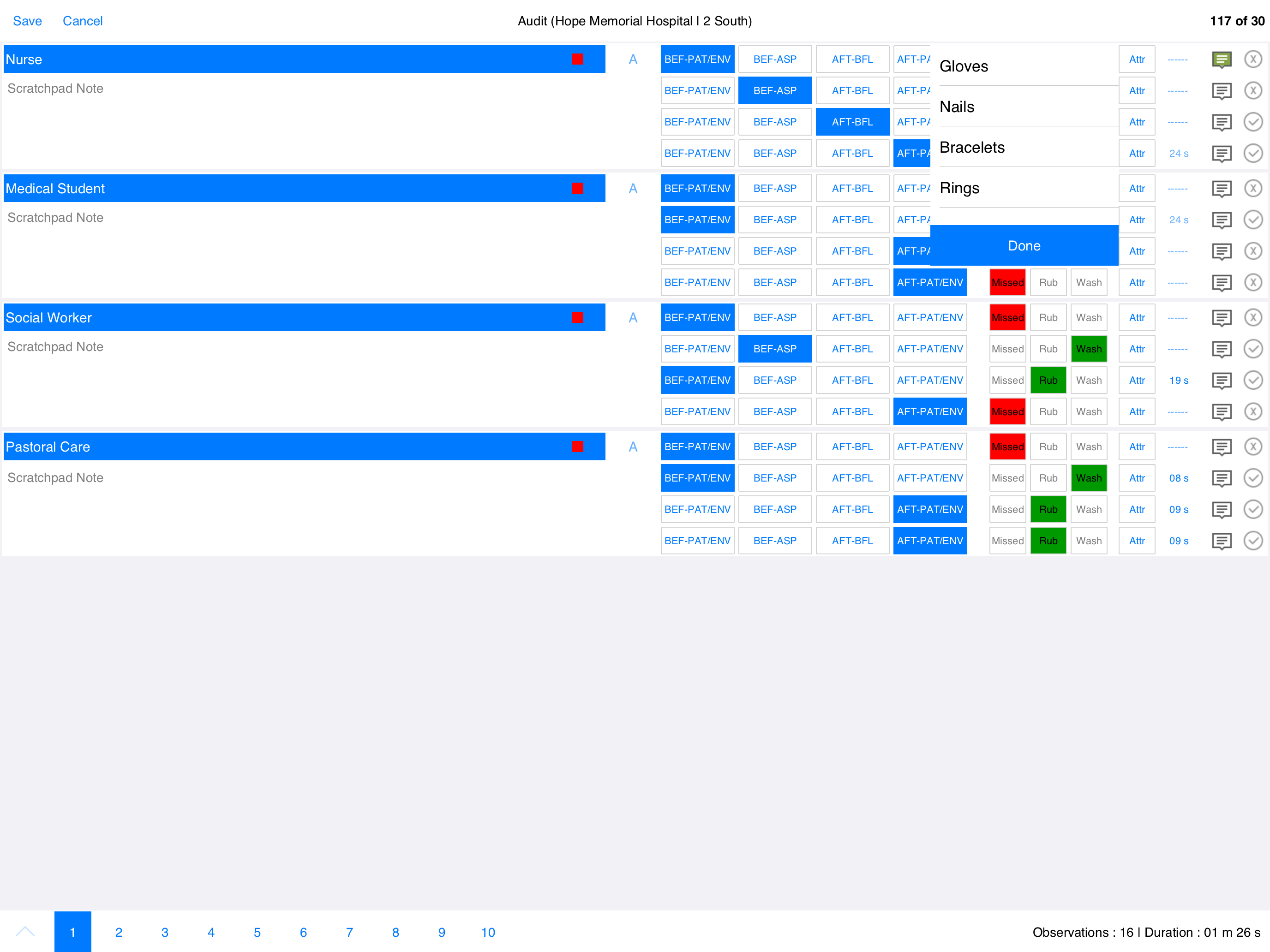
Selected attributes appear in green so you can see at a glance which boxes are ticked.
Note
It is fine to leave an observation line blank, or even an entire section. cp2go automatically removes any observations that are not complete when the audit session is closed.
1.3.1.8. Saving the Audit
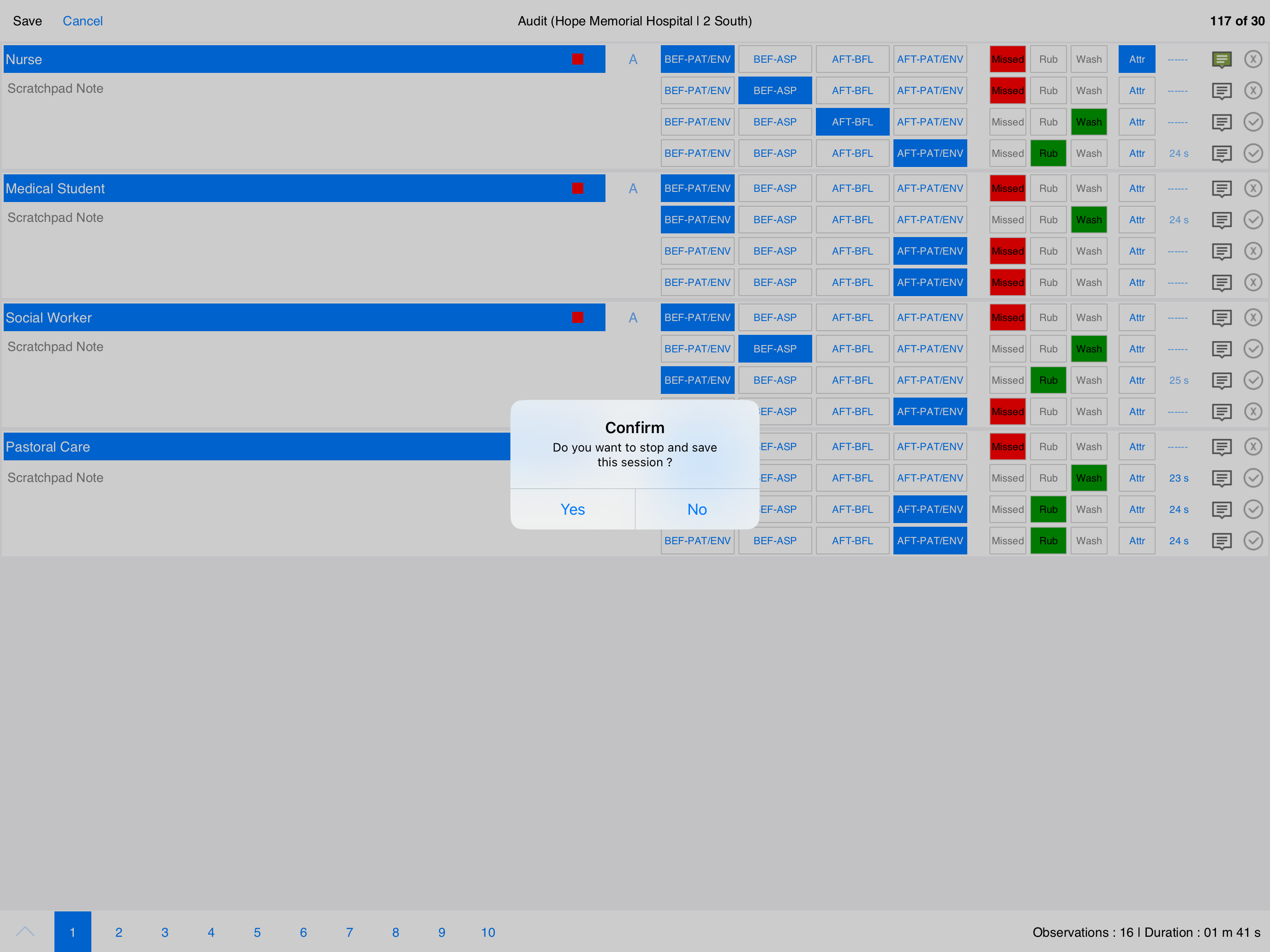
When the audit is complete, press Stop at the top left to save and close the session. cp2go asks you to confirm before saving. To abandon an audit without saving, press Cancel at the top left and confirm.
1.3.1.9. Audit Summary
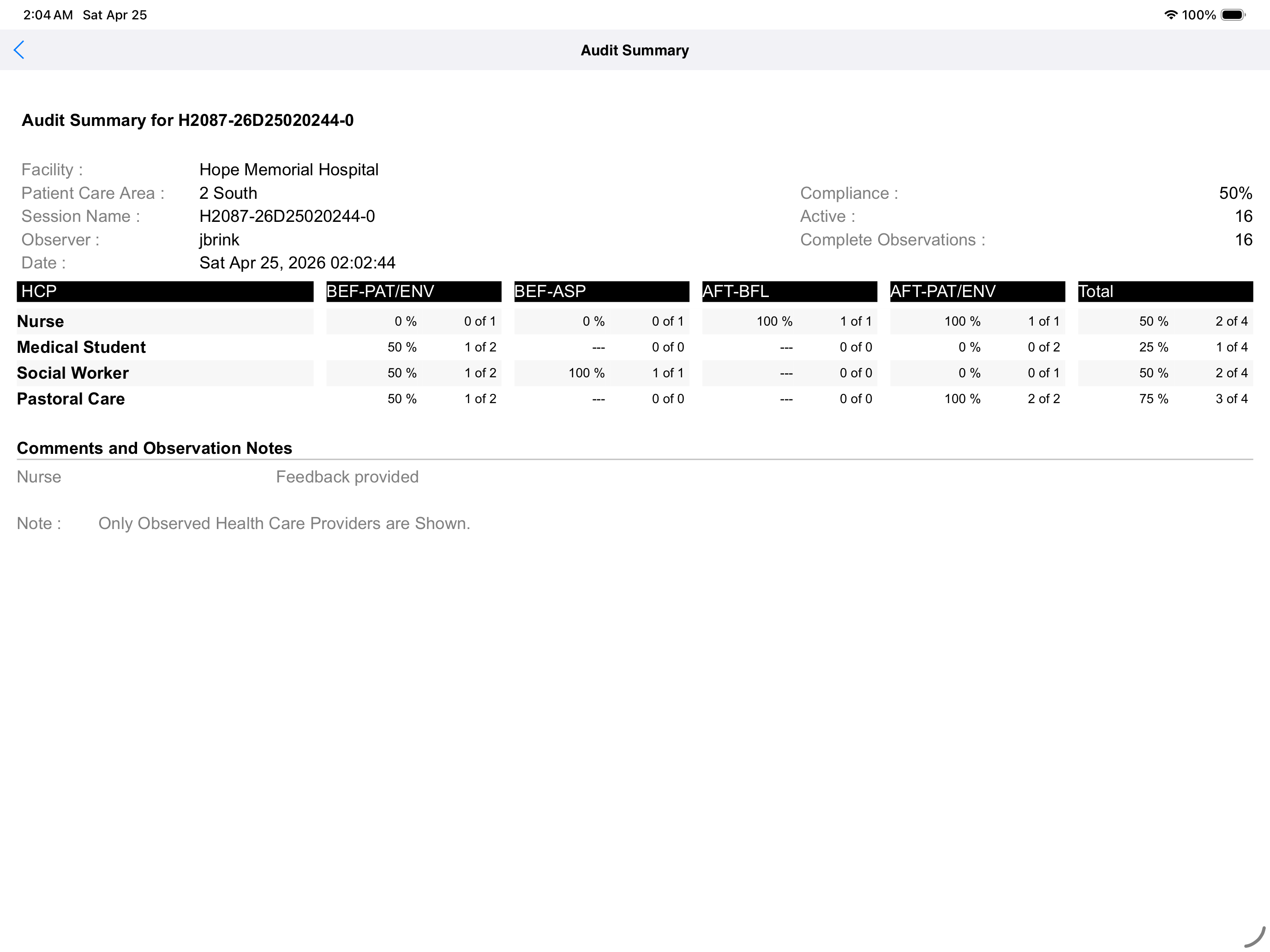
After the audit is saved, tap the audit session in the Audits to Sync list and then tap Summary to roll up all the healthcare provider types you observed. The summary shows one line per HCP type, broken out by moment, so you can share the result with the unit immediately after the audit.
1.3.1.10. Syncing Completed Audits
Completed audits sit in the left panel until you sync them to clearPath. Each line shows the session name, date, facility, patient care area, auditor, and compliance percentage. Tapping a session displays its comments in the right panel.
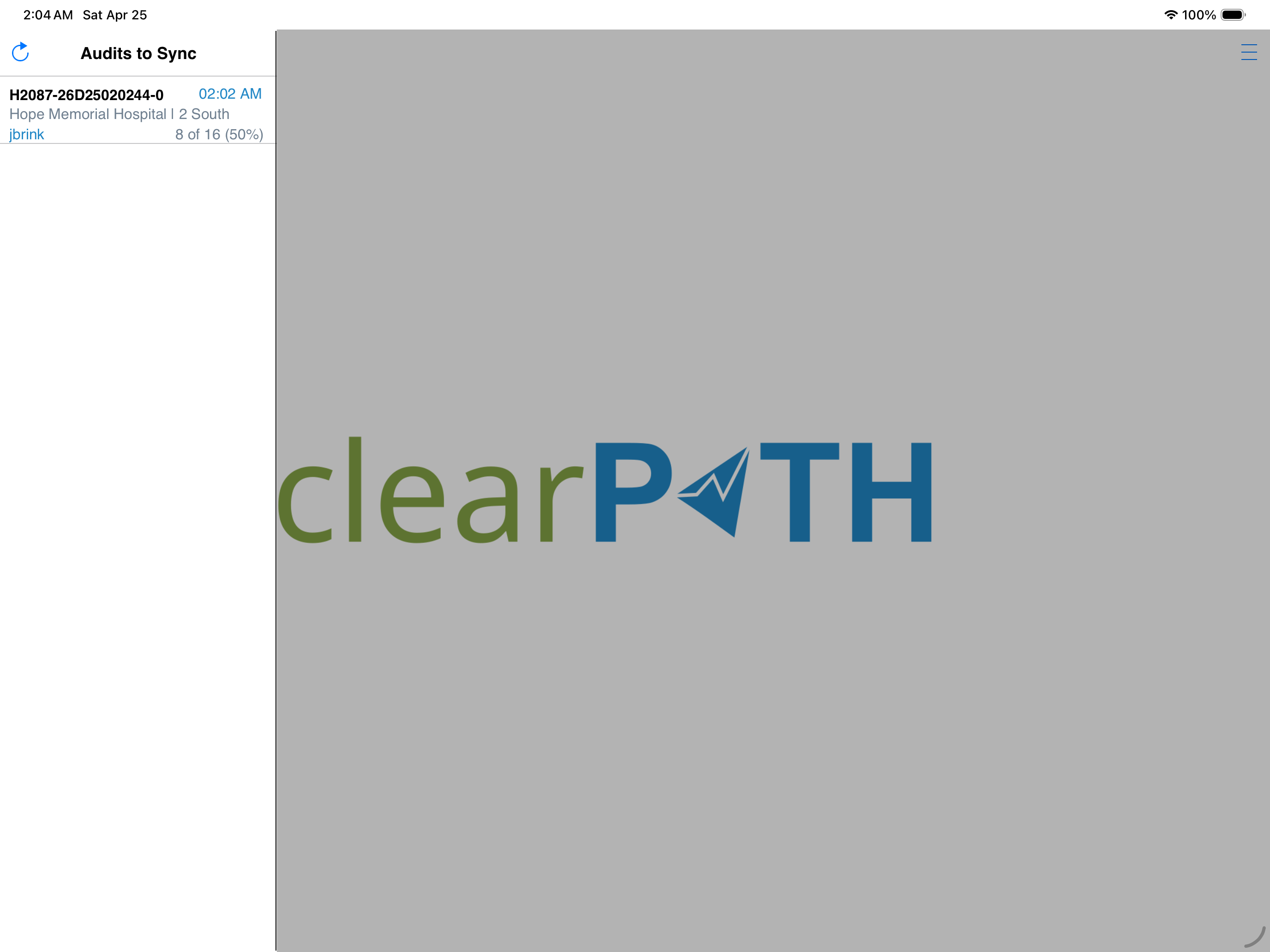
Press the sync button to push all completed audits up to clearPath and to pull down the latest configuration profile (facilities, patient care areas, healthcare provider types, auditors, and predefined notes). A normal sync takes less than thirty seconds.
You should sync at least once a day, and any time the device has been sitting idle for a few days. There is no harm in syncing an audit immediately after it is closed — and it is equally fine to wait until the end of your shift to push everything at once.
1.3.2. Mobile
The mobile walkthrough below applies to Apple iPhones and Android phones. cp2go presents a single-pane, portrait-orientation interface on every phone, so a single set of instructions covers both platforms. Where a step works slightly differently on iPhone and Android, the difference is called out inline.
1.3.2.1. Sign In
The first time you launch cp2go on a phone you see the splash screen, then the sign-in screen.
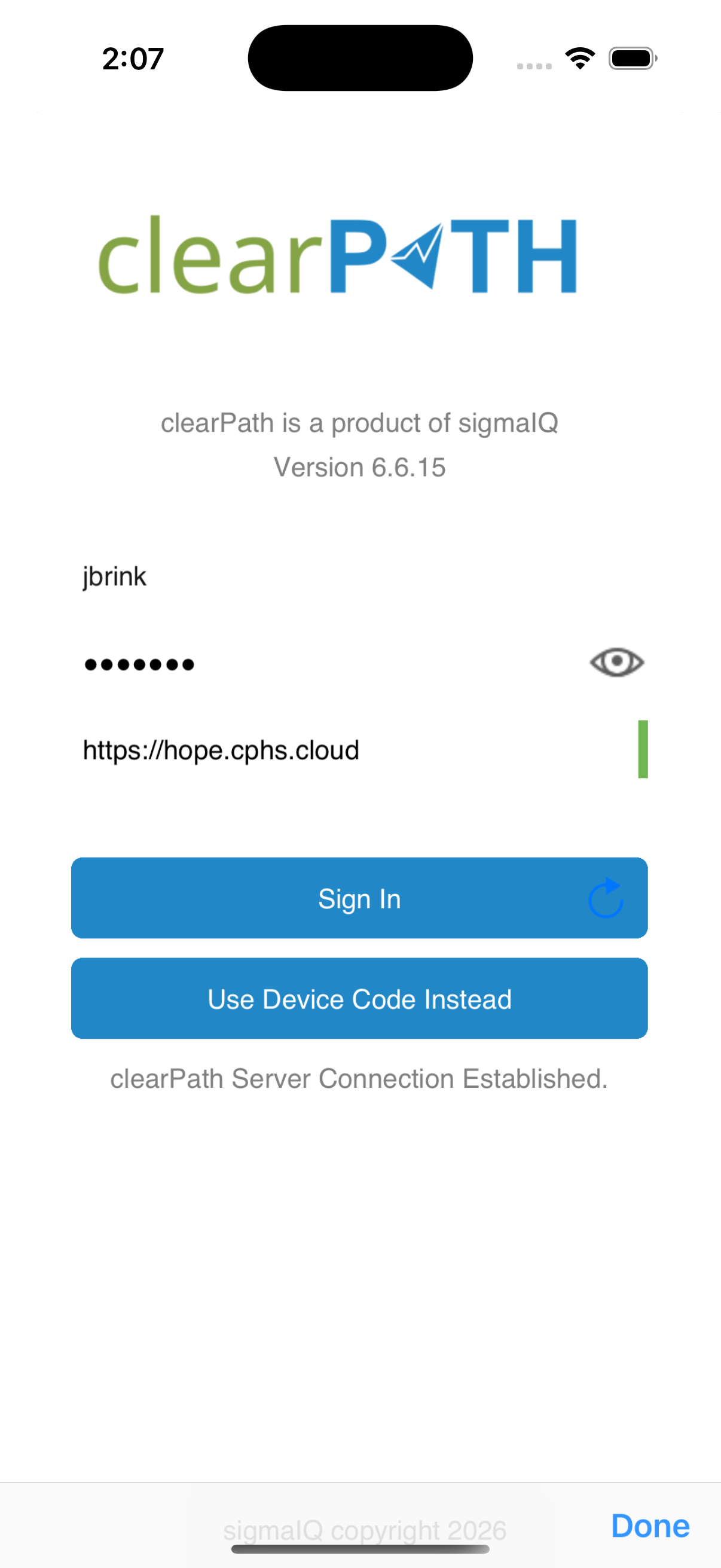
You are asked for your clearPath site URL, your username, and your password. The site URL follows the format
https://id.cphs.cloud, where id is your three or four character site identifier. A green bar to the right of the URL
field confirms the address is reachable; a red bar means the address is wrong or your network has blocked it. Tap the eye icon
in the password field if you would like to see what you have typed.
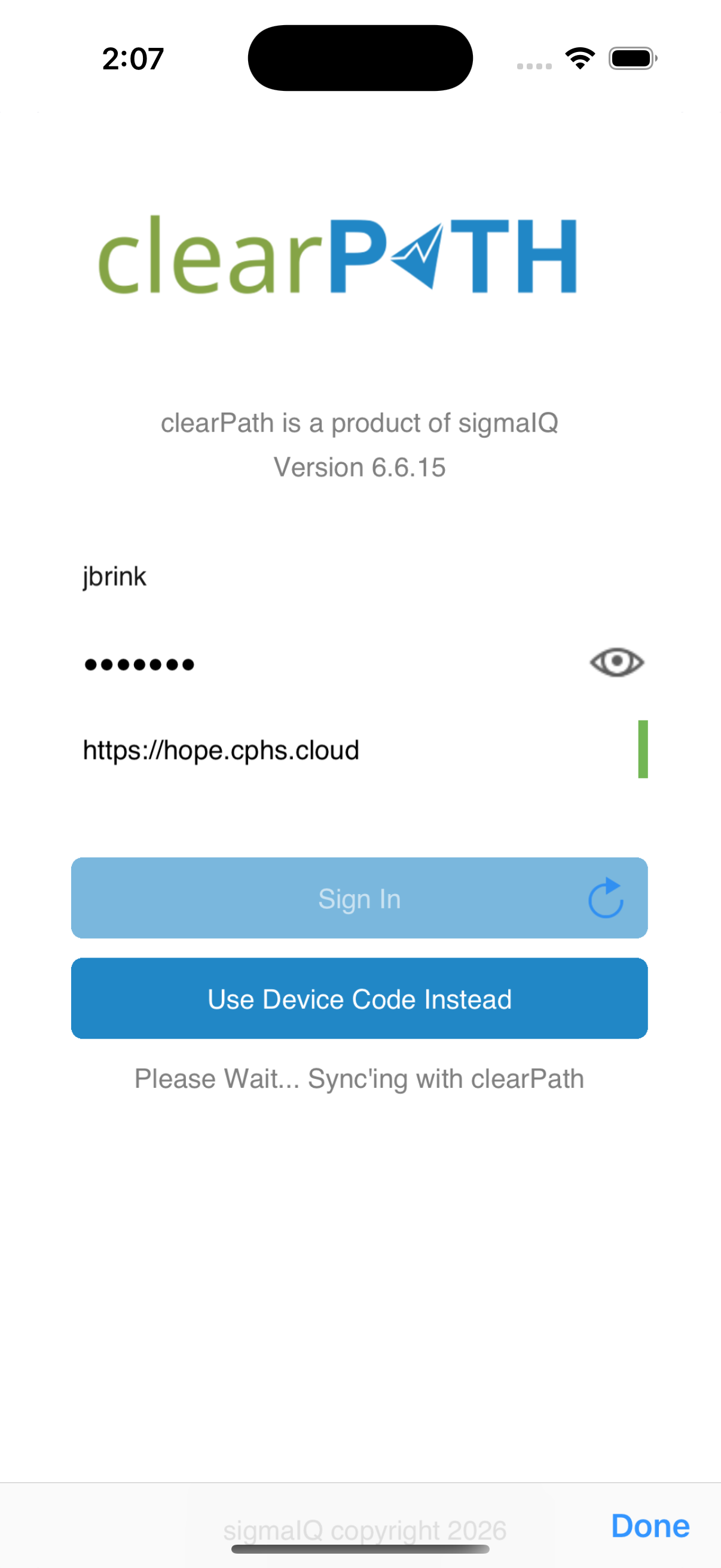
After you press Sign In, cp2go pulls down your latest configuration profile — facilities, patient care areas, healthcare provider types, and any pre-defined notes. The first sync takes a little longer than later ones, since there is no cached data yet.
cp2go remembers the last user who signed in. The password must be entered every time the application is launched.
1.3.2.2. Home Screen
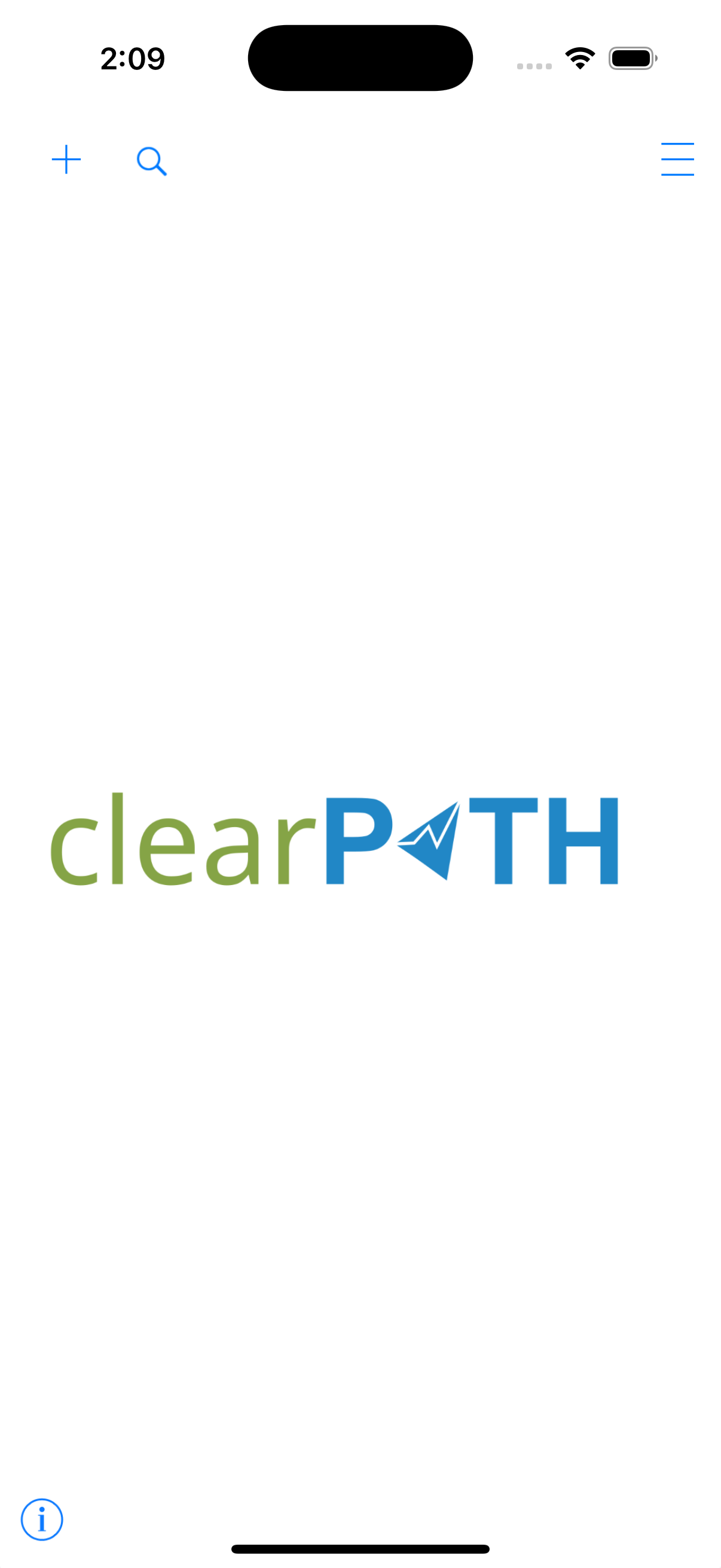
The home screen lists every audit session that is waiting to be sync’d to clearPath. The three icons across the top of the banner are, left to right:
+ — start a new audit
magnifier — view and sync existing audits
☰ — open the Setup menu
When the application has just been installed the home screen is empty until you start your first audit.
1.3.2.3. Setup
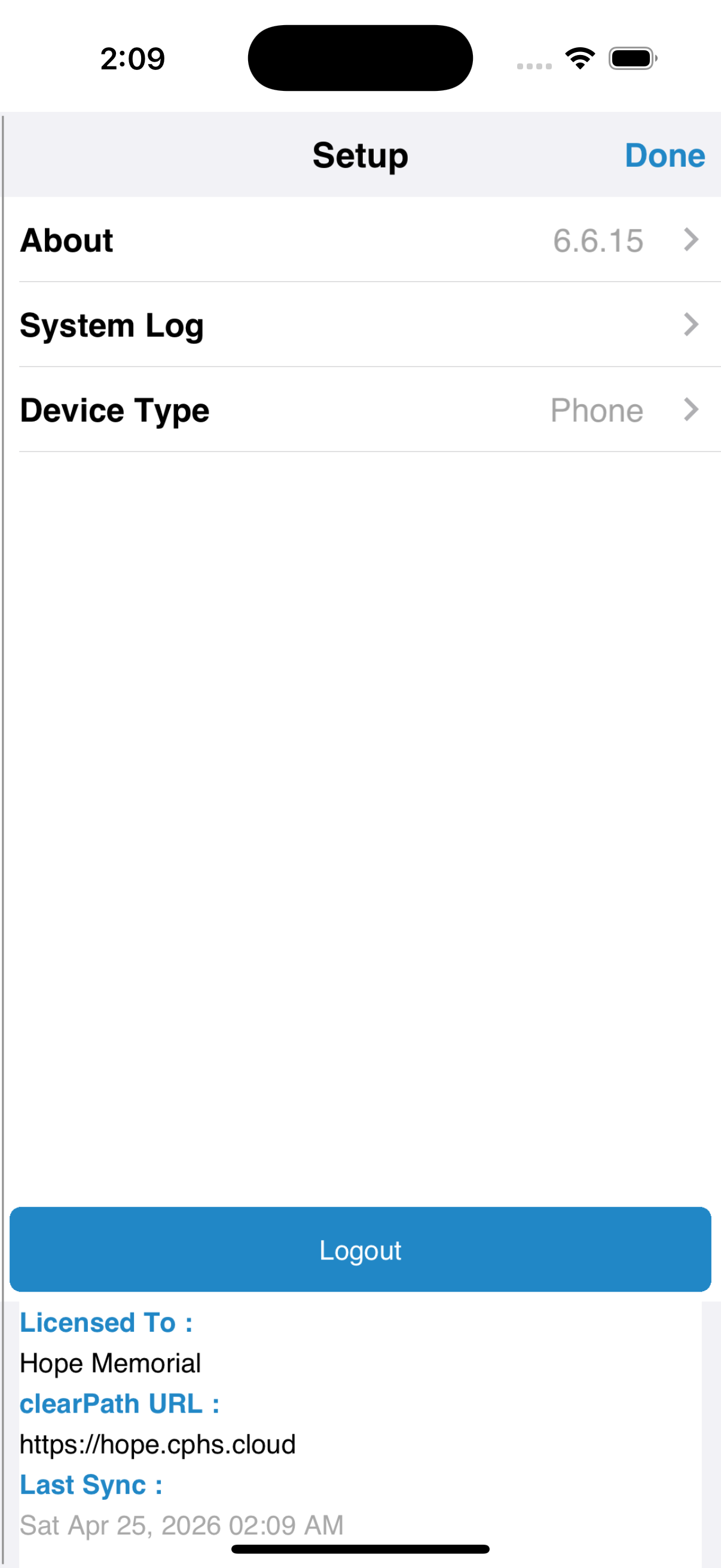
The Setup menu lets you review the device configuration, see the clearPath build details, inspect the application log if support ever needs it, and override the device type if your administrator has asked you to.
1.3.2.3.1. About
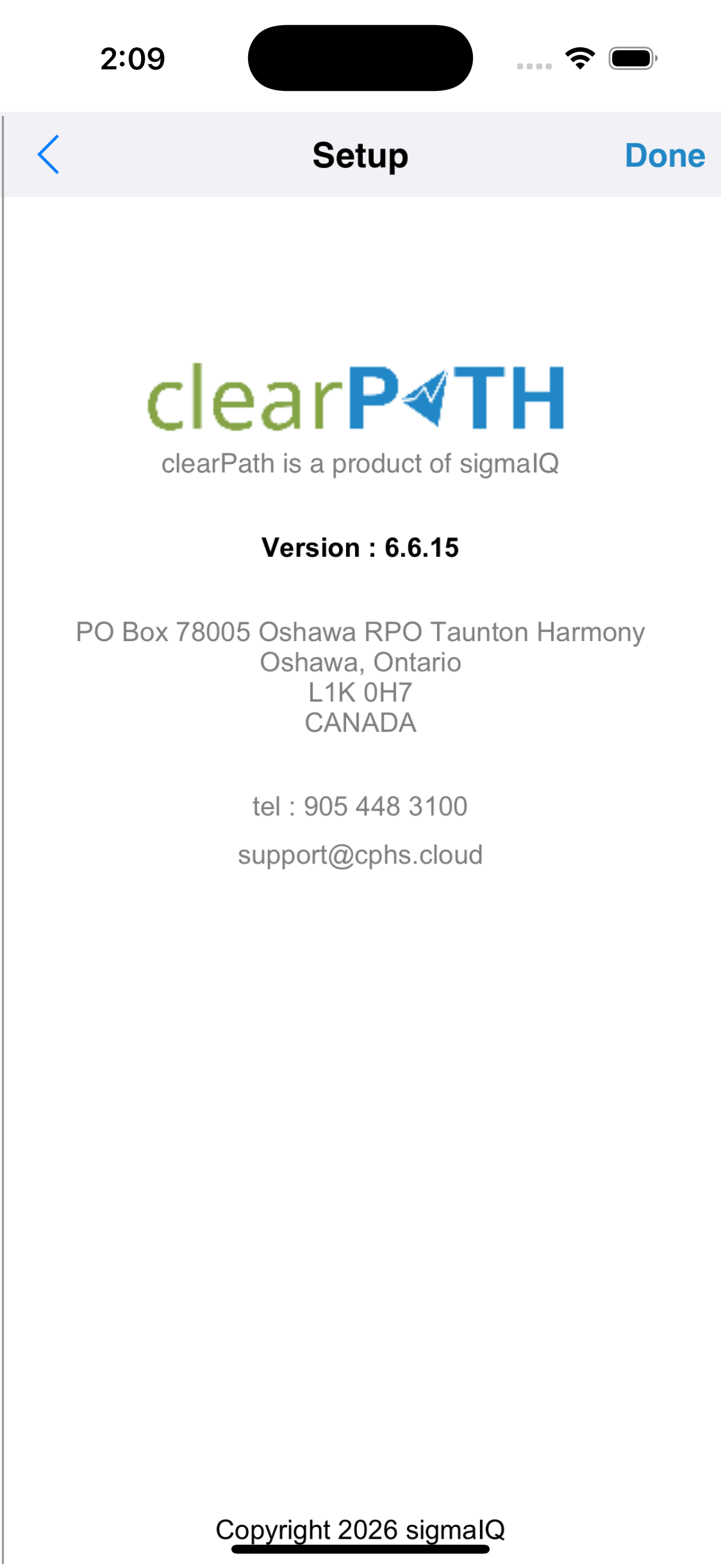
The About screen shows the cp2go version, your site URL, and contact information for clearPath. Have this information handy whenever you contact support@clearpathhealthsolutions.com.
1.3.2.3.2. System Log
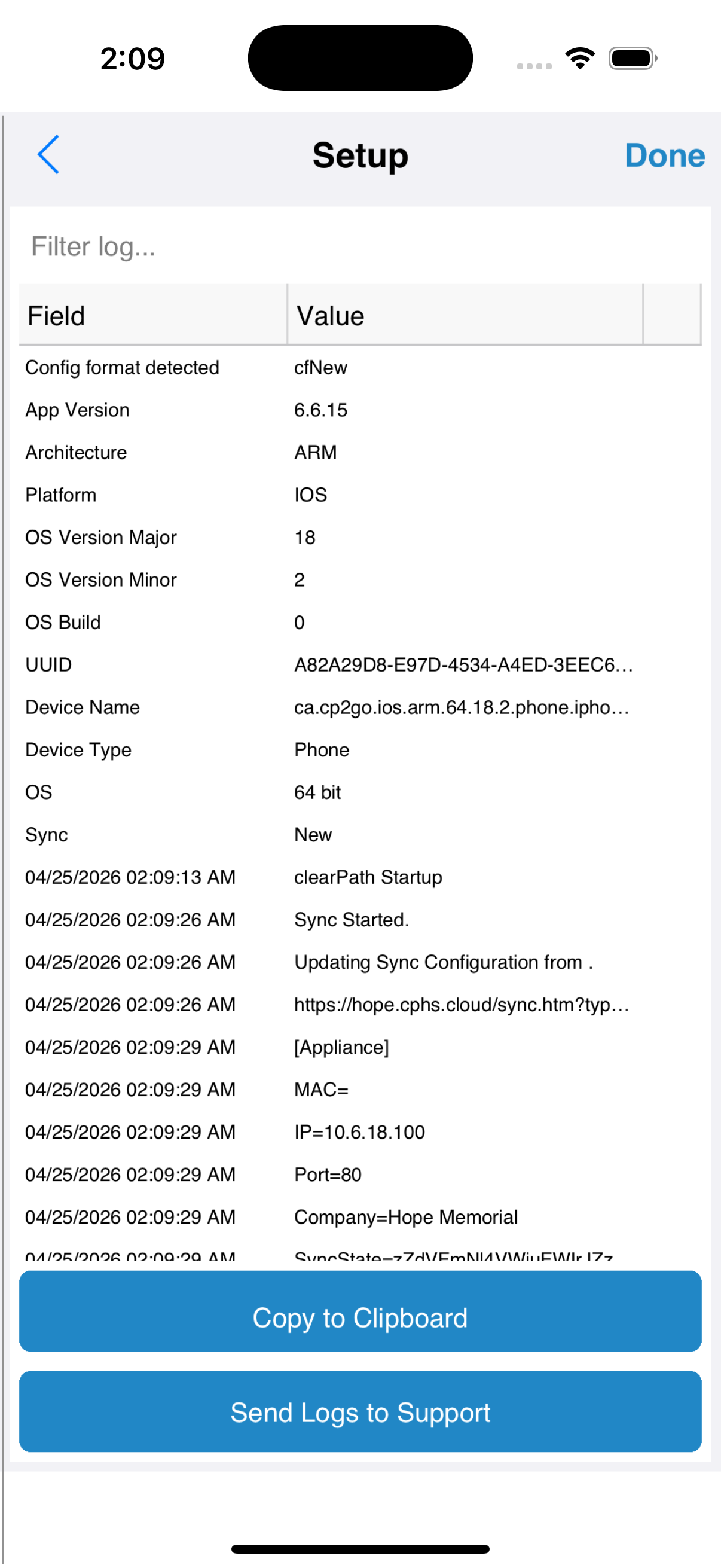
The system log records what the application does behind the scenes — sign-ins, syncs, errors. You usually only need this when support asks for it. Use the share icon to email the log to support.
1.3.2.3.3. Device Type
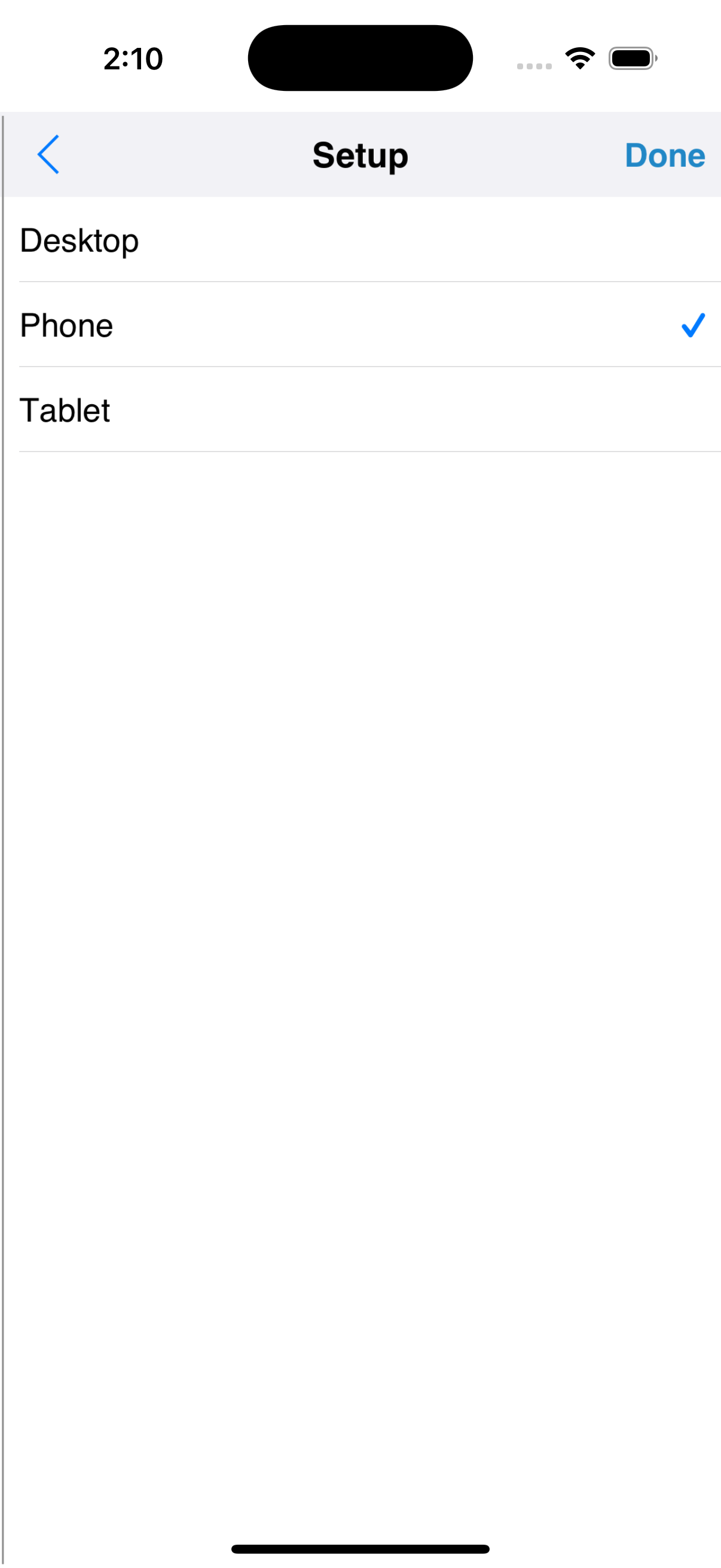
cp2go auto-detects the device type and presents the matching auditing layout. On a phone the default is Phone, which gives you the streamlined single-pane workflow described on this page. If your administrator asks you to switch the device into the larger tablet layout, the Device Type selector lets you do so without re-installing the application.
1.3.2.4. Starting a New Audit
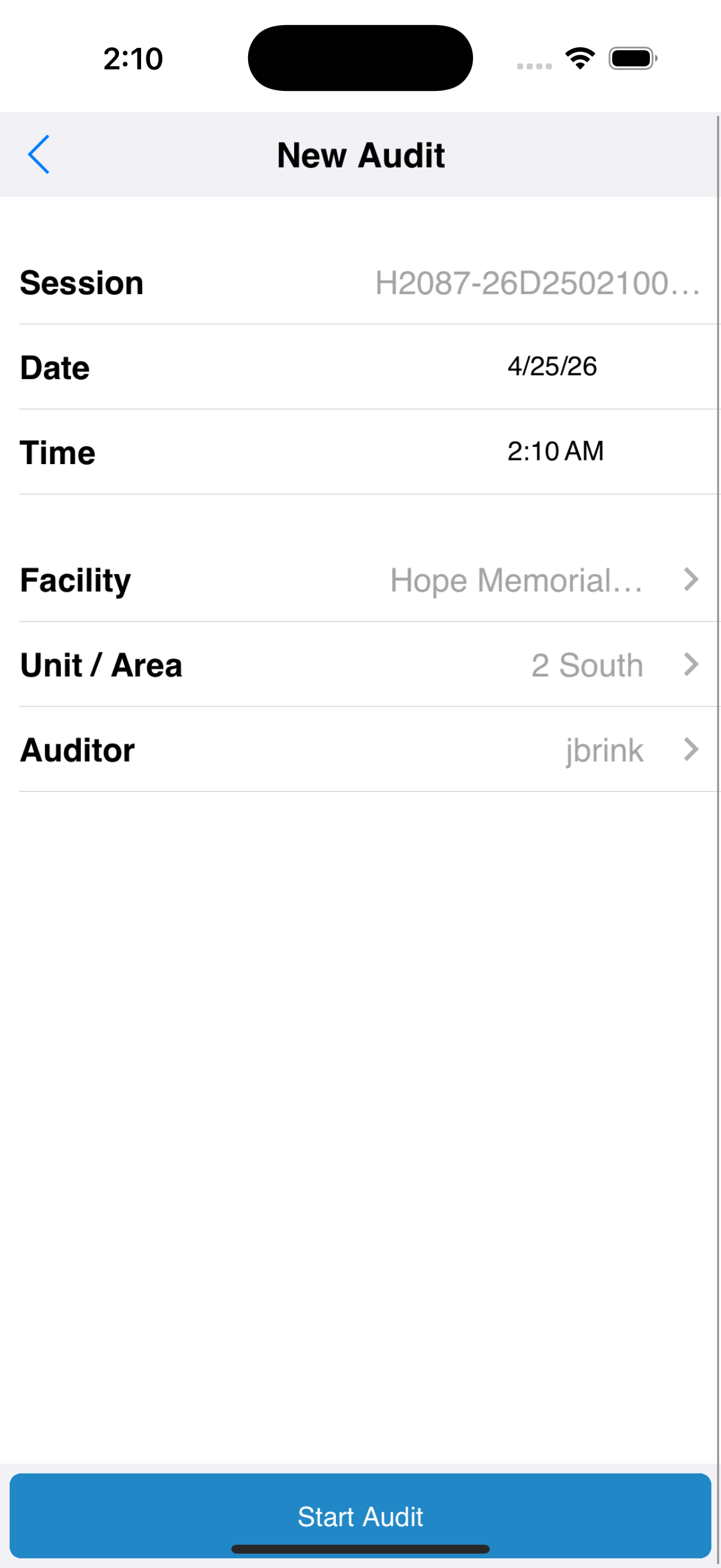
Tap + on the home banner to start a new audit. Choose the facility, the patient care area, and if necessary set the observer to your username. Leave the session name blank unless you have a specific reason to set it manually — for example, when back-dating a paper audit. Tap Add Observation to begin.
1.3.2.5. Recording Observations
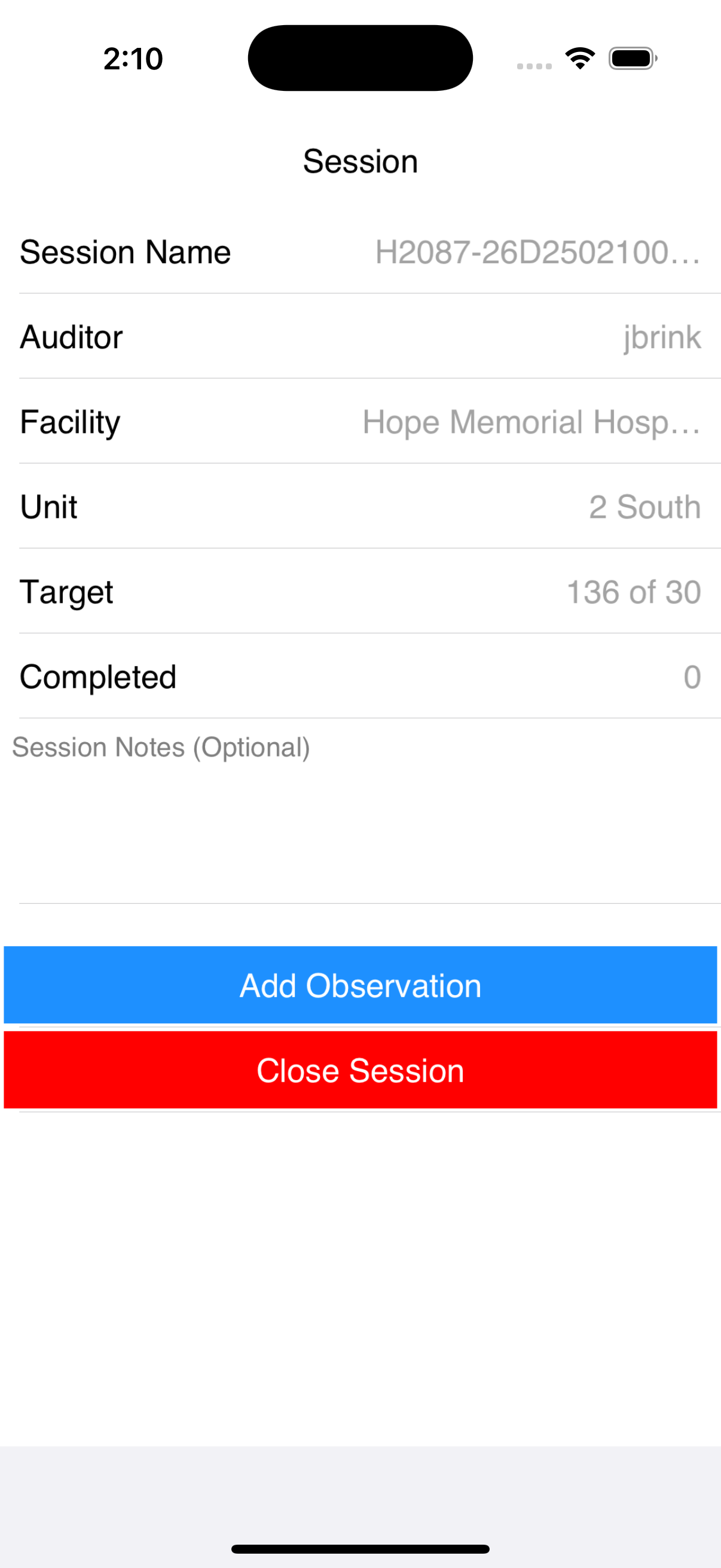
The session screen counts the number of observations collected so far and offers two buttons: Add Observation to record the next opportunity, and End Session when the audit is complete.
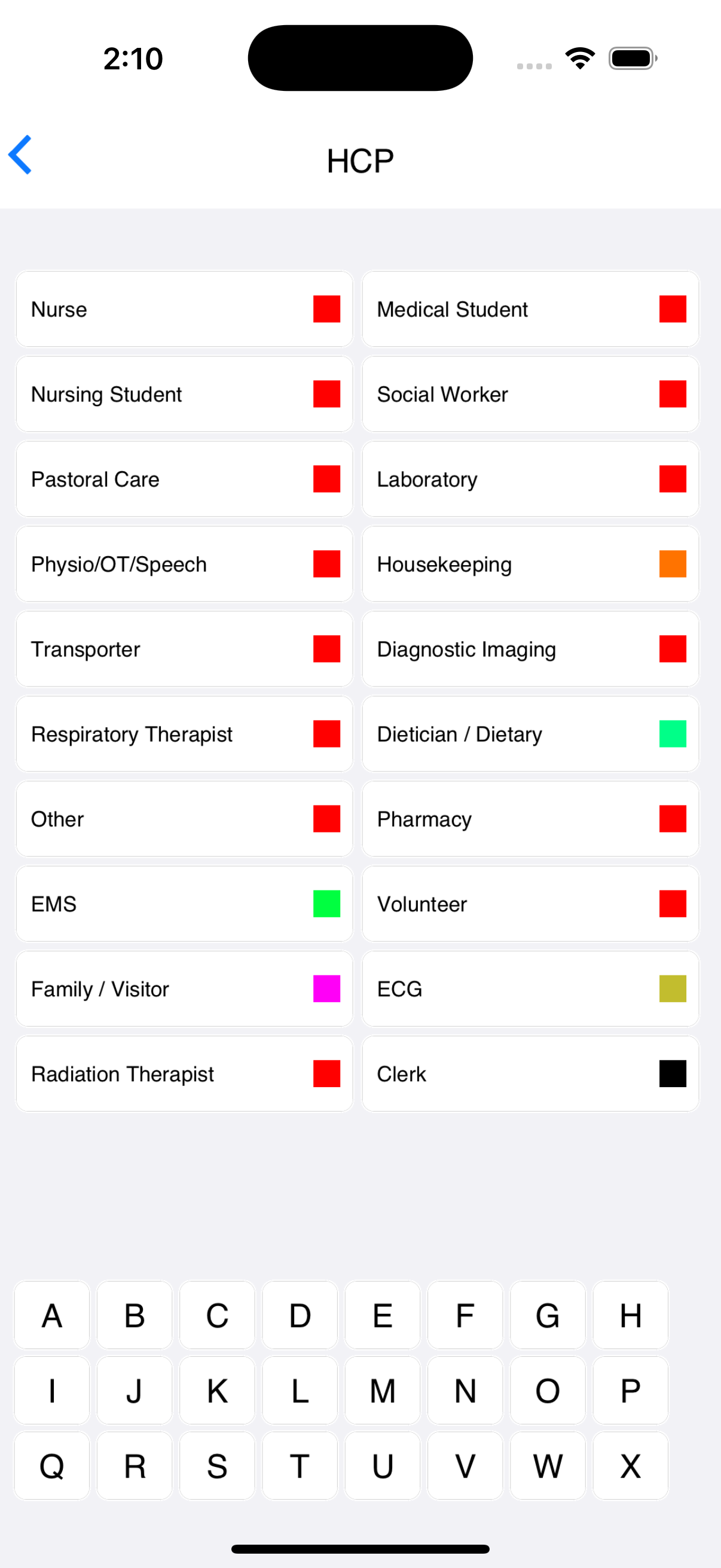
For each observation, tap on the healthcare provider type. The list shows every type your organization has configured. If a
type is missing, contact your clearPath administrator — types cannot be added from cp2go. Use the letter selector to
differentiate between two providers of the same type (A, B, C …); choose A if you only need to track one
provider in the group.
Pick the indicator or indicators being observed, then tap Rub or Wash if hand hygiene was performed. Leave both unselected if the opportunity was missed. If other attributes were observed — gloves, nails, bracelets, rings — tap the attributes field and tick whichever apply. Tap Save to record the observation.
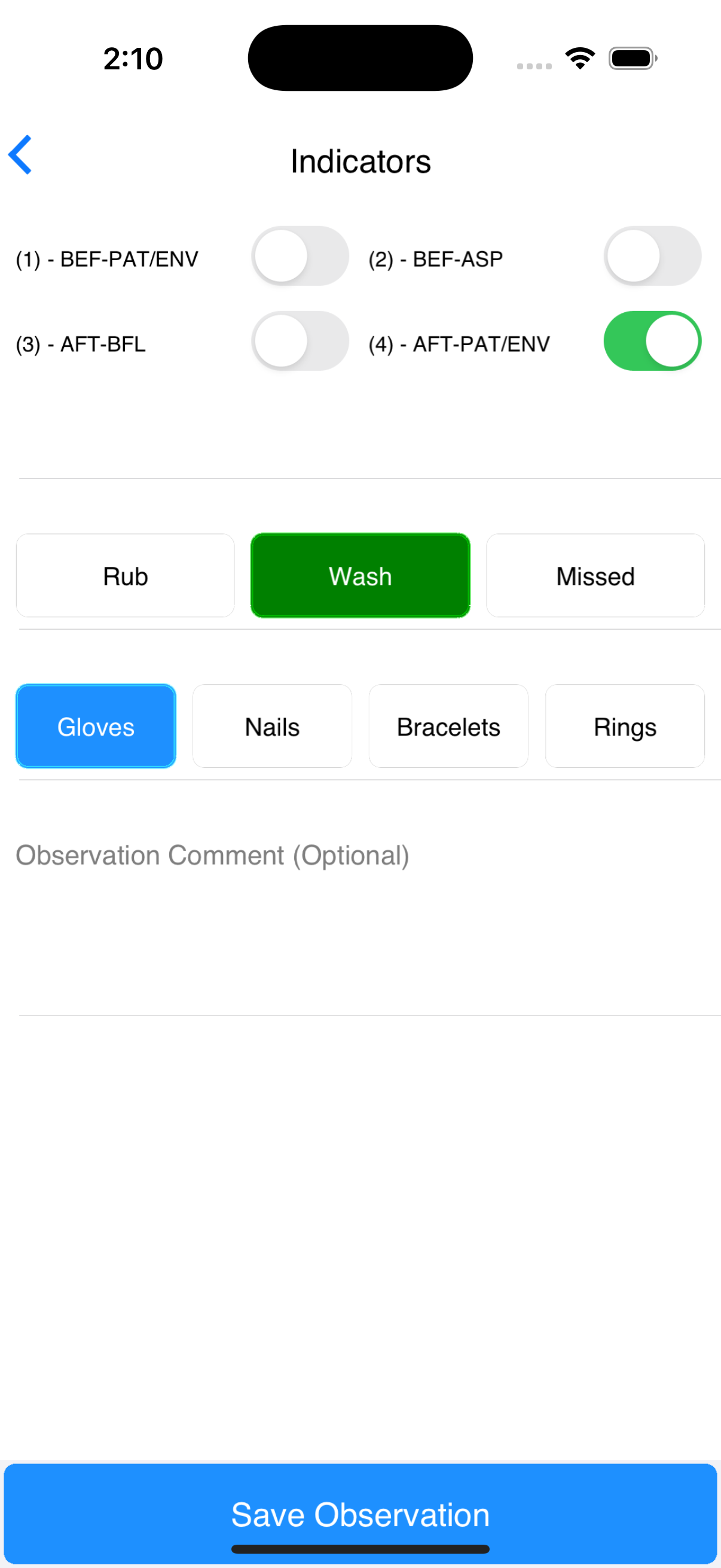
After saving, tap Add Observation to continue, or End Session to close the audit.
Note
It is fine to skip an observation. cp2go automatically removes any observations that are not complete when the audit session is closed.
1.3.2.6. Syncing Completed Audits
Completed audits sit on the home screen until you sync them to clearPath. Tap the magnifying-glass icon to open the Audits to Sync list, then tap the sync button to push all completed audits up to clearPath and to pull down the latest configuration profile.
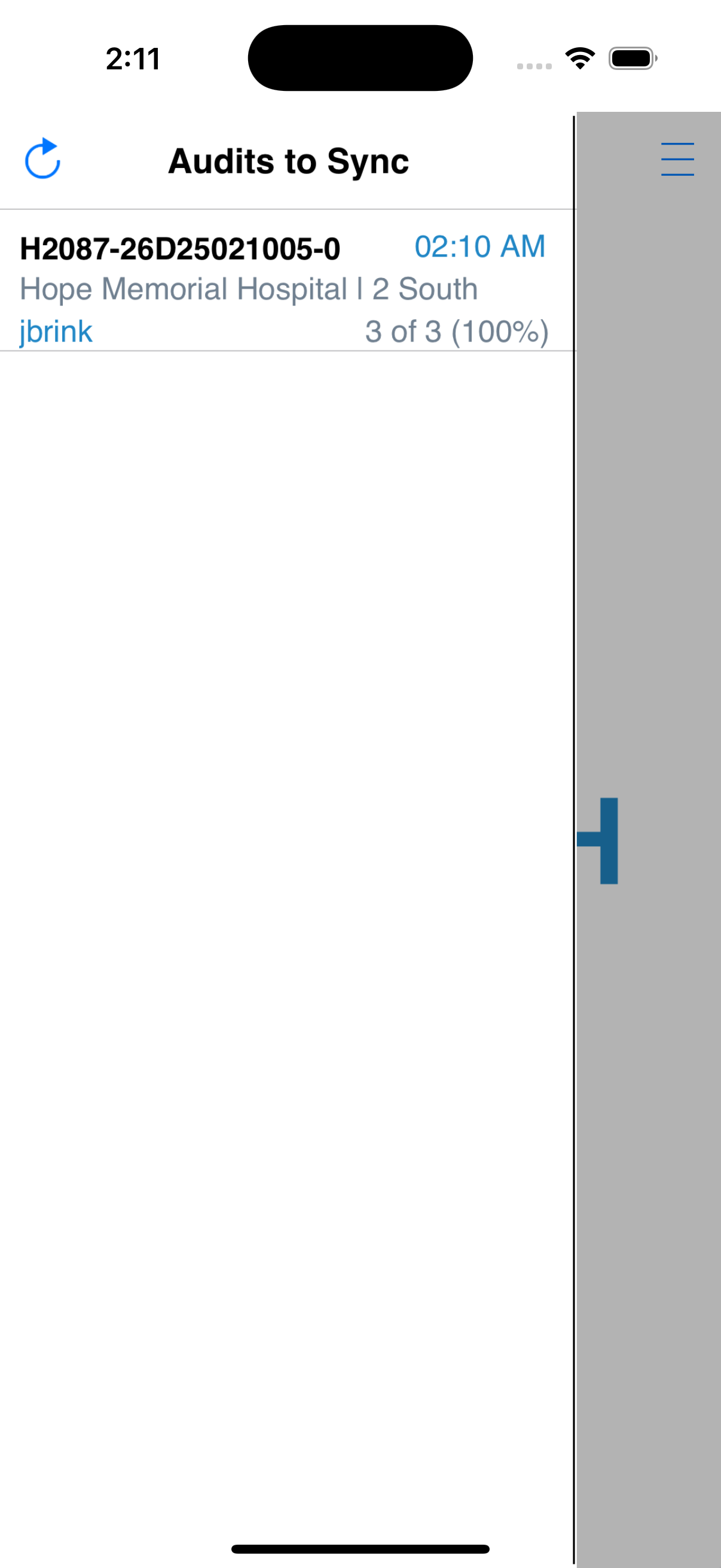
A normal sync takes less than thirty seconds. The home screen shows the sync progress while it is running.
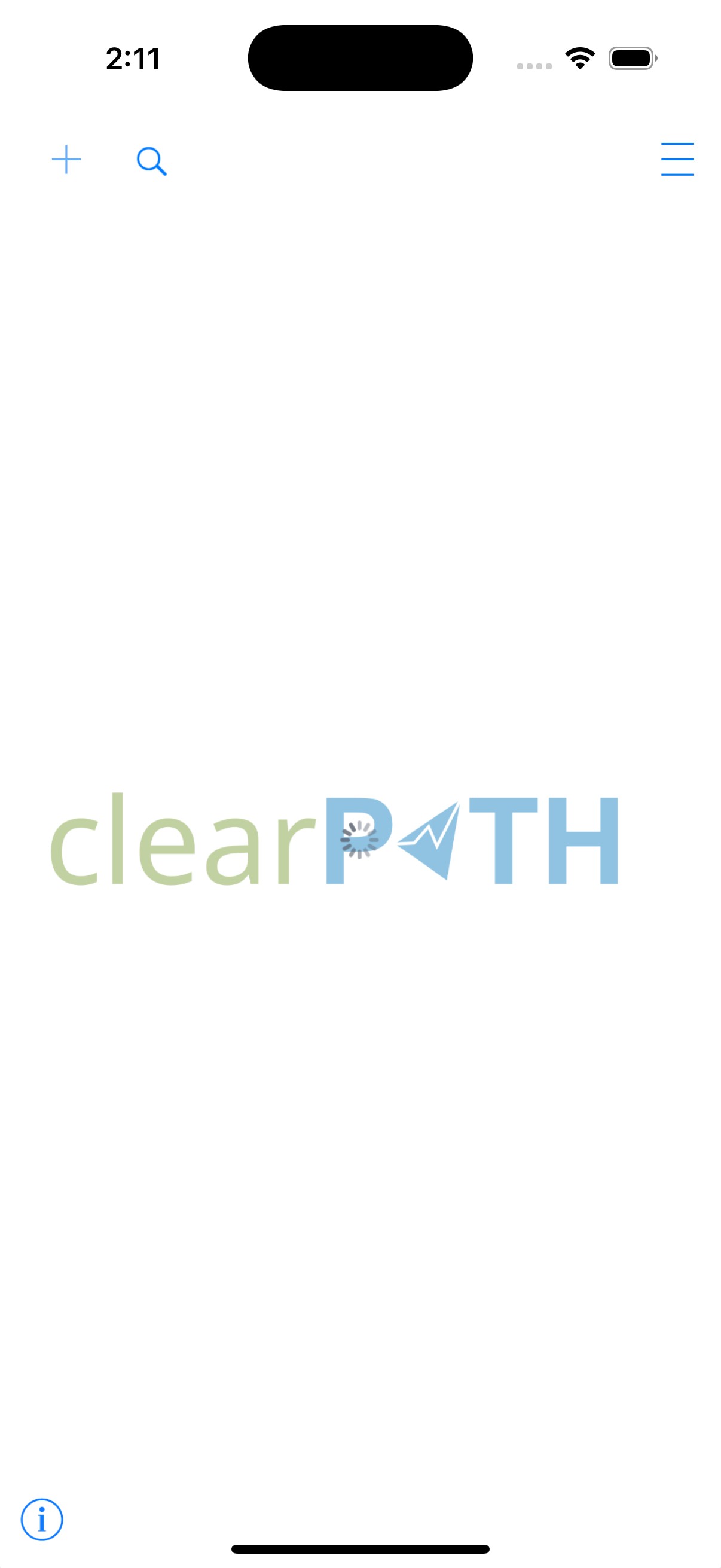
You should sync at least once a day, and any time the device has been sitting idle for a few days. There is no harm in syncing immediately after each audit — and it is equally fine to wait until the end of your shift to push everything at once.
1.3.3. Web
clearPath runs entirely in a modern web browser. Anywhere you have a browser — desktop, laptop, tablet, or phone — you can sign in and start collecting audits on the spot, without installing anything.
1.3.3.1. Signing In
Open your browser and go to your clearPath site (for example
site.cphs.cloud, where site is your three- or four-character
site code). The sign-in page appears.
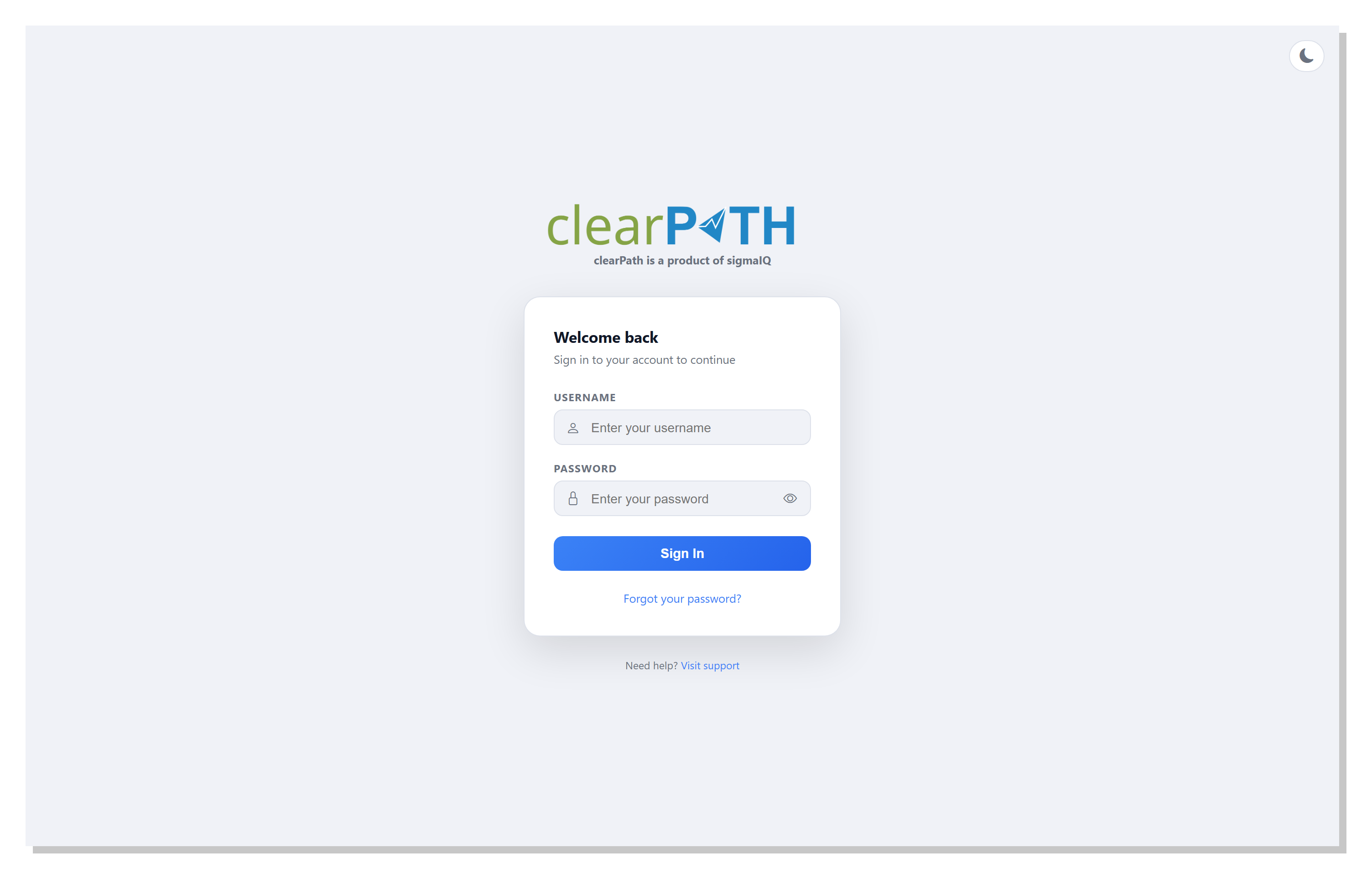
Enter your user name and password and click Login. If your
account has two-factor authentication enabled, clearPath will ask
for your code next. See Two Factor Authentication
for the step-by-step.
1.3.3.2. Starting a Web-Based Audit Session
From the sidebar, go to Audits | Hand Hygiene Sessions.
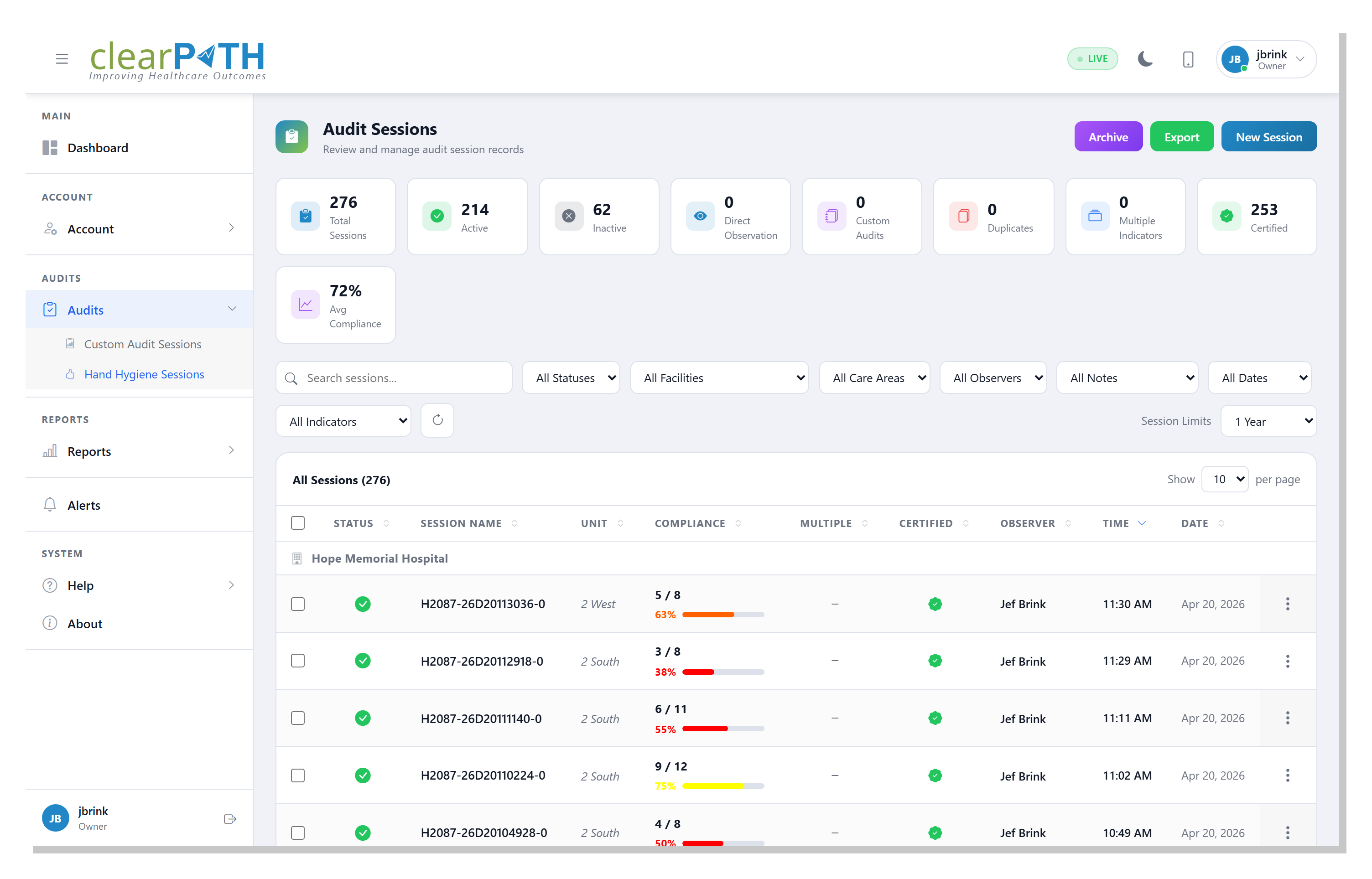
Click the New Session button in the top-right of the page.
clearPath opens the session-configuration dialog:
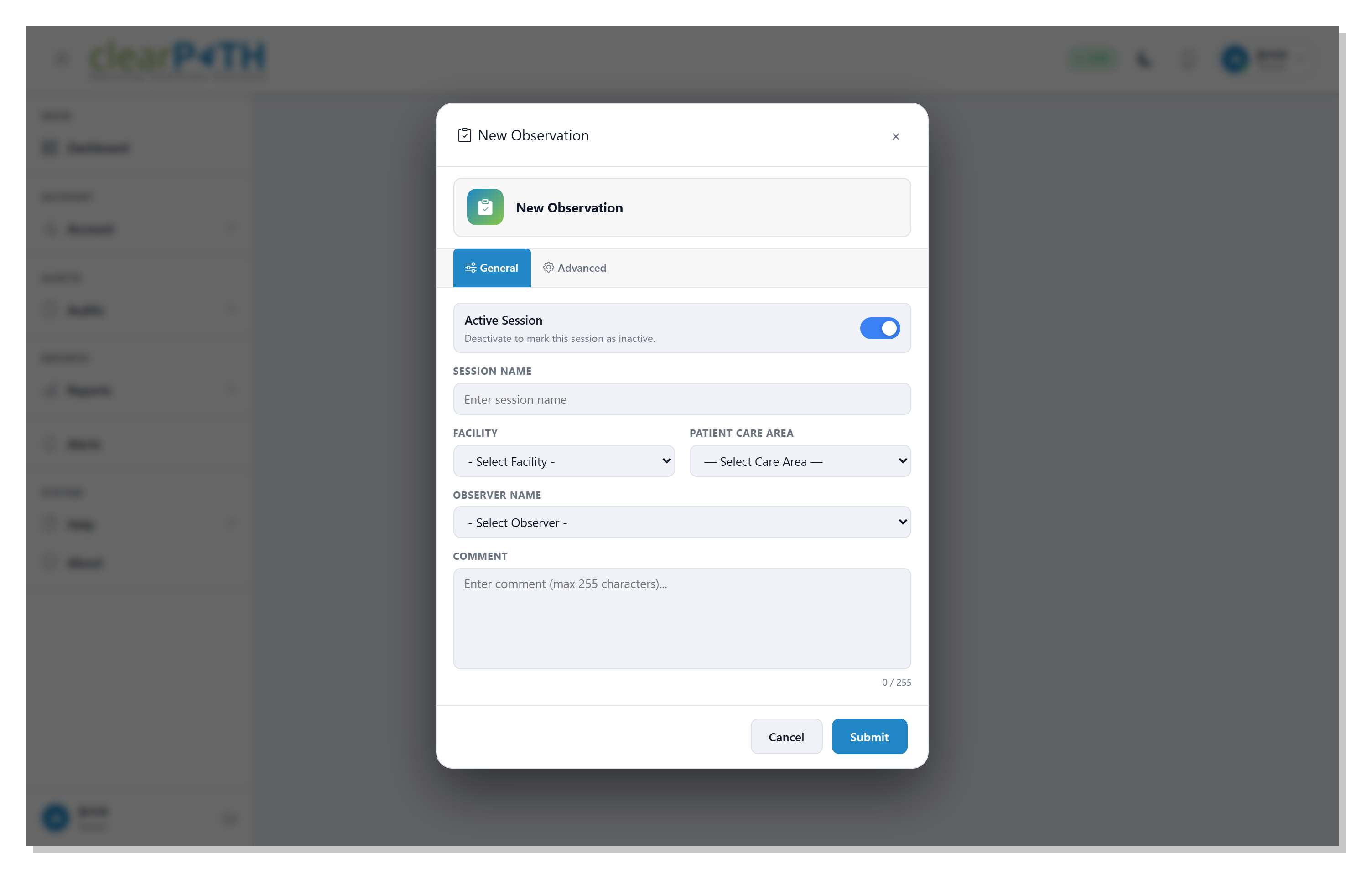
Fill in:
Session Name— optional. Leave blank and clearPath will name the session for you.FacilityandPatient Care Area— where the session takes place.Observer Name— the auditor running the session.Comment— optional free-text note about the session itself (up to 255 characters). Useful for things like “Unit in outbreak” or “Training provided prior to session”.
When you are happy with the fields, click Start Session and
clearPath opens the full-size auditing screen.
1.3.3.3. The Auditing Screen
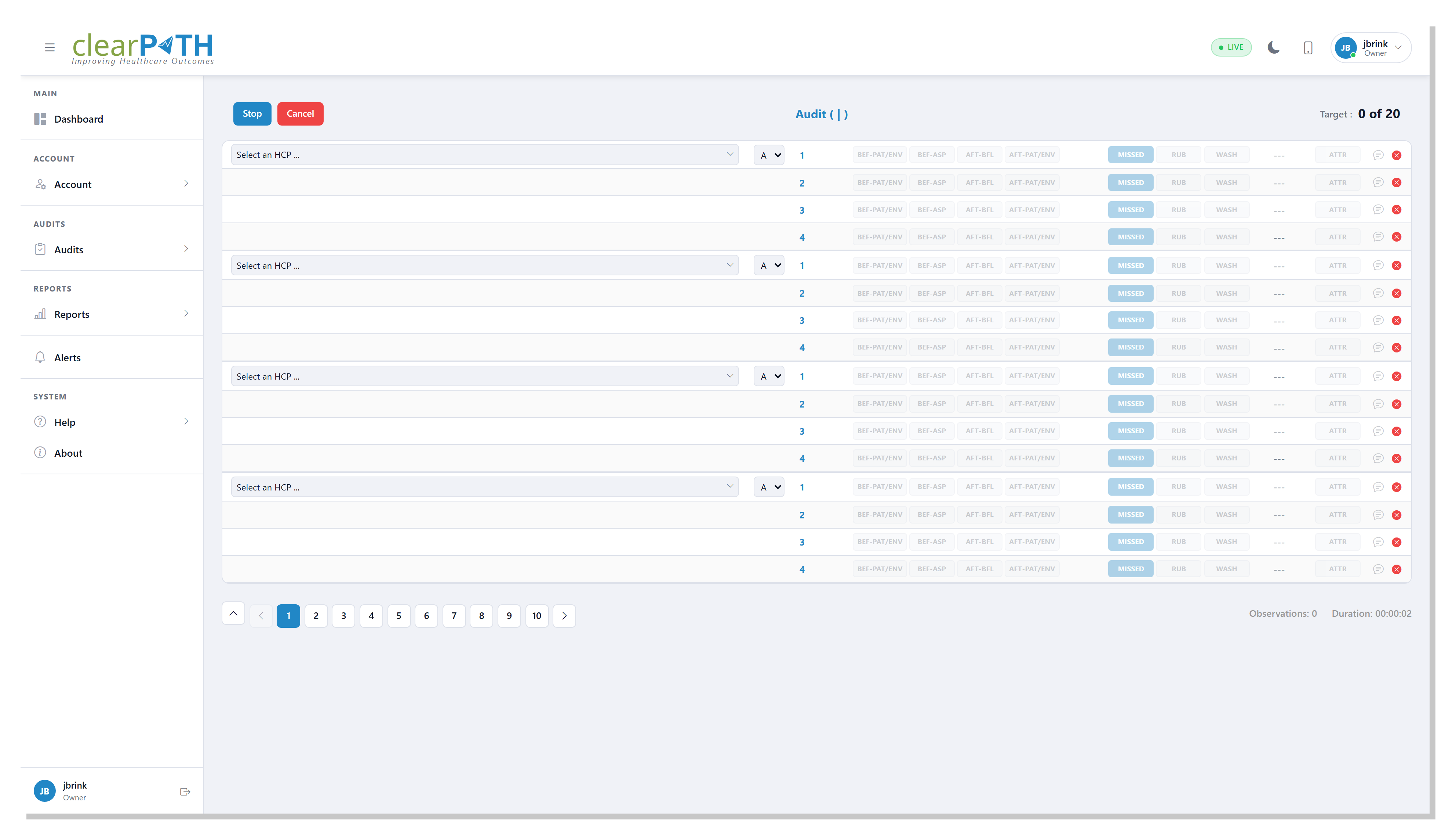
The auditing screen fills the browser window so you can record observations without scrolling or zooming. A header bar along the top of the screen shows:
StopandCancelbuttons on the left —Stopcloses the session and submits it;Cancelabandons the session.The facility and patient care area in the centre, so you always know which session is live.
The
Targetprogress counter on the right (completed-vs-goal).
Below the header is the observation grid. Each row is one observation. For every observation you:
Pick the healthcare provider type (for example
NursingorPhysiotherapist) from the first column.Pick the category (A, B, C, or D).
Tick the moments of hand hygiene that apply (
Before Patient/Environment,Before ASP,After BFL,After Patient/Environment,After TPS, orMissed).Choose the action —
Rub,Wash, or leave blank for a missed opportunity.Tick any attributes seen during the observation —
Gloves,Nails,Bracelets, orRings.
Along the bottom of the screen a status bar shows:
A
Session Commentbutton on the far left for editing the session-wide comment at any time.Pagination controls if the session has more than one page of observations.
The live
Observationscount and sessionDuration.
clearPath saves each committed observation to the server as you go, so nothing is lost if the browser is refreshed or you briefly lose connection.
1.3.3.4. Viewing Web Audit Sessions in Progress
Web-based audit sessions do not need to be synchronised with clearPath the way cp2go sessions from a handheld device do — they are already in the system the moment you commit an observation. Administrators can watch live sessions on the Audits | Hand Hygiene Sessions page. In-progress sessions are highlighted yellow and show the auditor, facility, patient care area, duration so far, and number of completed observations.
Note
Audit sessions that stay open for more than eight hours are closed automatically by clearPath — they are assumed to have been abandoned. Observations are not counted in reports until the session is closed.
1.3.4. cp2go PWA
cp2go is also available as a progressive web app (PWA) — a lightweight, installable version of the auditing software that runs in any modern phone or tablet browser, Android or iOS. It works offline after the first sign-in, so auditors can keep collecting observations in areas with poor reception; results upload automatically the moment the device reconnects.
Because it is a web app, there is nothing to download from an app store and no version to keep current. Once the PWA is pinned to the home screen, opening it picks up whichever version is live on your clearPath server.
1.3.4.1. Signing In
Point your device’s browser at your clearPath site, then add
/cp2go/ to the address (for example
site.cphs.cloud/cp2go/). The sign-in card appears.
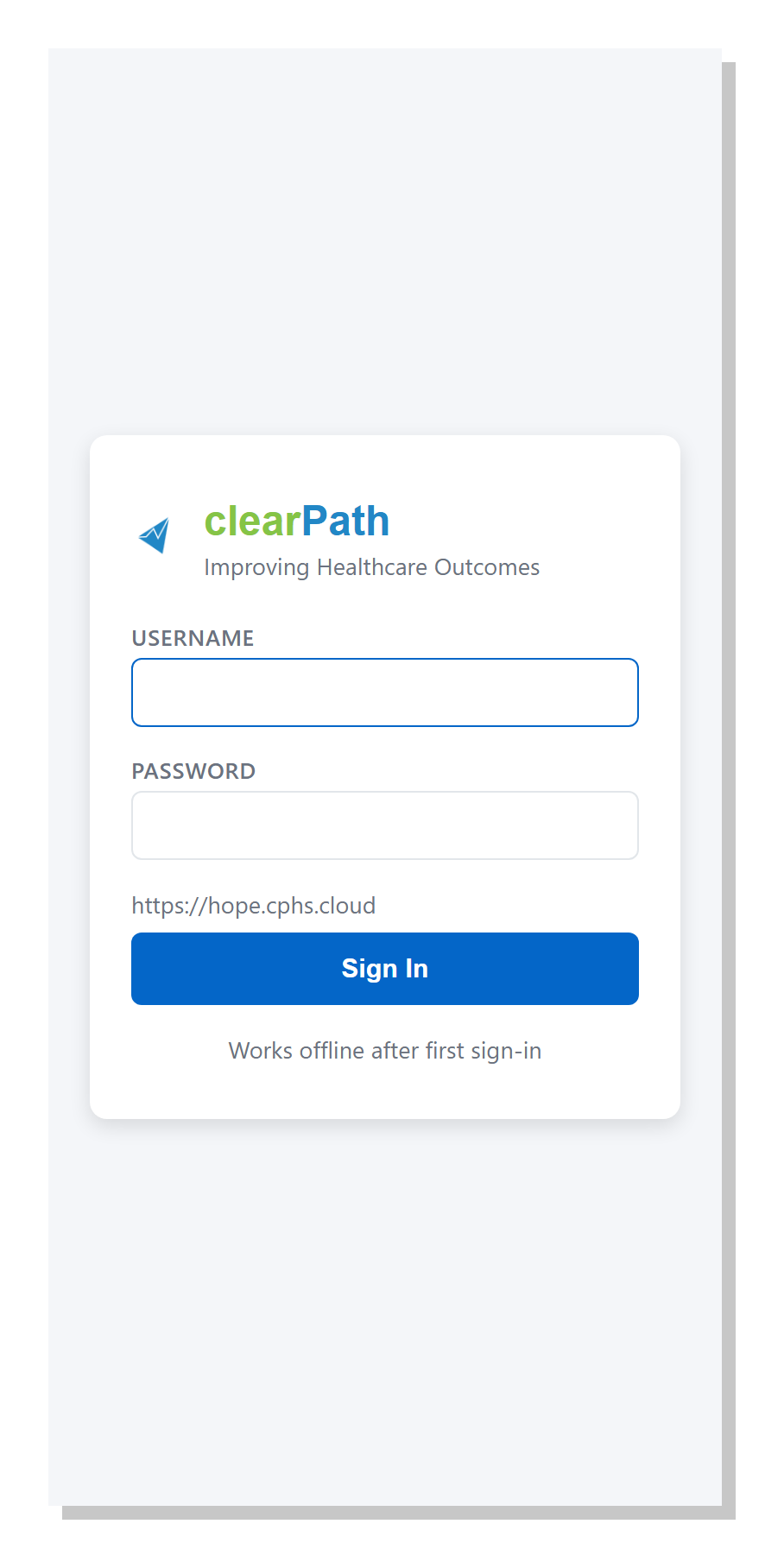
Enter your clearPath user name and password and tap Sign In. The
text underneath — “Works offline after first sign-in” — is a
reminder that the PWA caches your credentials locally, so you can
still work if you lose connectivity later.
1.3.4.2. Installing to the Home Screen
Once signed in, pin the PWA to the device’s home screen so it launches full-screen like a native app:
iPhone / iPad — open the PWA in Safari, tap Share, then tap Add to Home Screen.
Android phone / tablet — open the PWA in Chrome, tap the
⋮menu, then tap Add to Home screen or Install app.
1.3.4.3. Home Screen
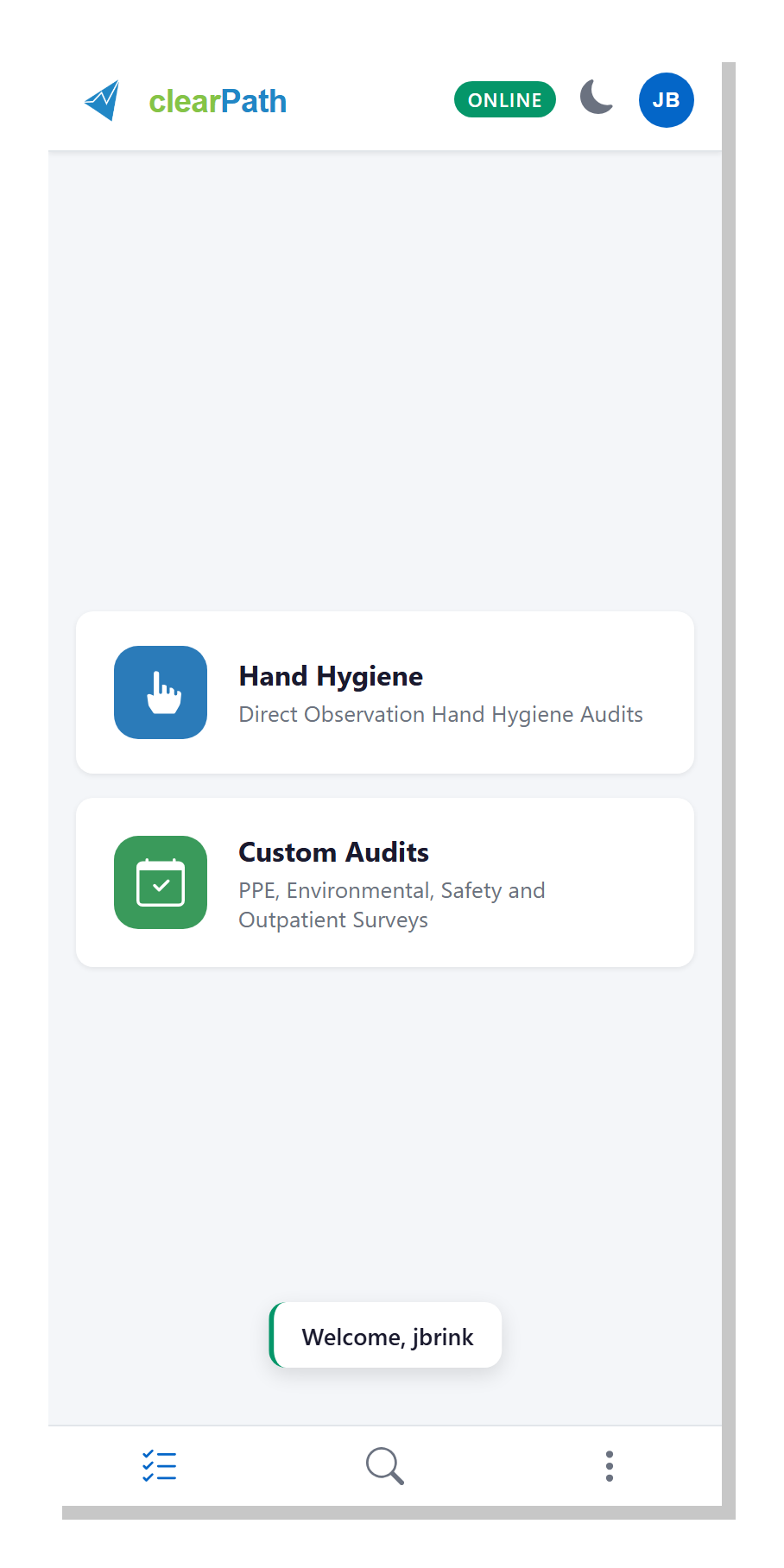
After signing in, the home screen shows two large buttons — one for each kind of audit:
Hand Hygiene— direct-observation hand-hygiene audits.Custom Audits— PPE, environmental-services, safety, and outpatient surveys.
A header strip at the top of every screen carries a connectivity
badge (Online / Offline), a sync indicator, a theme toggle
(moon icon) for dark / light mode, and a circular user-initial
avatar — tap it to reveal Logout. A three-button nav bar along
the bottom gives quick access to the current session list, search,
and the settings menu.
1.3.4.4. Hand Hygiene Auditing
Tap Hand Hygiene on the home screen to walk through a direct
observation session. The PWA guides you through four screens:
Setup, Session, HCP, and Indicators.
1.3.5. Step 1 — Session Setup
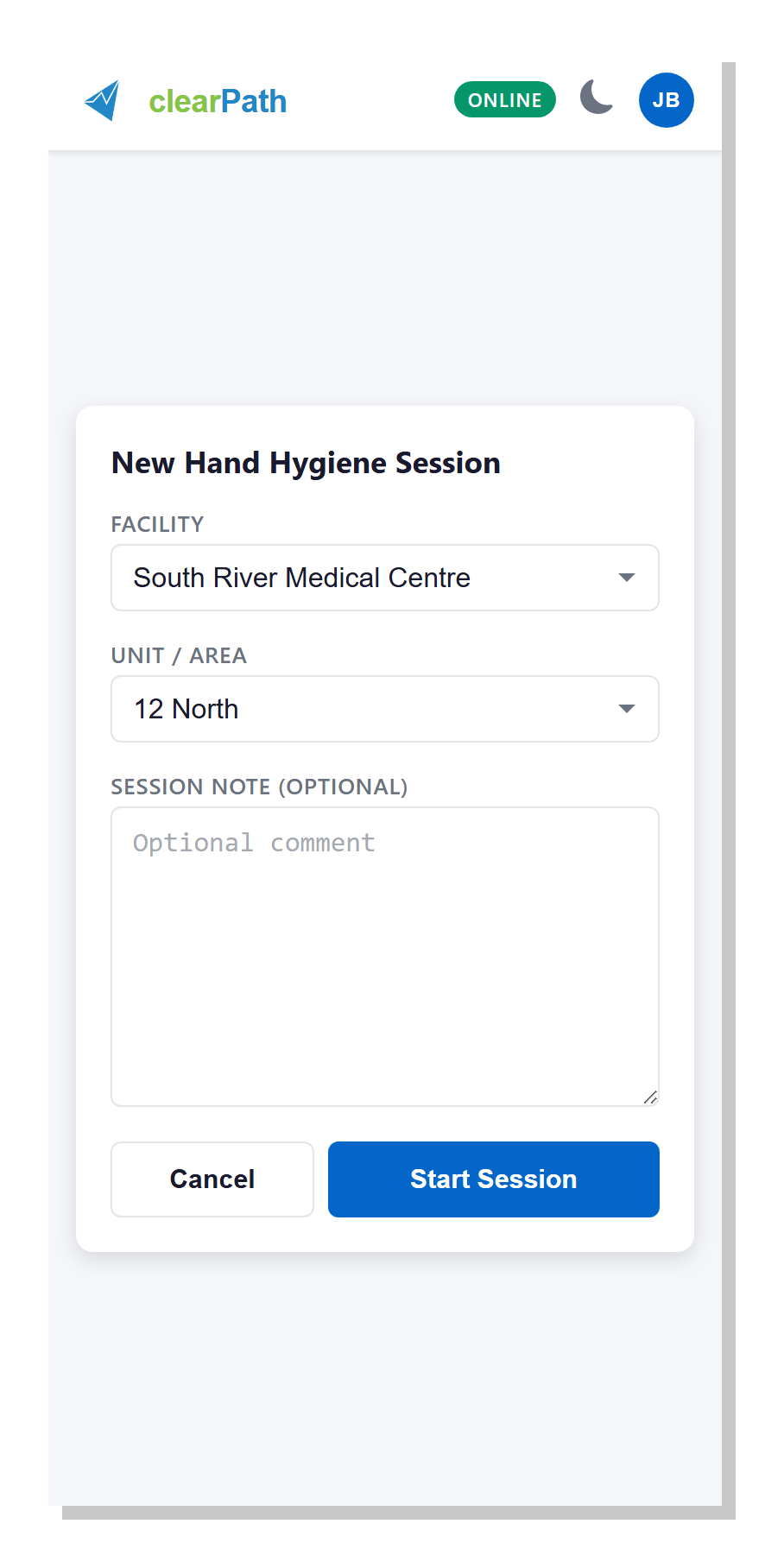
The setup card collects three things before a session can begin:
Facility— which facility the session is being run in.Unit / Area— the patient care area within that facility. The list populates after you pick a facility.Session Note— optional free text describing the session itself (for example “Unit in outbreak” or “Training provided prior to session”).
Tap Cancel to return to the home screen, or Start Session
to open the session.
1.3.6. Step 2 — Session Screen
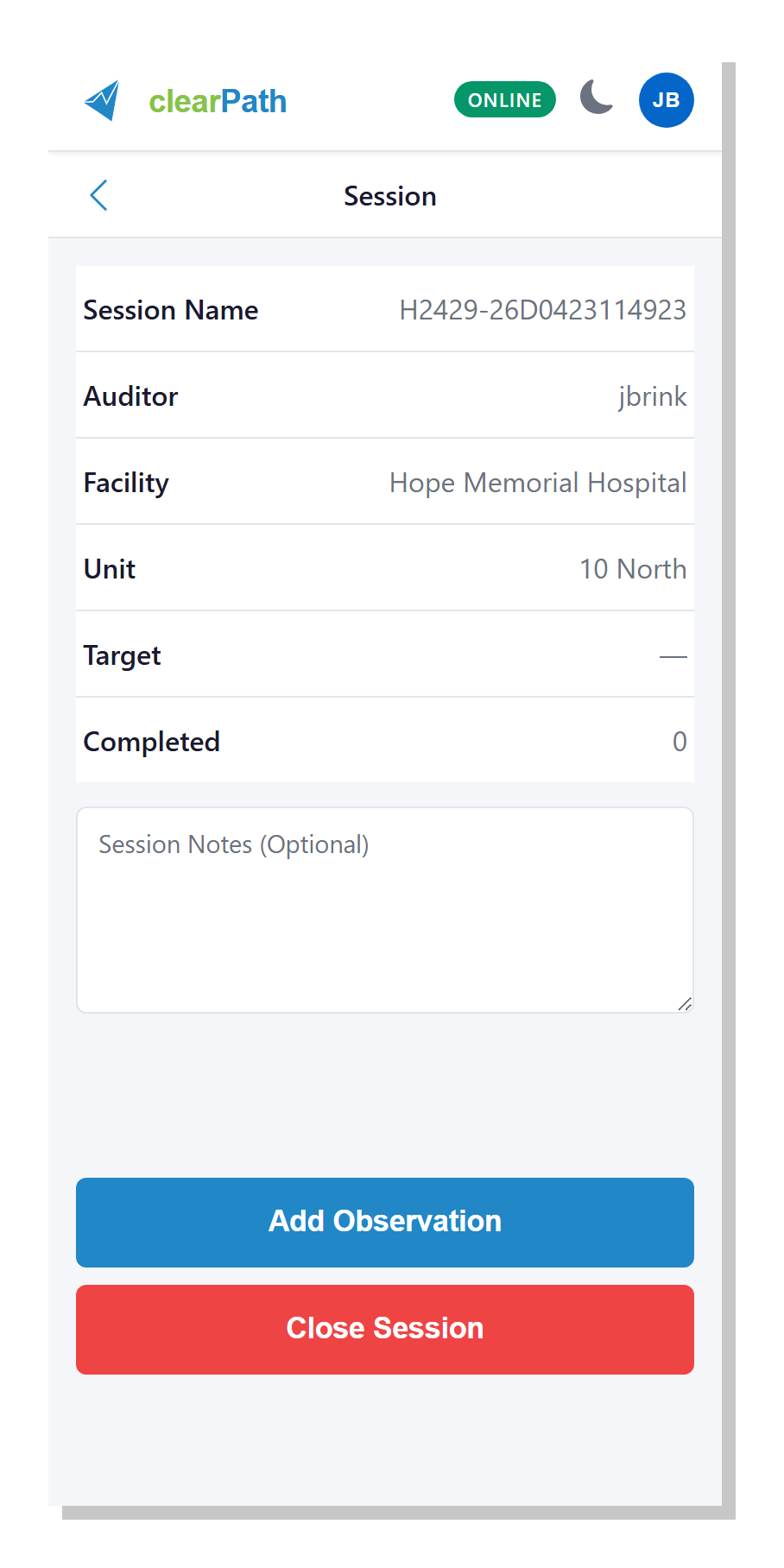
The session screen is your dashboard for the audit in progress. Across the top it shows:
Session Name— clearPath auto-generates a date-stamped name from the facility.Auditor— the signed-in user running the session.FacilityandUnit— the ones you picked on setup.Target— how many observations the unit is aiming for (for example10 of 20).Completed— how many observations have been saved so far.
A Session Notes textarea lets you annotate the session at any
point. Two big action buttons drive what happens next:
Add Observation— opens the HCP screen to record a new observation.Close Session— closes the session and marks it complete. Once the device is online, closed sessions upload to clearPath automatically.
1.3.7. Step 3 — HCP Screen
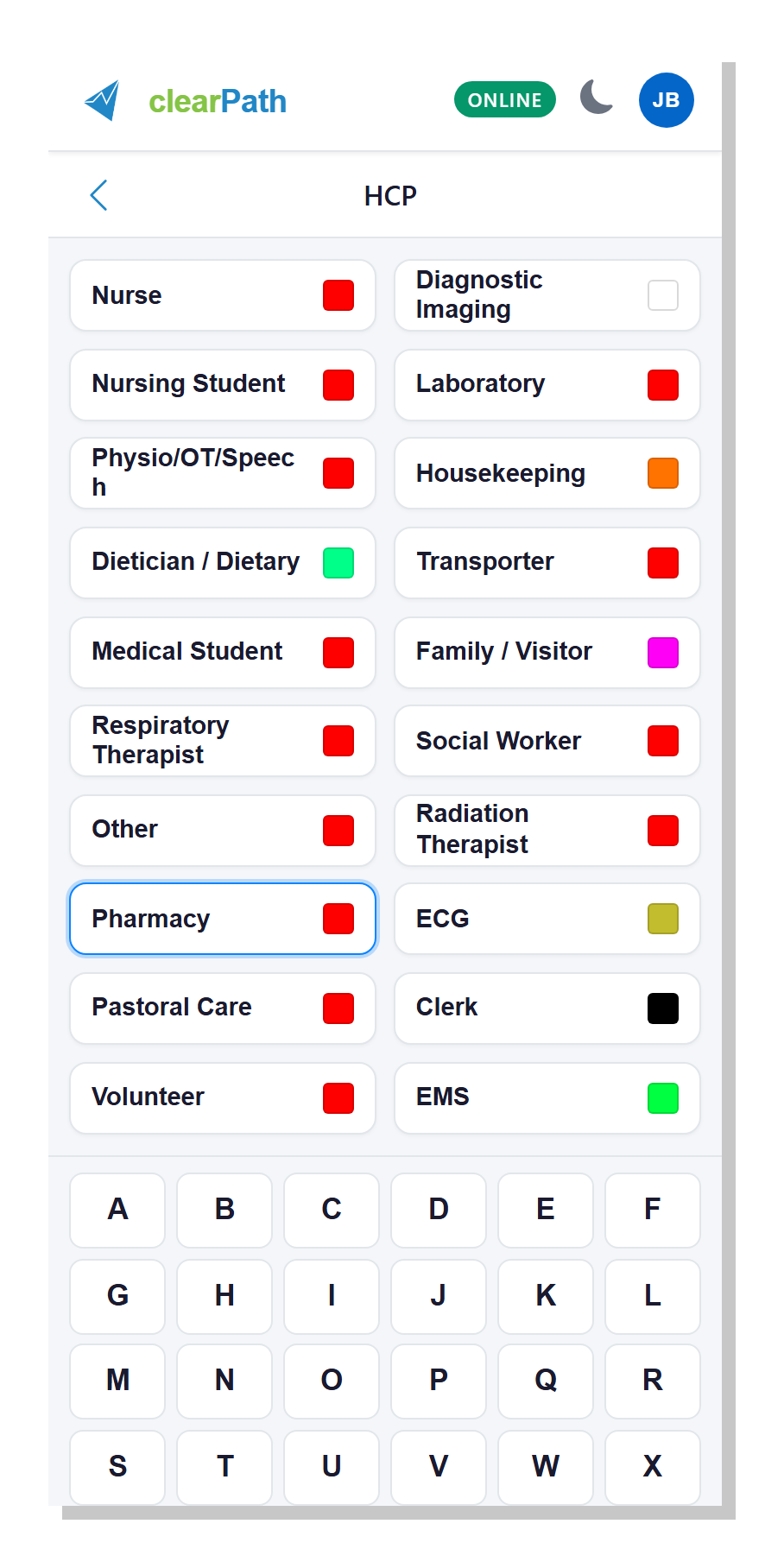
Tap Add Observation and cp2go opens the HCP
(healthcare provider) screen. Every active HCP type on the account
is shown as a card with its configured colour swatch so you can
find the right one quickly. Tap to select — the selected card is
outlined in blue.
Below the cards is a letter pad, A through X. Tap a letter to tag the observation with a specific category code. As soon as you pick both a HCP card and a letter, the PWA advances automatically to the Indicators screen.
Tap the < back button at the top to return to the session
screen without saving an observation.
1.3.8. Step 4 — Indicators Screen
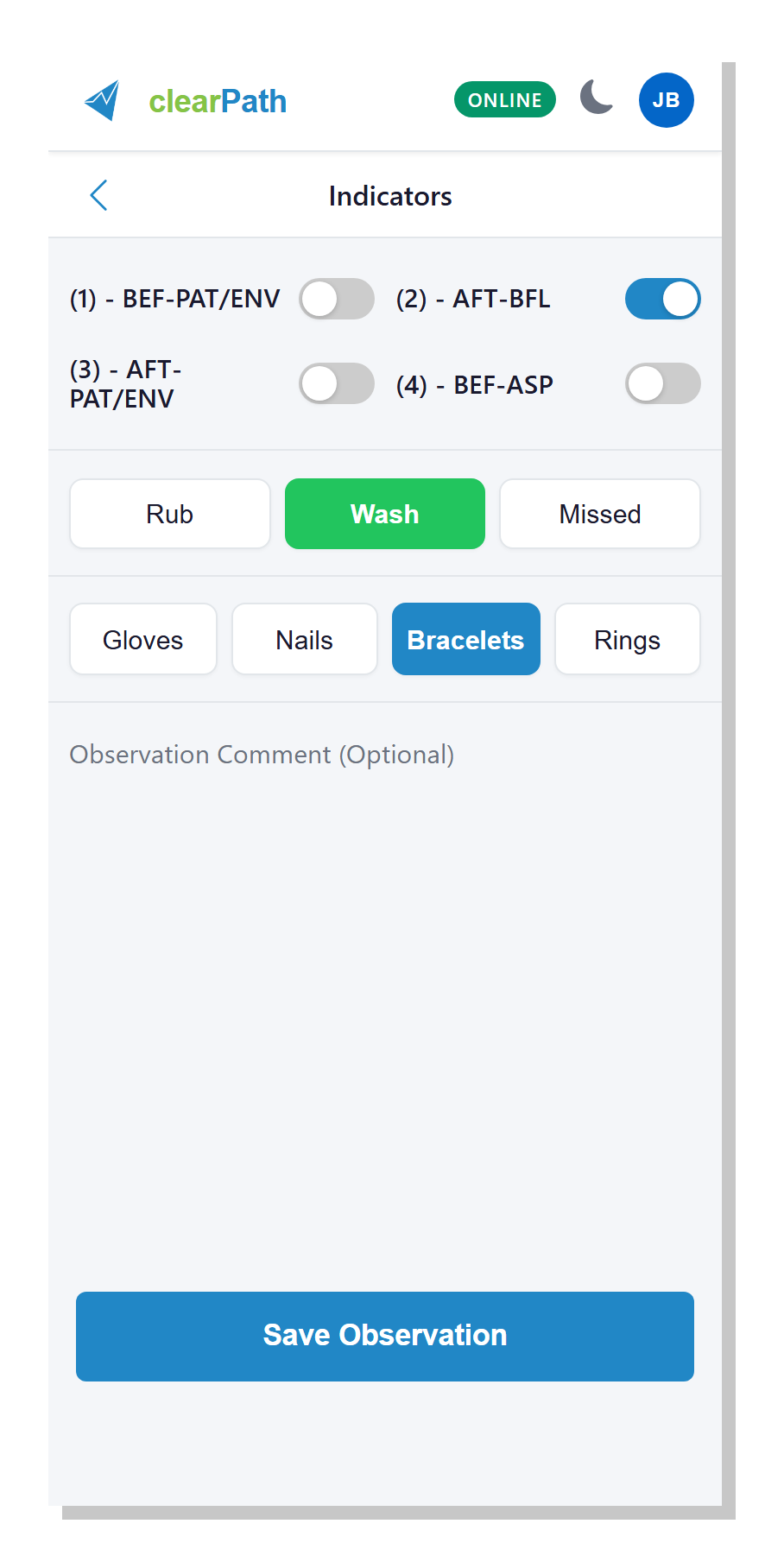
The Indicators screen is where the observation itself is recorded. It is broken into four blocks:
Moments — one toggle per configured Moment for the account (for example
(1) BEF-PAT/ENV,(2) AFT-BFL,(3) AFT-PAT/ENV,(4) BEF-ASP). Turn on each moment you saw performed.Action — three pills:
Rub,Wash, andMissed. Pick the one that matches what the healthcare provider did. The selected pill turns green (Rub), blue (Wash), or red (Missed).Attributes —
Gloves,Nails,Bracelets,Rings. Tap any that applied to the observation. Selected pills turn blue.Observation Comment — an optional note about this specific observation.
When you are happy with the entry, tap the big blue
Save Observation button at the bottom. cp2go stores
the observation on the device, returns you to the session screen,
and the Completed count goes up by one. Repeat until you reach
the target.
1.3.8.1. Custom Audits
Tap Custom Audits on the home screen to see the list of audits
configured for your account.
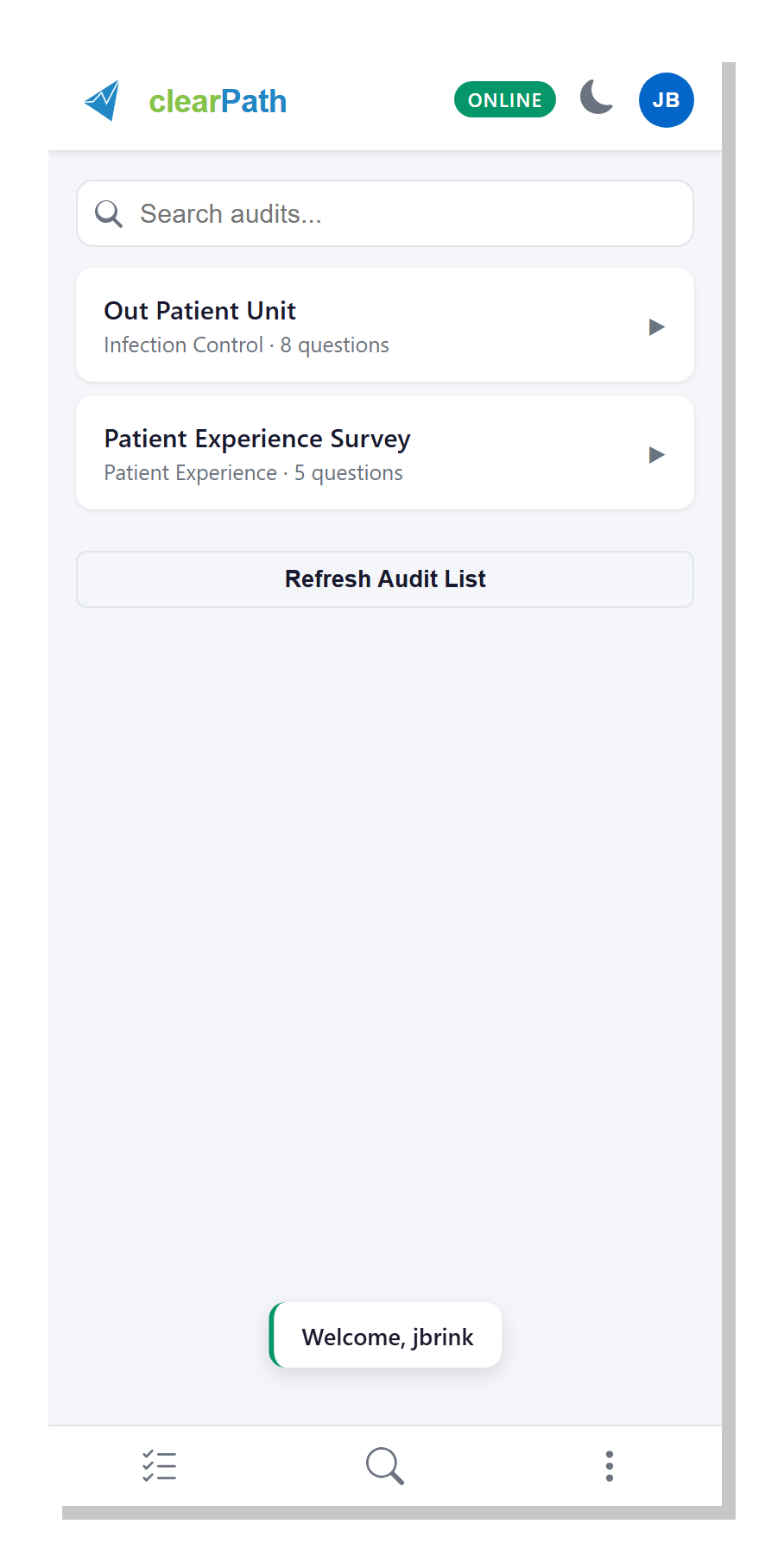
Each row shows the audit name, the category it belongs to (for
example Infection Control), and the number of questions. A
search box at the top filters the list as you type. Tap
Refresh Audit List if your administrator has just added a new
audit on clearPath and you want to pull the updated catalogue.
Tap an audit to open its welcome card, where you pick the facility
(and, if the audit asks for it, the unit and room) and add an
optional session note. Tapping Start Audit takes you to the
question screen:
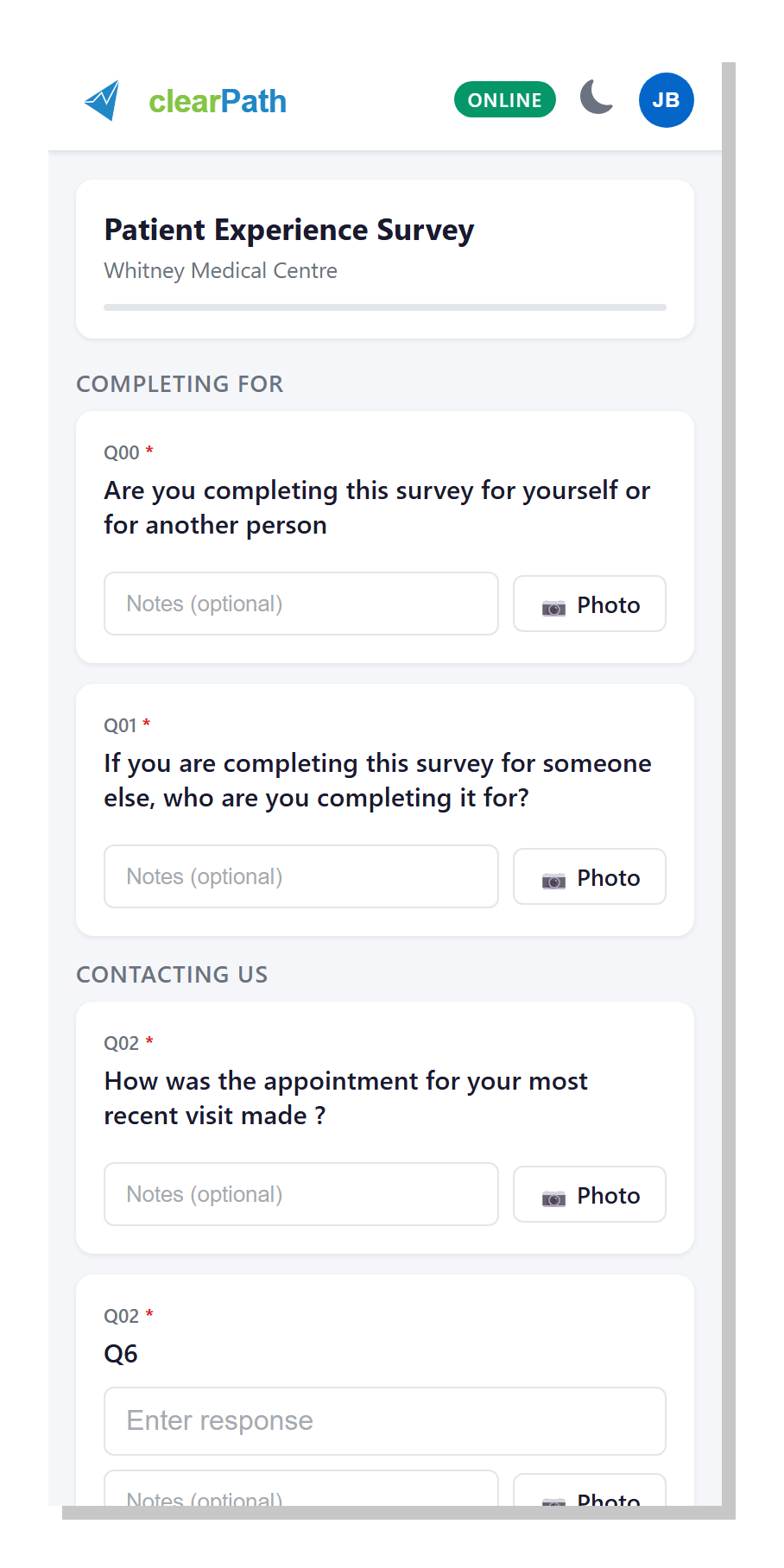
Questions are laid out one after the other, grouped into sections
(such as Completing For and Contacting Us in the example
above). Each question shows its number, the question text, a
Notes (optional) field, and — when the audit is configured to
allow it — a Photo button so auditors can attach a picture on
the spot. Answer as you go; cp2go keeps your progress as
you work.
1.3.8.2. Completed Audits and Sync
The Completed Audits view lists every session recorded on the device, showing which have been uploaded and which are still pending.
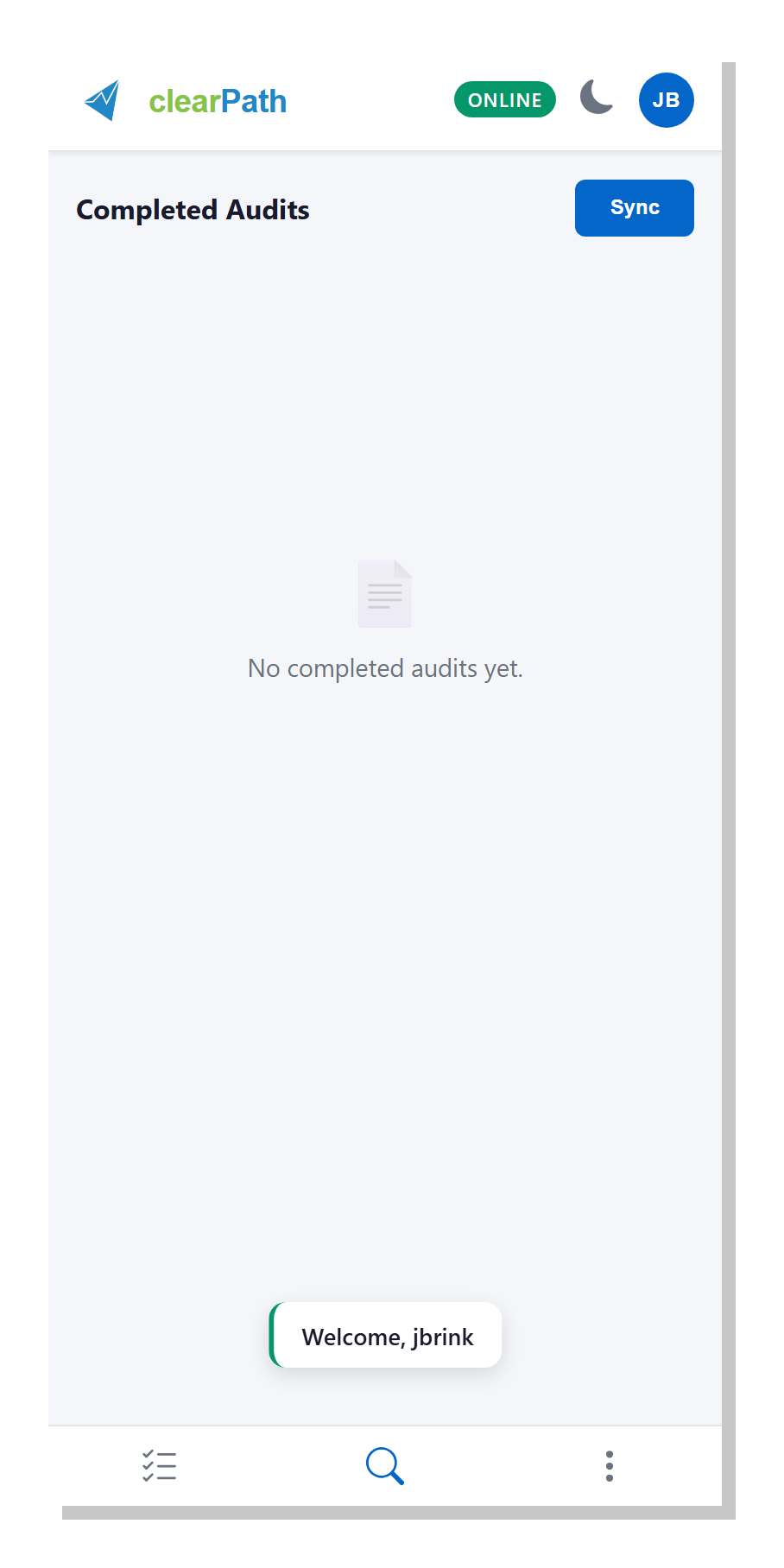
Tap Sync in the top right to push sessions immediately. You
normally do not need to — cp2go syncs in the background
whenever the device has a connection. The Sync button exists
for when a session must leave the device right away.
Note
Unlike m2go, the PWA does not require a separate
sync step to bring observations into clearPath. Once the device
is online, completed sessions upload on their own. The Sync
button is a manual override.
1.3.9. Mobile Web Interface
The mobile web interface is a phone-optimised layout built into the main clearPath web application. Unlike the cp2go PWA, which is a separate installable app, the mobile interface is served from the same URL as the full desktop site — clearPath just switches to a simplified layout when it detects a small screen or when you ask it to. No install, nothing to sync, and every feature you authorise is available the moment you sign in.
This section walks through a full audit from either the hand-hygiene side or the custom-audit side, using the mobile layout.
1.3.9.1. Signing In
Open your device’s browser and go to your clearPath site
(siteid.cphs.cloud). On a phone-sized screen you land on the
mobile sign-in card automatically; on a tablet or desktop you see
the wider layout and can switch to mobile mode from the top bar
(see below).
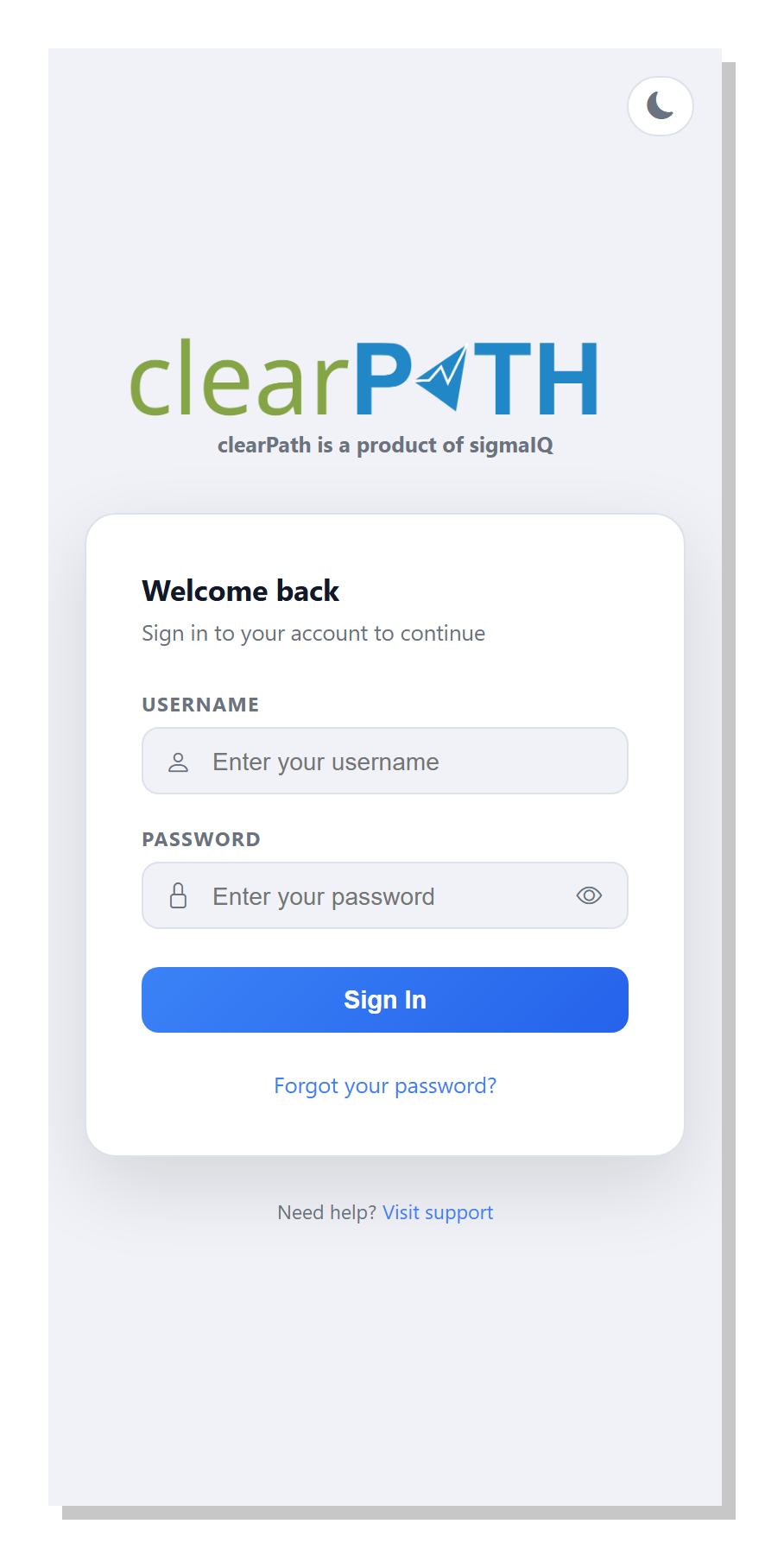
Enter your user name and password and tap Sign In. If your
account has two-factor authentication turned on, clearPath asks
for the six-digit code from your authenticator next — see
Two-Factor Authentication for the full flow.
1.3.9.2. Switching to Mobile Mode
If you sign in on a desktop or tablet but would rather use the phone-optimised layout — for example, because you plan to audit while walking the floor — click the phone icon in the top bar of every clearPath page:
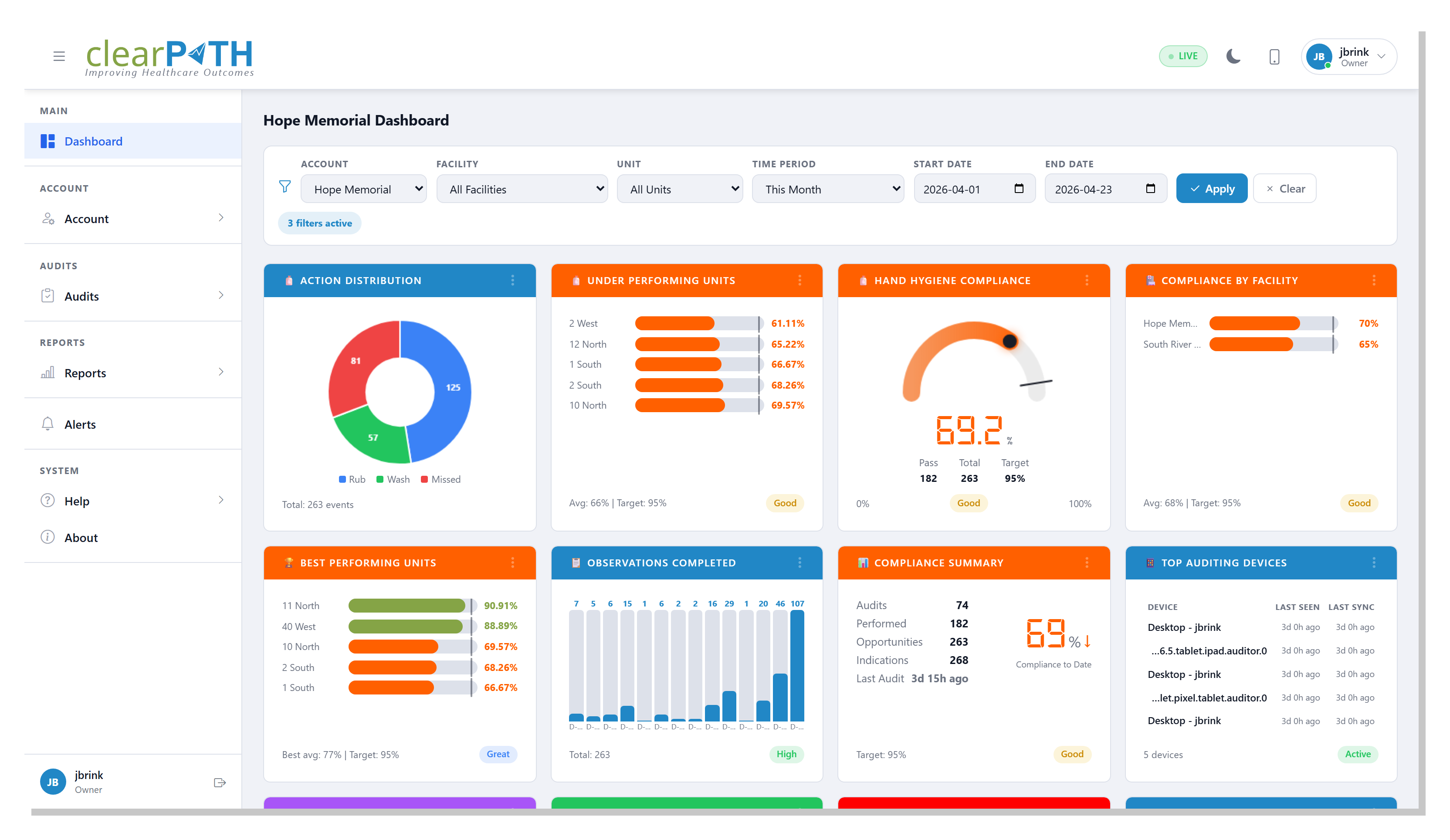
The phone icon sits to the left of your profile avatar. Tapping it sets the interface to mobile for this device and takes you straight to the mobile home screen. To switch back, tap the desktop icon on the mobile home header.
1.3.9.3. Mobile Home
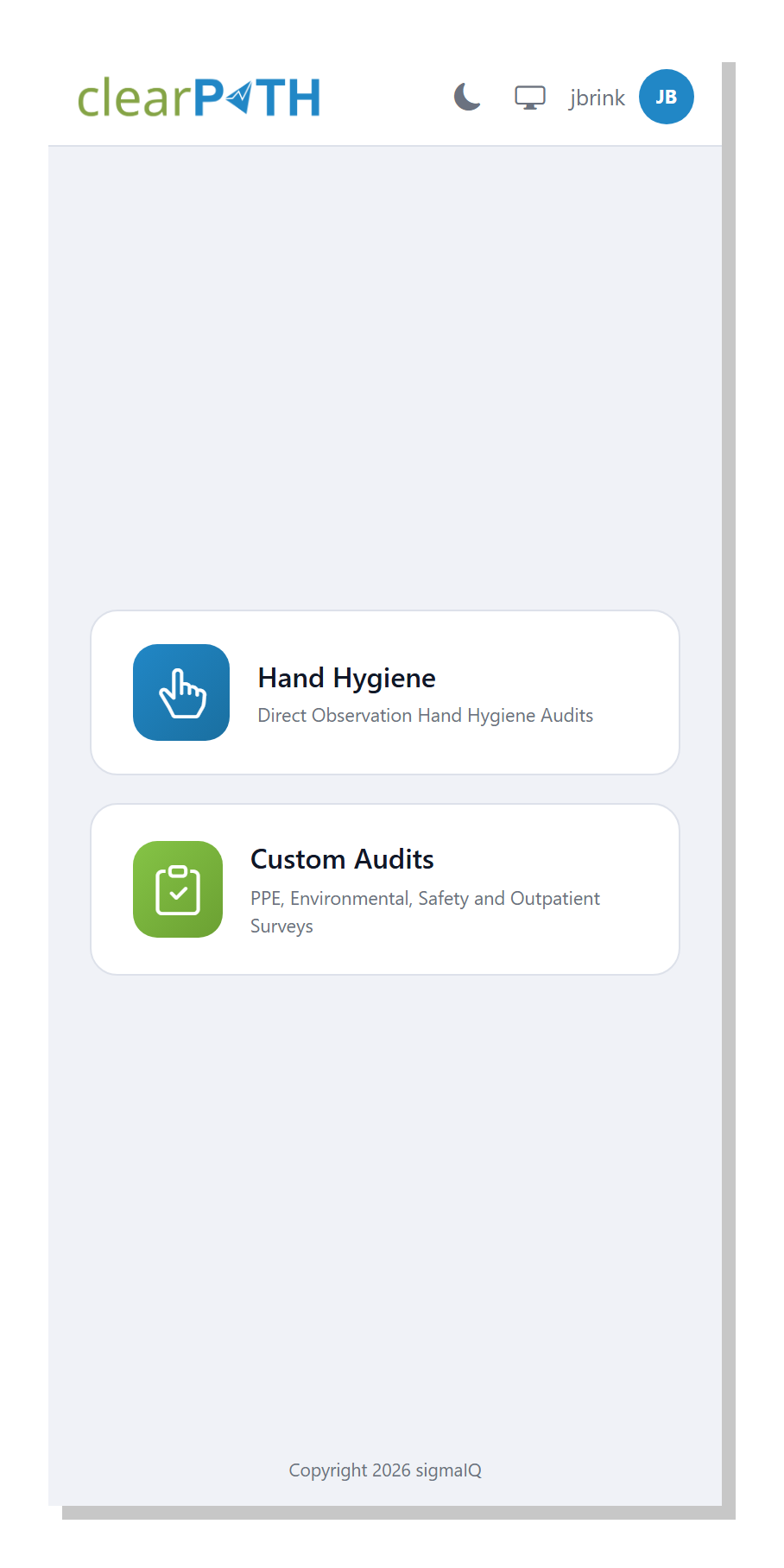
The mobile home screen is the launch pad for the two kinds of audit the mobile layout supports:
Hand Hygiene— direct-observation hand-hygiene audits.Custom Audits— any PPE, environmental-services, safety, or outpatient survey your administrator has defined.
The header shows the clearPath logo, a theme toggle, a desktop-mode
switch, and your initials on an avatar; tapping the avatar reveals
Logout.
1.3.9.4. Hand Hygiene Auditing
Tap Hand Hygiene on the mobile home screen. clearPath opens
the single-observation auditing screen and shows an empty home
view until you start a new session.
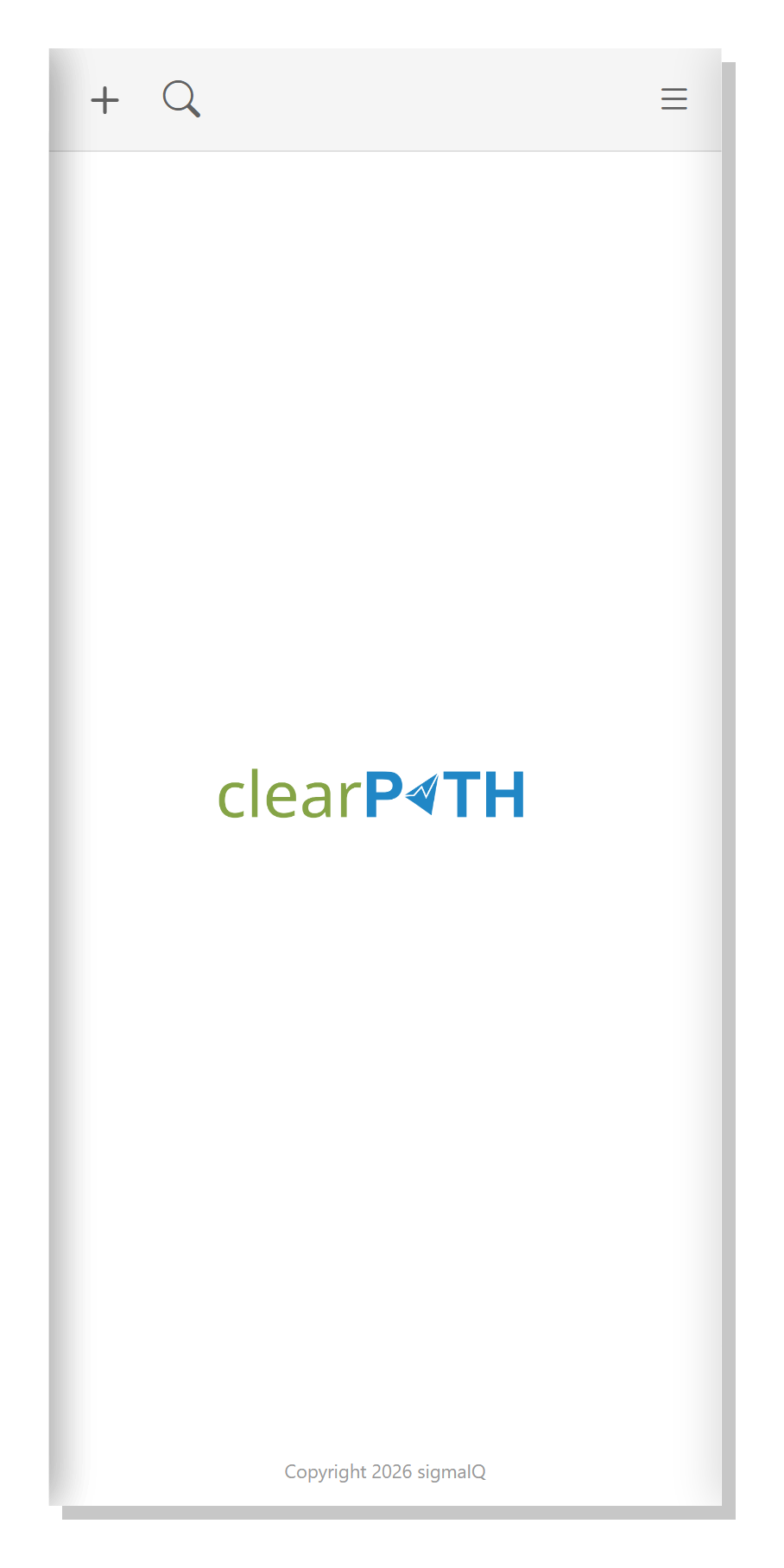
The toolbar along the top has three buttons:
+— start a new audit.Search (magnifying glass) — jump to the Audits Completed list.
Menu (three lines) — opens the Setup panel with About, theme, and sign-out.
1.3.10. Step 1 — New Audit Setup
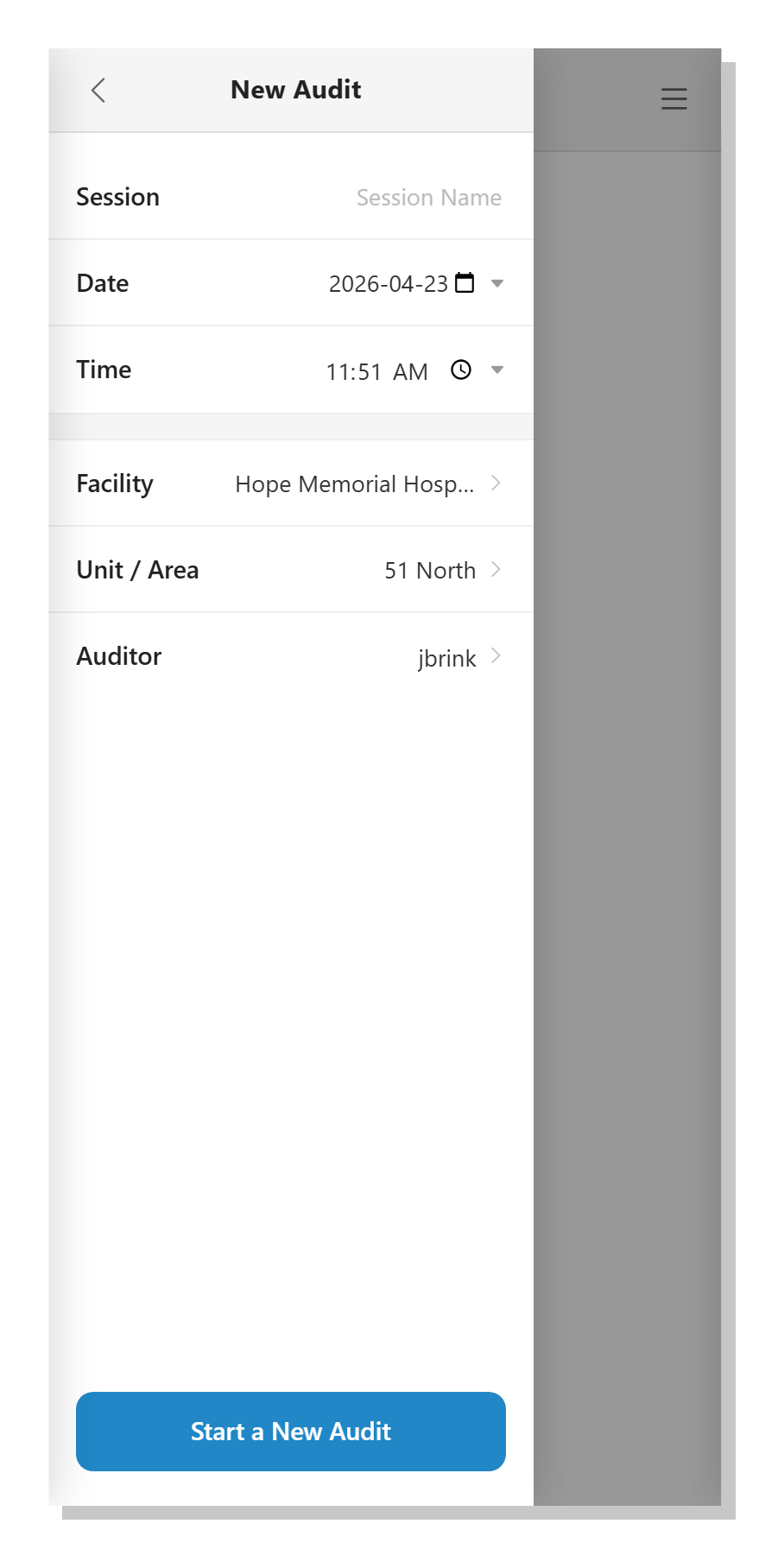
Tap the + button. The New Audit panel slides in from the
left, pre-filled with the current date and time:
Fill in the fields:
Session— optional name for the session. Leave blank to let clearPath name it from the facility / unit / date.DateandTime— the session’s start; today’s date and the current time are pre-filled.Facility— tap the row to open the facility picker and choose a site.Unit / Area— tap the row to open the unit picker. The list is filtered to units inside the facility you picked.Auditor— your clearPath user name, filled in automatically.
Tap Start a New Audit at the bottom of the panel to begin.
1.3.11. Step 2 — Active Session
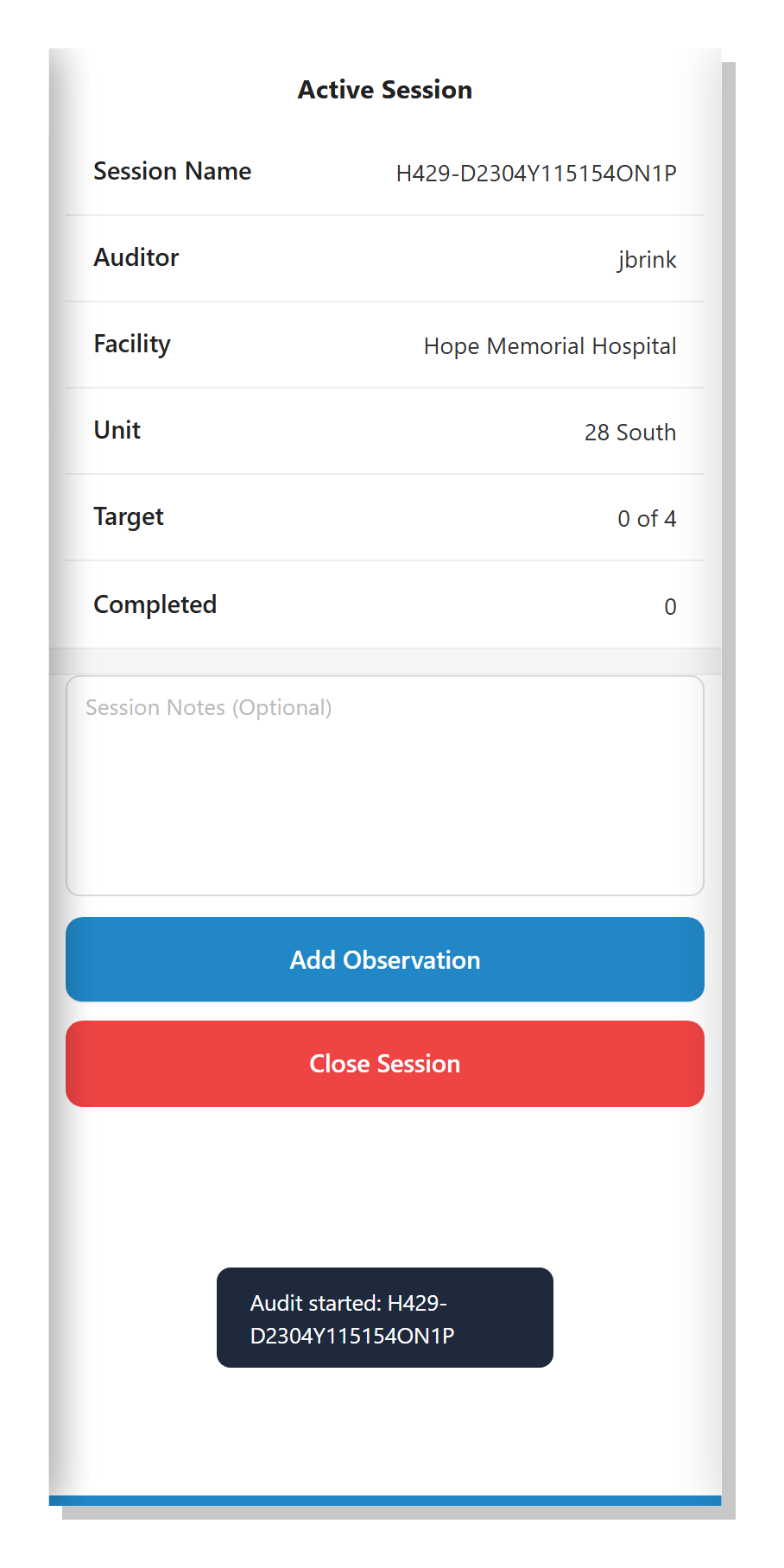
The active-session screen is your audit dashboard. Across the top
it shows the auto-generated session name, the auditor, the
facility, the unit, the target number of observations, and the
running count of observations completed so far. A Session Notes
textarea lets you annotate the session at any point.
Two large buttons drive the session:
Add Observation— records a new observation.Close Session— finishes the session and marks it complete.
1.3.12. Step 3 — HCP and Letter
Tap Add Observation. The HCP screen takes over:
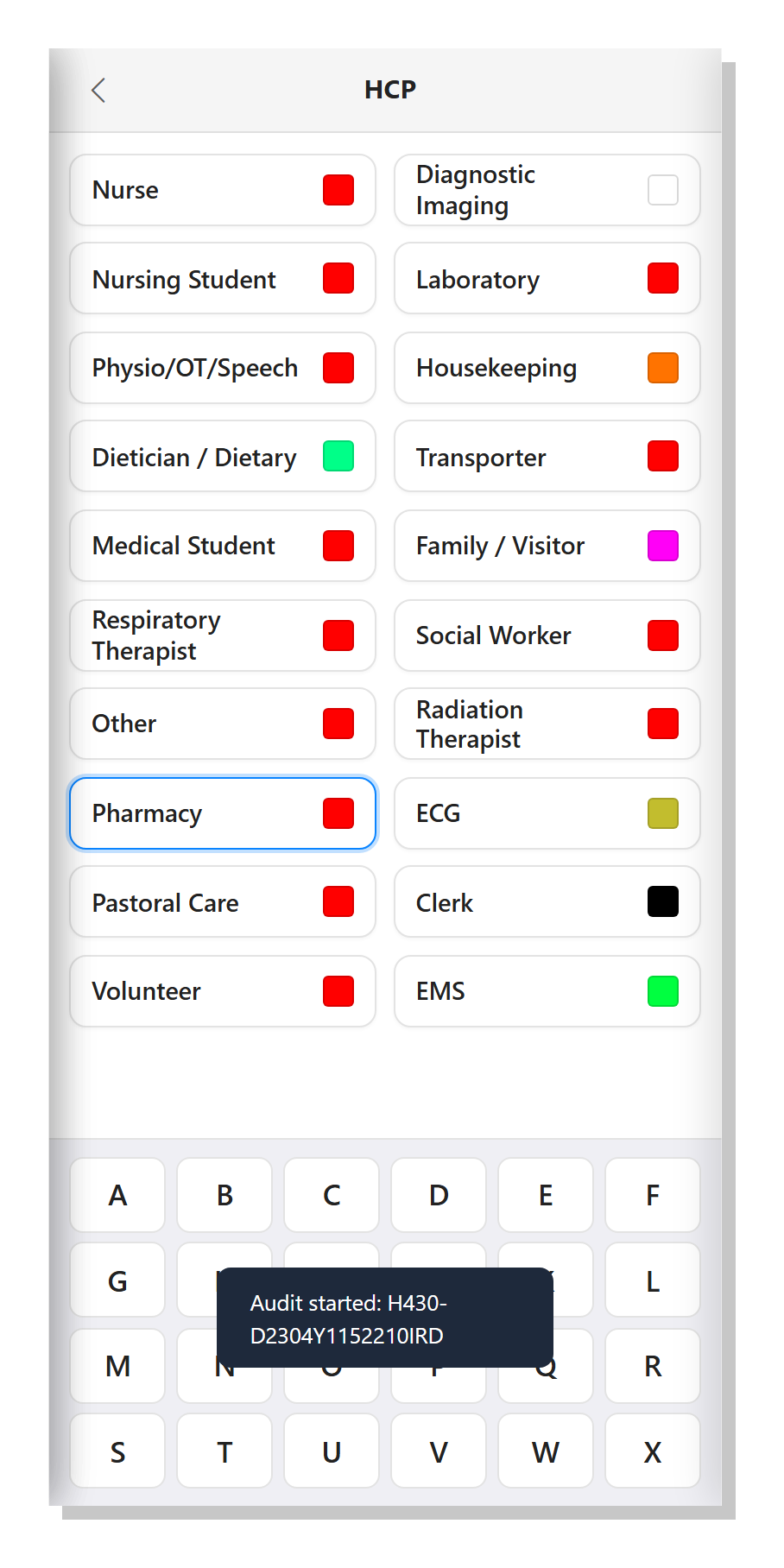
Every active healthcare-provider type on the account appears as a card with its configured colour swatch. Tap one to select it (the selected card outlines in blue). Below the cards is a letter pad, A through X, for tagging the observation with a category code. The moment you pick a letter after an HCP, clearPath advances to the Indicators screen automatically.
1.3.13. Step 4 — Indicators
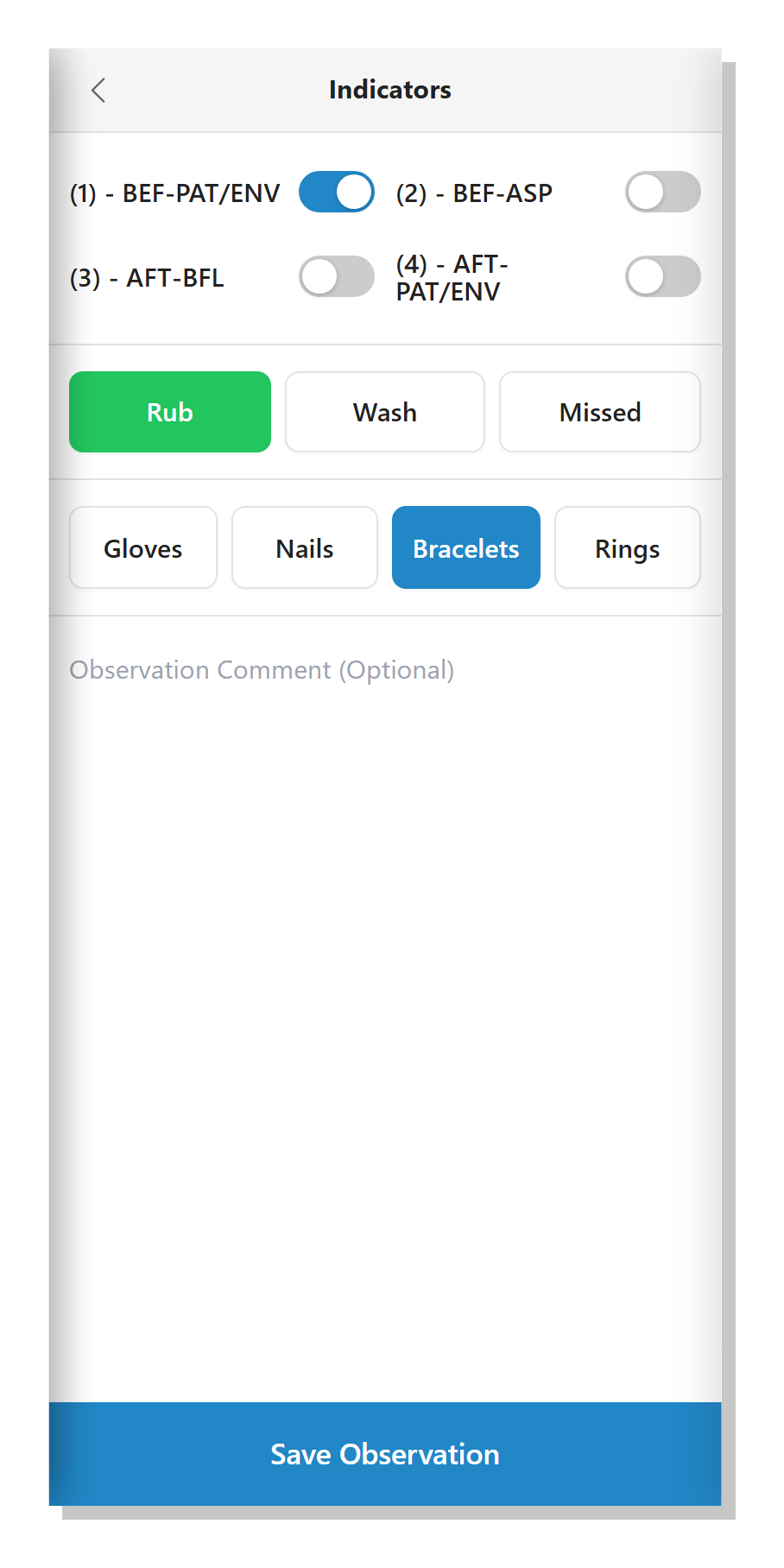
The Indicators screen is where the observation itself is recorded:
Moments — toggle switches for each configured moment (
BEF-PAT/ENV,AFT-BFL,AFT-PAT/ENV,BEF-ASPin the example above). Turn on each moment you saw performed.Action — the three pills
Rub,Wash, andMissed. Tap the one that matches what the health care provider did. The selected pill turns green / blue / red depending on the action.Attributes —
Gloves,Nails,Bracelets,Rings. Tap any that applied to the observation.Observation Comment — an optional free-text note about this specific observation.
Tap the blue Save Observation bar at the bottom to commit the
entry. clearPath stores the observation, returns you to the
active-session screen, and increments the Completed count. Repeat
the cycle until you reach the target.
1.3.13.1. Custom Audits
Tap Custom Audits on the mobile home screen. The audit picker
slides up from the bottom with the list of audits your
administrator has defined:
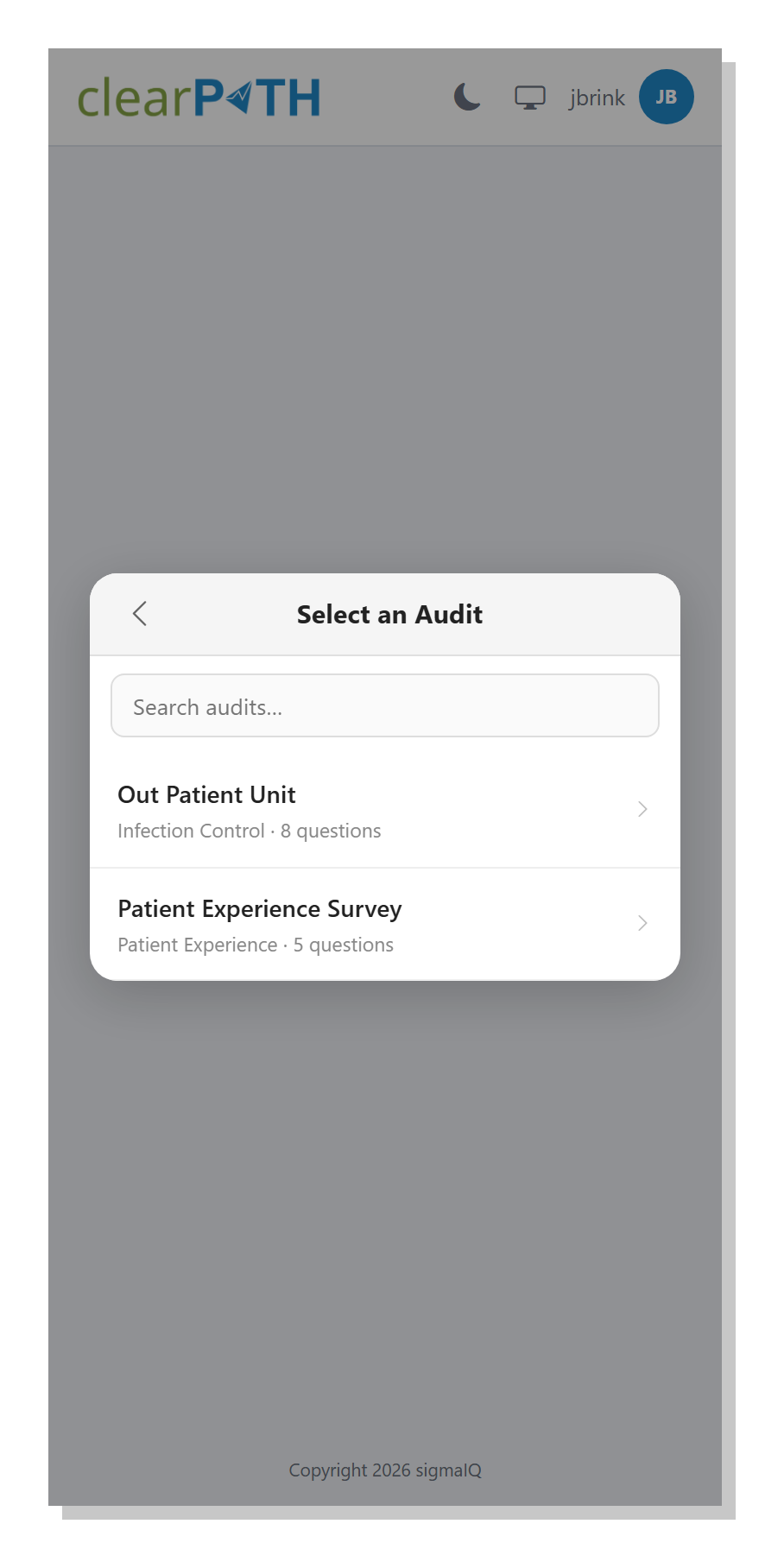
Each row shows the audit name, the category (for example
Infection Control), and the question count. A search box at
the top filters the list as you type.
1.3.14. Running the Out Patient Survey
Tap the audit to open it. The welcome card shows the audit name, the number of sections and questions, and the fields the audit is configured to prompt for:
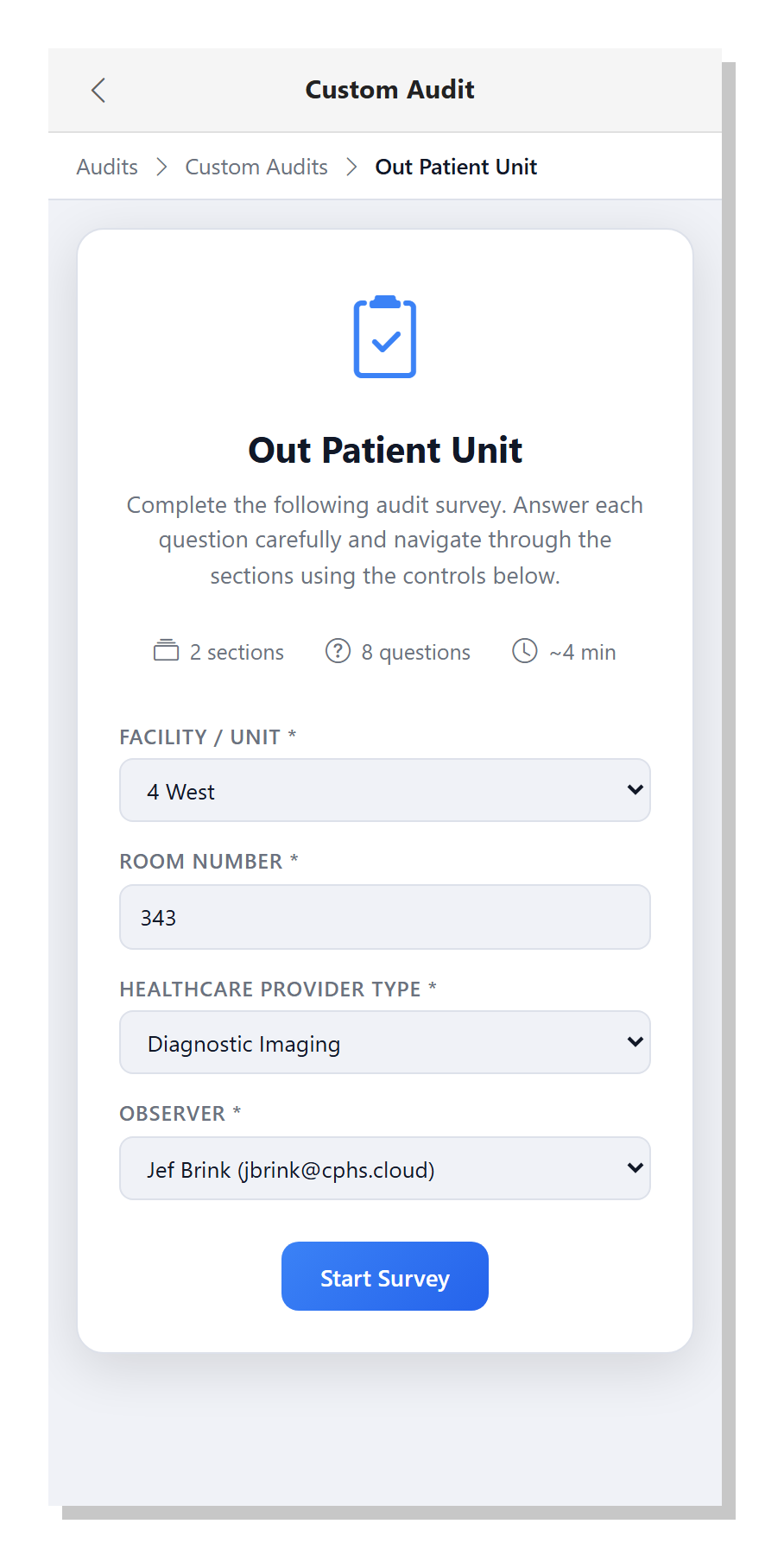
In the example above (the Out Patient Unit survey), we have:
Facility / Unit— a combined dropdown showing every facility / unit you have access to. The example shows38 East.Room Number— free-text entry. The example shows285.Healthcare Provider Type— dropdown of active HCP categories on the account (Family / Visitorin the example).Observer— the signed-in auditor. PickJef Brink (jbrink@cphs.cloud)for this walkthrough.
When every required field is filled in, Start Survey becomes
active. Tap it to move into the question screen:
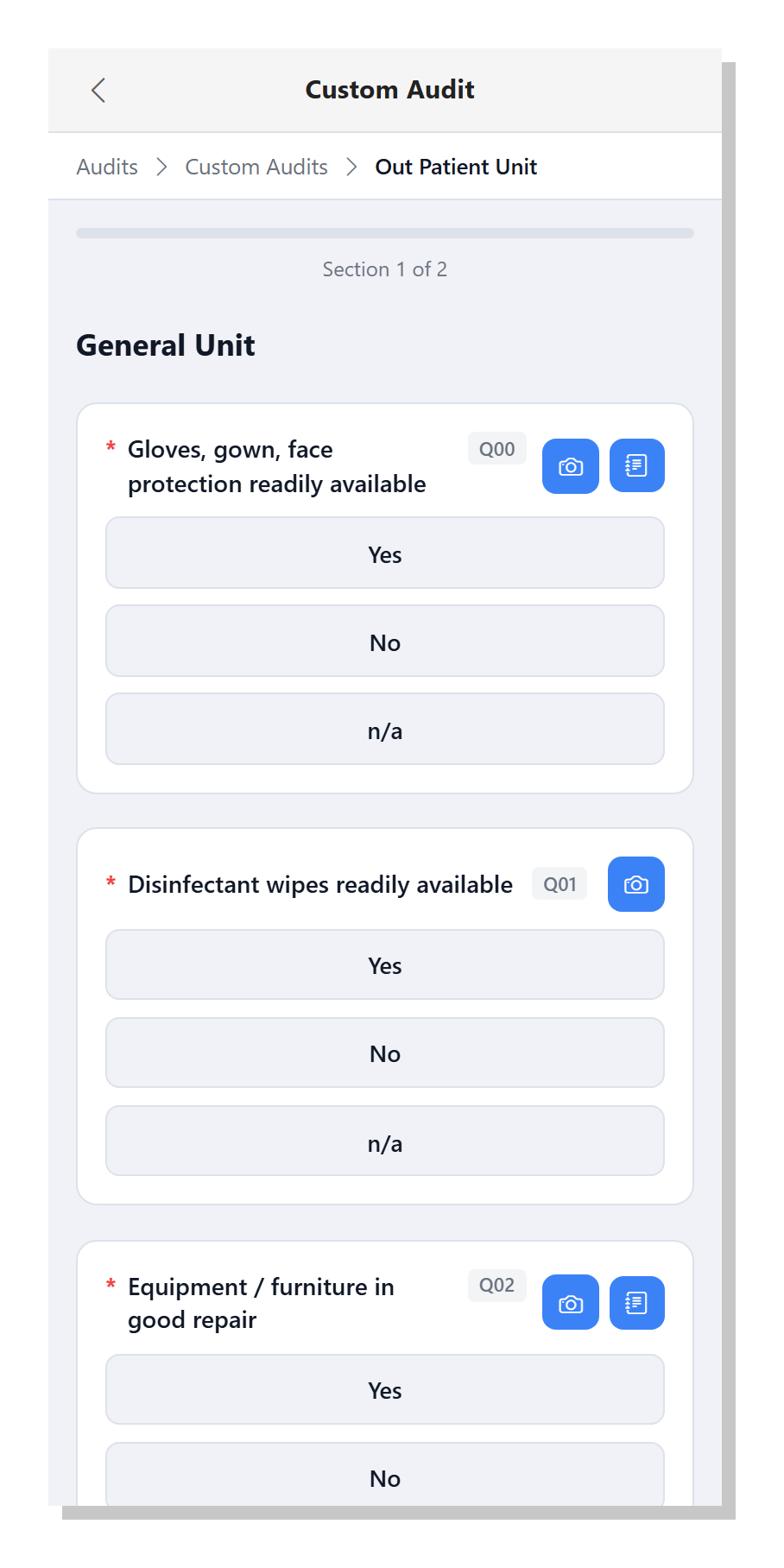
Questions are presented one section at a time. A progress bar at
the top shows Section 1 of 2 — General Unit with questions
like:
Q00 — Gloves, gown, face protection readily availableQ01 — Disinfectant wipes readily availableQ02 — Equipment / furniture in good repair
Each question shows its number, the question text, the response
pills (Yes / No / n/a for this audit), a camera
button for attaching a photo, and a notes button for adding a
text note. Tap the response that matches what you saw.
Scroll to the bottom of the section and tap Next to move to
section 2 (for example, Hygiene or Housekeeping). Keep
going until you finish the last section; the survey-complete
screen appears with a thank-you message and a Back to Audits
button so you can start the next audit.
Note
Because the mobile web interface runs in the browser, your
responses are submitted to clearPath directly — there is no
separate sync step. If the connection drops mid-audit, tap
Retry on any question that did not save and finish the
audit from where you left off.
1.4. Session Name Convention
The session name for your audits is generated automatically by the system. You can override the session name with whatever text you would like.
Tip
It is recommended that you let the system generate the session name to ensure that the name is unique.
1.4.1. Session Name Components
A typical session name would look something like H2615-26A14084710-0
Where:
Name |
Description |
Auditor ID |
H-2615 where 2615 is the four digit ID of the auditor |
Year |
last two digits of the year. From our example 26 |
Month |
Shown as a letter, from our example A=Jan. |
Day |
Day of the month the audit was started, always displayed as two digits. |
Hour |
Hour the audit was started, always displayed as two digits. |
Minute |
Minute the audit was started, always displayed as two digits. |
Second |
Second the audit was started, always displayed as two digits. |
Instance |
If the system detects a duplicate session name it will increment the instance field. The first instance would start at zero |
Note
As of January 2026 the session naming convention is consistent across all mobile platforms.
1.5. Signing In with a Device Code
The native cp2go apps for Windows, Android, and iPad / iPhone can sign in with a device code instead of a username and password. This is handy for shared auditing tablets: nobody has to type a password on the device, and an administrator stays in control of which devices are allowed to connect.
When you open the app on a new device for the first time, it shows a
short six-character code on screen, for example K7MP39, and waits.
To finish signing in:
Note the code shown on the device.
Ask your clearPath administrator to approve the device. From the Auditing Devices page they will see your device listed as
Pendingwith the same code beside it.Once they match the code and approve the device, the app finishes signing in on its own within a few seconds.
A few things worth knowing:
The code is valid for 15 minutes. If it lapses before the device is approved, the app simply shows a new code — there is nothing to reset.
You only do this once per device. After it is approved, the app stays signed in and syncs normally; you do not re-enter a code each time.
If an administrator later revokes the device (for example because it was lost or replaced), the app signs out and shows a fresh code, ready to be approved again on a trusted device.
Note
Device-code sign-in is available only in the installed Windows, Android, and Apple apps. The browser-based and mobile-web auditing options sign in with your usual username and password.
1.6. Sync Process
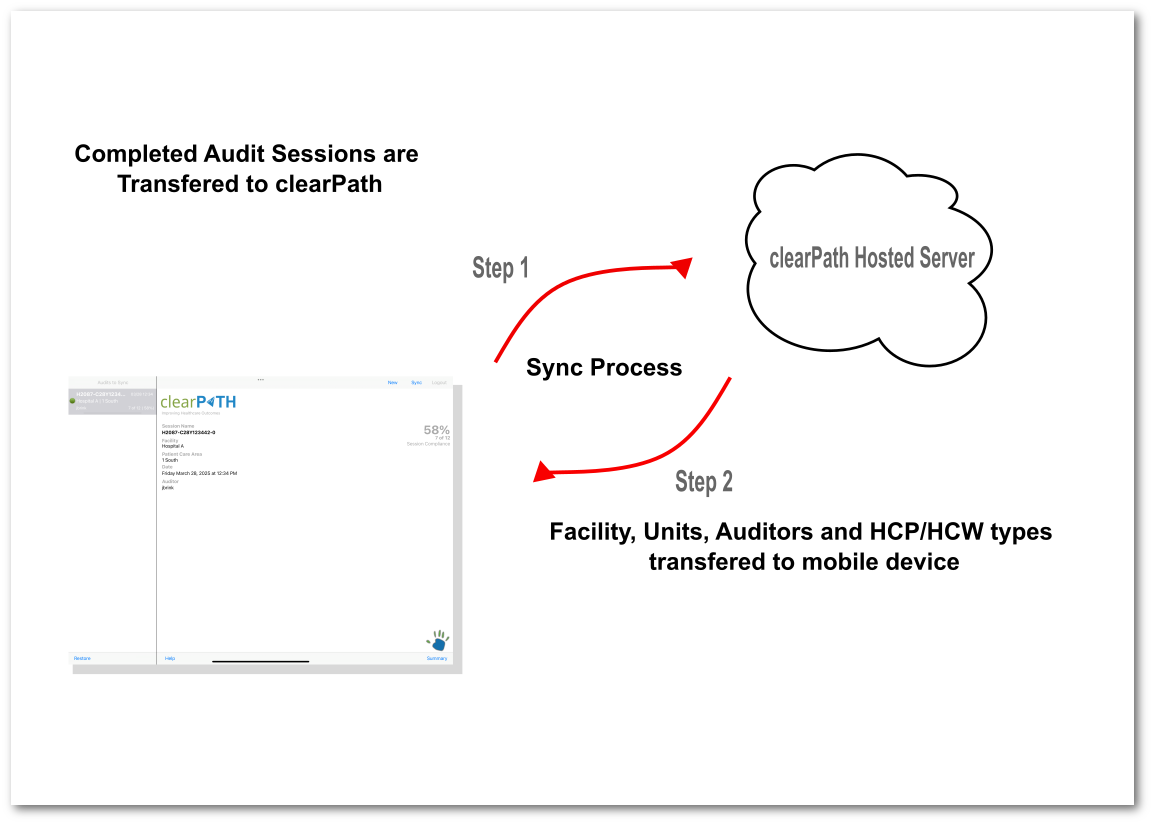
Syncing serves two purposes: first, it transfers completed audit sessions to clearPath; secondly, it downloads updated configuration data (auditors, facilities, patient care areas, health care provider types) from clearPath.
1.7. Sync Troubleshooting
If you are unable to sync cp2go with clearPath, please check the following:
1.7.1. WiFi
You are connected to your corporate WiFi network. Check the status bar at the top left of the iPad. If there are no bars present the device is not connected to a network. You will need to see the wifi signal strength bars to the right of iPad, ensure that you have at least two bars. Try moving to another area and try to sync again. If your device is connected to your corporate guest network, please ensure that your wifi connection has not expired.
Start the Safari browser and see if you can connect to www.google.com, or www.microsoft.com. If you get directed to a sign on page, sign back into the guest network and attempt to sync your data again.
1.7.2. Maintenance Mode
If you see this message, clearPath is in Maintenance Mode and not accepting audits, please wait and try and sync your audits at a later time, or contact support@clearpathhealthsolutions.com. clearPath is only ever in maintenance mode while an upgrade is in progress. Maintenance is always scheduled ahead of time.
1.7.3. Expired User/Machine Account
The user account or the machine account used to sync cp2go to clearPath has expired. Contact your clearPath administrator or support@clearpathhealthsolutions.com to update the account.
1.7.4. Auditing Device is Disabled
Your system administrator has disabled the ability to sync audits from a specific tablet. Contact your clearPath system administrator or support@clearpathhealthsolutions.com.
1.7.5. License Key Expired
The hand hygiene module license key has expired and is no longer accepting audits. Please contact your clearPath system administrator or contact support@clearpathhealthsolutions.com.
1.7.6. Invalid Sync File
A Invalid Sync File can occur for a number of reasons:
the update sync file somehow got corrupted in transit
There is an invalid character in a facility, unit, hcp, comment field
The WiFi coverage is poor resulting in data errors
The clearPath server is restarting and is currently unavailable
Tip
If you see the invalid sync file message, we would recommend waiting a few minutes and then try to sync again. If after a few minutes the problem persists, then send an email to support@clearpathhealthsolutions.com, please include your username so we can check your account status.