10. Digital Signage
clearPath Digital Signage lets you broadcast live compliance information, campaign messages, and custom content to displays around your facility — typically lobby screens, staff-room monitors, and unit huddle boards. The signage system is built around lineups (ordered sets of slides) that are pushed to paired devices.
The signage engine supports HTML5 content and SMIL 3.0, and devices are authenticated with per-device tokens that can be revoked at any time.
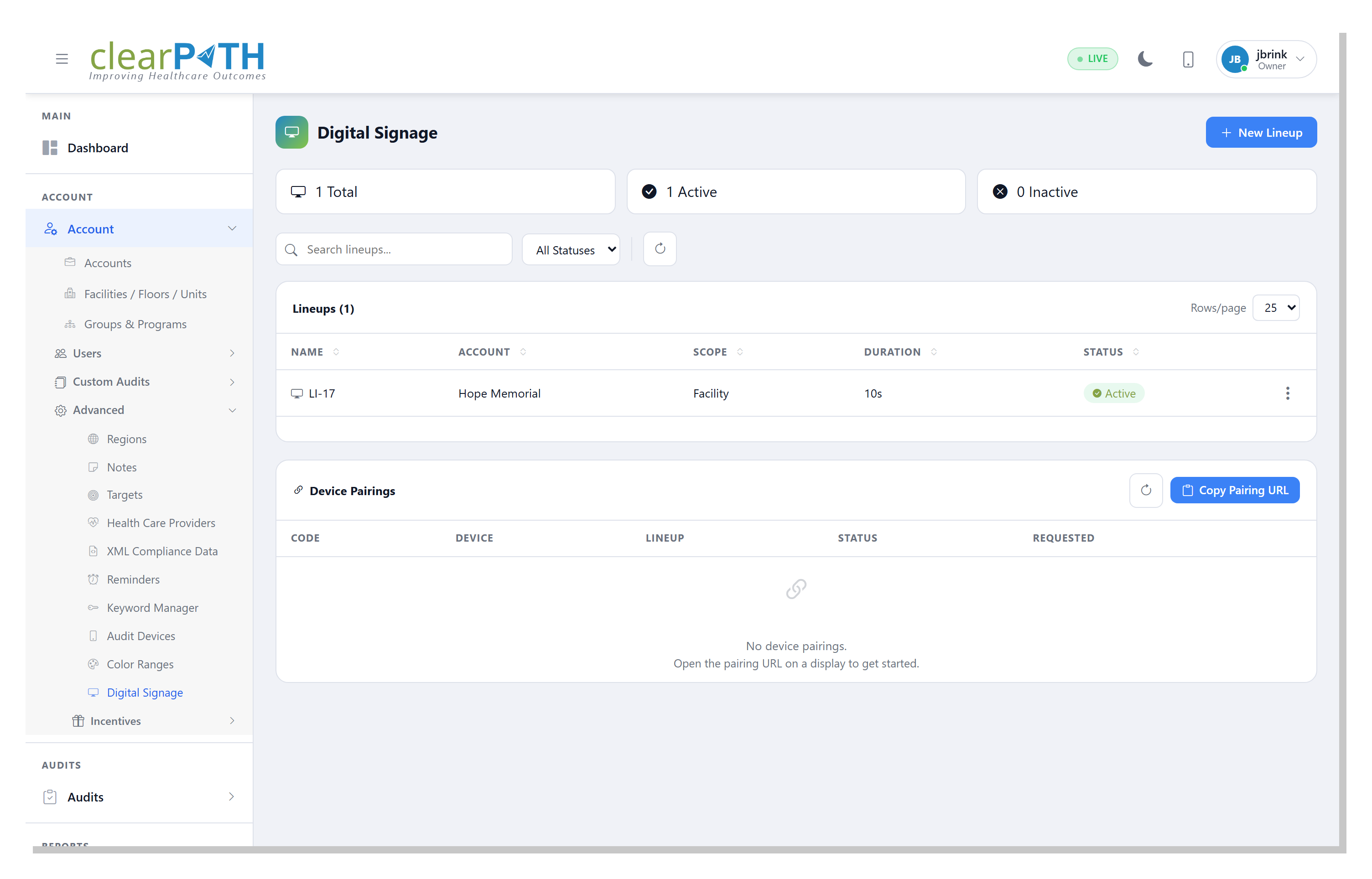
To access Digital Signage click on Account | Advanced | Digital Signage.
10.1. Lineups
A lineup is an ordered collection of slides that plays on a paired display. Each lineup controls its own slide duration, refresh interval, and transition style.
10.1.1. List
The top of the page lists all lineups for the account. The toolbar provides:
Search — filter lineups by name.
Status — show
Active,Inactive, or all lineups.Refresh — reload the list.
Use New Lineup in the top right to create one.
10.1.2. Lineup Detail
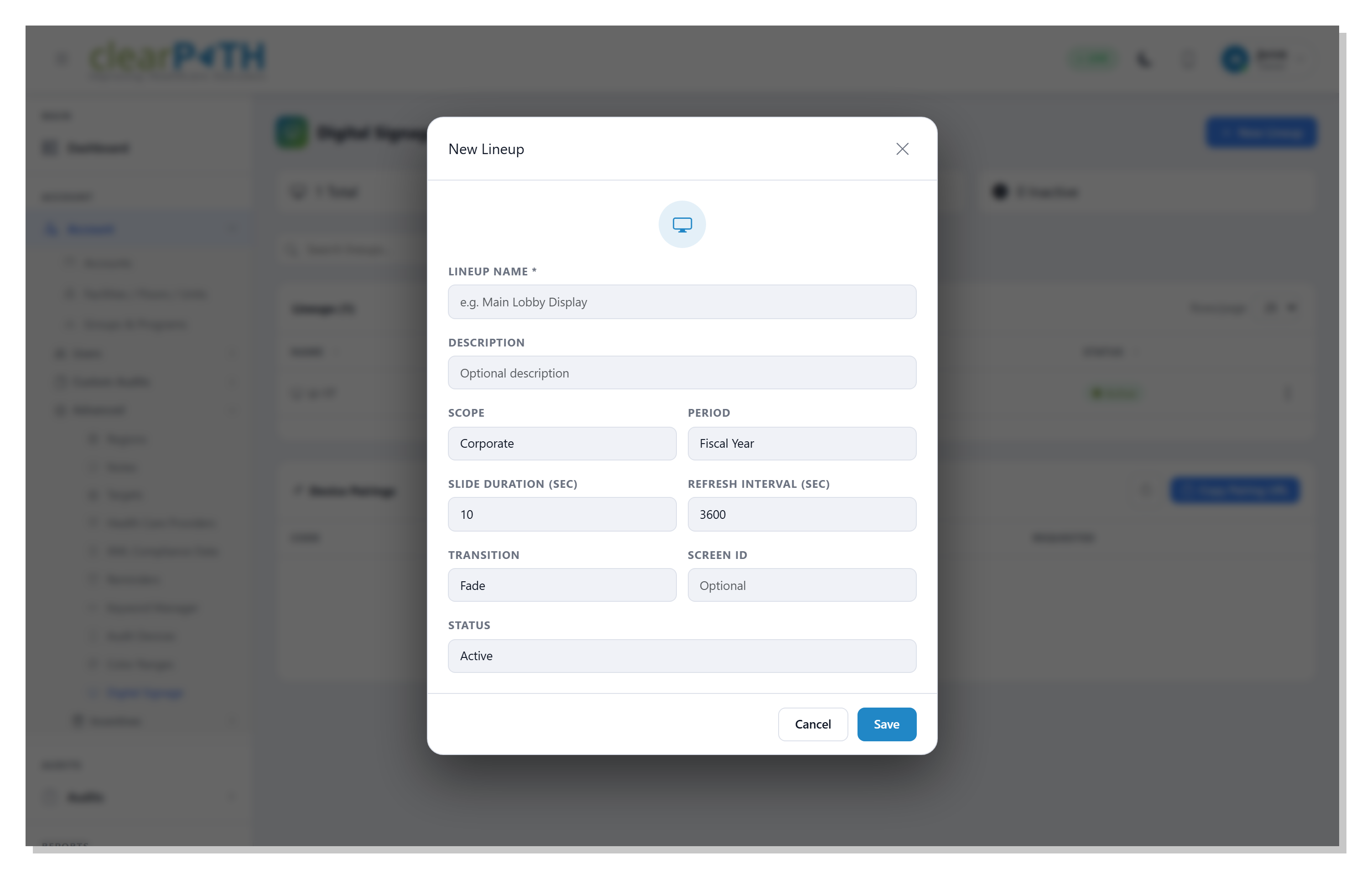
Lineup Name— the label for the lineup (for example,Main Lobby Display).Description— optional description.Scope— the reporting scope used by widgets on the lineup’s slides.Corporatecombines results from every facility on the account.Period— the default time period used by report and dashboard slides (Today,Fiscal Year,This Month,Last 30 Days,Last 90 Days,Year to Date,All Time).Slide Duration— seconds each slide is displayed before advancing.Refresh Interval— seconds between automatic data refreshes.Transition— how one slide replaces the next (Fade,Slide, orNone).Screen ID— optional identifier used to match the lineup to a specific display.Status— whether the lineup isActive(served to paired devices) orInactive.
10.2. Managing Slides
From a lineup’s action menu choose Manage Slides to open the slide
editor.
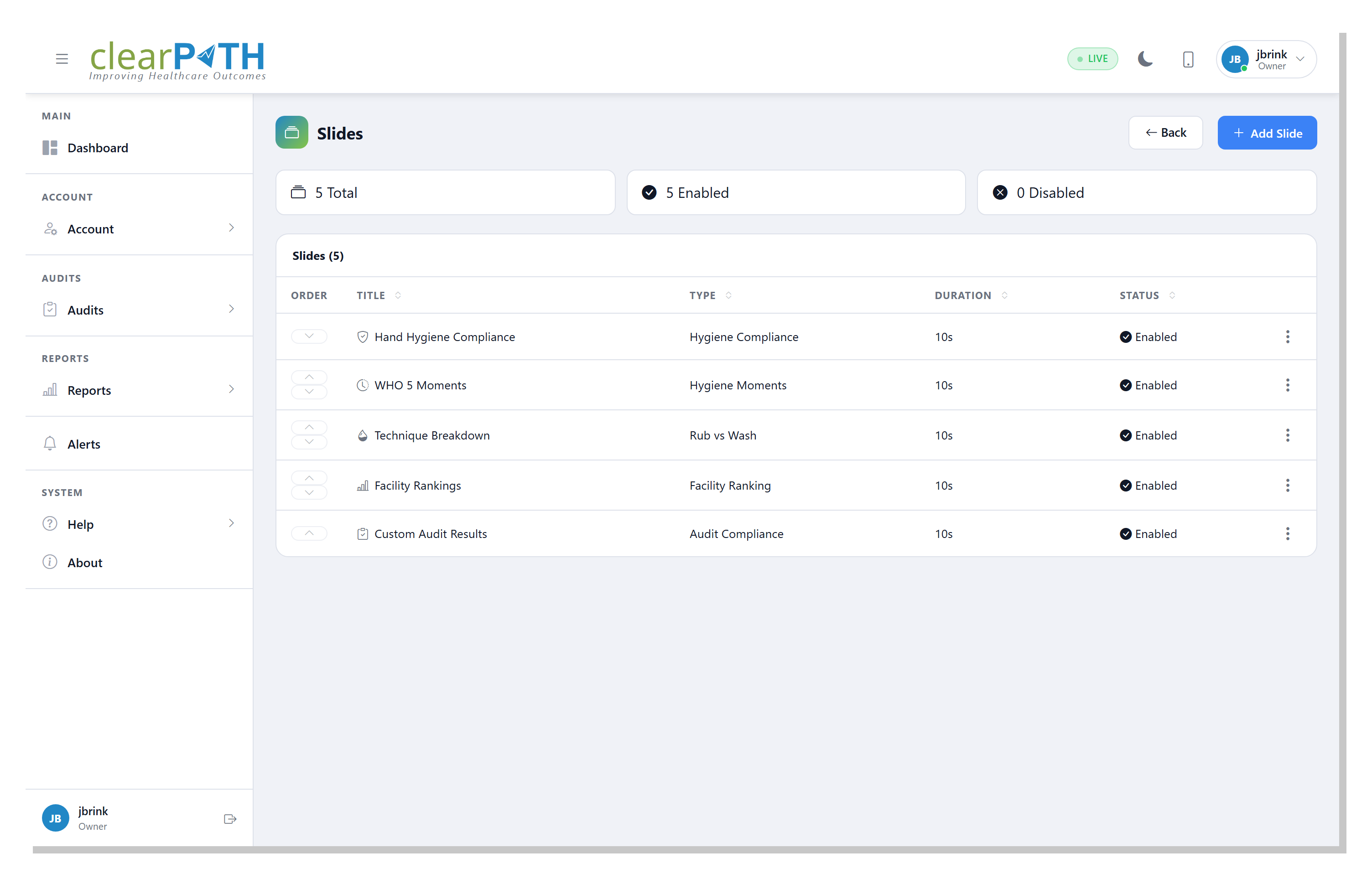
Each slide has:
Order— playback position in the lineup.Title— label for the slide.Type— the kind of content displayed (dashboard widget, image, message, etc.).Duration— seconds the slide is shown; overrides the lineup default.Status— enable or disable individual slides without removing them.
Use Add Slide to insert new content, or the three-dot action menu on a
row to edit, reorder, or delete an existing slide.
10.3. Pairing a Display
Displays are paired with clearPath using a short pairing code. The device requests a code from the server and waits for an administrator to approve it.
10.3.1. On the display
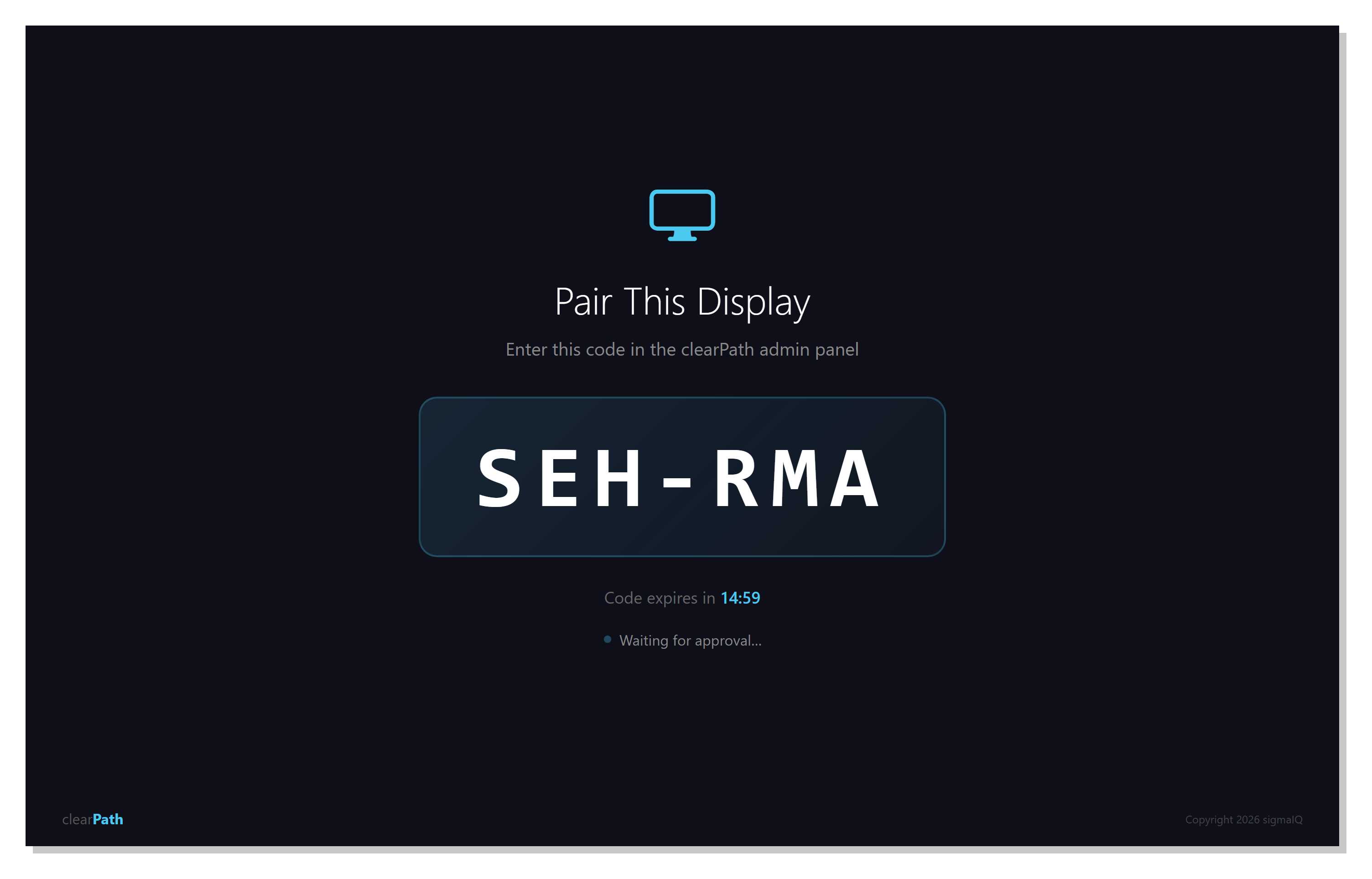
On the device, open the pairing URL. The top-right
Copy Pairing URLbutton on the Digital Signage page copies the URL to the clipboard so you can send it to the device.The display shows a large pairing code and a
Waiting for approvalindicator. The code is valid for 15 minutes; if it expires the device automatically requests a new one.
10.3.2. In the admin panel
New pairing requests appear in the Device Pairings section below the
lineups table with a status of Pending.
Click the pending request.
Confirm the pairing code shown on the device matches the code in the dialog.
Select the lineup to assign to the device.
Click
Approve.
The device automatically transitions to the approved state and begins playing the assigned lineup.
10.3.3. Revoking a Device
To stop content from being served to a paired device, open the device’s
action menu and choose Revoke. The device immediately stops receiving
new content and must be re-paired with a new code. Revoking does not delete
the lineup or slides.