20. Reminders
Reminders let clearPath send scheduled email notifications that keep your hand hygiene and audit programs on track. When a unit falls behind its observation schedule, clearPath can email the people responsible so the shortfall is caught early instead of at the end of the period. All of the reminder settings for an account live on a single screen, grouped by the kind of program they apply to.
To open the Reminders screen, go to Account | Advanced | Reminders.
Note
Reminders are delivered by email, so they can only be sent once an email server has been configured for your account. If no mail server is set up, clearPath saves your reminder settings but no messages are sent until the mail server is in place.
20.1. Choosing the account
The account selector at the top of the screen controls which account’s reminder settings you are editing.
If you administer a single account, your account is already selected and the selector is locked — you can only edit reminders for your own account.
If you have access to more than one account, use the selector to pick the account whose reminders you want to change. Switching the account reloads the settings for that account.
The three reminder categories — Hand Hygiene, Audit Scheduling,
and Custom Audits — are shown as tabs across the top of the screen.
Each category keeps its own settings, and the account you choose applies
to all three.
20.2. Hand Hygiene
The Hand Hygiene category controls the weekly reminders that go out
when a unit is behind on its hand hygiene observations. clearPath uses
the schedule plan defined for each Patient Care Area, together with the
number of observations recorded so far, to decide which units are behind.
Reminders continue to go out each week until a unit’s observation count
catches up with its plan.
The category has two tabs: General and Copy To.
20.2.1. General
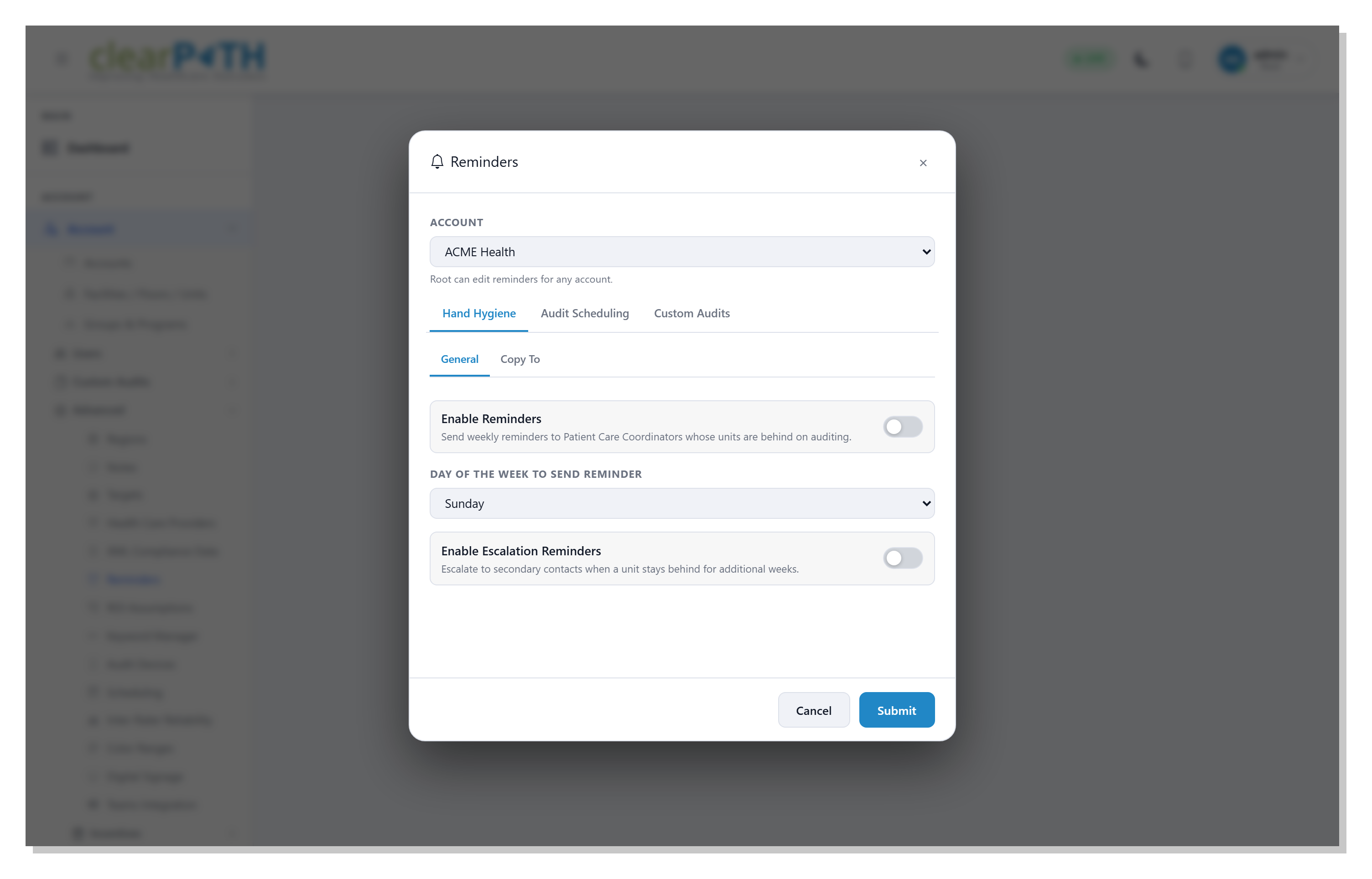
The Hand Hygiene reminder settings.
Enable Reminders— the master switch for hand hygiene reminders. When it is off, no hand hygiene reminders are sent for the account, regardless of the other settings.Day of the Week to Send Reminder— the day each week on which reminders are dispatched. Only one reminder is sent per week. When a Patient Care Coordinator is responsible for more than one unit, every unit that is behind is combined into a single email. The default day is Sunday.Enable Escalation Reminders— when a unit stays behind for additional weeks, clearPath escalates the reminder to the secondary contacts defined for the facility. This keeps a persistent shortfall from going unnoticed.
20.2.2. Copy To
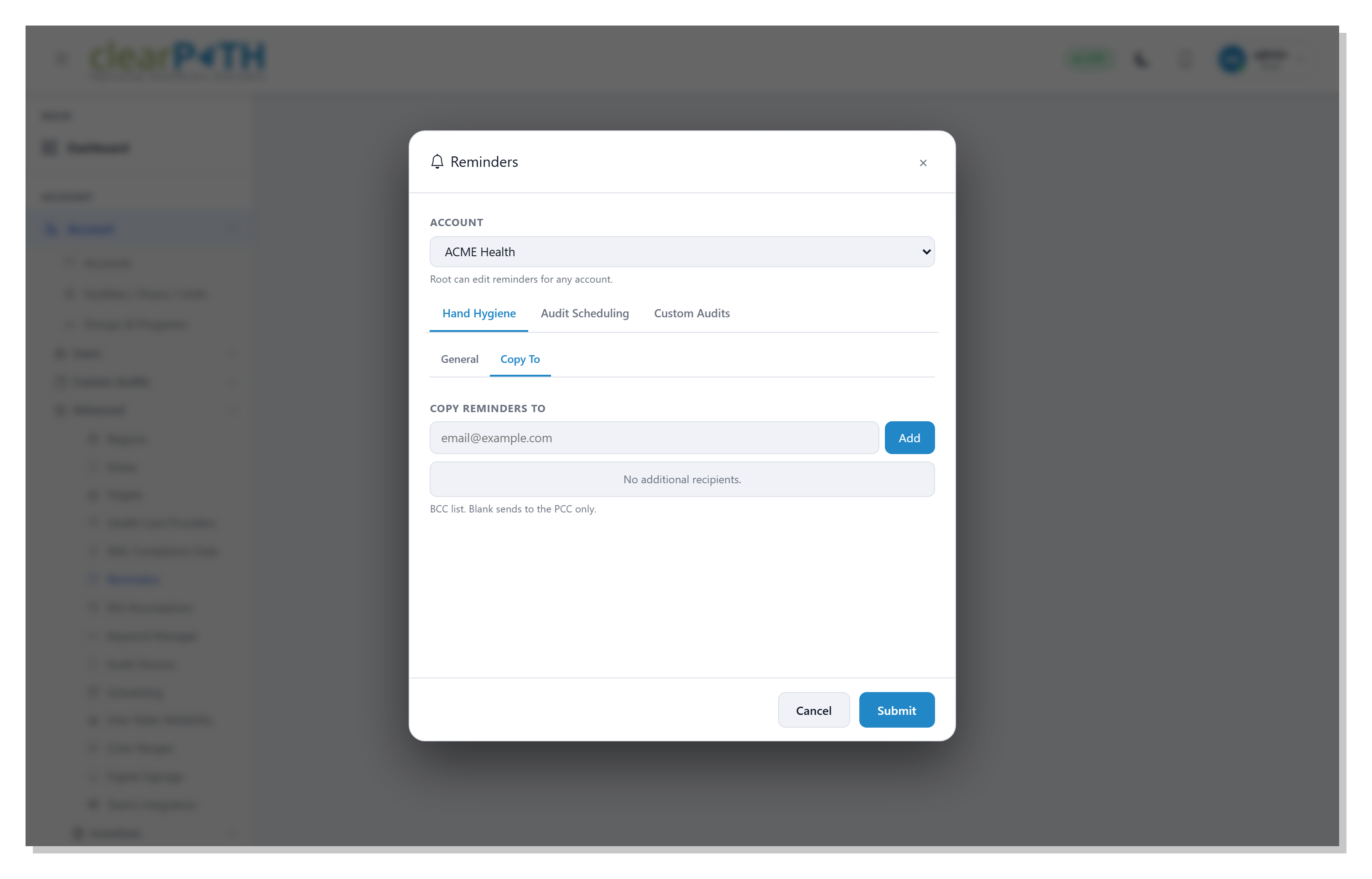
Adding people to the hand hygiene reminder copy list.
The Copy To tab holds a list of additional email addresses that
receive a blind copy of every hand hygiene reminder. This is useful for a
manager or quality lead who wants to see the reminders without being the
primary recipient.
To add a recipient, type an email address and select Add (or press
Enter). To remove one, select the ✕ next to the address. If the list
is empty, reminders go only to the Patient Care Coordinator.
20.3. Audit Scheduling
The Audit Scheduling category controls the emails that support your
audit assignment schedule — letting observers and coordinators know what
is coming up, what was missed, and how the week went.
The category has two tabs: General and Copy To.
20.3.1. General
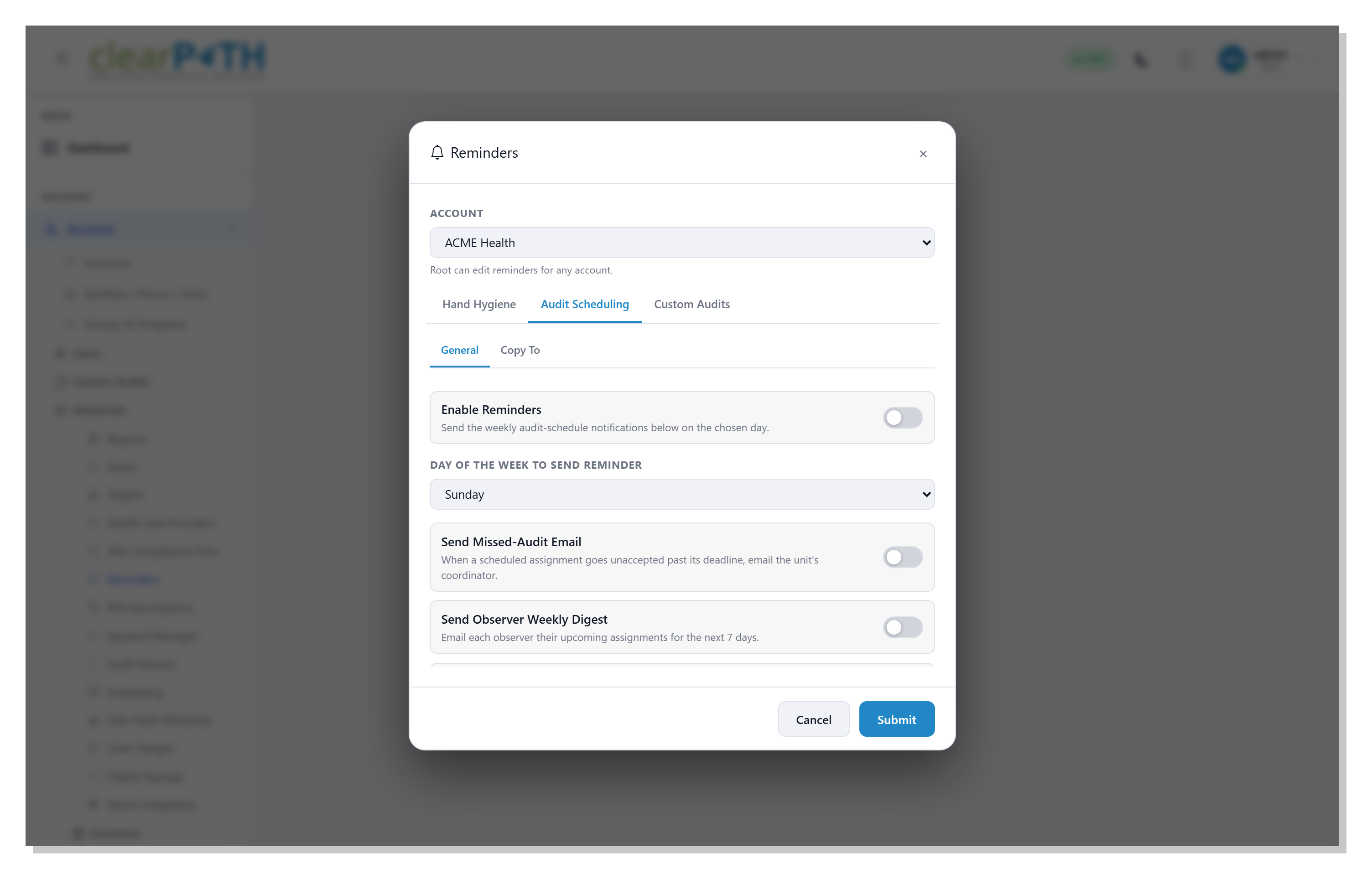
The Audit Scheduling reminder settings.
Enable Reminders— the master switch for audit scheduling emails. When it is off, none of the audit scheduling notifications below are sent.Day of the Week to Send Reminder— the day each week on which the weekly audit scheduling notifications are sent. The default day is Sunday.Send Missed-Audit Email— when a scheduled assignment is not accepted before its deadline, email the coordinator of the unit it was assigned to.Send Observer Weekly Digest— email each observer a summary of their upcoming assignments for the next seven days.Send Coordinator Weekly Summary— email each unit’s coordinator a summary of the pending, missed, and completed assignments for their unit.
20.3.2. Copy To
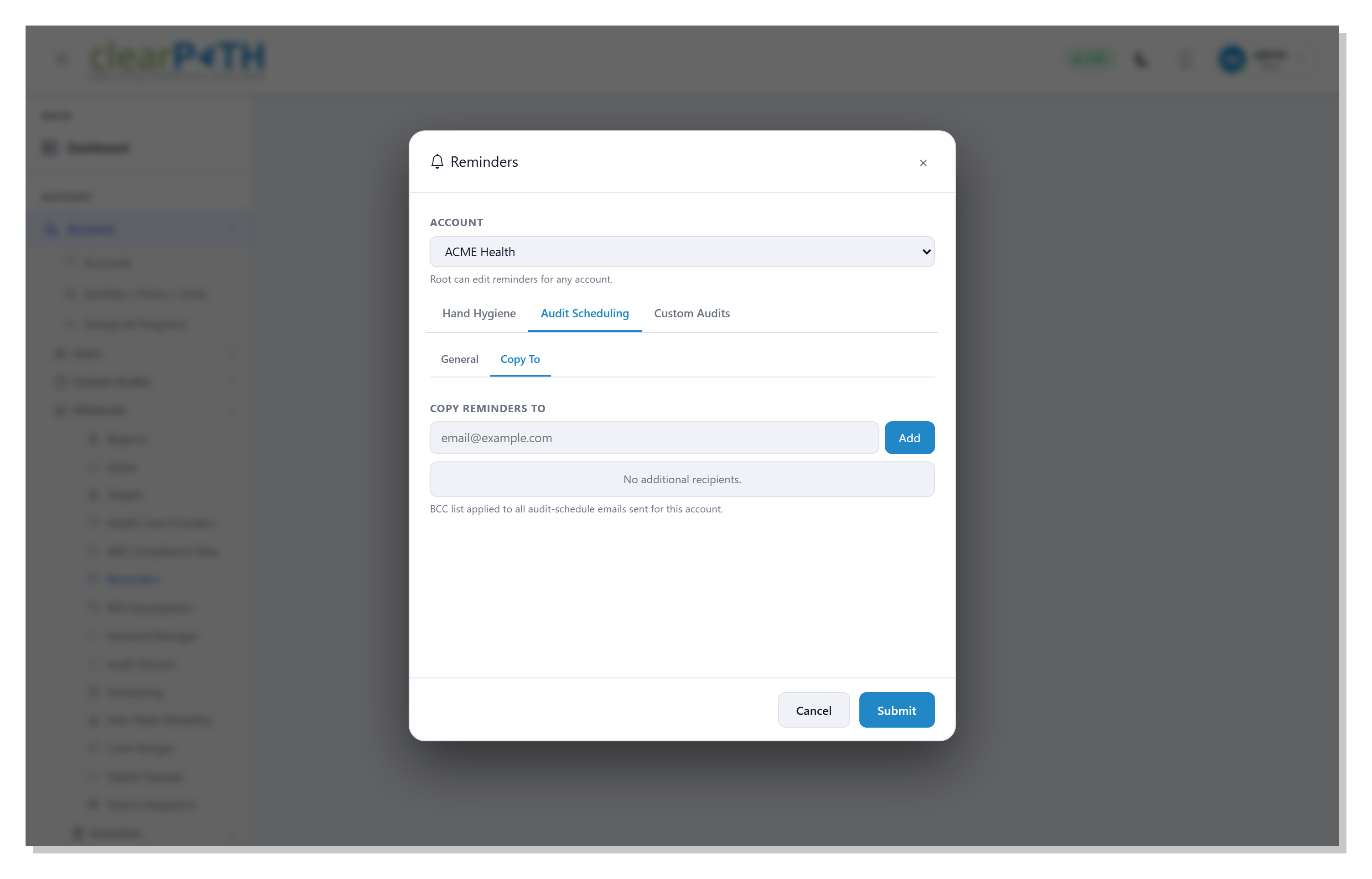
The audit scheduling reminder copy list.
The Copy To tab works the same way as it does for hand hygiene. Any
email addresses you add here receive a blind copy of every audit
scheduling email sent for the account. Add a recipient with Add, and
remove one with the ✕ next to the address.
20.4. Custom Audits
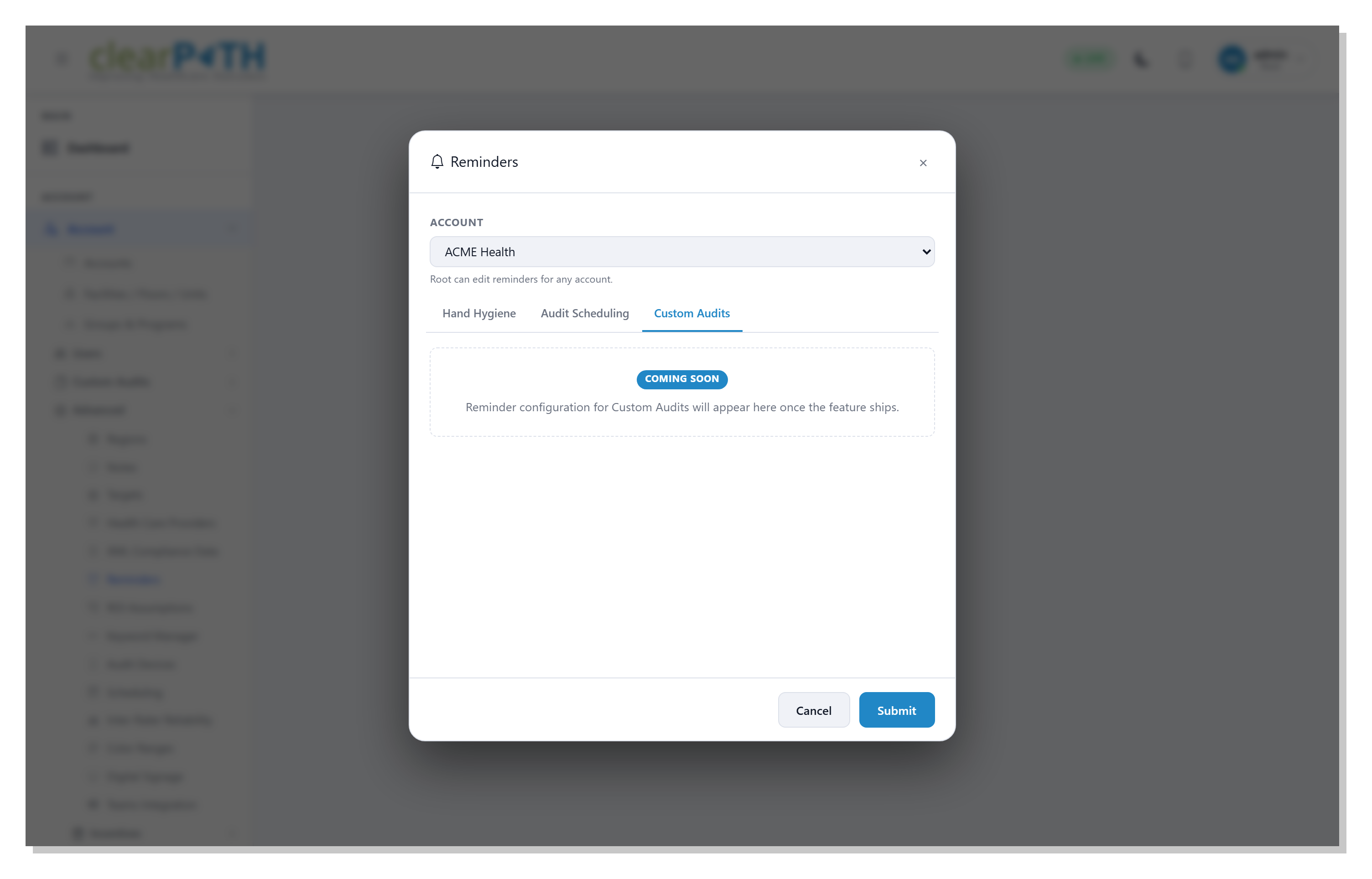
Custom Audit reminders are coming soon.
The Custom Audits category is reserved for reminder settings that
apply to custom audits and surveys. This feature is not yet available —
the tab shows a Coming Soon notice, and reminder options will appear
here once the feature ships.
20.5. Saving your changes
Select Submit to save the settings for all three categories at once.
Your changes apply to the account currently chosen in the account
selector. Select Cancel to close the screen without saving.