7. Hand Hygiene
Hand Hygiene sessions are the core of clearPath. Every direct-observation audit you run with cp2go (or using the web observer) lands here as a session — a time-stamped record of the observations an auditor made on a unit. This page is where you review, edit, summarize, and archive those sessions.
To open the Hand Hygiene sessions list, go to Audits | Hand Hygiene Sessions in the sidebar.
7.1. Audit Sessions
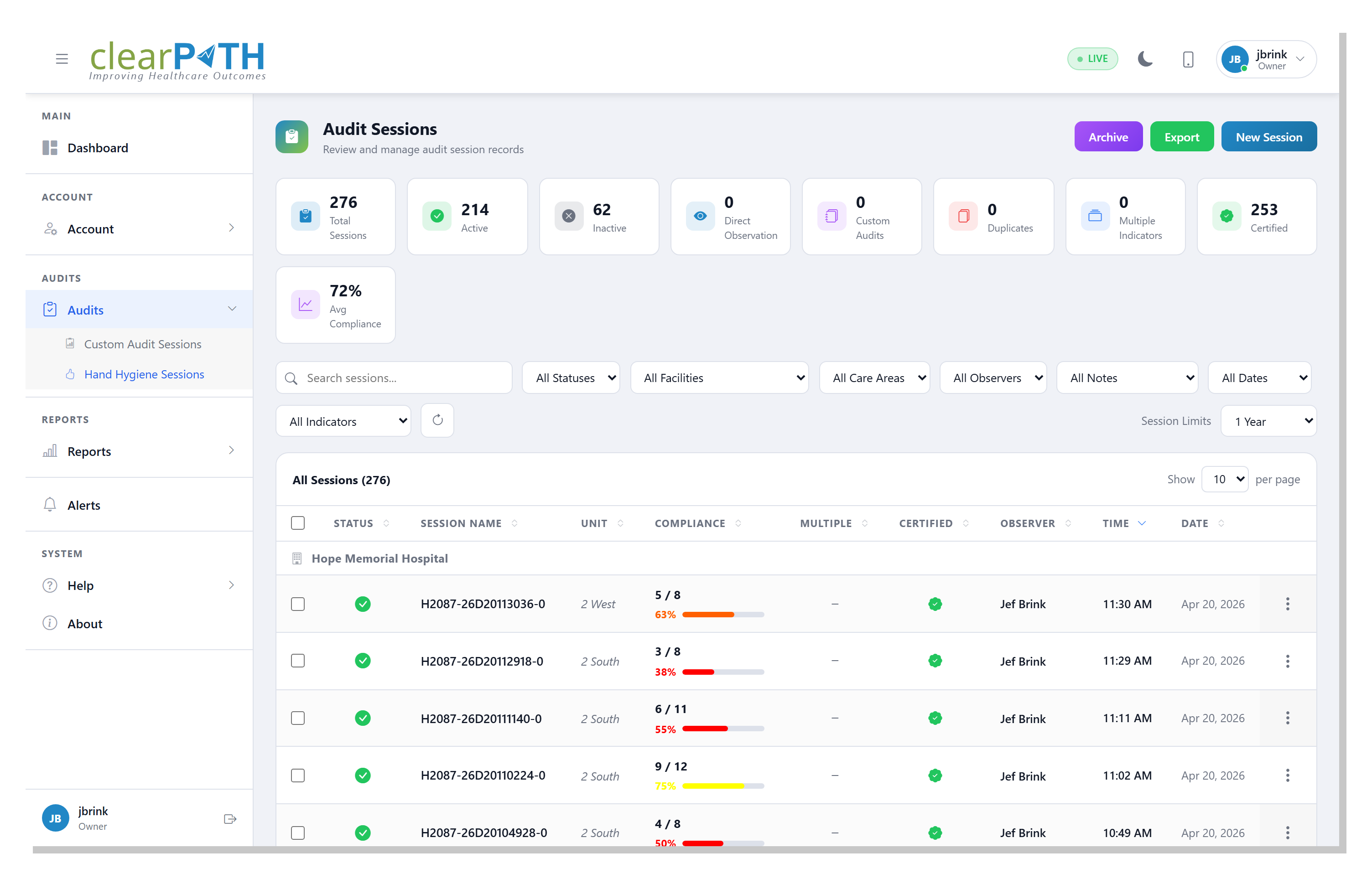
The page header on the right offers four primary actions:
New Session— open the web observer to start a new live audit (see Conducting an Audit in the Browser).Import— open the Importing Audit Files workspace where you can upload and import iScrub or Ministry of Health audit files directly from the browser.Export— save the current (filtered) session list to HTML, CSV, or Excel.Archive— archive the sessions you have ticked, removing them from the active list without deleting the underlying data.
7.1.1. Filtering the list
The toolbar lets you narrow the list to the sessions you care about:
Search sessions…— match text anywhere in the session name.All Statuses— show active, disabled, or all sessions.All Facilities— scope to a single facility.All Care Areas— scope to a single patient care area.All Observers— scope to a single auditor.All Notes— show only sessions that have observation notes.All Dates— pick a date range.All Indicators— show only sessions flagged with multiple indicators.Session Limits— cap the total number of sessions returned (1 Yearby default; chooseAllto remove the cap).
Click the refresh icon to reload the list without losing your filter selections.
7.1.2. Stat Chips
Cards across the top give you an instant rollup of the filtered list:
Total Sessions— every session matching the current filters.Active— sessions currently included in reports and dashboards.Inactive— sessions excluded from reporting.Direct Observation— sessions recorded in cp2go or the web observer.Custom Audits— sessions originating from a custom audit.Duplicates— sessions clearPath has flagged as likely duplicates of another session.Multiple Indicators— sessions where at least one observation has more than one indicator selected.Certified— sessions recorded by an auditor whose certification was valid at the time.Avg Compliance— the compliance average across the filtered list.
7.1.3. Session Row
Each row summarizes one audit session:
Status— a green circle when the session isActiveand a grey circle when it isInactive. Click the circle to toggle the status — no modal required. Inactive sessions are excluded from every report and from the dashboard.Type— the kind of observation (standard, MQTT, imported).Session Name— the auto-generated or edited name. Click to open Session Detail.Unit— the patient care area the session belongs to.Compliance— the calculated compliance percentage.Multiple—Yeswhen the auditor selected multiple indicators on one or more observations.Notes— a pencil icon if the session has observation notes.Certified— whether the observer’s certification was valid when the audit was recorded.Observer— the auditor who recorded the session.Time— when the session was created.
7.1.5. Selecting Multiple Sessions
Tick the checkbox on one or more rows to enable the bulk action bar.
From there you can Delete Selected or Archive Selected in one
click. The x button clears the selection without performing an
action.
7.2. Importing Audit Files
clearPath can import hand-hygiene audit data from external sources — either a folder of iScrub CSV files or a Ministry of Health CSV file. The Import Audits workspace lets you upload those files straight from the browser, review them, and queue them for import, all without needing console or file-share access to the server.
To open the workspace, go to Audits |
Hand Hygiene Sessions and click Import in the page header.
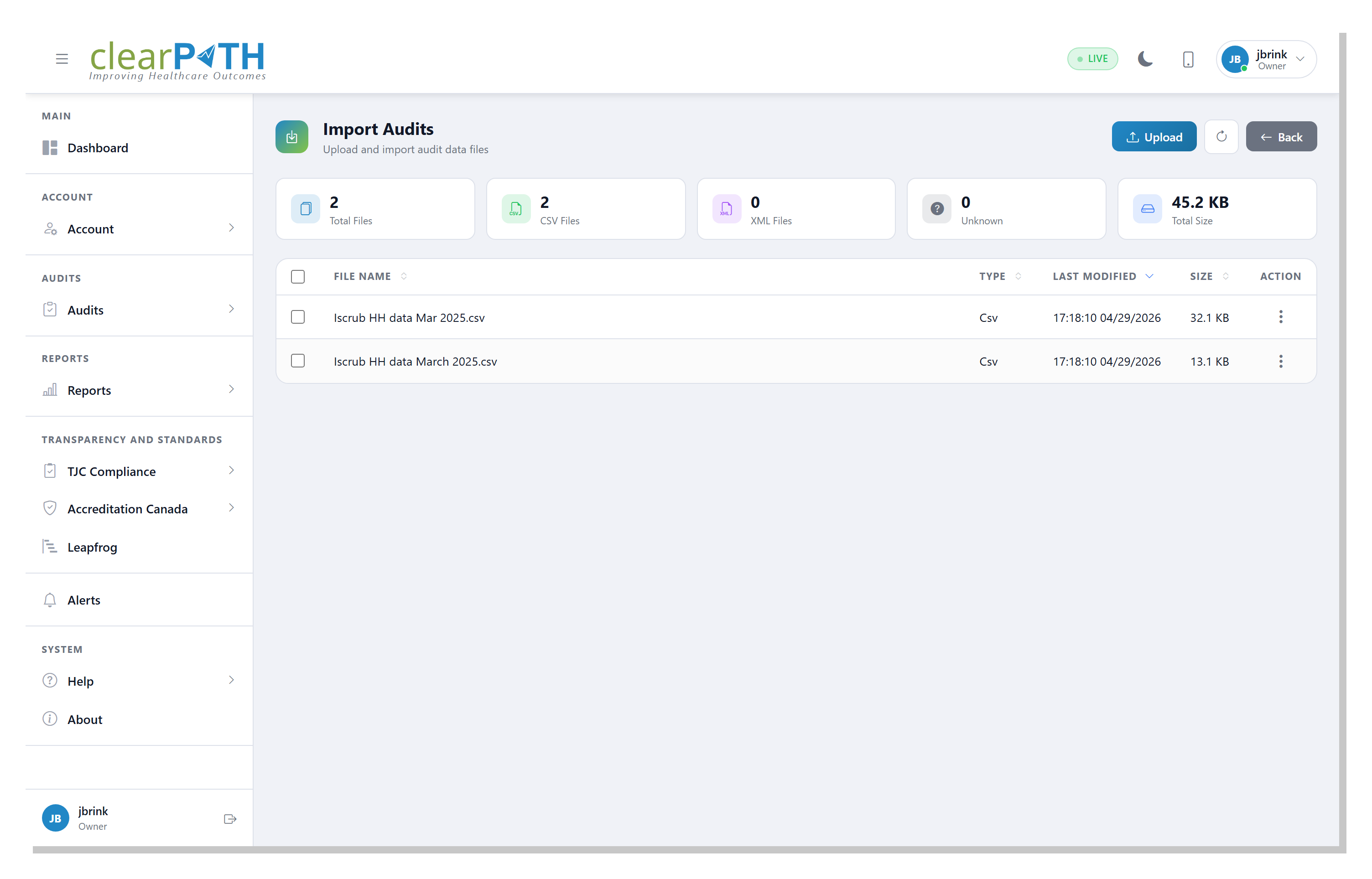
The page header offers three actions:
Upload— opens a multi-file picker. The files you choose are uploaded into the configured import folder on the server, preserving their original filenames.The circular refresh icon — reloads the file list without losing any selection.
Back— returns you to Audit Sessions.
7.2.1. Stat Chips
The cards across the top summarize the contents of the import folder:
Total Files— every file currently in the folder, regardless of type.CSV Files— files with a.csvextension (typically iScrub).XML Files— files with an.xmlextension (typically Ministry of Health exports).Unknown— files whose extension is neither CSV nor XML.Total Size— the combined disk size of every file in the folder.
7.2.2. File List
The table lists every file currently in the import folder:
File Name— the original filename as uploaded.Type— the file type as detected by clearPath.Last Modified— the timestamp the file was placed in the folder.Size— the on-disk size of the file.Action— the row’s three-dot menu (see below).
Click any column header to sort by that column. Click again to reverse the sort direction.
7.2.4. Selecting Multiple Files
Tick the checkbox on one or more rows to enable the bulk action bar.
Use Delete Selected to remove every ticked file in a single click.
The x button clears the selection without performing an action.
7.2.5. Import Audit File Dialog
Choosing Import from the row menu opens the Import Audit File
dialog.
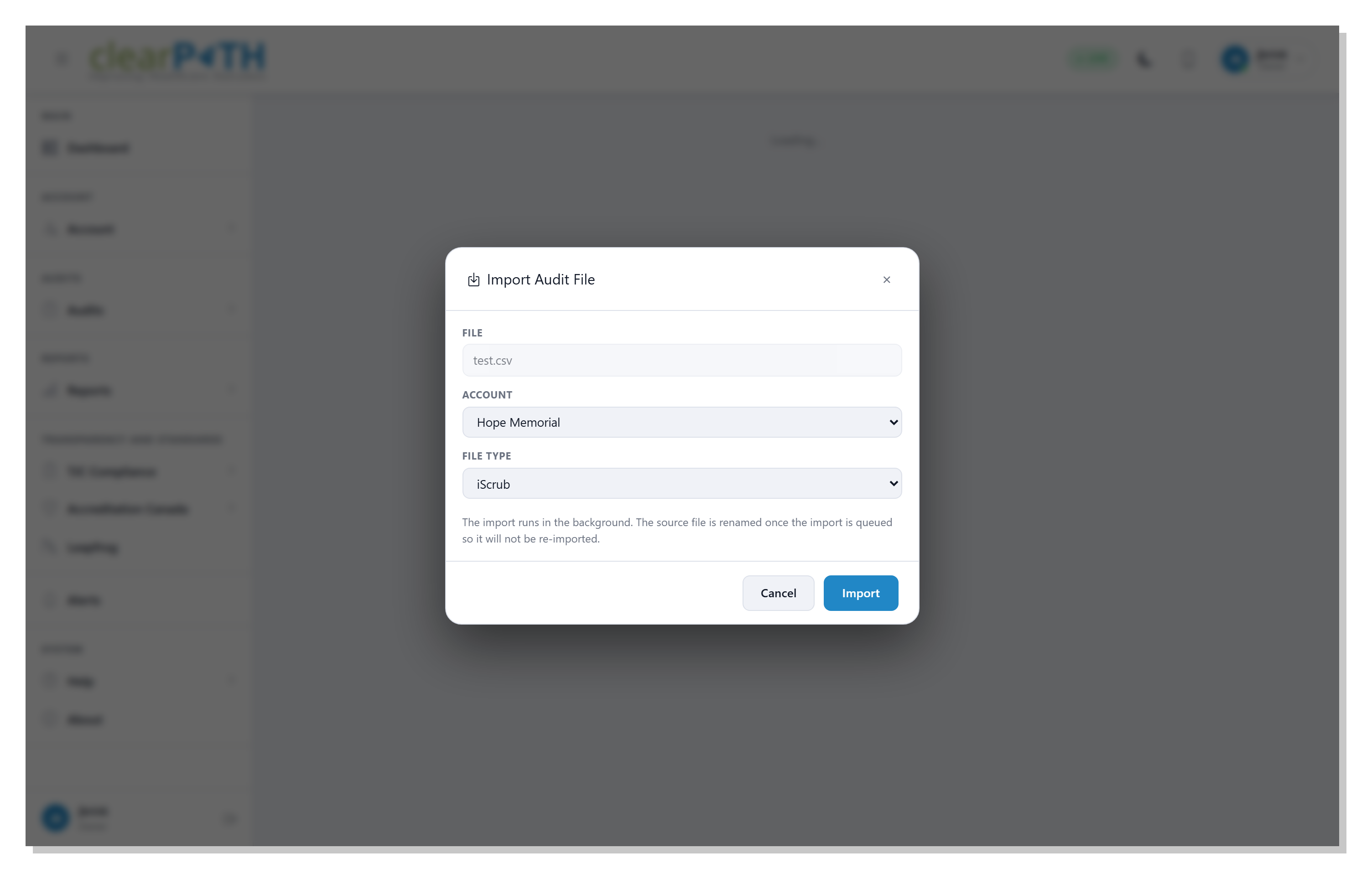
The dialog asks two questions:
Account— the account the imported sessions belong to. The list is pre-populated with the accounts you have access to and defaults to your current account.File Type— chooseiScrubfor an iScrub CSV file orMinistryfor a Ministry of Health CSV file.
Click Import to queue the file for processing. The import runs in
the background using the same engine that handles automated nightly
imports, and the page returns to the file list with a confirmation
toast.
7.2.6. Imports Are Single-Use
Once an import is queued, the source file is renamed by prepending a
dot to its filename (test.csv becomes .test.csv). The renamed
file is hidden from the Import Audits list and from any future scan
that ignores hidden files, so you cannot accidentally import the same
file twice. The renamed file remains on disk for audit-trail purposes
and can be removed manually later.
7.3. Session Naming Convention
clearPath auto-generates session names from the observer’s ID and the time the audit was started. You can rename a session at any time from its detail page — the examples below describe the default format.
Example:
H2087-C25Y225408-0
Segment |
Meaning |
|---|---|
|
Observer ID — the auditor’s user account id. |
|
Month of the session, encoded as a letter ( |
|
Day of the month (always two digits). |
|
Year, encoded as a letter ( |
|
Time the session started in |
|
Session sequence number if the auditor started more than one session in the same second. |
7.4. Session Detail
Click a session name in the list (or choose Audit Detail from its
action menu) to open the observation-by-observation view.
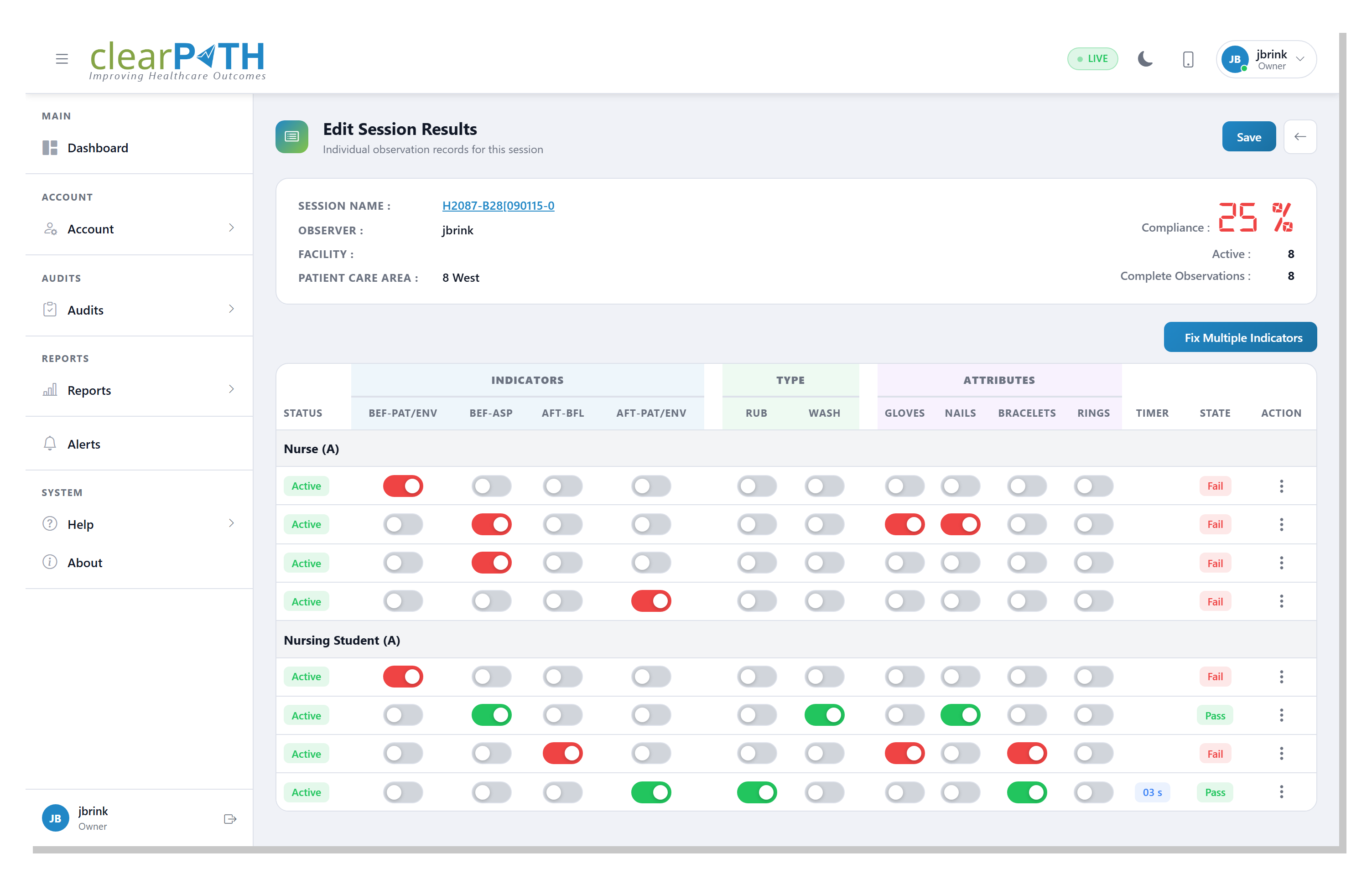
The header shows the session name, observer, facility, and patient care area, along with the overall compliance and a count of completed observations.
Each row in the grid is one observation. The columns group the information captured at the moment of the audit:
Status— the observation’s state (Active,Pass,Fail).Indicators(BEF-PAT/ENV, BEF-ASP, AFT-BFL, AFT-PAT/ENV) — the moment of hand hygiene the observation applies to.Type(RUB, WASH) — the technique the auditor recorded.Attributes(GLOVES, NAILS, BRACELETS, RINGS) — additional attributes observed.TIMER— elapsed time recorded during the observation where captured.STATE— the calculated pass/fail result.ACTION— the three-dot menu for per-observation edits.
Toggle any indicator, type, or attribute to correct a mistake. The
header compliance updates as soon as you change a value. Click
Save to persist your edits, or the back arrow to discard them.
Fix Multiple Indicators is available when the session has
observations flagged with more than one indicator; it walks you
through each flagged observation so you can pick the single intended
indicator.
7.5. Audit Summary
The Audit Summary is the report-ready view of a session: a single page showing the compliance percentage broken down by health-care provider type and by moment, plus any comments and observation notes attached to the session.
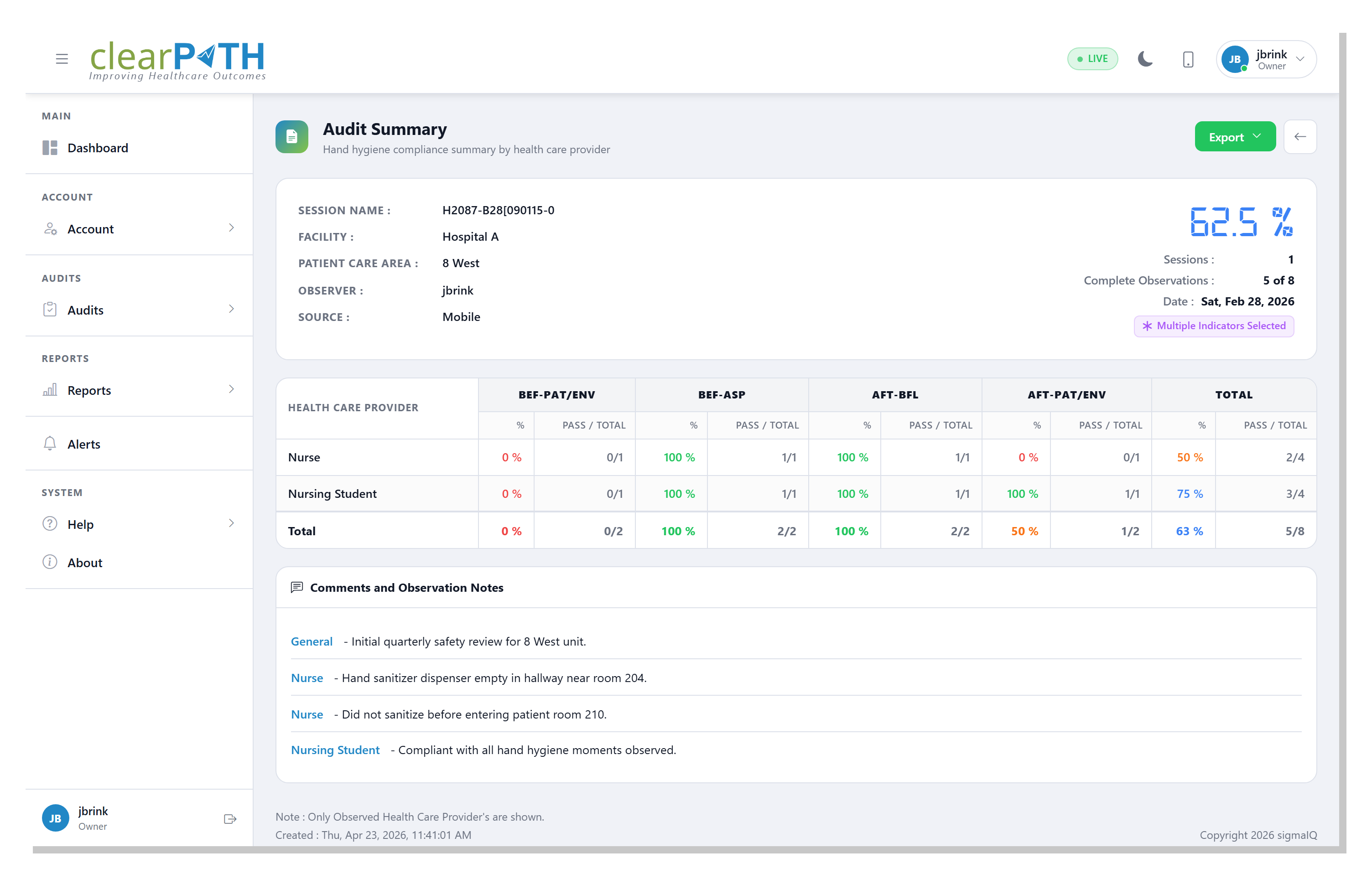
Open it from the session’s action menu (Audit Summary) or click
through from the Session Detail view.
The summary header shows:
Session NameFacilityandPatient Care AreaObserverandSource(for example,Mobilefor captures from cp2go,Webfor captures from the web observer).Compliance— the overall percentage for the session.Complete Observations,Sessions, andDate.Multiple Indicators Selected— a badge appears when the auditor recorded more than one indicator on at least one observation.
The compliance matrix underneath shows pass/total and a colored
percentage for every combination of health-care provider type and
moment. Comments and Observation Notes collects the free-text
notes attached to the session, grouped by the provider type they
applied to.
The Export button (top right) saves the summary as a PDF, or use
Email Audit Summary on the session action menu to send the PDF to
one or more email addresses. Enter each recipient on its own line,
adjust the subject and body, and click Send. clearPath attaches
the PDF automatically.
7.6. Transaction Log
The Transaction Log is a step-by-step record of everything the auditor did on the device while recording a session — every health-care provider selected, every moment marked, every rub or wash, and every note or comment, in the order it happened. It is most useful when you want to understand exactly how a session was captured or to review the sequence of actions behind a result.
Open it from the session’s action menu (Transaction Log).
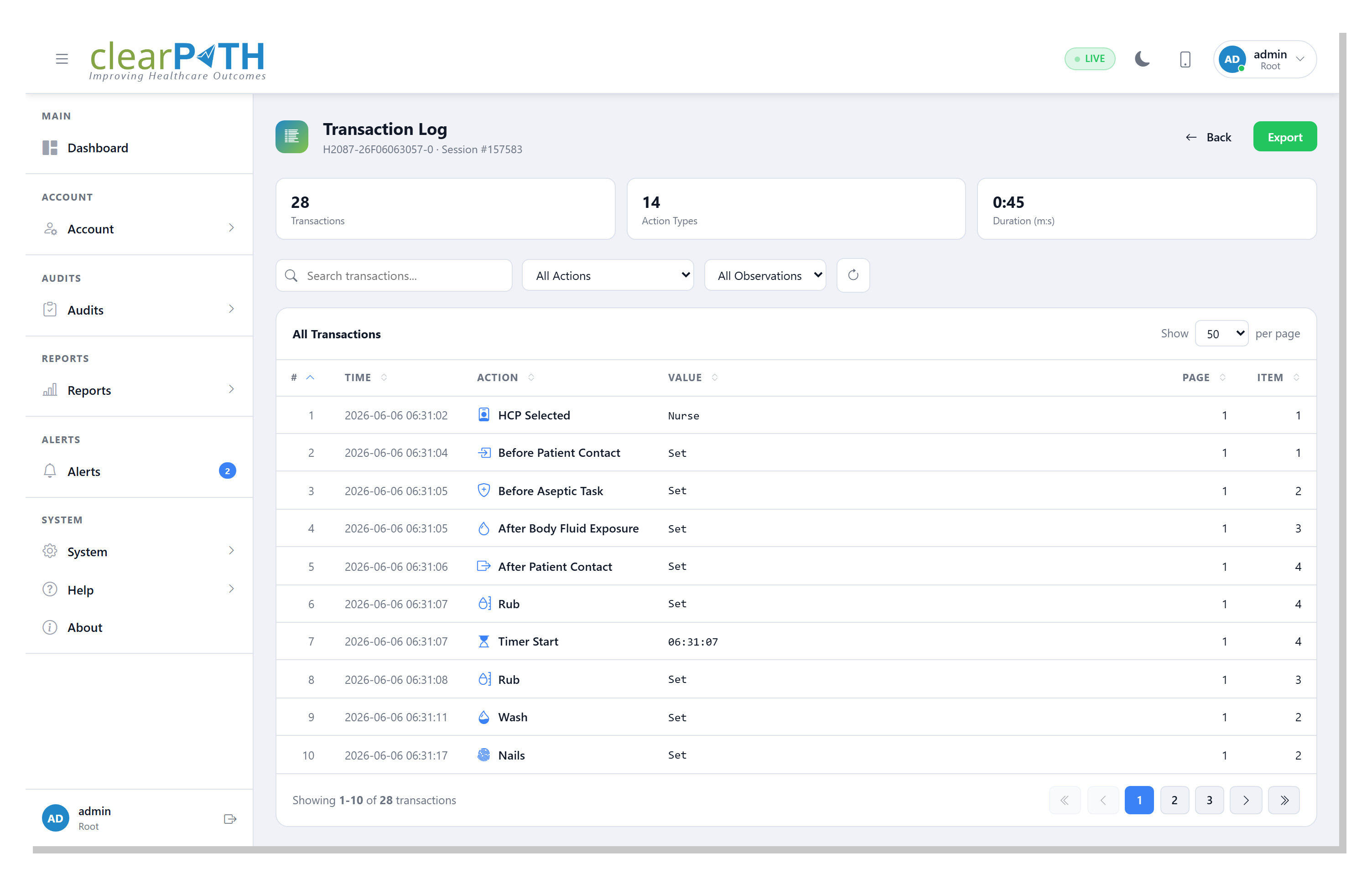
The page header shows the session name and number on the left, with two buttons on the right:
Back— returns you to the Audit Sessions.Export— saves the log to HTML, CSV, or Excel.
7.6.1. Stat Chips
Cards across the top summarize the log:
Transactions— the total number of recorded actions.Action Types— how many distinct kinds of action appear in the log.Duration (m:s)— the elapsed time from the first action to the last, shown as minutes and seconds.
7.6.2. Filtering the log
Search transactions…— match text in the action name or value.All Actions— show only one kind of action (for example, onlyWashor onlyNote).All Observations— show only the actions recorded for a single observation. Each observation in the session is listed by number, so you can isolate the steps that belong to one patient encounter.
The search box and both drop-downs work together, so you can narrow the log to a single action type within one observation.
Click the refresh icon to reload the log.
7.6.3. Transaction Row
Each row is one action the device recorded:
#— the action’s position in the sequence.Time— when the action was recorded.Action— what the auditor did, such asStart Audit,HCP Selected,Before Patient Contact,Rub,Wash,Note, orSave Audit.Value— any value attached to the action (for example, the note text, or the indicator state that was set).PageandItem— where on the audit screen the action was made.
Click any column header to sort by that column. Click again to reverse the sort direction.
Note
The Transaction Log is recorded automatically for sessions captured with cp2go. Sessions imported from other sources, or recorded before this feature was available, may not have a log.
7.7. Conducting an Audit in the Browser
The web observer lets you run a live hand-hygiene audit straight from
clearPath — no separate app required. It is reached by clicking
New Session on the sessions list, or by opening the
Hand Hygiene tile from Mobile Mode.
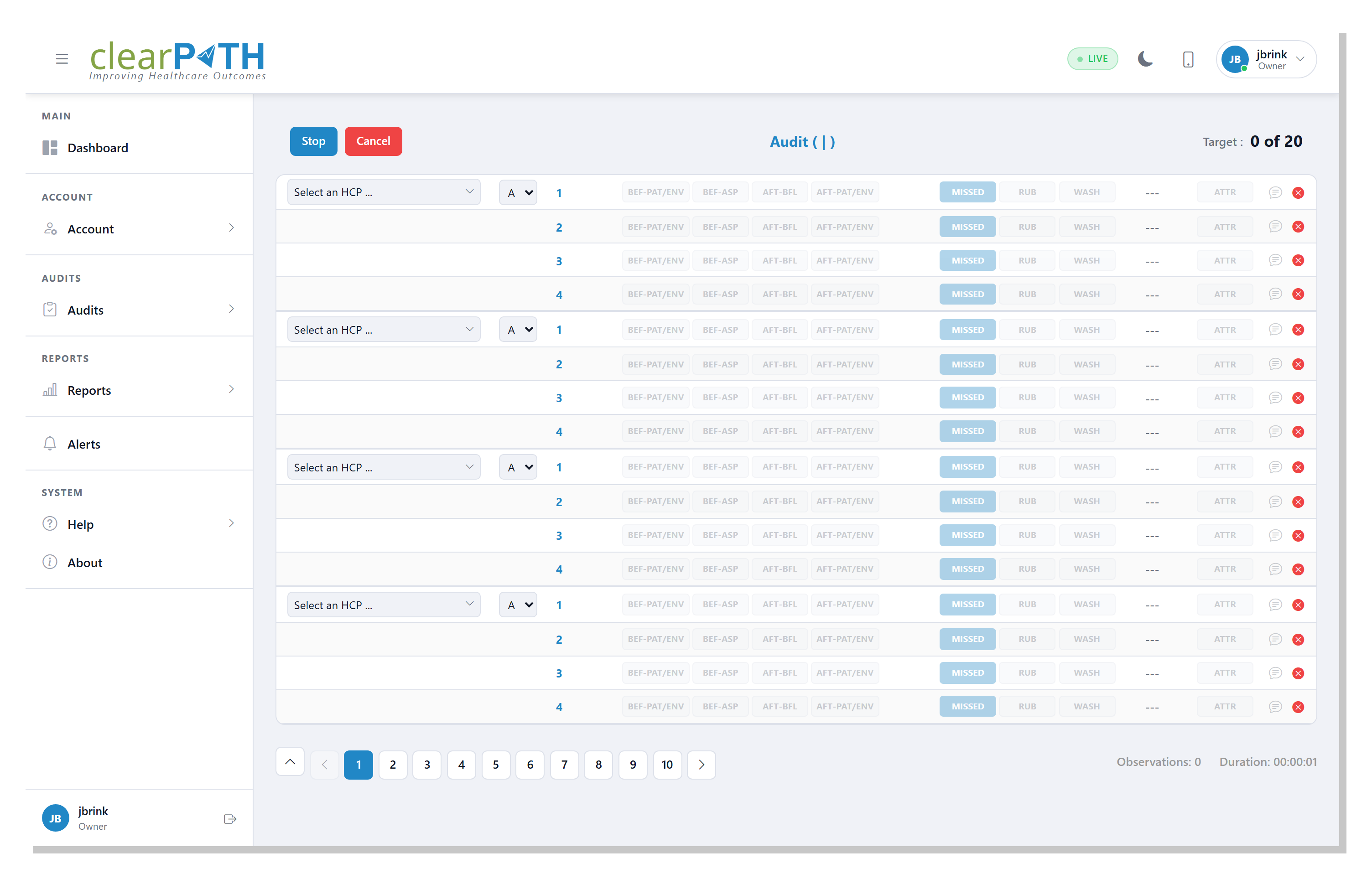
The top bar shows:
Stop— end the audit and save the observations recorded so far.Cancel— discard the audit without saving.Facility and unit being audited (from the session setup).
The running count of observations against the session target (for example,
0 of 20).
Each row in the grid is one observation. Pick the health-care
provider type in the first column, then toggle the indicator, type
(RUB / WASH), and any attributes (GLOVES, NAILS,
BRACELETS, RINGS) the auditor observes. The red X on the
right removes an observation row.
The pagination control at the bottom lets you page through groups of observations once the session is long enough to need it. The stats bar shows the total observations recorded and the elapsed duration.
Observation-level notes are captured through the three-dot comment
overlay on each row; session-level notes are captured when you click
Stop.
Tip
If the browser or device is closed unexpectedly during a web
audit, clearPath restores the in-progress observations the next
time you open the web observer. Click Stop or Cancel to
commit or discard them.