33. Manage
33.1. Importing Hand Hygiene Compliance Data
clearPath can import hand hygiene data from external sources, including the Ontario Ministry of Health and Long-Term Care Excel tool and iScrub. Save your data in Excel as a CSV (comma separated values) file and include the header row in the exported file. If the header row is missing, clearPath uses the default field names and field order.
You import these files from the Import Audits workspace. To open it,
go to Audits | Hand Hygiene Sessions and select the
Import button in the page header.
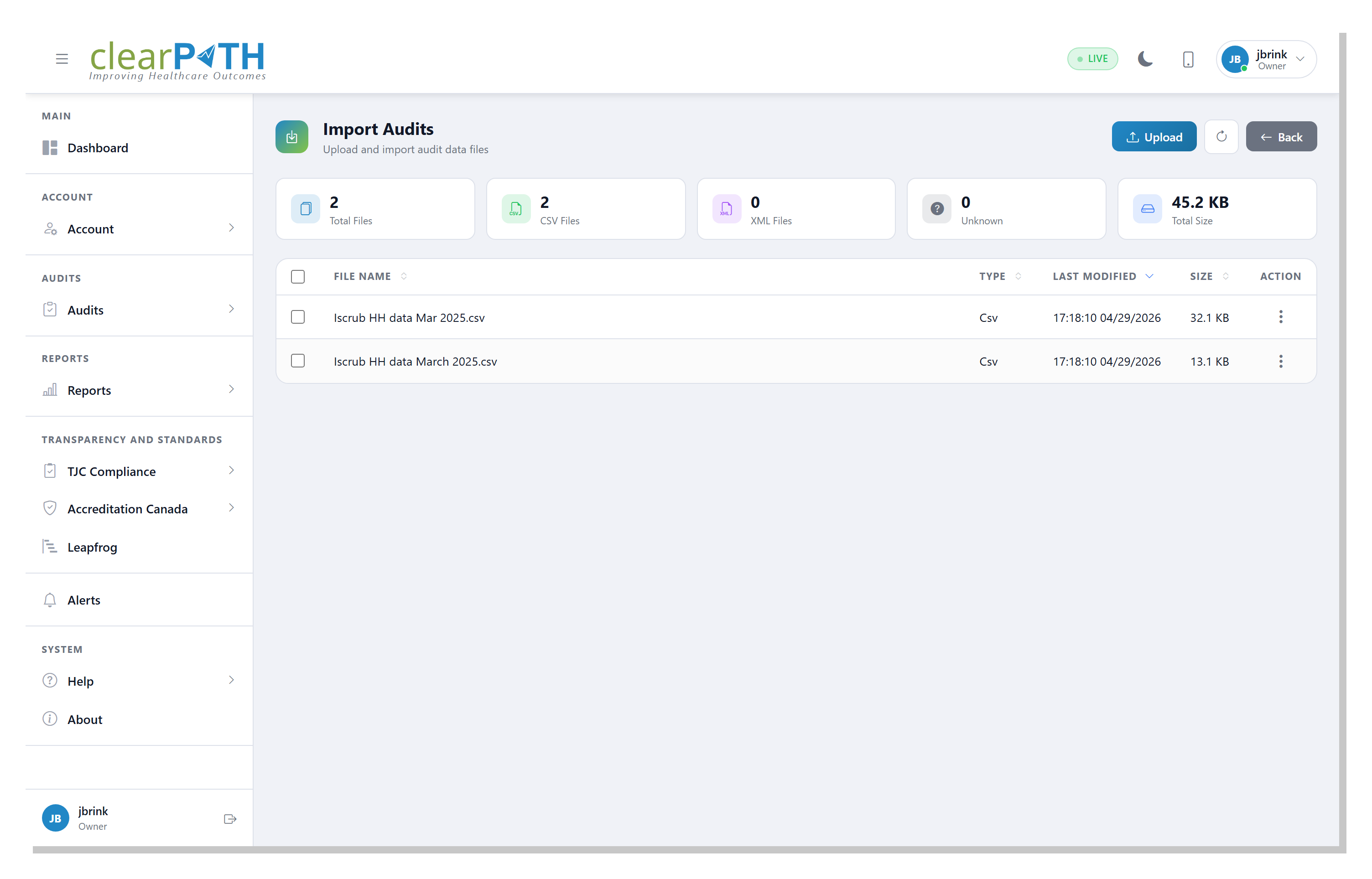
Select Upload to add one or more files to the workspace. Each uploaded
file appears in the list, and the cards across the top summarize how many
files are present and their combined size. To import a file, open its
three-dot menu at the end of the row and choose Import.
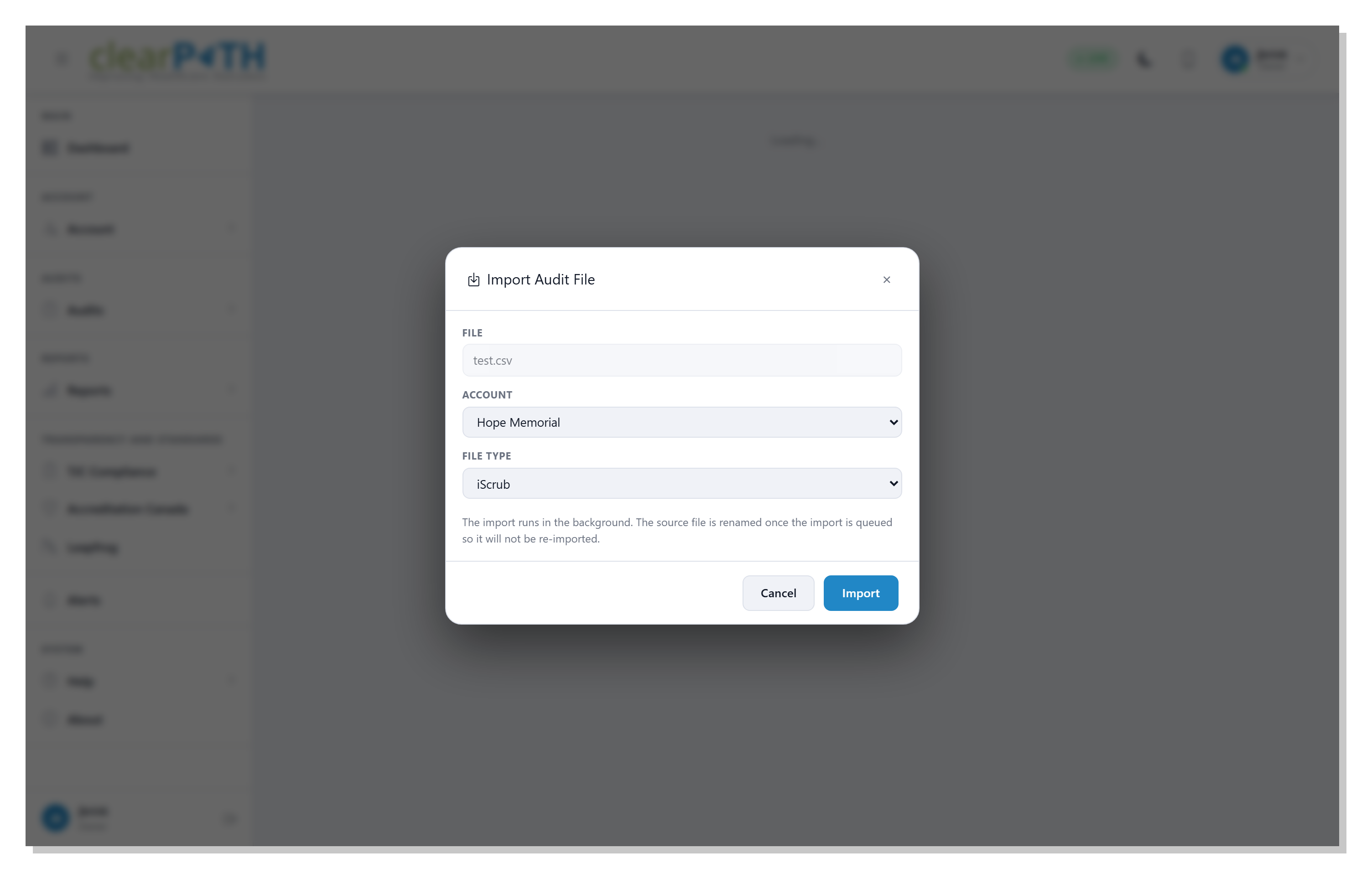
In the Import Audit File dialog, choose the Account the data
belongs to (this defaults to your current account) and confirm the
File Type — iScrub for an iScrub CSV file or Ministry for a
Ministry of Health CSV file. Select Import to start.
The import runs in the background. Once it is queued, the source file is renamed so it cannot be imported a second time. Your account contact is notified by email when the import finishes, and the email contains a log of what happened.
For a full walk-through of every button and option in the Import Audits workspace, see Importing Audit Files.
33.2. Importing Data from the Command Line
clearPath allows you to import legacy data from the command line.
./clearpath --cmd import --type iscrub --file importfile.csv --account xxx
33.3. Supported File Formats
clearPath supports the Ontario Ministry of Health and iScrub file formats. Both supported files are in CSV file format, and a have a fixed number of columns that must be present in each format, even if the fields are not supported.
Note
The iScrub file format does not support the concept of audit sessions, clearPath does its best to figure out which observations can be grouped together, but in most cases the observations will be imported into clearPath in single observation sessions.
33.3.1. iScrub Table Fields
Field Name |
Comment |
|---|---|
timestamp |
date and time of observation [1] |
location |
the unit name of the audit |
HCW |
Healthcare worker or provider |
opportunity |
see supported options below [2] |
deviceName |
name of the device, or auditor |
note |
text. should not contain commas, or apostrophes |
handHygieneCompliance |
Rub, Wash, No |
gloveCompliance |
Yes, No, N/A |
gownCompliance |
not supported leave set to n/a |
maskCompliance |
not supported leave set to n/a |
respiratorCompliance |
not supported leave set to n/a |
facilityName |
Name of the facility |
Note
The fieldnames are not case sensitive. The fieldname can be in any order, but the recommendation is to keep them in the default order.
Notes
33.3.1.1. Hand Hygiene Moments
Moment |
Just Clean Your Hands |
WHO Moment |
iScrub Opportunity |
|---|---|---|---|
1 |
BEF-PAT/ENV |
Before Touching a Patient |
Before Touching a Patient / In Room |
2 |
BEF-ASP |
Before a clean/aseptic Procedure |
Before Aseptic |
3 |
AFT-BFL |
After Body-Fluid Exposure |
After Body Fluid Exposure/Risk |
4 |
AFT-PAT/ENV |
After Touching a Patient |
After Touching a Patient / Out of Room |
5 |
n/a |
After Touching Patient Surroundings |
After Touching Patient Surroundings |
33.3.2. Ministry of Ontario Data Table Date Formats
Field Name |
Field Format |
|---|---|
ObservationDate |
mm:dd:yyyy |
ObservationStartTime |
hh:mm AM/PM |
ObservationEndTime |
hh:mm AM/PM |
DateEntered |
m/d/yyyy hh:mm AM/PM |
DateModified |
m/d/yyyy hh:mm AM/PM |
Warning
There are five time and date fields where the formatting is critical. Double check the table above to ensure the date and time fields are in the right format.
The DateModified field is not imported from the CSV, but it must be present in the file. clearPath resets DateModified to the import date. The header in the CSV file MUST contain a total of 31 columns. The following field names must be present.
33.3.3. Ministry of Ontario Data Table Fields
Field Name |
Comment |
|---|---|
RecID |
Sequential Number, must be unique within the file. Duplicates should be avoided |
ObservationID |
Used to separate observations into different sessions. |
ObserverID |
ID, Name, or initials of Observer. Can be a number of text |
FormNo |
Page Number from the original paper based audit. If your unsure set the entire column to 1 |
HCPNumber |
Not Used. If unsure set this field to 1. |
OpportunityNumber |
Typically 1,2,3 or 4 (this allows clearPath to group observations together) if your unsure set to 1 |
FacilityID |
The ID or Name of the Facility. If you are importing data into clearPath that already has data make |
PatientCareUnit |
The name of the Patient Care Unit |
ObservationDate |
mm:dd:yyyy |
ObservationDayofWeek |
Must be Sunday,Monday,Tuesday,Wednesday,Thursday,Friday or Saturday |
ObservationStartTime |
hh:mm AM/PM |
ObservationEndTime |
hh:mm AM/PM |
Comments |
Comments should not contain commas, single quotation. or double quotations marks. |
HCPID |
Contains the ID for the HCP (for example in Ontario Acute Care 0=Physician and a Nurse=1) |
HCPVersion |
Should be a single uppercase alphabetical character. Allows auditors to differentiate |
BEF-PAT |
Should be 1 (Set) or 0 (Not Set) |
BEF-Time |
Time in seconds or set to 0 |
BEF-ASP |
Should be 1 (Set) or 0 (Not Set) |
AFT-PAT |
Should be 1 (Set) or 0 (Not Set) |
AFT-Time |
Time in seconds or set to 0 |
AFT-BFL |
Should be 1 (Set) or 0 (Not Set) |
Rub |
Should be 1 (Set) or 0 (Not Set) |
Wash |
Should be 1 (Set) or 0 (Not Set) |
Missed |
Should be 1 (Set) or 0 (Not Set) |
Gloves |
Should be 1 (Set) or 0 (Not Set) |
Nails |
Should be 1 (Set) or 0 (Not Set) |
Bracelets |
Should be 1 (Set) or 0 (Not Set) |
Rings |
Should be 1 (Set) or 0 (Not Set) |
IsActiveYN |
Set to Y to set observation to active, set to N to deactivate the record |
DateEntered |
m/d/yyyy hh:mm AM/PM |
DateModified |
m/d/yyyy hh:mm AM/PM |
Note
clearPath will automatically add any undefined facilities and/or patient care areas based on the data imported.
clearPath will organize the data into different audits or sessions based on the observer, facility, patient care area and the time the audit took place.
Session names will follow the standard naming convention.
33.4. Export Data
There are two ways to export data from clearPath.
The first method of exporting data is to go to Reports | Define and create a Just Clean Yours Hands Export report type.
To second method to export data from clearPath is to go to Hand Hygiene | Audit Sessions screen. Choose Export Observation Data from the action drop down. The exported session data will be emailed to the destination of your choice. The export options for this method are shown below.
Note
This feature is only available in the Enterprise and Ultimate editions of clearPath.
To limit the data in the file specify a start and end date. By default clearPath will set the dates based on all the hand hygiene data in the database. Note : Only active data sets will be exported.
33.4.1. CSV Export
CSV (Comma Separated Values) is compatible with the Ontario Ministry of Health and Long Term Care file format.
Loading CSV file into Excel:
Once the data has been imported into Excel, five fields need to be custom formatted before the data can be displayed in the ministry tool. This has to do with some code in the Ontario Ministry of Health and Long Term Care tool that expects the date and time fields to be in very specific format.
The five fields are:
ObservationDate
ObservationStartTime
ObservationEndTime
DateEntered
DateModified
Note
For the ObservationDate field select the entire column and right click and select Format Cells. In the Number tab select Custom. In the type field enter the following text “dd:mm:yyyy” do not include the quotes.
For the ObservationStartTime and ObservationEndTime field select the entire column and right click and select Format Cells. In the Number tab select Custom. In the type field enter the following text “hh:mm AM/PM” do not include the quotes.
For the DateEntered and DateModified field select the entire column and right click and select Format Cells. In the Number tab select Custom. In the type field enter the following text “d/m/y hh:mm:ss AM/PM” do not include the quotes.
33.4.2. XML Export
XML (Extensible Markup Language) provides a second file format that includes a number of export options.
XML Export Options:
With XML there are a number of options to help make the exported data easier to read. Such as the ability to :
include non reportable data (say an emergency room)
the ability to include the auditors full name and not just their ID
the ability to include the facility name
the ability to include the HCP/HCW (Health Care Professional / Health Care Worker) full name and not just the ID
33.5. Remote URL
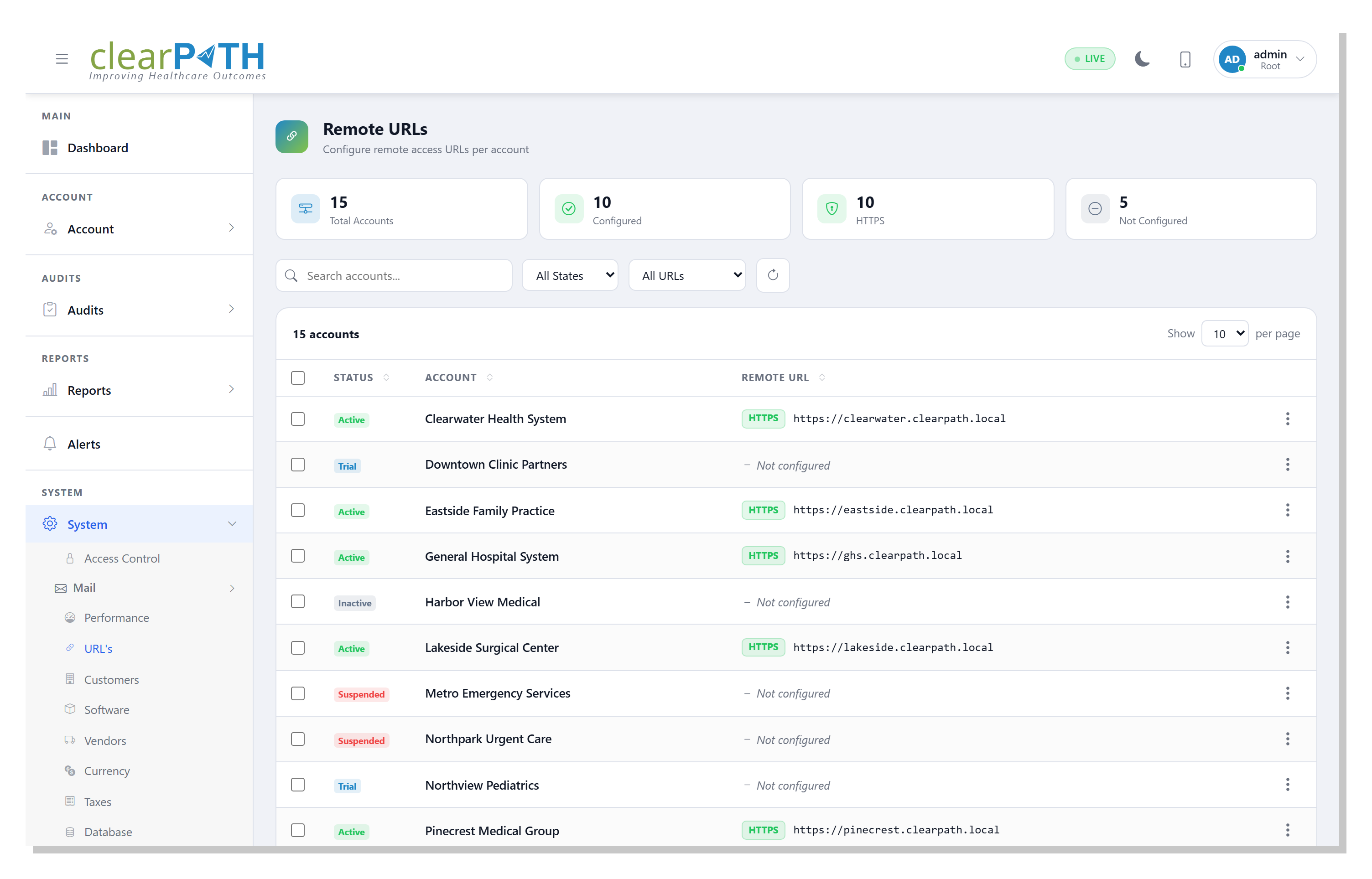
The Remote URL address is used as a hot link in notification messages to access the clearPath system by simply clicking on the link. It may require your system administrator to port forward the web portal port (default 80 or port 443) through your corporate firewall.
Tip
The URL should be set to https://siteid.cphs.cloud. Where siteid is your three or four site identifier.
Note
The Remote URL must be set correctly:
before importing Legacy Data from the Ministry of Health and Long Term Care.
for icons and images to show correctly in the web interface
33.6. Moment Methods
clearPath currently supports three different auditing modes using two, four and five moments of hand hygiene. The two most common are the four-moment method used primarily in Canada and the five-moment method of hand hygiene used elsewhere in the world.
33.6.1. Two Moment Method
Moment |
Abbreviation |
Full Name |
|---|---|---|
1 |
BEFORE |
Before Initial Patient / Patient Environment Contact AND Before Aseptic Procedure |
4 |
AFTER |
After Patient/Patient environment Contact AND After Body Fluid Exposure Risk |
33.6.2. Four Moment Method
Moment |
Abbreviation |
Full Name |
|---|---|---|
1 |
BEF-PAT/ENV |
Before Initial Patient / Patient Environment Contact |
2 |
BEF-ASP |
Before Aseptic Procedure |
3 |
AFT-BFL |
After Body Fluid Exposure Risk |
4 |
AFT-PAT/ENV |
After Patient/Patient environment Contact |
33.6.3. Five Moment Method
Moment |
Abbreviation |
Full Name |
|---|---|---|
1 |
BEF-PAT |
Before Patient Contact |
2 |
BEF-ASP |
Before Aseptic Task |
3 |
AFT-BFL |
After Body Fluid Exposure Risk |
4 |
AFT-PAT |
After Patient Contact |
5 |
AFT-TPS |
After Contact with Patient Surroundings |
Note
It is highly recommended not to switch moment methods once observations are entered into clearPath. Translation of observation data between the different moment methods are not 100 percent compatible.
33.7. Indicators vs Observations
Why does the indicator report number not match the compliance number? The answer has to do with the auditor clicking multiple indicators per observation line. On the Year To Date dashboard there is a field for observations and indications. If those numbers differ slightly then you can expect to see small differences in report results.
The example below shows a nurse that was observed five different times. The indicates the moment selected and whether or not a rub or a wash was performed.
33.7.1. Example Audit
HCP Type |
BEF-PAT/ENV |
BEF-ASP |
AFT-BFL |
AFT-PAT/ENV |
Rub |
Wash |
|---|---|---|---|---|---|---|
Nurse |

|
|||||
Nurse |
|
|
|
|||
Nurse |
|
|
||||
Nurse |
|
|
||||
Nurse |
|
|
|
33.7.2. Hand Hygiene Type By Indicator
So if the results are tallied up based on data above we end up with the following:
Type |
Performed |
Total Observed |
|---|---|---|
BEF-PAT/ENV |
2 |
3 |
BEF-ASP |
0 |
0 |
AFT-BFL |
0 |
0 |
AFT-PAT/ENV |
3 |
3 |
Total |
5 |
6 |
33.7.3. Hand Hygiene By Compliance
To calculate the compliance we look at if a rub or a wash was complete and then if ANY one of the four (or five) moments is checked.
Health Care Professional |
Performed |
Total Observed |
|---|---|---|
Nurse |
4 |
5 |
33.7.4. Conclusion
In our example above, the Hand Hygiene Type By Indicator was 5 of 6 or 83%.
While the Hand Hygiene Compliance was 4 of 5 or 80%.
Tip
To automatically correct observations with multiple observations selected click here.
33.8. Multiple Indicators
Correcting observations where multiple indicators are selected is easy to correct in clearPath. To identify the sessions that contain observations with multiple indicators selected, go to the Hand Hygiene | Audit Sessions and from the View drop down select Sessions with Multiple Indicators. clearPath will display just the sessions that contain observations with multiple indicators selected. If no records are returned, clearPath was unable to locate any audit sessions that met the criteria.
Next, select the magnifying glass to the right of the audit session a popup menu will appear, choose Details, clearPath will display the observation detail screen. To quickly identify the records with multiple indicators choose Multiple Selected Indicators from the View drop down. Next select any matching records that need to be split into their own observation line, by checking the checkbox on the left side of the screen. Next choose Split Observations … from the action drop down. clearPath will create a new record for each selected moment and ensure that only one indicator is selected for each observation line.
If you wish to have clearPath automatically correct observations with multiple indicators selected go to Hand Hygiene | Audit Devices and press the wrench icon on the top left of the screen to bring up the audit option screen. Go to the Multiple Indicators section. For more information on how to set this feature click here.
33.9. Reminders
clearPath can send scheduled email reminders that keep your hand hygiene and audit programs on track. When a unit falls behind its observation schedule, clearPath emails the people responsible so the shortfall is caught early. All reminder settings for an account are managed on one screen, reached from Account | Advanced | Reminders, and are grouped into three categories.
Hand Hygiene — weekly reminders sent when a unit is behind on its hand hygiene observations. You can enable the reminders, set the day of the week they go out, and turn on escalation so a unit that stays behind for additional weeks is escalated to the facility’s secondary contacts.
Audit Scheduling — emails that support your audit assignment schedule, including a missed-audit notice, an observer weekly digest of upcoming assignments, and a coordinator weekly summary of pending, missed, and completed work.
Custom Audits — reserved for reminder settings that apply to custom audits and surveys. This feature is coming soon.
Each category also has a Copy To list, where you can add email
addresses that receive a blind copy of every reminder in that category.
Reminders are delivered by email, so they can only be sent once an email server has been configured for the account.
For a full walk-through of every setting, see Reminders.
33.10. Corporate Scorecard
clearPath automatically updates hand hygiene summary files every hour. If the files are deleted from the appliance, clearPath will simply recreate them. A file for the current month will not appear on the system until the month has closed. For example, the 202506.xml file will not be available until July 1, 2025.
Each summary file consists of the all the hand hygiene statistics for a given month of the year.
The file format is YYYYMM.xml.
where
MM is the month (01=jan, 02=feb,03=mar, etc)
YYYY is the year.
The xml file format is as follows:
<?xml version="1.0" encoding="ISO-8859-1"?>
<CLEARPATH>
<COMPLIANCE>
<SCORECARD ID="4">
    <YEAR>2011</YEAR>
    <MONTH>5</MONTH>
    <FACILITY>Hospital A</FACILITY>
    <FID>93</FID>
    <PATIENTCAREAREA>1East</PATIENTCAREAREA>
    <UNITNAME>ER</UNITNAME>
    <PID>201</PID>
    <BEF-PAT_PASS>0</BEF-PAT_PASS>
    <BEF-PAT_TOTAL>0</BEF-PAT_TOTAL>
    <BEF-ASEPT_PASS>0</BEF-ASEPT_PASS>
    <BEF-ASEPT_TOTAL>0</BEF-ASEPT_TOTAL>
    <AFT-B.F_PASS>0</AFT-B.F_PASS>
    <AFT-B.F_TOTAL>0</AFT-B.F_TOTAL>
    <AFT-PAT_PASS>0</AFT-PAT_PASS>
    <AFT-PAT_TOTAL>0</AFT-PAT_TOTAL>
    <AFT-PAT_PASS>0</AFT-PAT_PASS>
    <AFT-PAT_TOTAL>0</AFT-PAT_TOTAL>
    <RUB>0</RUB>
    <WASH>0</WASH>
    <BOTH>0</BOTH>
    <MISSED>0</MISSED>
</SCORECARD>
</COMPLIANCE>
</CLEARPATH>
Each file will contain a row for each active, reportable Patient Care Area in the clearPath database. The record ID starts at 1 and increments once for each record. The record ID is simply a record count and has no relevance to the data in the XML structure. Each record contains the year, month, facility name, facility ID, patient care area, patient care area ID, along with the BEFPAT, AFTPAT, BEFASP, AFTBFL, AFTTPS (if the fifth moment is enabled), Rub, Wash, Missed and Both (Rub and Wash).
Note
The actual field names BEFPAT, AFTPAT, BEFASP, AFTBFL, AFTTPS will vary depending on the number of moments clearPath is currently set to, and any possible customization to the moment abbreviations, and label names.
33.10.1. Forcing XML File Update
To force clearPath to update the XML files on the appliance run the following command from the terminal.
[./]clearpath --cmd xml
33.10.2. Score Card Export
This document deals with the process of exporting hand hygiene compliance from clearPath and importing it into different Corporate Score Cards. clearPath allows organizations to automatically pull XML compliance data from the clearPath appliance at any point for inclusion into other corporate reporting tools.
clearPath produces a single XML file for each completed month of compliance data. For example, compliance data for the month of June file will not be available until July 1st. The last full month of compliance data is also copied to a XML file called Monthly_Hand_Hygiene_Compliance_Score_Card.xml. The file only contains compliance data for the most recent month. This file is provided so that external third party systems can export the compliance data using the same static filename.
Note
To access the XML file your machine/server must have wget installed. Most Linux distributions have wget installed by default. For Windows servers/machines you should use PowerShell.
33.10.3. Windows cp2xml Application
The windows cp2xml application allows you to download the compliance XML from clearPath without the need for a
script. The cp2xml application can be downloaded from the Microsoft App Store by clicking on this link
the cp2xml installer can also be download directly from the clearPath web site by clicking on this link .
Warning
The cp2xml direct download installer is not a signed application. Attempting to install the application will generate an a unrecognized app from an unknown publisher. This is to be expected. Click on the Run anyway button.
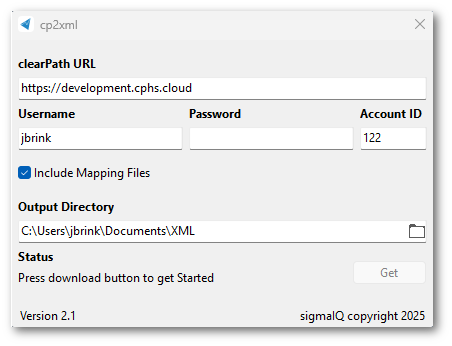
33.10.3.1. Field Names
URL = your mAiRiner / clearPath URL
Username = username to access your XML Files
Password = password to access your XML files
AccountID = your unique Account ID (contact support@clearpathhealthsolutions.com for your organizations ID)
Output Directory = The location on your computer to store the downloaded XML file
33.10.4. Scripting for Linux, macOS
To access the file(s) from a remote machine/server using a batch file or script use the following command. Where <username> is your username on the clearPath appliance, and <password> is your password. The https://siteid.cphs.cloud is the IP or DNS name of your clearPath appliance.
wget --user=<usename> --password=<password> http://<siteid.cphs.cloud>/exportxmlfilelist.htm?download=Monthly_Hand_Hygiene_Compliance_Score_Card.xml -O "Monthly_Hand_Hygiene_Compliance_Score_Card.xml"
Note
Be sure to include the -O “myoutputfilename.xml”. If this command line switch is not included, wget will generate some random filename.
33.10.5. Scripting for Windows
To automate the downloading of the XML file from clearPath create a script and names it whatever your like. The script must have a .PS1 extension. In our example we will use xmldownloads.ps1. Edit the xmldownloads.ps1 file and copy and pastes the code block below.
$uri  = 'https://yourclearPathServerURL/exportxmlfilelist.htm?download=A<ACCOUNTID>_Monthly_Hand_Hygiene_Compliance_Score_Card.xml'
$user = 'user'
$pass = 'password' | ConvertTo-SecureString -AsPlainText -Force
$cred = New-Object Management.Automation.PSCredential ($user, $pass)
$OutputPath = "..\myoutputdirectory\output.xml"

Invoke-WebRequest -Uri $uri -Credential $cred -outfile $OutputPath
Edit use uri field to include your instance of clearPath and update your <ACCOUNTID>. You will also need to enter the username and password of the account you wish to use. Finally update the $OutputPath to drop the downloaded file into.
To run the script open Powershell and at the command line, type the name of the script with the .prefix
.\xmldownloads.ps1
Note
You may need to talk to your IT group regarding the appropriate permissions and or policies to run PowerShell scripts on your computer.
33.10.6. Accessing the XML Files
The XML files can be accessed using a standard web browser. To access the xml files open a web browser and enter your appliance name or IP, add the xml directory and specify the desired file. For example to get the March 2025 data you would provide the URL below.
To automate the process of pulling the xml files from the clearPath appliance a number of approaches can be taken. Windows, Linux and MAC OS support wget from the command line which makes it convient to use in command line scripts for automating the process.
33.10.6.1. Getting the Latest Specific Month
wget [--http-user=UserName –http-password=Password] https://sitid.cphs.cloud/xml/AXXXXX_Monthly_Hand_Hygiene_Compliance_Score_card.xml
33.10.6.2. Getting a Specific month / year of Compliance Data
wget [--http-user=UserName –http-password=Password] https://sitid.cphs.cloud/xml/AXXXXX_202503.xml
where everything inside the [ ] brackets is optional where AXXXXX is your account ID.
Other options that maybe required are:
--output-document=FILE
This may be required if your running a windows version of wget. If the output filename is not specified wget will save the new file with a random filename.
--user-agent=AGENT
The user agent switch maybe required as clearPath can control access via the type of browser. Either the admin will need to allow the user-agent reported, or the –user-agent switch must be used.
34. System Backups
34.1. General
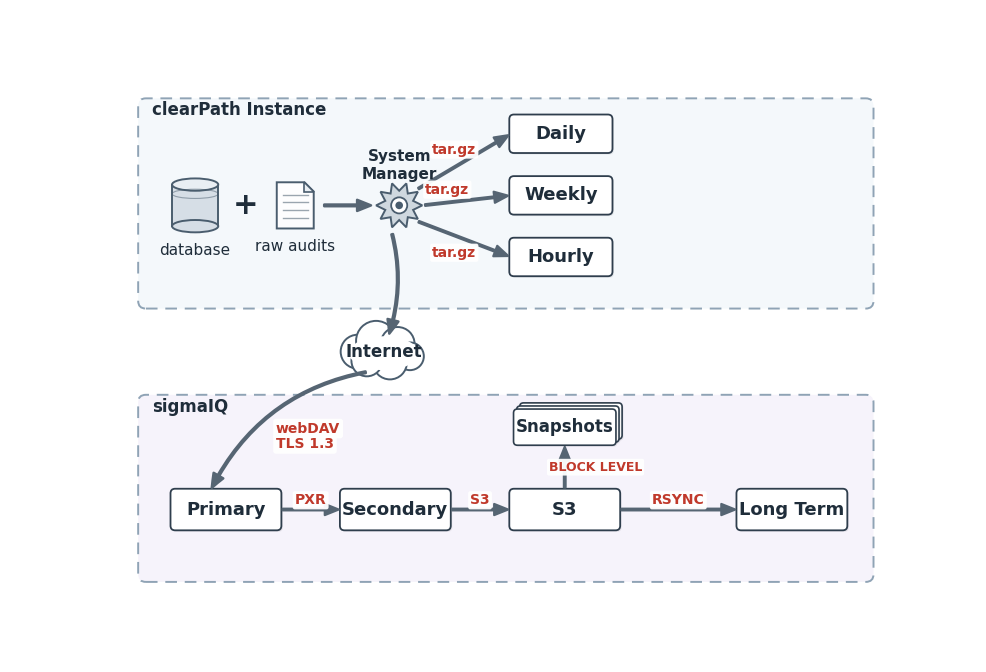
The clearPath system manager automatically backs up critical information such as the database and auditing history into a single compressed file. The system manager creates three local backups and one offsite backup.
34.2. Local Backups
There are three different local backups running at various intervals:
Name |
Description |
|---|---|
Weekly |
52 (Week_xx.sql where xx = 1-52) |
Daily |
7 (Day_xx.sql where xx = 1-7) |
Hourly |
24 (Hour_xx.sql where xx = 0-23) |
Local backups are stored on the local clearPath instance under /mnt/usb.
34.2.1. Weekly
clearPath weekly backups are executed every Sunday night. The last 52 weeks of backups are stored on the system.
Note
The file format is Week_xx.sql. where xx is the week of the year - 1 through 52
34.2.2. Daily
clearPath daily backups are executed every night. The last 7 days of backups are stored on the system.
Note
The file format is Day_xx.sql. where xx is the day of the week - 1 through 7 (Mon=1,Tue=2 etc)
34.2.3. Hourly
clearPath hourly backups are executed every hour. The last 24 hours of backups are stored on the system.
Note
The file format is Hour_xx.sql. where xx is the hour of the day - 0 through 23
34.3. Offsite Backups
The sigmaIQ Offsite Backup Solution consists of three separate parts:
Primary Backup
Secondary Backup
Immutable Server
Offsite backups are launched from your instance of clearPath. The backup consists of a snapshot of the database and the raw audit files that have been synced to clearPath. The backup is compressed into a single tar.gz and then transferred to the Primary Backup server.
34.3.1. Primary Backup
Your instance of clearPath creates a daily backup and transfers it to our primary offsite backup server. This is the only server that is accessible from the internet. All data is transferred over TLS.
34.3.2. Secondary Backup Server
The secondary backup server is a non-public-facing dedicated backup server that backs up the primary backup server. This server also transfers backups to our internal Immutable storage server daily.
34.3.3. Immutable Storage
The Immutable storage is a non public facing S3 compatible server. This server provides imuttable backups of the secondary backup server. The immutable storage server also runs and maintains daily snapshots of the clearPath data files.