17. Scheduling
The Scheduling page is where you plan your audit coverage. A schedule is a target observation count for a single facility, unit, shift, and time period — for example, “100 hand-hygiene observations on 1 South, dayshift, May 2026.” Schedules feed the Audit Progress heatmap so you can see at a glance whether your team is on pace to meet its Leapfrog or accreditation targets.
To open the Scheduling list, go to Account | Advanced | Scheduling.
17.1. Schedule List
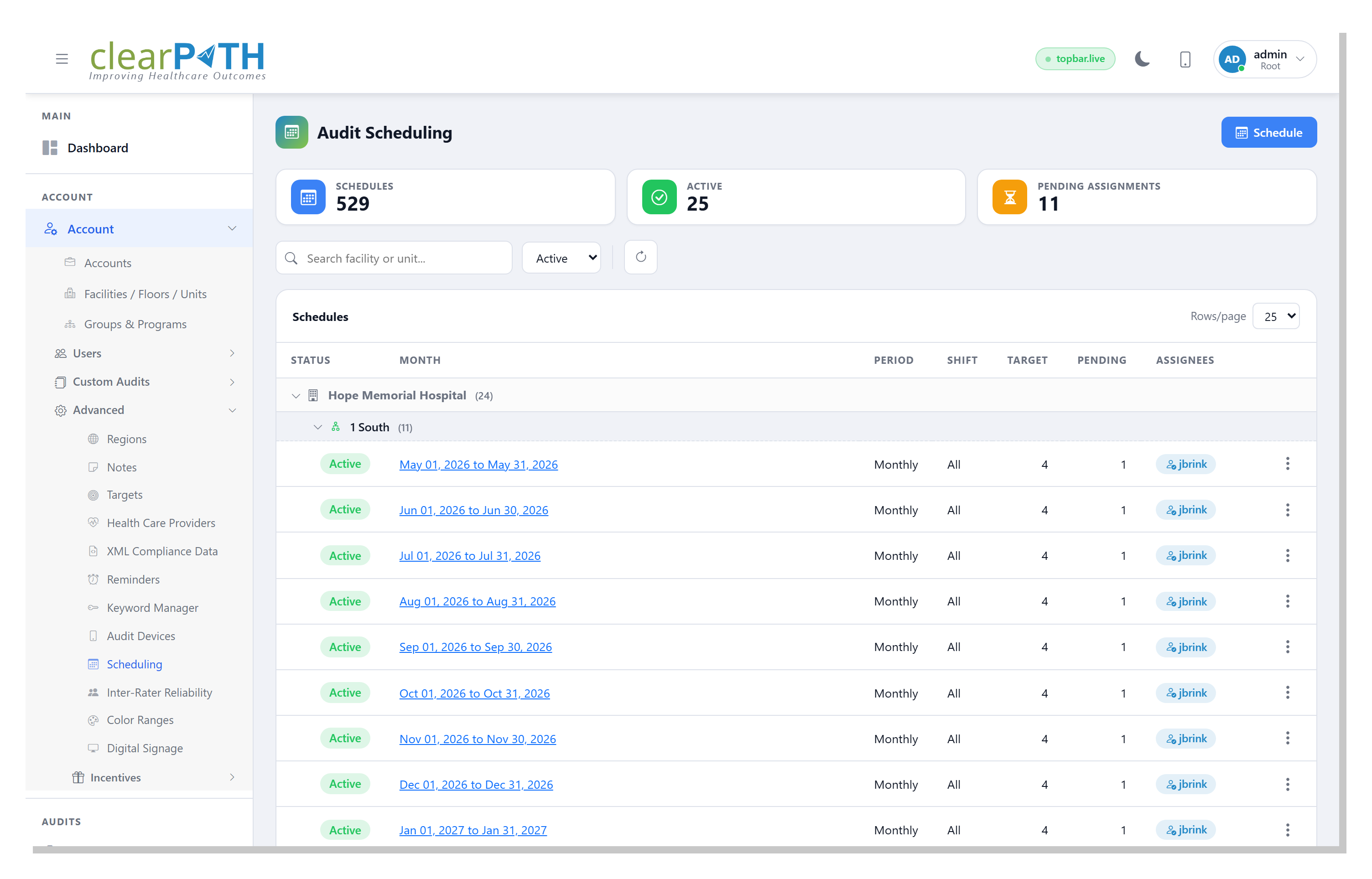
The list groups schedules by facility, then by unit, so you can fold an entire site away when you only need to look at one area. Click the chevron on any facility or unit header to collapse or expand its schedules.
17.1.1. Stat Cards
Cards across the top give you a rollup of the filtered list:
Schedules— the total number of schedules that match the current filters.Active— schedules currently turned on. Inactive schedules are kept for the audit trail but do not appear in Audit Progress.Pending Assignments— the total number of unfilled observation assignments across all listed schedules.
17.1.2. Page Header Actions
The blue Schedule button opens a small menu:
Build a Full Schedule— opens the Build a Full Schedule workspace, which generates one schedule per active unit per remaining month of the current fiscal year using each unit’s monthly Leapfrog target. This is the fastest way to populate a fresh account.New Schedule— opens the Schedule Editor to create a single schedule by hand.
17.1.3. Filtering
Search facility or unit…— match text anywhere in the facility or unit name.Active/Inactive/All— restrict the list to schedules in a particular state (defaults toActive).Refresh — reload the list.
17.1.4. Row Columns
Schedules are grouped by facility, then by unit. Each schedule row shows:
Status—Active(green) orInactive(grey).Month— the start and end dates the schedule covers; click the link to open the editor.Period—WeeklyorMonthly.Shift—All,Day,Evening, orNight.Target— the number of observations planned for the period.Pending— how many of the planned assignments are still unfilled.Assignees— who is responsible for the observations. A pill shows the assigned auditor’s name, the number of observers when more than one is assigned, orUnassignedwhen nobody is yet attached.
17.2. Schedule Editor
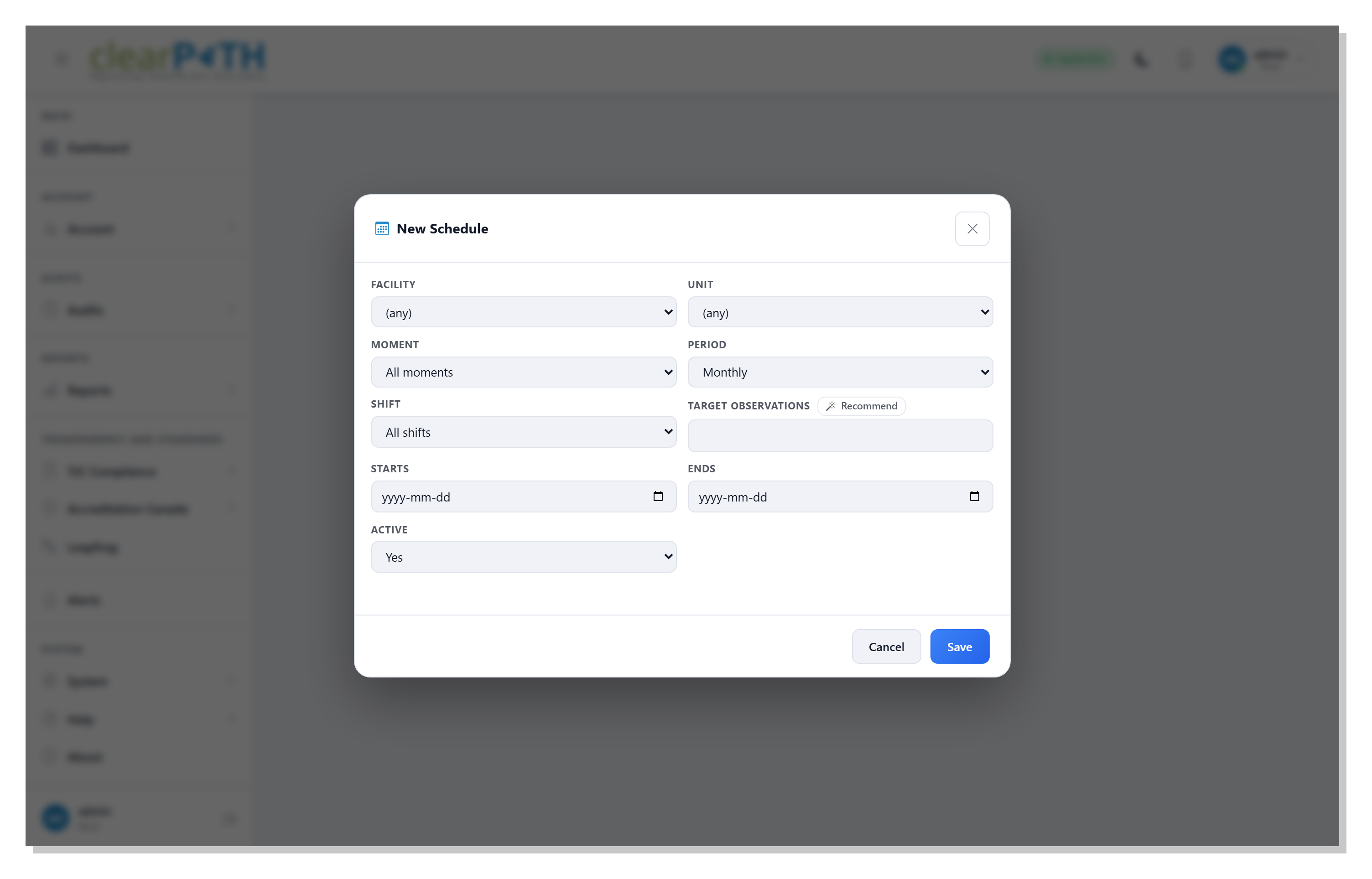
The schedule editor opens as a modal dialog. Fill in the scope and
target, then Save:
Facility— the facility the schedule applies to.Unit— the unit within that facility. Choose(any unit)to apply the schedule across the whole facility.Moment— restrict the schedule to a single WHO moment, or chooseAll momentsto score every moment.Period—WeeklyorMonthly.Shift—All shifts,Day,Evening, orNight.Target observations— the planned number of observations for the period. ClickRecommendto fill this from the unit’s Leapfrog target if one is configured.StartsandEnds— the date range the schedule covers.Active—Yesto include this schedule in Audit Progress, orNoto keep it for history without counting it toward coverage.
When you edit an existing schedule, a red Delete button appears
in the footer for one-click removal.
17.3. Build a Full Schedule
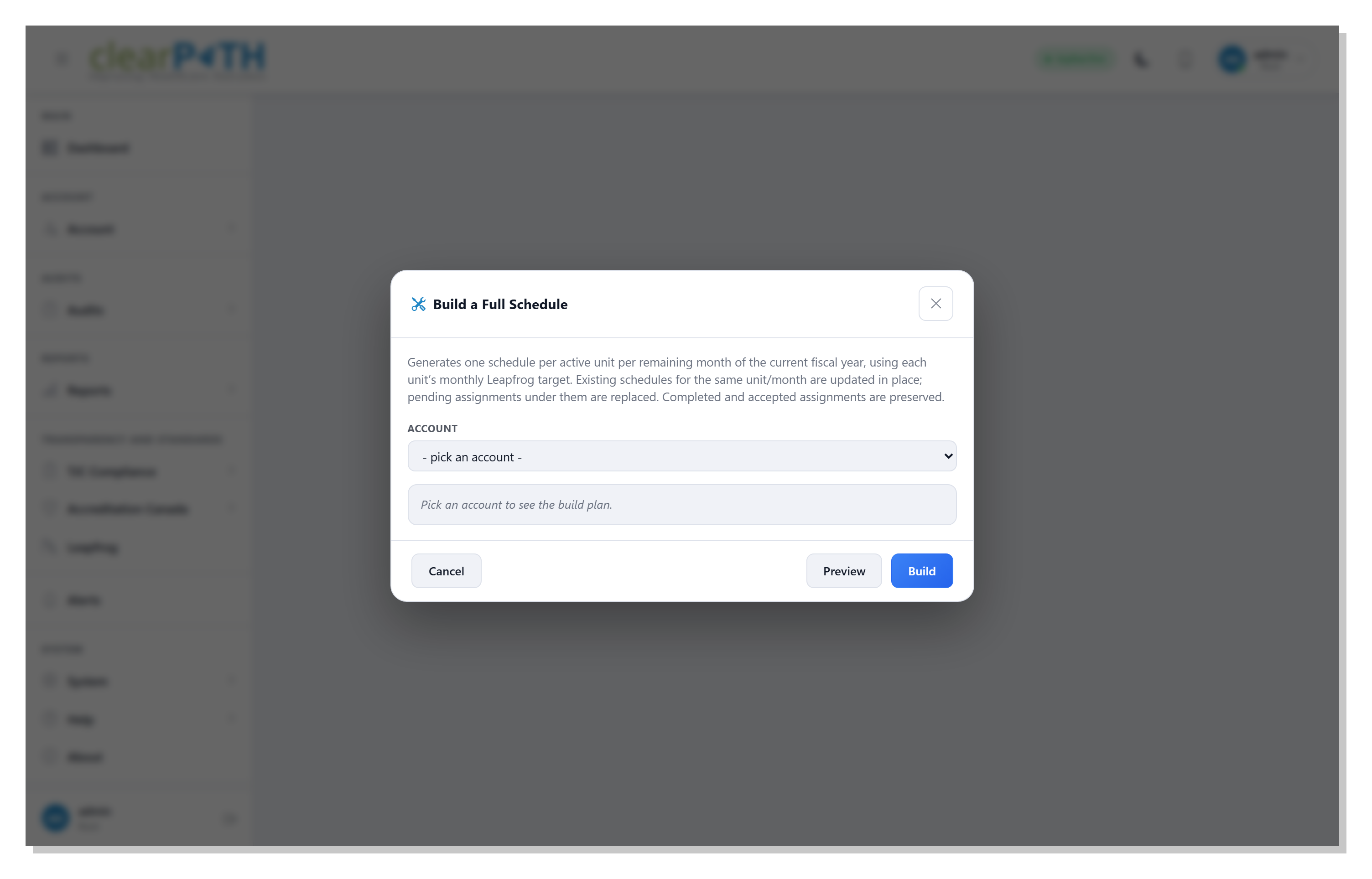
The Build a Full Schedule workspace generates a complete year
of monthly schedules in one step. For every active unit in the
chosen account, clearPath creates one schedule per remaining month
of the current fiscal year, sized to the unit’s monthly Leapfrog
target.
17.3.1. How to use it
Pick an account from the
Accountdropdown. The build plan summary updates to show how many units would be touched and how many monthly schedules would be created.Click
Previewto see exactly which units and months would be created or updated, without making any changes.Click
Buildto commit the schedules to the database.
17.3.2. What is preserved and what is replaced
Existing schedules for the same unit and month are updated in place — the new target replaces the old.
Pending assignments under those schedules are replaced. Use Build at the start of the year, before observers start picking up assignments.
Completed and accepted assignments are preserved. You will not lose any audit work that has already been done.