36. Notifications
clearPath can push real-time notifications out to a Microsoft Teams channel, a Slack channel, or any HTTPS endpoint that accepts JSON. Configure as many subscriptions as you need — different channels for different teams, different severities for different audiences — and clearPath will fan an outbound message to every matching subscription each time something noteworthy happens (a report finishes, an audit session closes, a target is missed, a dashboard threshold is crossed, and so on).
Setting up a notification is a two-step exercise:
In the destination application (Teams, Slack, or your own service), generate a webhook URL that accepts an inbound message.
In clearPath, create a Teams Integration subscription that points at that URL and pick which severities and modules should reach it.
The two steps can happen in either order, but you will need the URL from step 1 to finish step 2.
The Teams Integration page is available to root users and to account administrators. Account administrators see and manage only their own account’s subscriptions; root users can see and manage subscriptions across every customer account.
36.1. Configuring Teams Integration in clearPath
To open the Teams Integration list, go to Accounts | Advanced | Teams Integration.
36.1.1. Stat Chips
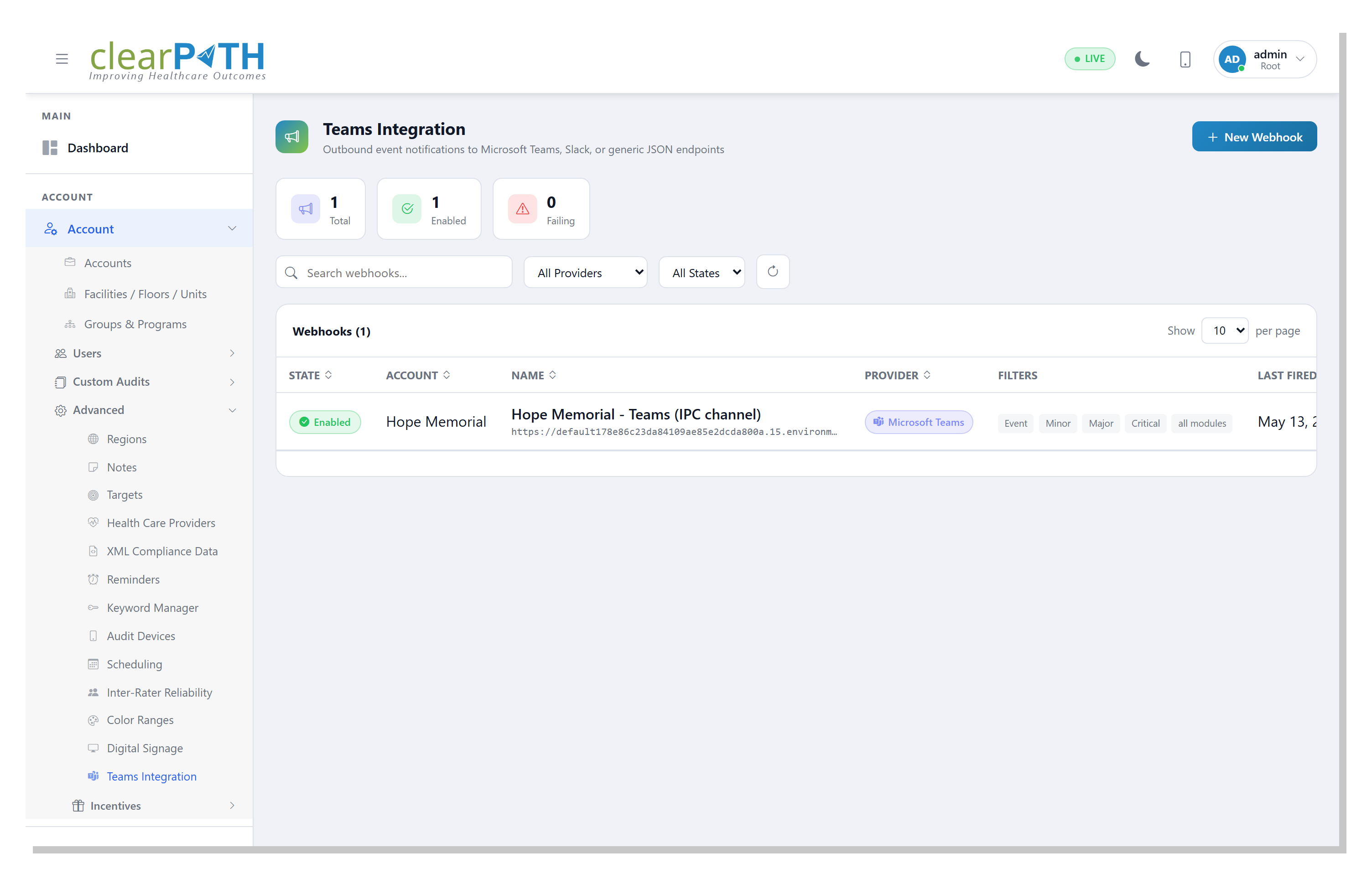
Three cards across the top of the page summarise the current state of your subscriptions:
Total— the total number of subscriptions configured for your account.Enabled— how many of those are currently active and will deliver events.Failing— how many have at least one consecutive delivery failure on record. A subscription is automatically disabled after ten consecutive failures so that a dead channel does not generate runaway log noise.
36.1.2. Toolbar
The toolbar above the table provides:
Search — filter the table by name, URL, or module list.
Provider — show only Microsoft Teams, Slack, or Generic JSON subscriptions.
State — show only
Enabledor onlyDisabledrows.Refresh — reload the table.
36.1.3. Table Columns
The Teams Integration table has the following columns:
State — a coloured pill showing whether the subscription is currently
Enabled(green) orDisabled(grey). This is the leftmost column so you can scan the page at a glance for any subscription that is not actively delivering.Account (root users only) — the customer account that owns this subscription. This column is hidden for account administrators because they only ever see their own account’s rows.
Name — the friendly name of the subscription, with the destination URL shown beneath it. The URL is truncated for display; hover over it to see the full address.
Provider — a coloured pill identifying the destination type (
Microsoft Teams,Slack,Generic JSON).Filters — the severity and module filters applied to this subscription.
all severitiesandall modulesmean no filter is in place; otherwise each selected severity and each named module appears as a small pill.Last Fired — the most recent date and time clearPath attempted to deliver an event to this subscription, or
neverif no attempt has been made yet.Last Result — the HTTP status returned by the destination on the last attempt (for example
200 OK). A 2xx code is shown in green; anything else is shown in red.A three-dot menu for per-row actions.
36.1.5. Creating or Editing a Subscription
Click New Webhook at the top right of the page (or Edit from a
row menu) to open the editor:
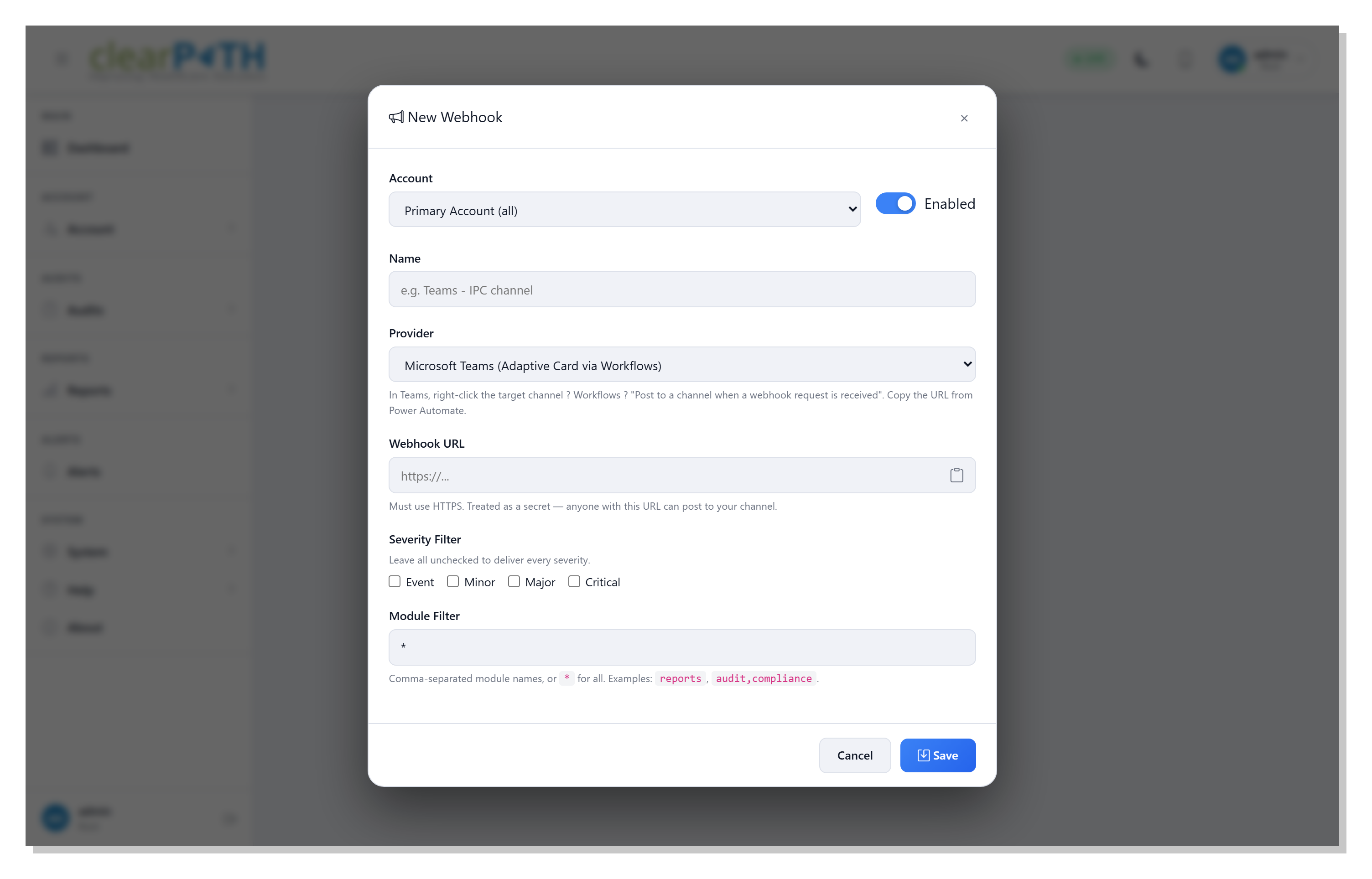
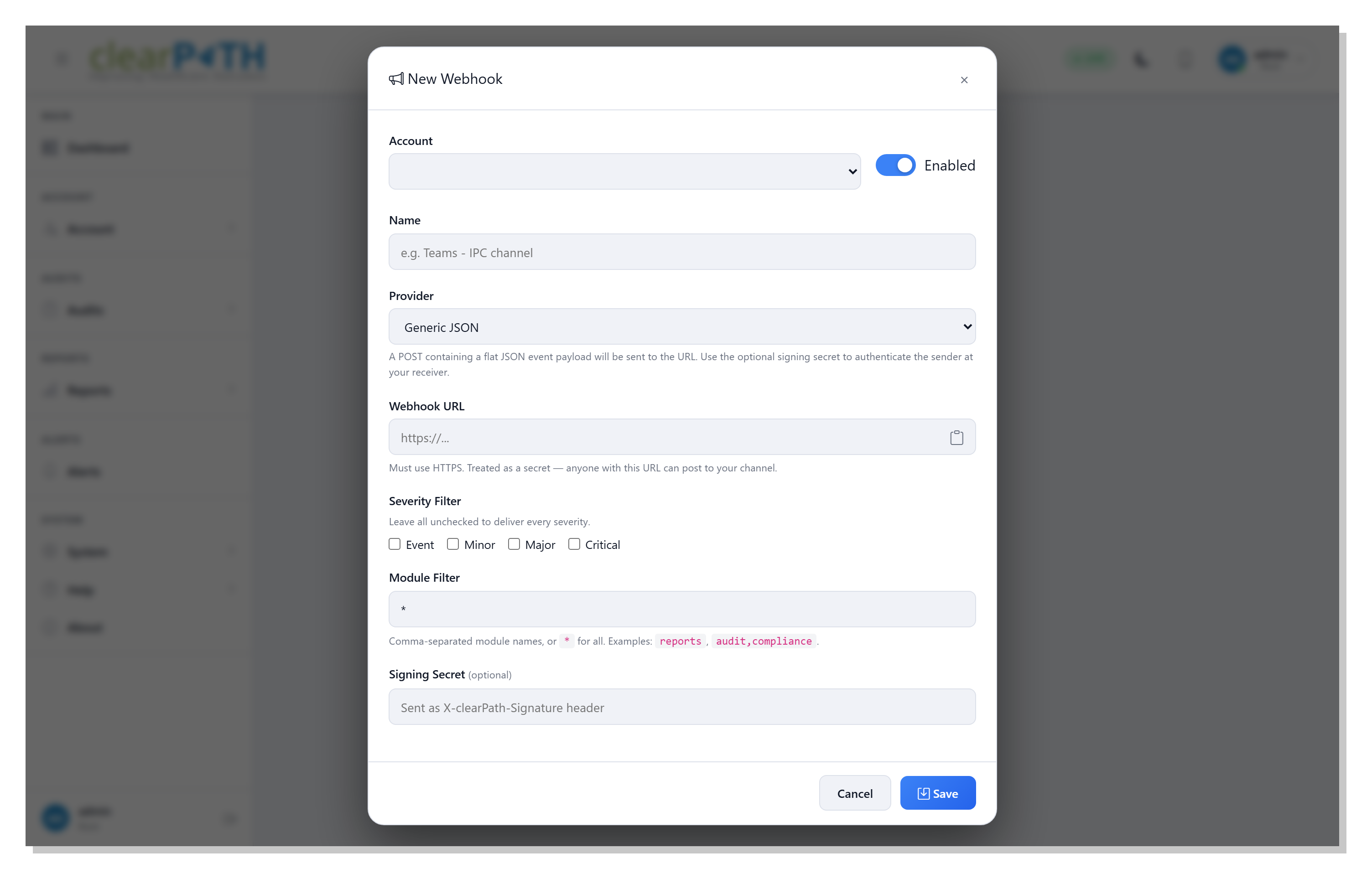
Fill in the following fields:
Account— the customer account this subscription belongs to.Root users can target any account, including the system-wide Primary Account.
Account administrators see their own account pre-selected and the dropdown disabled — you cannot create a subscription for any other customer.
Enabled— a slider on the same row as the account dropdown. Slide right to switch the subscription on; slide left to switch it off without deleting it.Name— a short, friendly name. This is what appears in the list and in any error messages, so make it specific (for example Teams — IPC channel or Slack — night shift coordinators).Provider— the destination type. Pick one of:Microsoft Teams (Adaptive Card via Workflows) — clearPath will format the message as an Adaptive Card and POST it to the Power Automate Workflows URL you paste in below.
Slack (Incoming Webhook) — clearPath will format the message using Slack’s standard message JSON.
Generic JSON — clearPath will POST a flat JSON object to the URL. Use this when you are integrating with your own service.
Webhook URL— the destination URL you generated in the destination application. Must usehttps://. clearPath treats this URL as a secret — anyone holding it can post into your channel — so the URL is masked from non-root users in the table. A small clipboard icon at the right edge of the field copies the current URL to the clipboard in one click.Severity Filter— tick one or more ofEvent,Minor,Major,Criticalto deliver only those severities to this destination. Leave all checkboxes unticked to deliver every severity.Module Filter— a comma-separated list of module names that should reach this destination, or*for all modules. Examples:reports,audit,compliance. Leave the field at*(the default) to receive notifications from every module.Signing Secret(Generic JSON only) — an optional shared secret. When set, clearPath sends it as theX-clearPath-SignatureHTTP header on every delivery so your receiver can verify the message came from clearPath.
Click Save to store the subscription, or Send test to fire a
synthetic event right now. The test fire is the same payload a real
event would produce, so it is the fastest way to confirm both ends of
the pipe.
36.1.6. What Triggers a Webhook
clearPath fans out to your matching webhook subscriptions every time the system records a notification event. The most common triggers include:
A scheduled report finishes generating.
An audit session is submitted or auto-closed.
A compliance threshold or target is missed.
A unit is locked or unlocked.
A user account is locked or has its password reset.
Each subscription only receives events that match its severity and module filters and that belong to its account. A subscription you create on the Hope Memorial account will never receive events from a different customer account.
Delivery is fire-and-forget — clearPath sends one HTTP POST per event and moves on. If the destination is unreachable the failure is recorded against the subscription’s row and counted toward the auto-disable threshold; the event itself is still recorded normally in clearPath.
36.1.7. What Recipients See
For Microsoft Teams subscriptions the message arrives as an Adaptive Card with:
A bold title carrying the event description, coloured by severity (red for major and critical, amber for minor, neutral for events).
A fact set showing the severity name, the module that raised the event, the account, and the timestamp in UTC.
A detail block with the event’s free-text detail when one is present.
An
Open in clearPathbutton that links the recipient straight to the relevant page inside clearPath.
Slack messages arrive as a single coloured message with the description, severity, and module fields. Generic JSON deliveries arrive as a flat JSON document; see Generic JSON below for the exact field list.
36.2. Setting up the destination
This is the third-party side of the integration — creating the webhook URL inside Microsoft Teams, Slack, or your own service so that clearPath has somewhere to deliver events to. You only need to do this once per channel.
36.2.1. Microsoft Teams
Note
Microsoft retired the legacy Office 365 Incoming Webhook
connector in late 2025. Existing outlook.office.com/webhook/...
URLs no longer work. The supported path is now Power Automate
Workflows, which clearPath supports natively.
Tip
For a step-by-step video walkthrough of creating the Power Automate Workflows webhook URL inside Microsoft Teams, see this YouTube tutorial.
To create a Workflows webhook URL:
Open Microsoft Teams and navigate to the channel where you want notifications to land.
Right-click the channel name (or click the … menu beside it) and choose
Workflows.From the template gallery, pick “Post to a channel when a webhook request is received”. Microsoft maintains this template; you do not need to author the flow yourself.
Give the flow a friendly name (for example clearPath Notifications) and click
Next.Confirm the Team and Channel the flow should post to and click
Create flow.Power Automate generates a long URL that looks like this:
https://prod-12.canadacentral.logic.azure.com/workflows/<guid>/triggers/manual/paths/invoke?api-version=2016-06-01&sp=%2Ftriggers%2Fmanual%2Frun&sv=1.0&sig=<signature>
Copy that URL and click
Done.In clearPath, open Accounts | Advanced | Teams Integration, click
New Webhook, chooseMicrosoft Teamsas the provider, paste the URL into theWebhook URLfield, and clickSend test. A test card should appear in the channel within a few seconds.
Warning
The signature in the sig= query parameter is what authenticates
clearPath to your channel — treat the URL as you would a password.
Anyone holding it can post into the channel. clearPath stores the
URL as a secret and masks it for non-root users in the webhooks
list, but if the URL is exposed by accident, regenerate it from
inside Power Automate (which invalidates the old signature).
36.2.2. Slack
To create a Slack incoming webhook URL:
In your Slack workspace, open
Apps|Manage|Custom Integrations|Incoming Webhooks.Click
Add to Slack.Choose the channel where you want notifications to land and click
Add Incoming Webhooks integration.Slack displays a webhook URL of the form:
https://hooks.slack.com/services/T01ABCDEFGH/B02IJKLMNOP/<24-char-token>
Copy that URL.
In clearPath, open Accounts | Advanced | Teams Integration, click
New Webhook, chooseSlackas the provider, paste the URL into theWebhook URLfield, and clickSend test.
Note
Everything after /services/ in the URL is the credential. As
with Teams, treat the URL as a secret. If it is ever exposed,
regenerate it from the Slack admin and update the clearPath
subscription.
36.2.3. Generic JSON
The Generic JSON provider is for integrating with your own services — a SIEM, a paging system, an internal dashboard, anything that can accept an HTTPS POST. The destination URL can be any HTTPS endpoint your network allows clearPath to reach.
clearPath sends a flat JSON object on every event:
{
  "description": "Audit session submitted",
  "severity": "minor",
  "severitynum": 3,
  "module": "audit",
  "corporation": 122,
  "occuredon": "2026-05-07T14:33:21Z",
  "link": "audit.session.detail.html?id=4711",
  "hostip": "10.6.18.40",
  "detail": [
    "Submitted by: Sarah Patel (RN)",
    "Unit: 4 East",
    "Score: 92%"
  ]
}
Field notes:
severityis the human-readable severity name;severitynumis the same value as an integer (0 = ignore, 1 = log, 2 = event, 3 = minor, 4 = major, 5 = critical).occuredonis in ISO-8601 UTC.linkis a relative path inside clearPath; prepend your clearPath base URL to build a clickable link.detailis an array of free-text detail strings; it may be empty.
To use the optional signing secret, set the Signing Secret
field on the webhook editor (the field is only visible when
Generic JSON is selected). clearPath will then send the secret on
every delivery as an X-clearPath-Signature HTTP header, so your
receiver can confirm the message came from clearPath and reject any
request that does not carry the expected secret.
A typical Generic JSON setup: