25.1.2. Challenges List
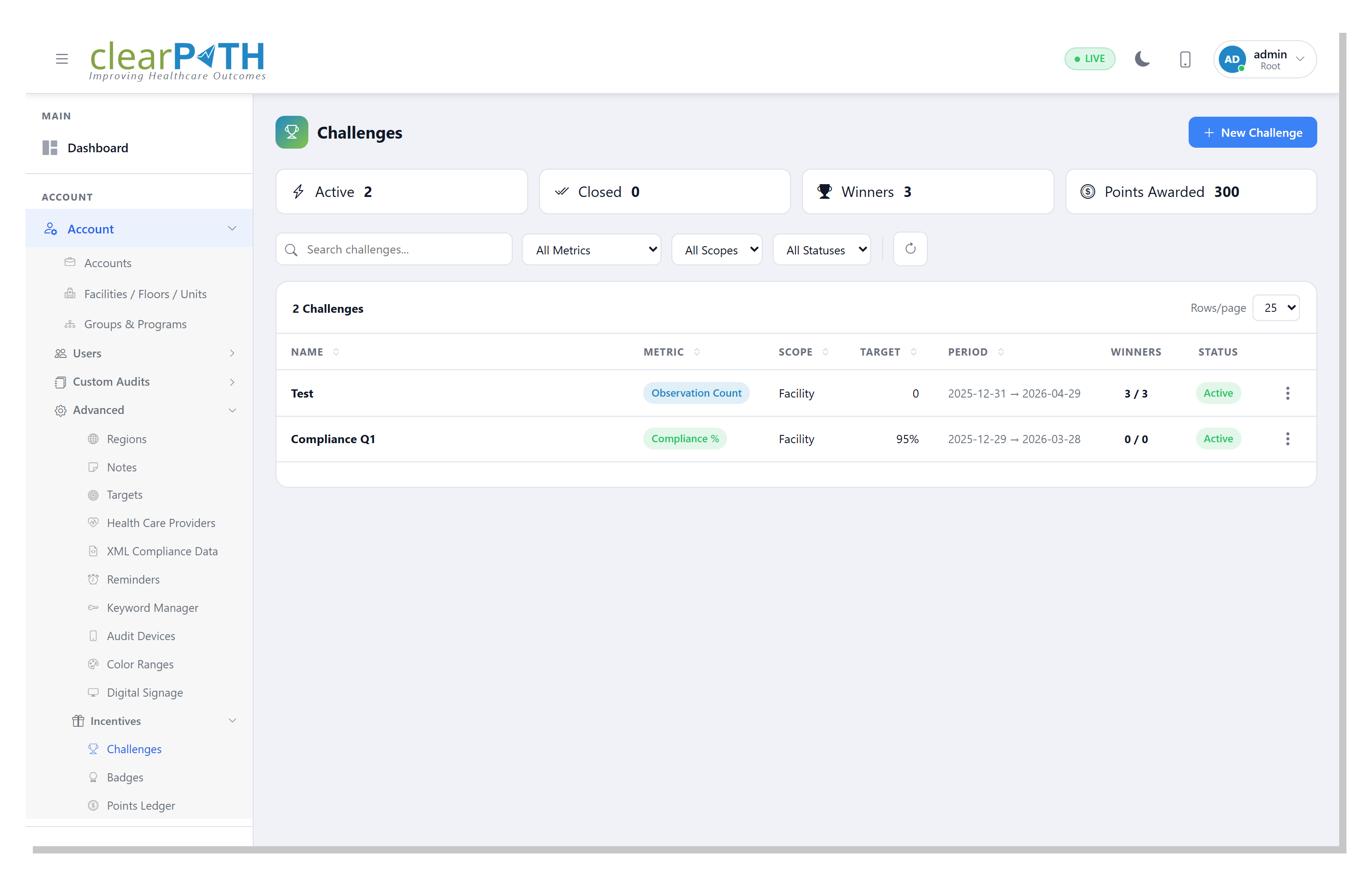
The Challenges List is your home page for the module. It shows every challenge defined in your corporation, how many participants are in each, how many met the goal, and the running status.
25.1.2.1. Opening the page
Left menu: Challenges ▸ Challenges.
25.1.2.2. Overview
At the top of the page are stat chips showing totals across the filter you have applied:
Active – challenges currently running (active and not closed).
Closed – challenges that have been awarded.
Total Winners – rows where
met = 1across all challenges shown.Points Awarded – sum of point grants across all challenges shown.
Below the chips is the challenges table with columns for name, metric, scope, date window, winners/participants, reward, and status. Click a column header to sort.
25.1.2.3. Filtering
Use the toolbar above the table to narrow the list:
Search – matches challenge name and description.
Status – Active / Closed / Inactive / All.
Corporation – scopes the list when a system-level user is viewing multiple corporations.
The list is paginated; change the page size using the Per page selector.
25.1.2.4. Actions per row
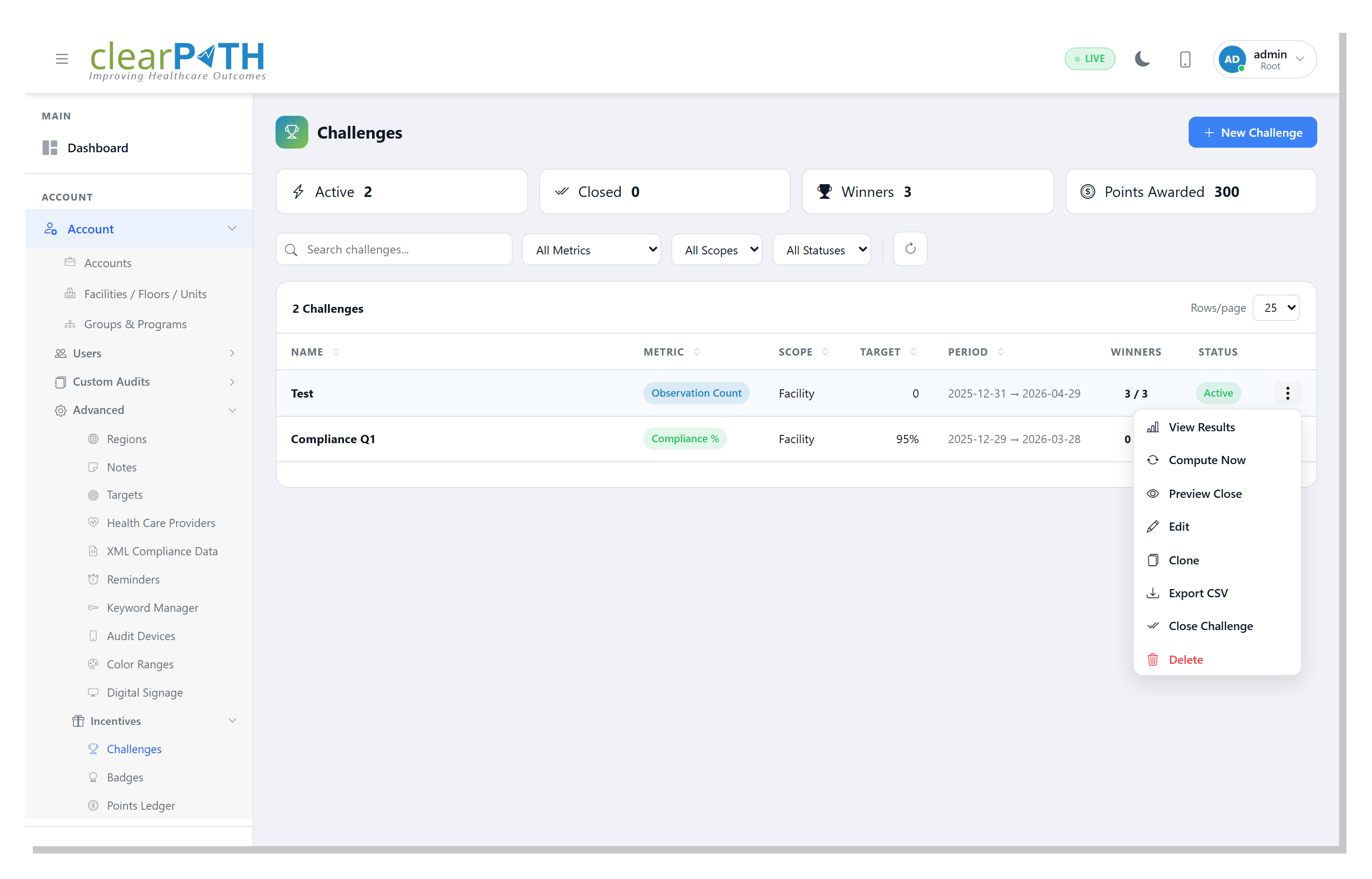
The three-dot menu on each row offers:
Action |
What it does |
|---|---|
View Results |
Opens the Challenge Results page for this challenge. |
Compute Now |
Recomputes the metric for every participant and rewrites the results snapshot. Safe to run as many times as you like; it does not award points – that only happens on Close. |
Preview Close |
Dry-run of the close. Shows how many winners would be produced and how many points would be granted without mutating the ledger. Ideal for sanity-checking before committing. |
Edit |
Opens Challenge Detail (Editor) to change any setting. |
Clone |
Copies the challenge (appending “(copy)” to the name) as a new, inactive, unclosed challenge. Results are not copied. |
Export CSV |
Downloads the current results as a comma-separated file suitable for Excel, Sheets, or your reporting tool. |
Close Challenge |
Runs the final close: awards points/badges to winners, evaluates badge auto-rules, and flags the challenge as closed. Irreversible. |
Delete |
Permanently removes the challenge and all its results, ledger rows, and badge grants. Confirmation is required. |
25.1.2.5. Creating a new challenge
Click + New Challenge on the toolbar. The editor opens as a blank Challenge Detail (Editor) form. At minimum you must set a name, start date, and end date. All other fields have sensible defaults.
25.1.2.6. Recomputing vs. closing
These are the two verbs that change data, and it is important to know the difference:
Compute – evaluates the metric, writes a result snapshot. Running it again overwrites the previous snapshot. No points or badges are granted. You can compute as often as you want during the active period.
Close – takes the most recent snapshot as final, inserts ledger rows, grants badges, queues notifications, and marks the challenge closed. Effectively irreversible (duplicates are silently ignored by the unique constraint, so re-closing is harmless).
A typical workflow is: create → compute as needed during the run → preview close near the end → close when you are satisfied.