25.1.5. Badges
Badges are the visible trophies winners earn. Each badge has a name, icon, colour, and optional
tier. Badges live in a catalogue that is shared across the corporation (or globally, if
corporation = 0).
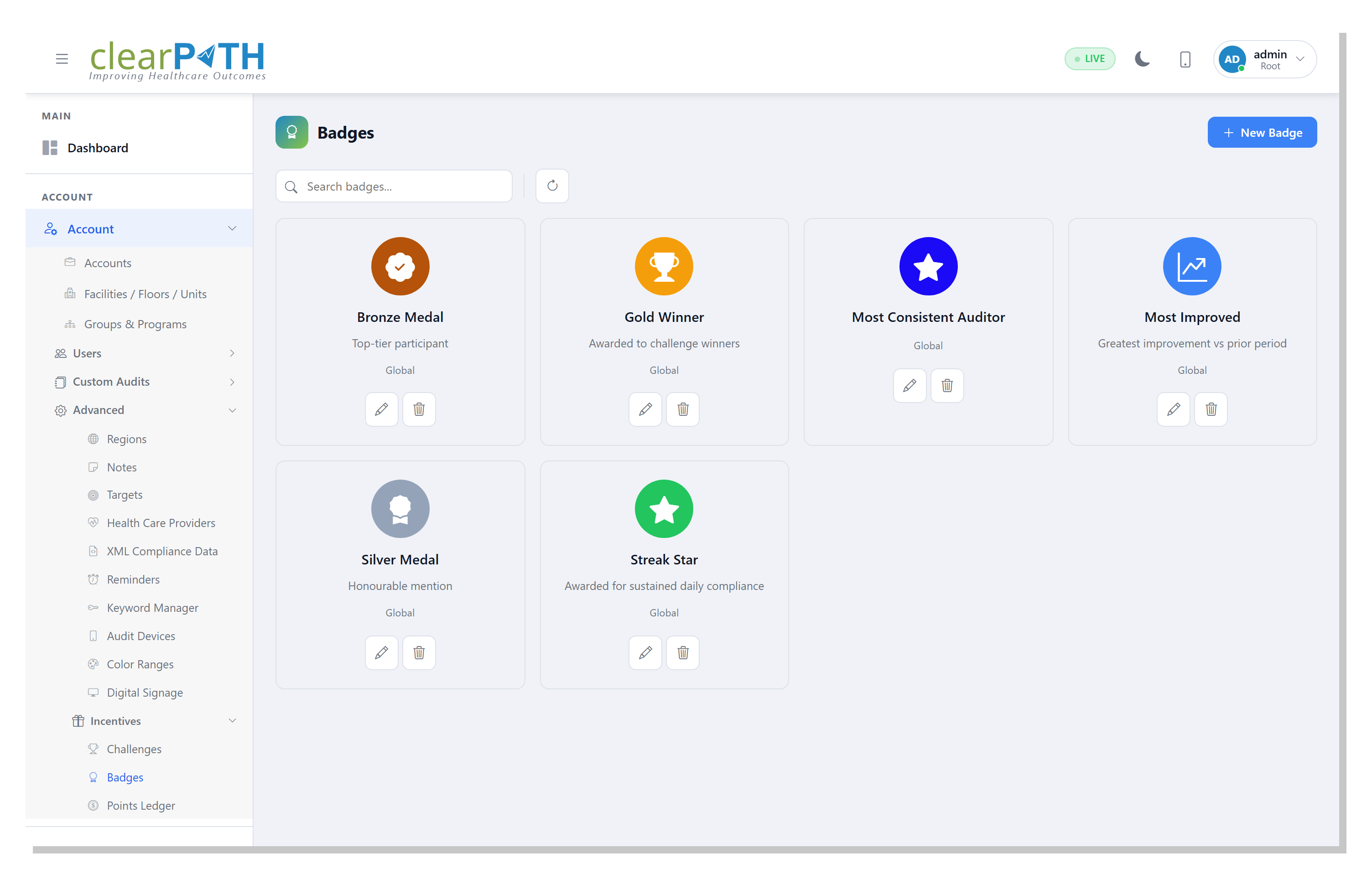
25.1.5.1. Opening the page
Left menu: Challenges ▸ Badges.
25.1.5.2. Creating a badge
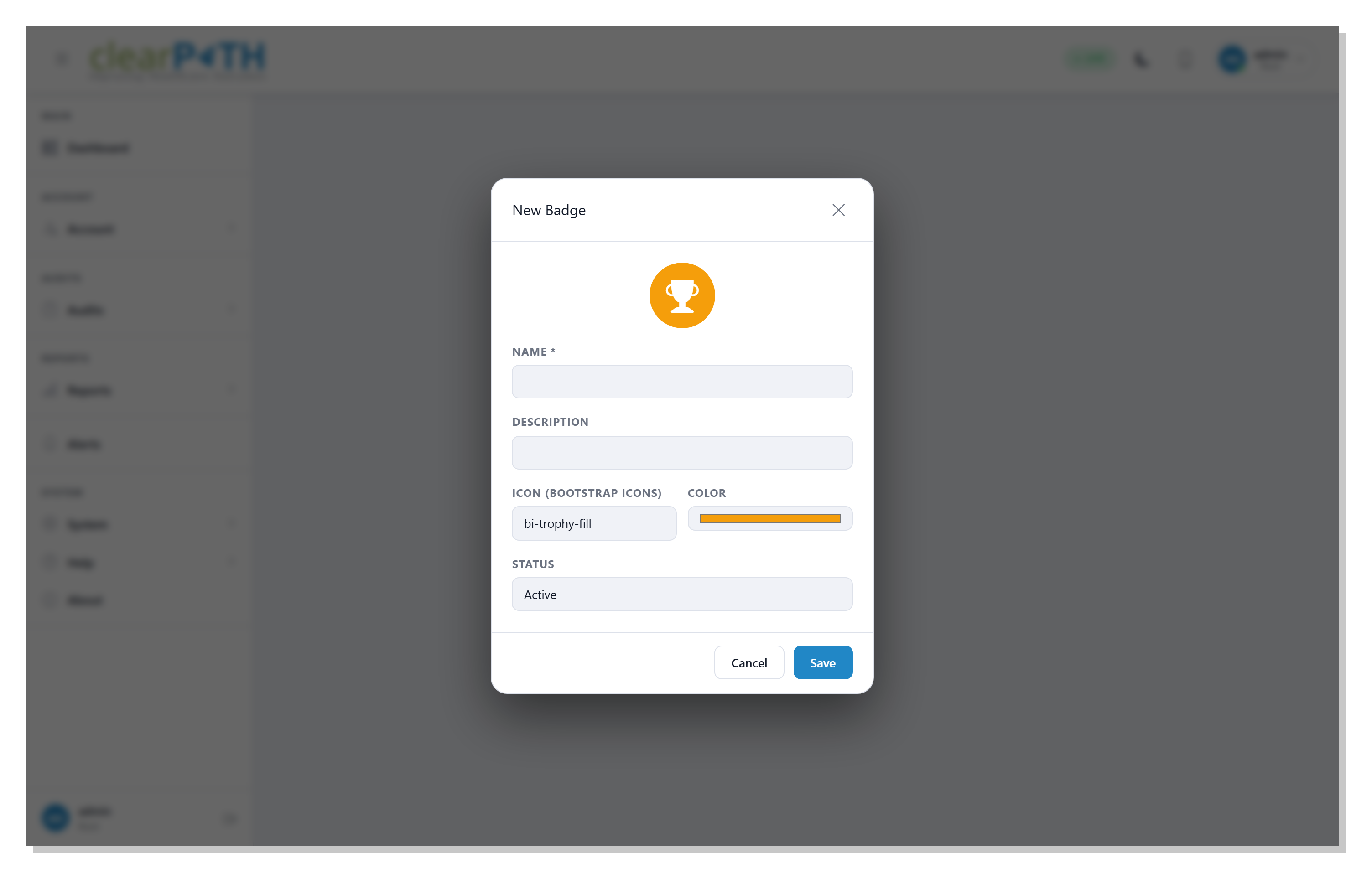
Click + New Badge. The editor asks for:
Field |
Meaning |
|---|---|
Name |
Displayed on the participant’s profile, in notifications, and on the leaderboard. |
Description |
Short explanation – helpful on the participant profile tooltip. |
Icon |
Any Bootstrap Icon class, e.g. |
Colour |
Hex colour for the icon. Pick something that matches your corporate palette. |
Tier |
0 = none, 1 = Bronze, 2 = Silver, 3 = Gold, 4 = Platinum. Used for visual sorting on profile pages and to drive “rank up” auto-award rules. |
Status |
Active or Inactive. Inactive badges are hidden from challenge-reward dropdowns but remain attached to whoever has already won them. |
25.1.5.3. Assigning a badge to a challenge
Open the Challenge Detail (Editor) editor, set Reward badge to the one you want, and save. When the challenge is closed every winner receives one copy of the badge.
25.1.5.4. Global versus corporation badges
A badge with corporation = 0 is global – available to every corporation on the server.
The default seed data ships with five global badges:
Gold Winner (bi-trophy-fill, amber)
Silver Medal (bi-award-fill, slate)
Bronze Medal (bi-patch-check-fill, brown)
Streak Star (bi-star-fill, green)
Most Improved (bi-graph-up-arrow, blue)
Badges created from the UI are scoped to the current corporation.
25.1.5.5. Deleting (soft delete)
Delete on a badge does not remove it from the database. It flips the active flag
to 0. This protects the audit trail: if a badge has already been awarded to winners, those
awards remain intact and still render correctly on the profile page.
To see inactive badges in the list, toggle Include inactive in the toolbar.
25.1.5.6. Next step
Badges get far more interesting when combined with auto-award rules – see Badge Auto-Award Rules.