25.1.3. Challenge Detail (Editor)
The detail editor is used to create or modify a challenge. It opens in a modal with tabs for Settings, Results, Points Awarded, and Badges Awarded. Only the Settings tab is writable – the others are read-only summaries pulled from a closed challenge.
25.1.3.1. Opening the editor
From Challenges List: click + New Challenge or Edit on a row.
Direct URL:
challenge.detail.html?id=Nfor an existing challenge, orchallenge.detail.html?id=newto create one.
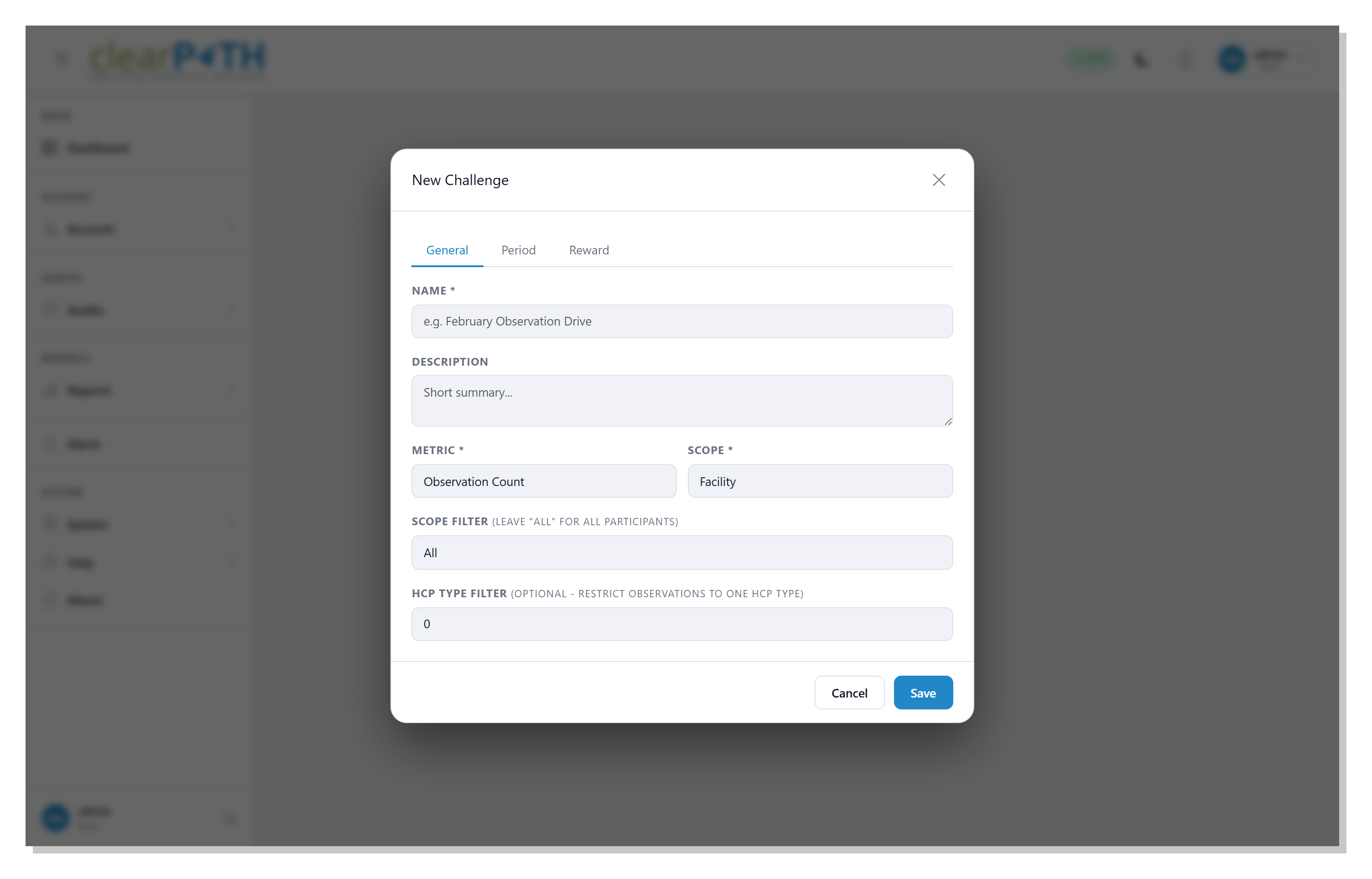
25.1.3.2. Field reference
25.1.3.2.1. Name and description
Name (required) – shown everywhere the challenge appears. Appears on the ledger notes column, in email notifications, and on the winners’ badges screen.
Description – free text. Helpful for explaining the rules to non-admins.
25.1.3.2.2. Metric
Drop-down matching the four metric codes documented in Concepts and Building Blocks:
Observation count, Compliance %, Improvement delta, Longest streak.
Selecting a metric may reveal additional fields:
Streak threshold – visible only when metric = Longest streak. Compliance % a day must reach for it to count towards the streak.
Prior period start / end – visible only when metric = Improvement delta. Define the window whose compliance is subtracted from the main window’s.
25.1.3.2.3. Scope and scope filter
Scope – Facility / Unit / Auditor / HCP Type / Team.
Scope ID – if set to a specific facility/unit/auditor/HCP type, restricts the challenge to that single participant. Leave as “All” to score every participant in the corporation.
HCP Type Filter – optional. If set, only observations for that HCP type count toward the metric (applied everywhere except when the scope itself is HCP Type, where it would be redundant).
25.1.3.2.4. Threshold and comparator
Threshold – numeric goal. Units depend on the metric:
Count – number of observations.
Compliance % – percentage 0–100.
Improvement delta – percentage points.
Longest streak – days.
Comparator –
≥ (meet or exceed)or≤ (at or below). Use≤for things like “fewer than 5 lapses”.
25.1.3.2.5. Date window
Start date and End date (both required) define the window over which observations are counted. A challenge must have both dates set before it can be computed.
For Improvement delta, also set Prior period start and Prior period end.
25.1.3.2.6. Reward
Reward text – optional description used in notifications (“You won a $25 gift card”).
Reward points – integer ≥ 0. The number of points each winner receives on close.
Reward badge – one badge from the catalogue. Dropdown lists active badges only (see Badges).
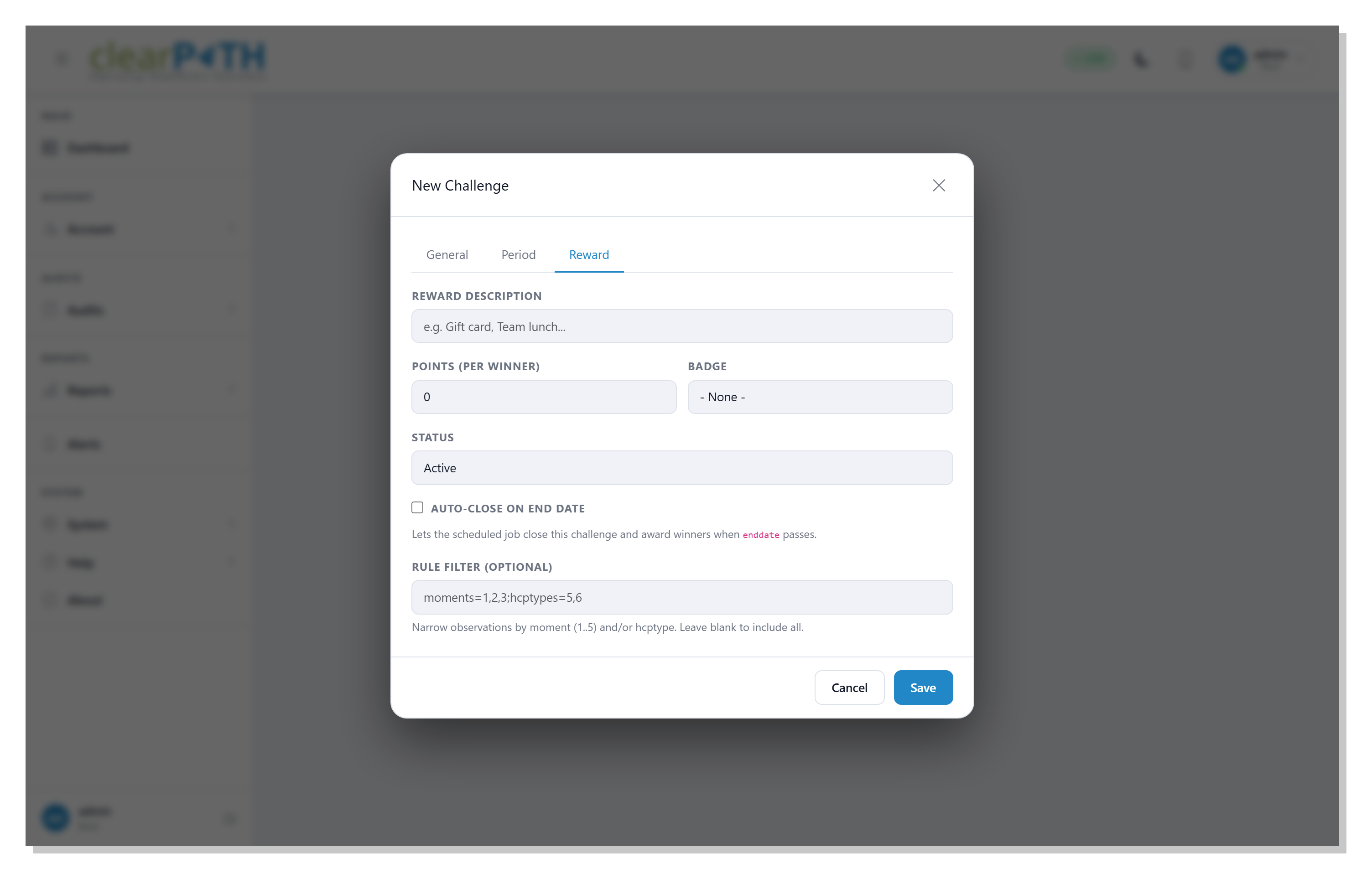
25.1.3.2.7. Status flags
Status – Active or Inactive. An Inactive challenge is skipped by Scheduled Auto-Close and excluded from active-list dashboard widgets.
Auto-close on end date – when checked, the scheduled job will compute and close this challenge as soon as its end date has passed. See Scheduled Auto-Close.
Rule filter – optional narrowing expression. See Rule Filter (Advanced Scoping) for the syntax and examples.
25.1.3.3. Saving
Click Save. On success you are returned to the Challenges List. On validation error the editor stays open and a toast explains what needs to change:
“name is required” – you must provide a non-blank name.
“metric must be between 0 and 3” – the metric dropdown is out of range (shouldn’t happen through the UI; usually indicates a hand-crafted request).
“scope must be between 0 and 4” – same, for scope.
“comparator must be between 0 and 1” – same, for comparator.
HTTP 403 – your role is not Administrator and the server has role-gating enabled for create.