Hand Hygiene Auditor Training

A walkthrough of cp2go in the field — signing in, starting a session, recording observations, and syncing results back to clearPath. Hand this to a new auditor at the start of their first shift.
What is cp2go
cp2go is the auditing application for performing hand hygiene audits using clearPath. It must be downloaded and installed on a tablet, phone, or desktop device. cp2go is available for Windows, iPad, iPhone, Android tablets, and Android phones.
Tablet Auditing
Sign In
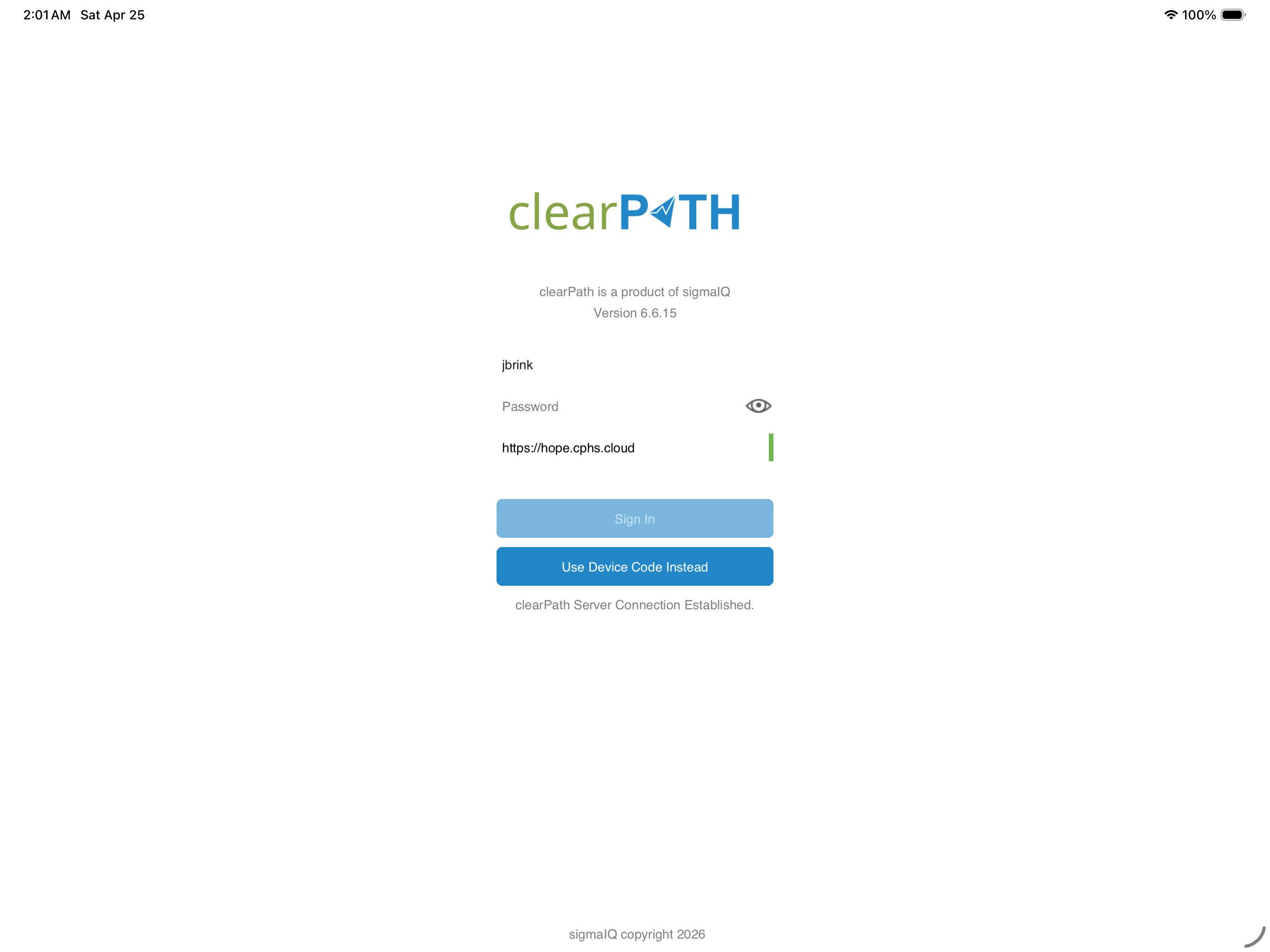
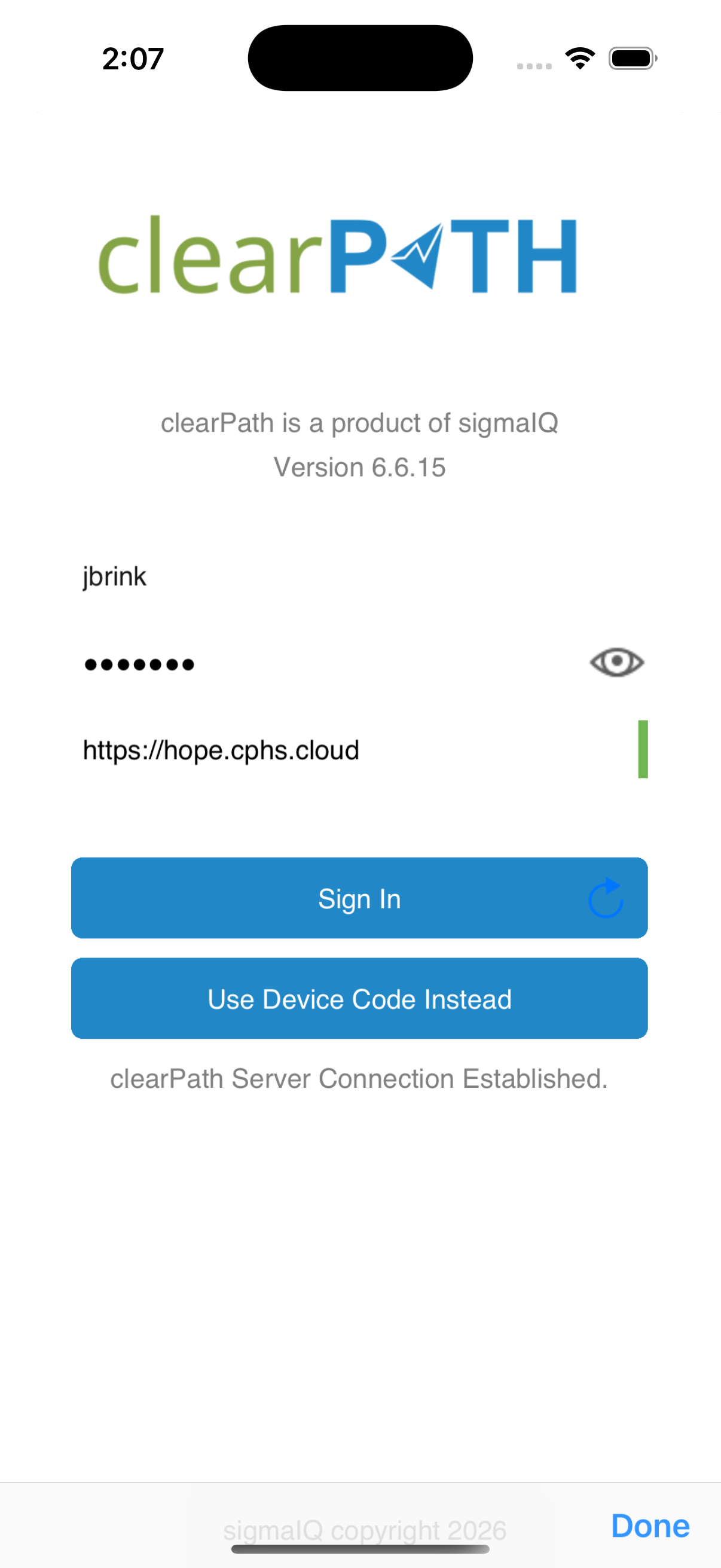
The first time you launch cp2go you are asked for your clearPath site URL, your username, and your
password. The site URL follows the format https://id.cphs.cloud, where id is your three or four character
site identifier.
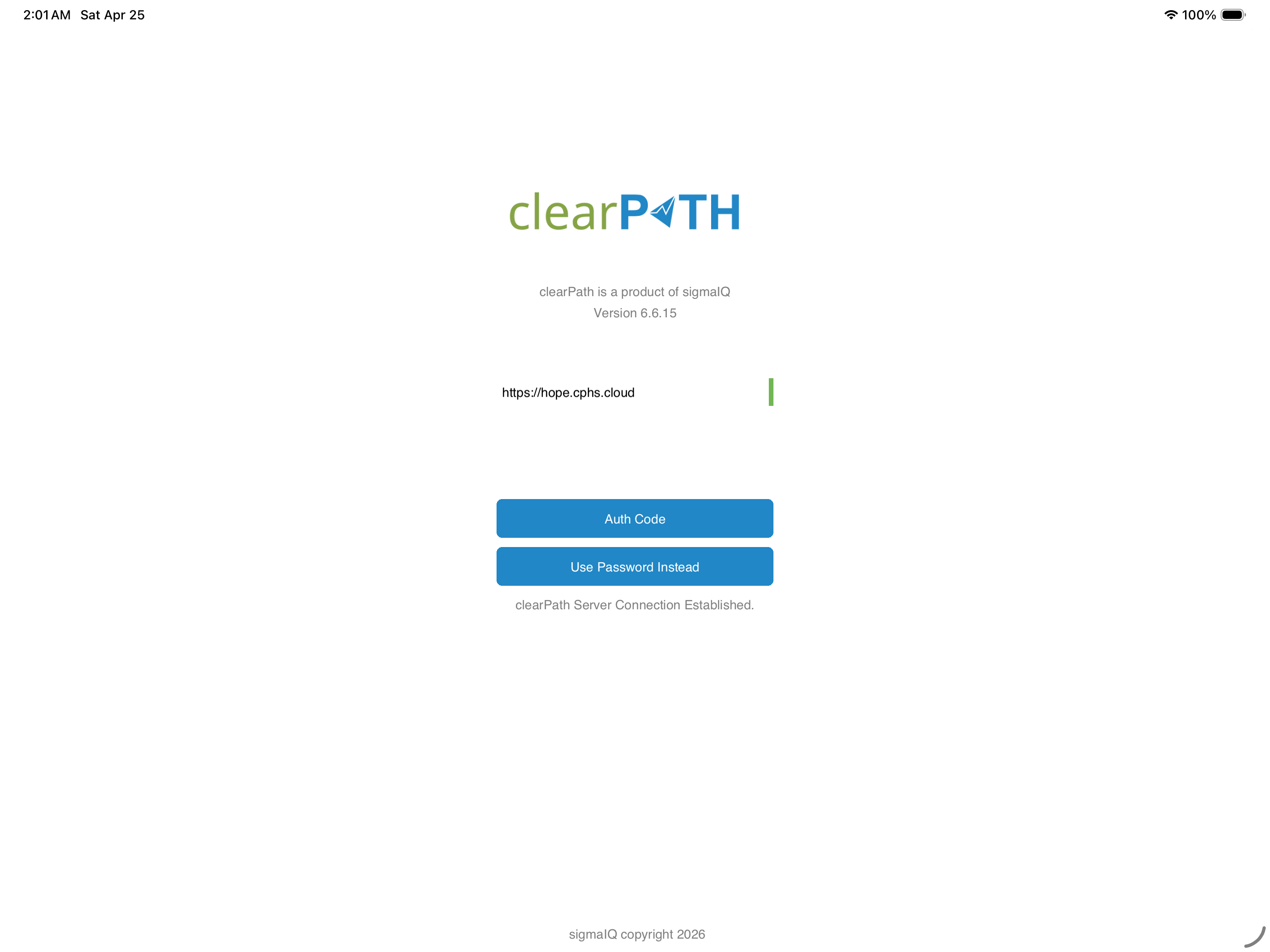
If your administrator has enabled two-factor authentication, cp2go prompts for a one-time authentication code after the password.
Home Screen
After signing in you are taken to the main screen. It has two panels: the Audits to Sync list on the left, and a details panel on the right showing system information and audit summaries.
Note
A red badge on the cp2go icon indicates the number of completed audit sessions on the device that have not been sync’d to clearPath.
Setup
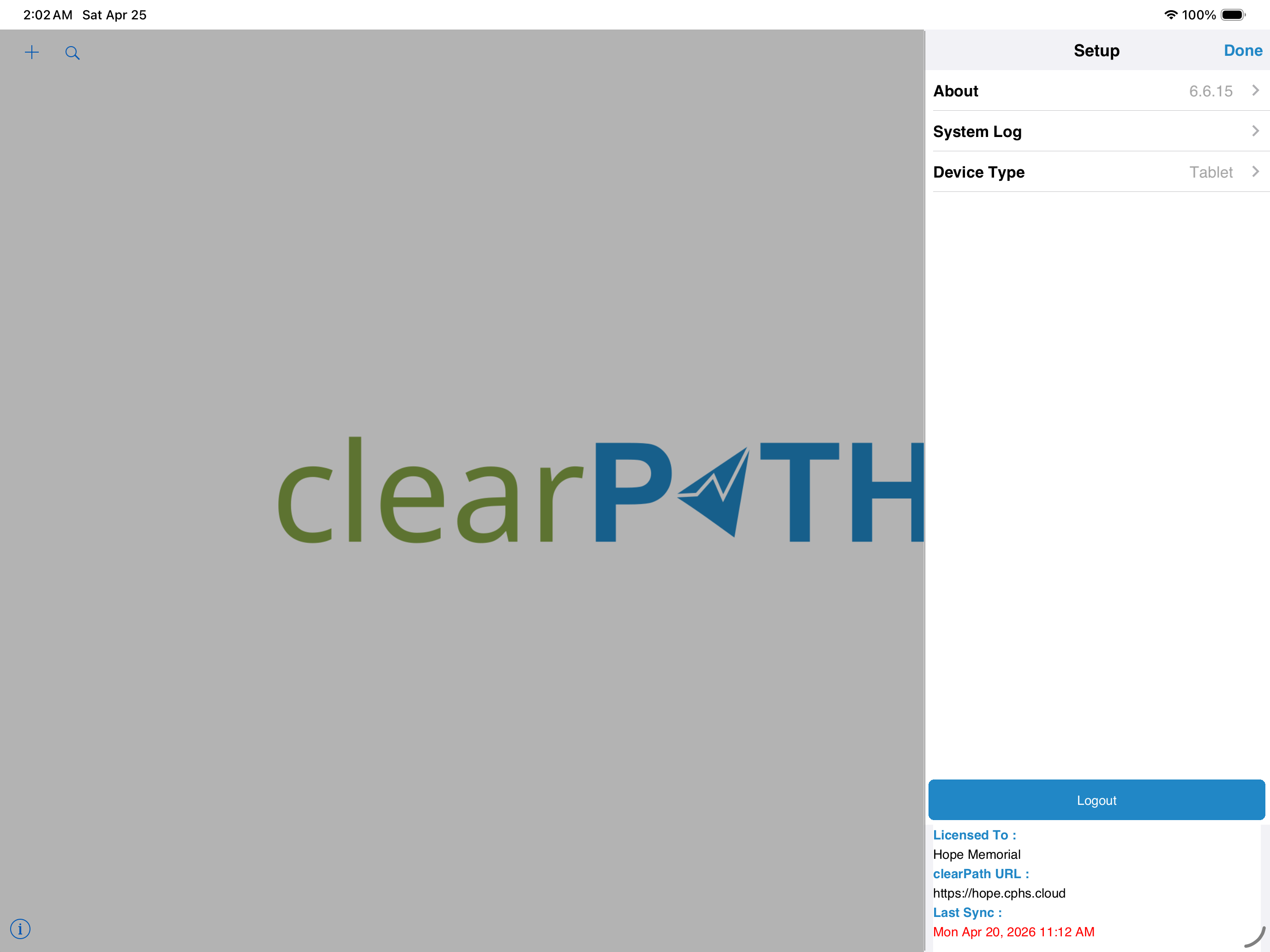
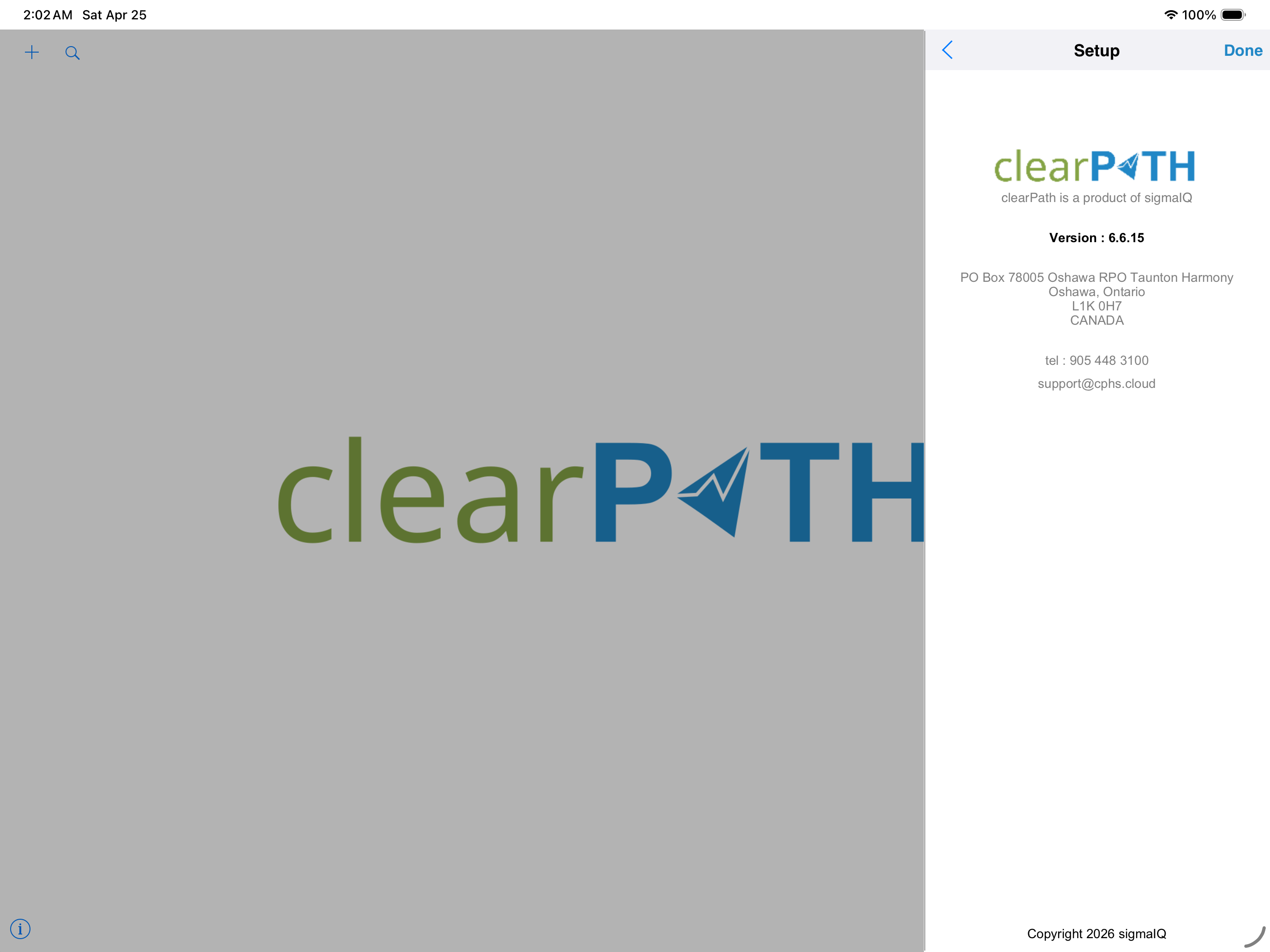
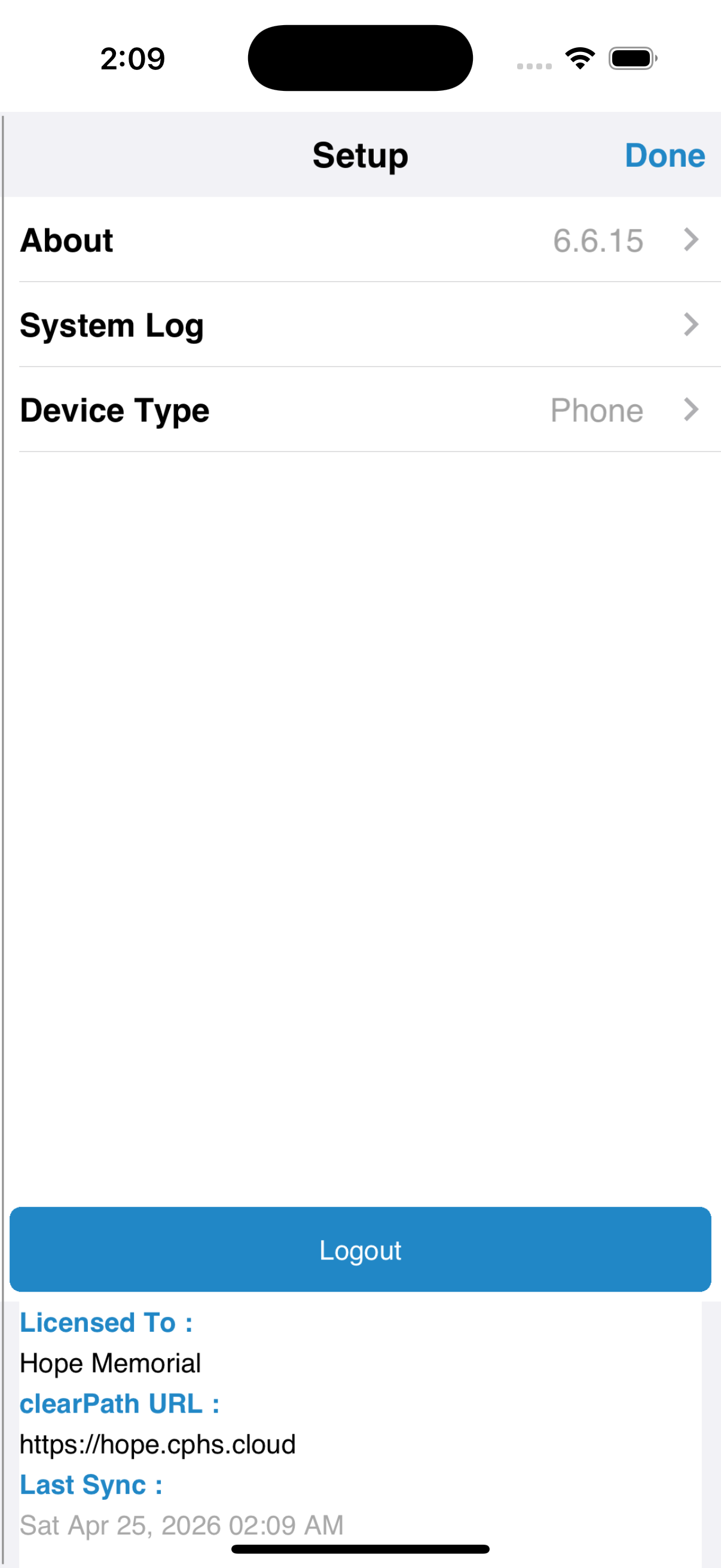
The Setup menu lets you review the device configuration, see the clearPath build details, and inspect the application log if support ever needs it. Most auditors only visit this screen once, when the device is first configured.
Creating a New Audit
To create a new audit session, tap on the New button. Select the facility and patient care area, and if necessary set the observer to your username. Normally the session name field should remain blank, and the date and time only need to change if you are back-dating a paper-based audit.
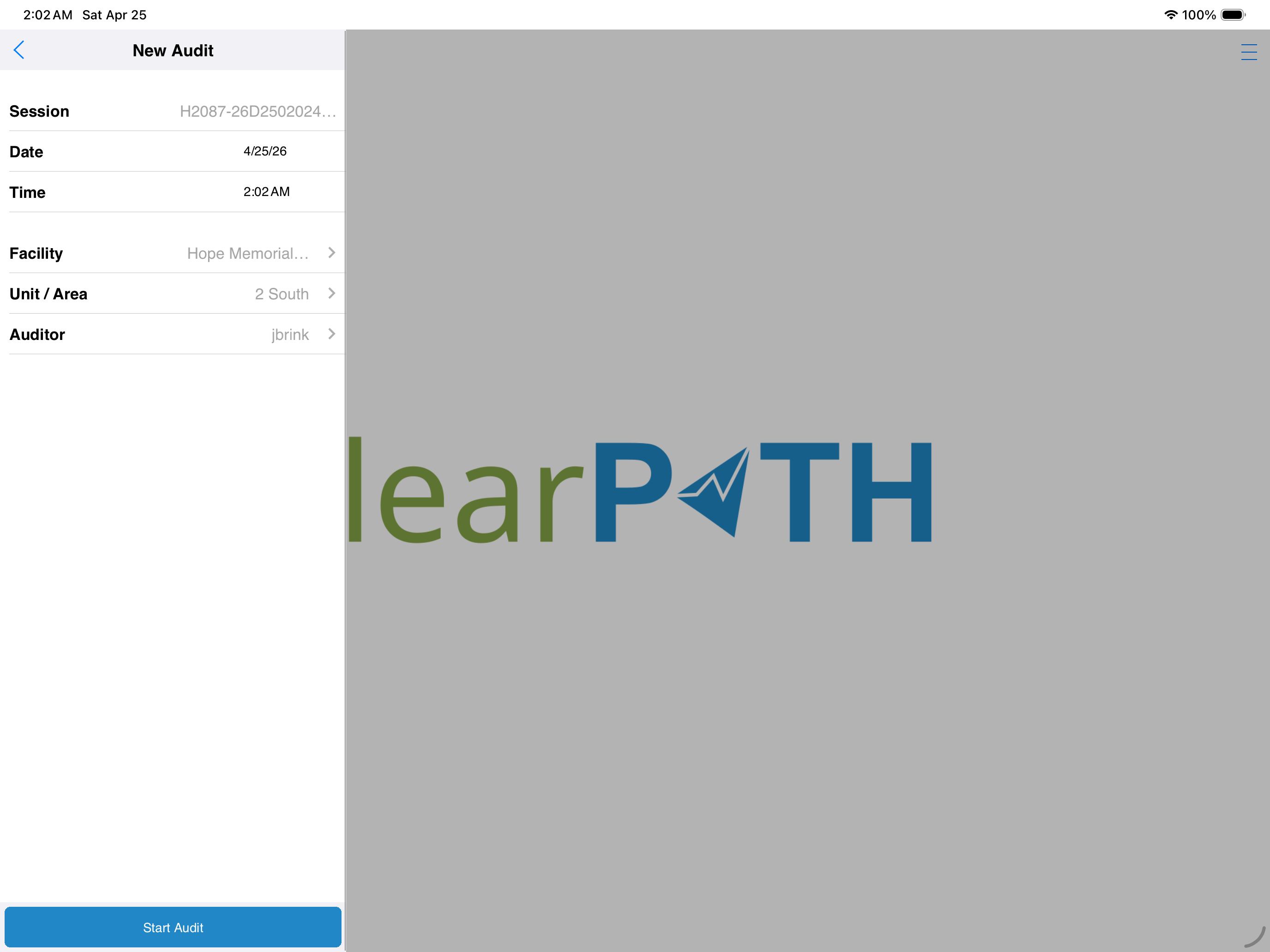
The main comment field is optional. The comment applies to the overall audit session — for example, “the unit is in outbreak”.
Auditing
The auditing screen is organized into pages, with up to sixteen observations per page for four different HCP types. Depending on how your administrator has configured cp2go there are up to ten pages — a maximum of 160 observations per audit session.
To start entering data, choose the Health Care Provider Type from the drop-down list. All HCP types configured for your organization will be listed; if one is missing contact your clearPath administrator.
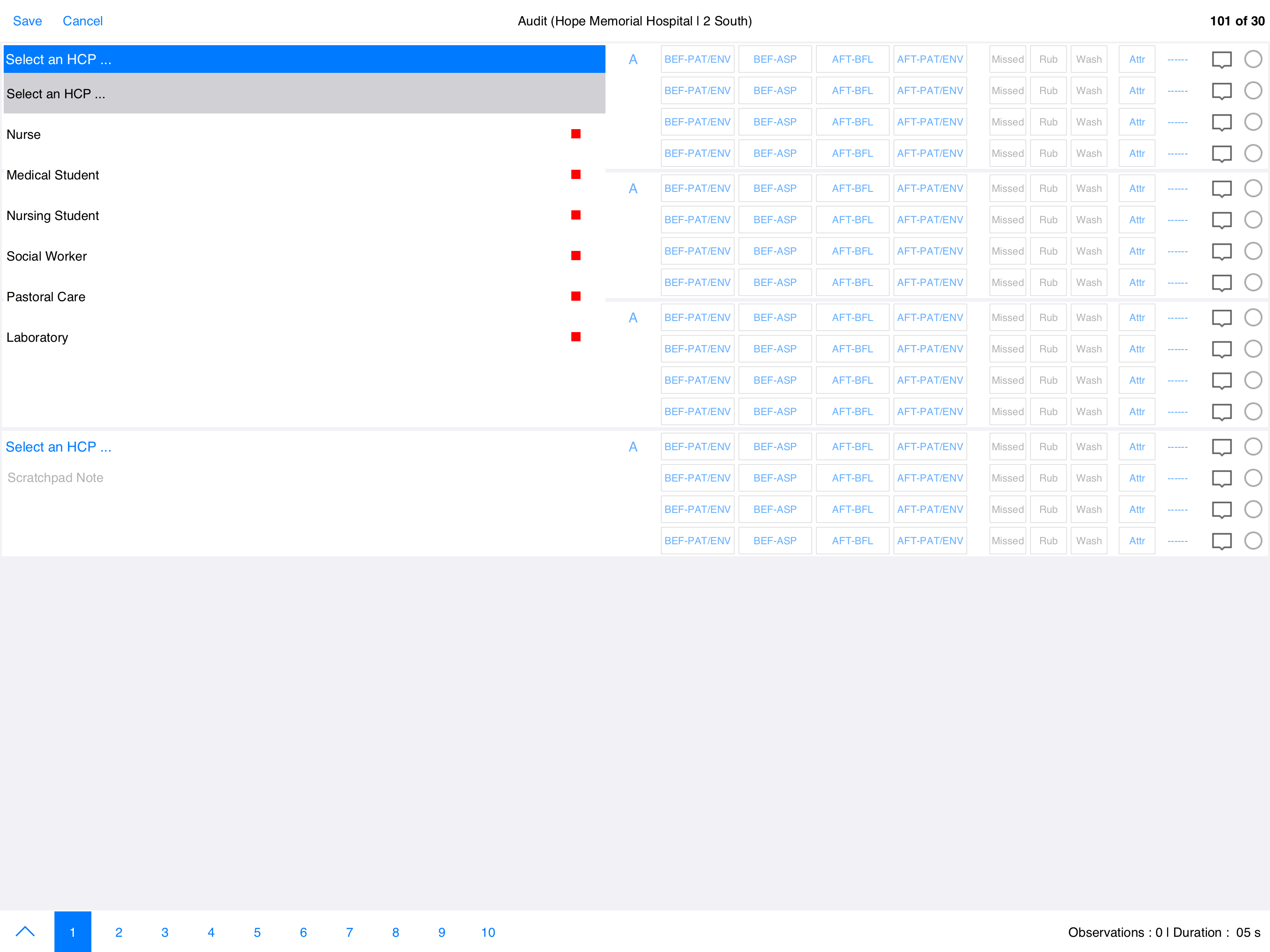
Once the HCP type is selected, all the buttons in that row become enabled. The HCP can be differentiated by the letter drop-down to the right of the HCP type (defaults to A).
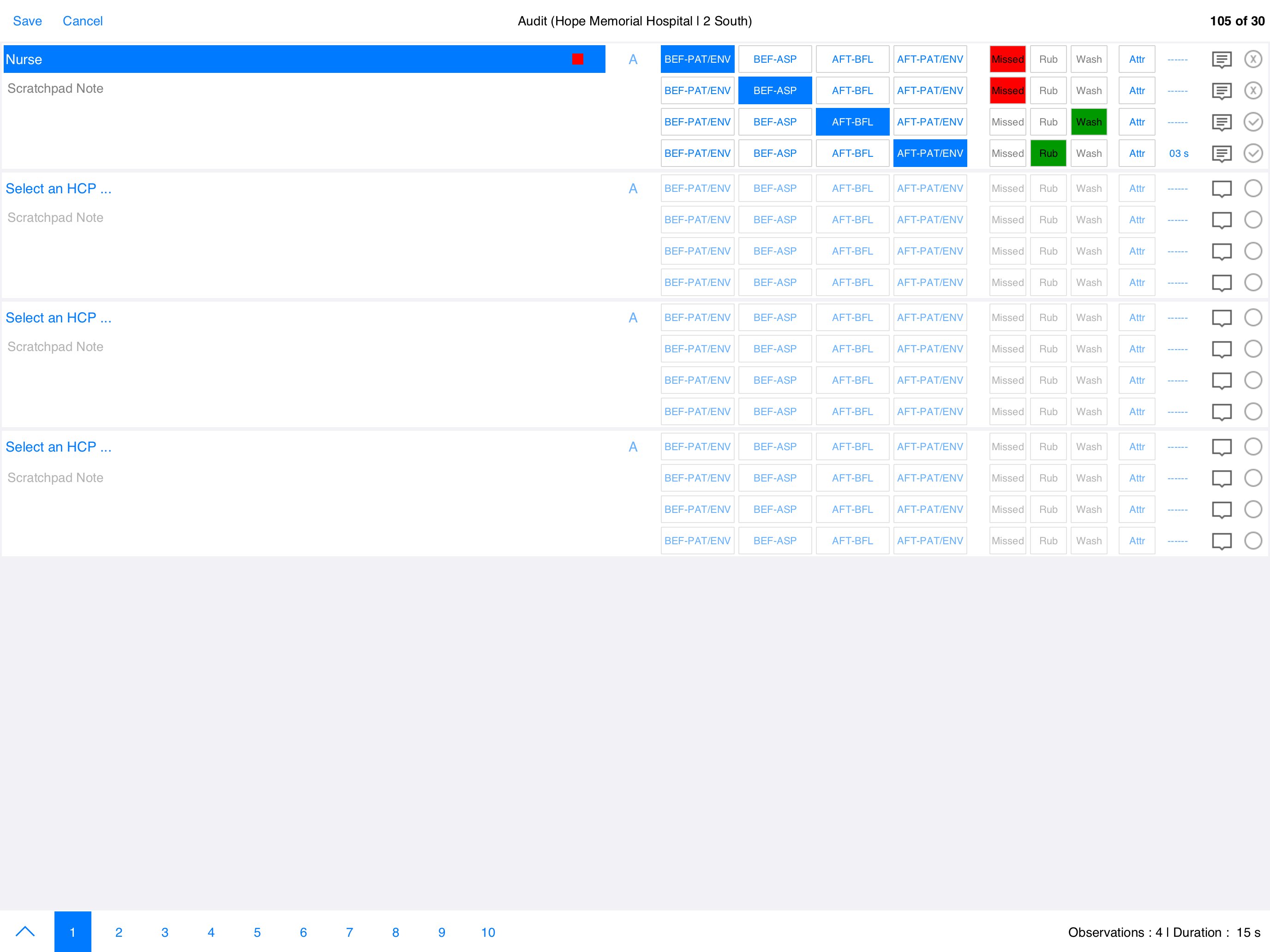
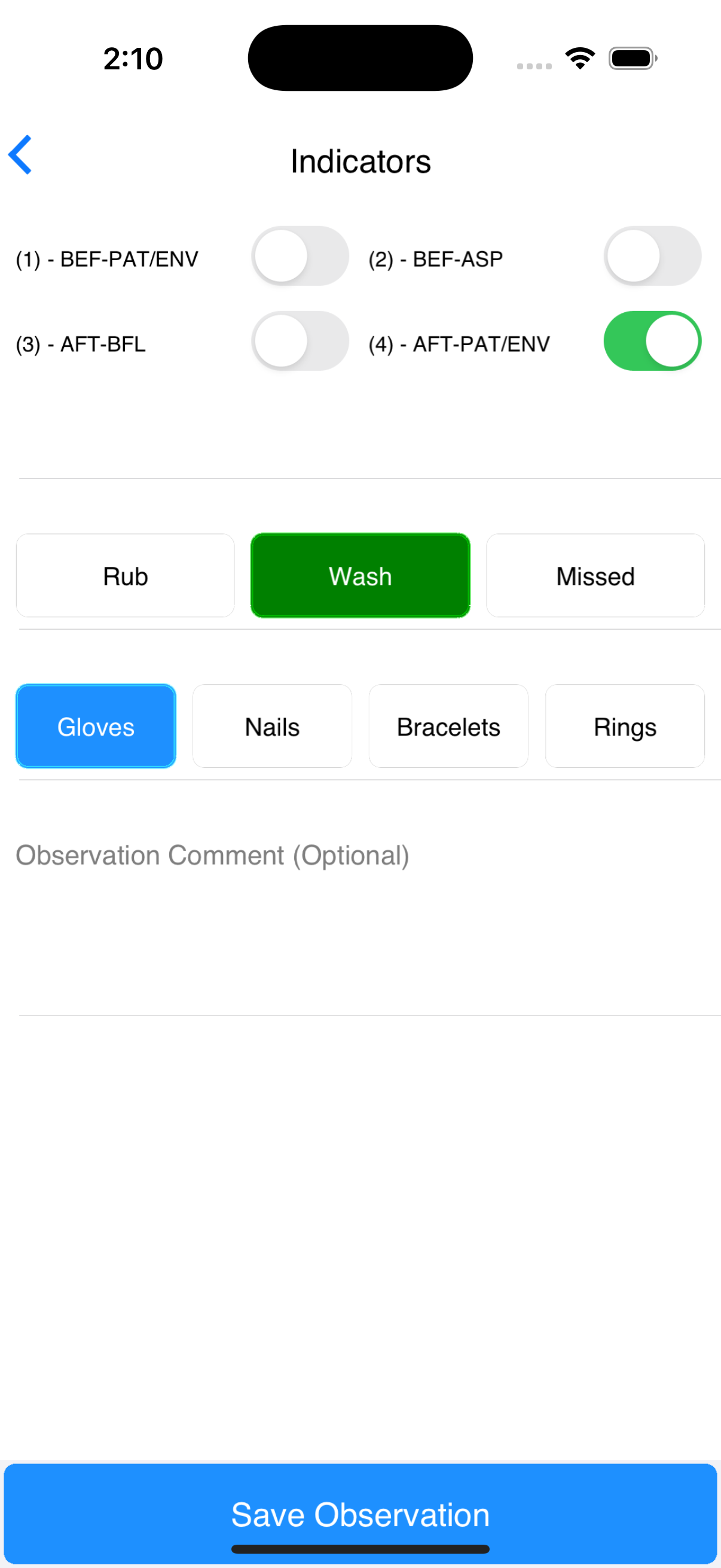
Choose the indicator or indicators being observed, then choose Rub and/or Wash if either was observed. If the opportunity was missed entirely, leave both unselected. If you are unsure whether the opportunity occurred, unselect the indicator to invalidate the observation.
Observation Comments
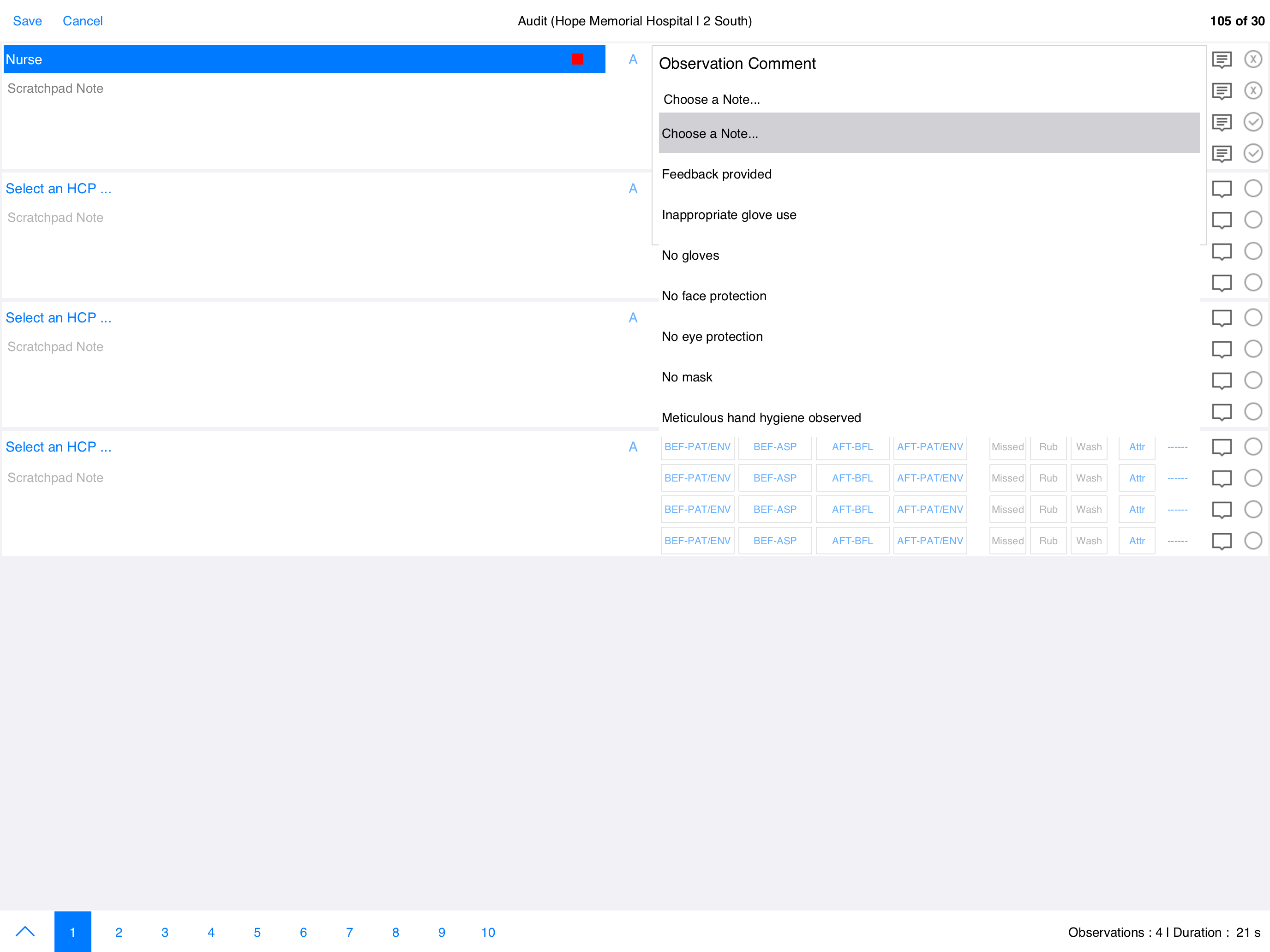
cp2go allows notes that apply to a specific observation. Tap the note icon and either choose from a predefined note or enter one manually. Once a note is assigned, the icon changes from blue to green.
PPE Attributes
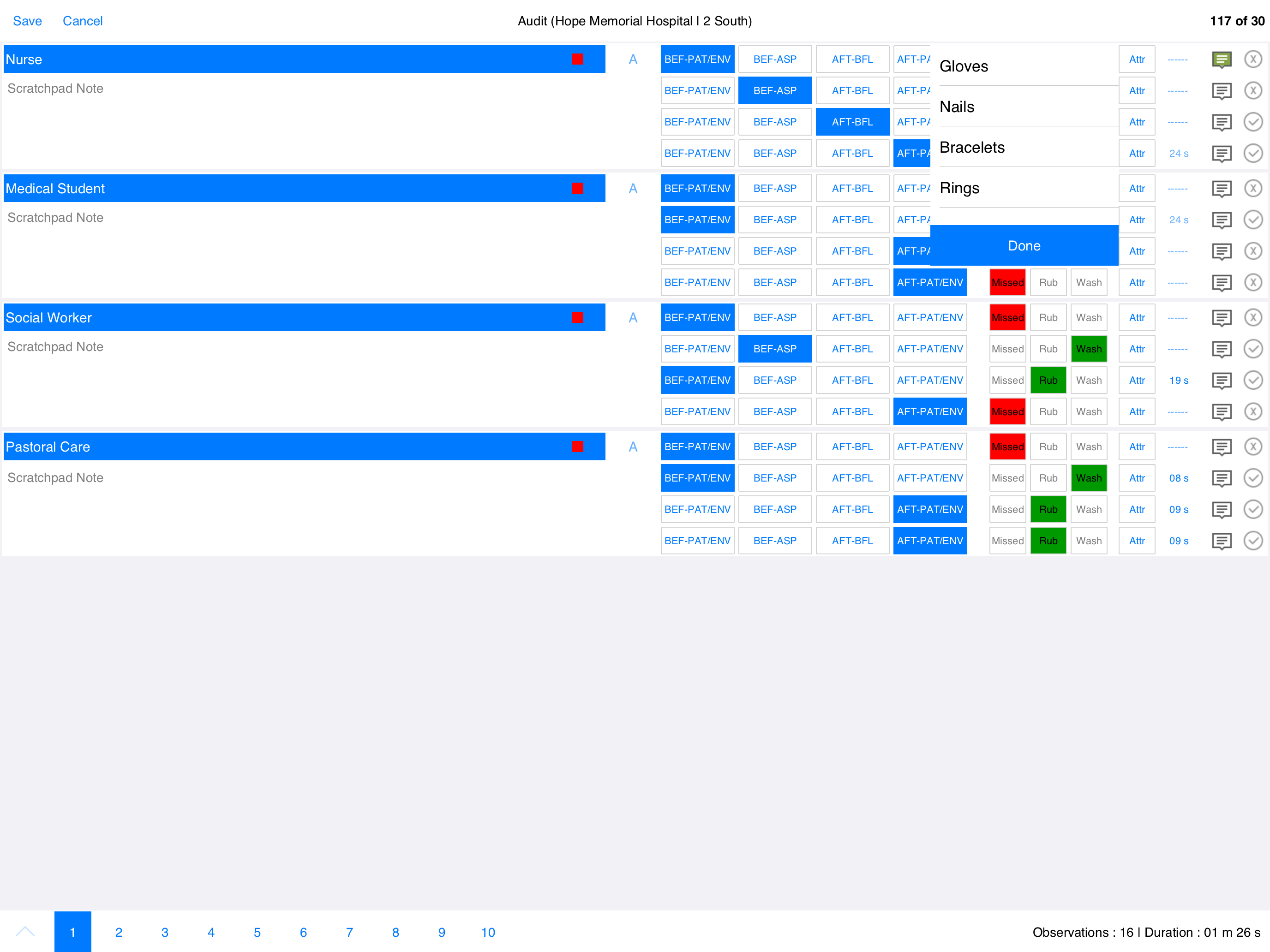
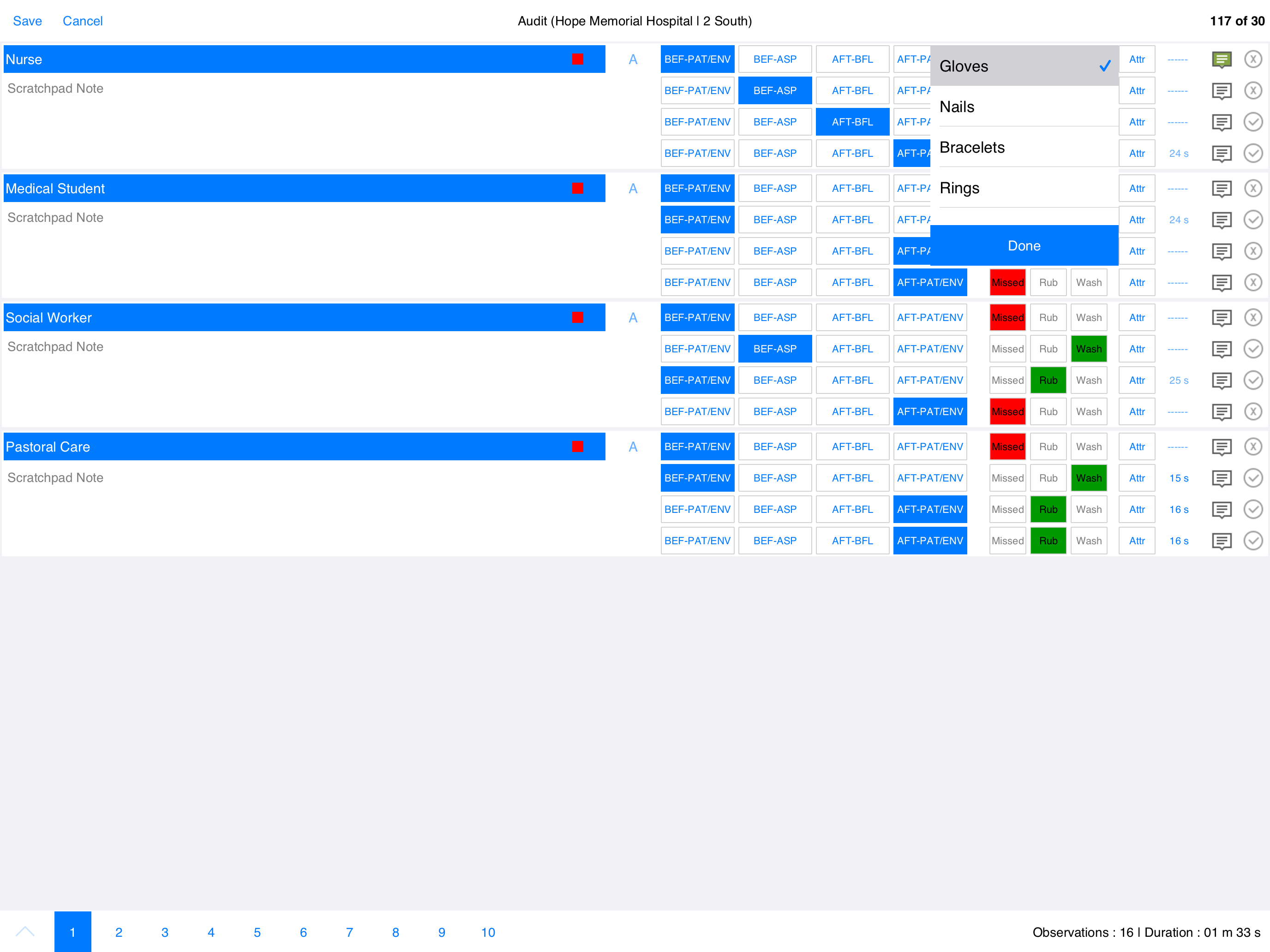
If other attributes were observed — Gloves, Nails, Bracelets, or Rings — tap the attributes menu and check off any that apply.
Session Comments
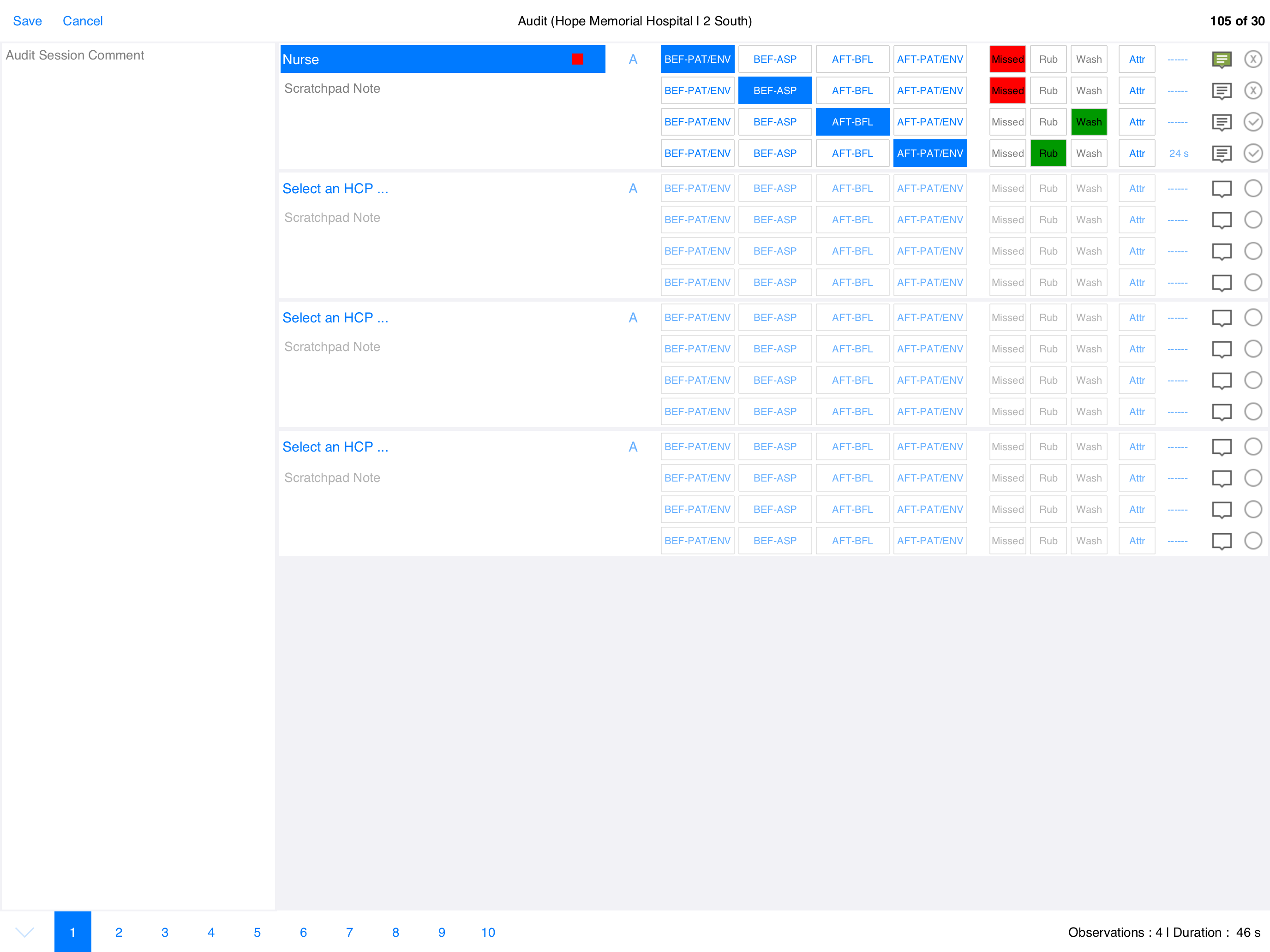
To access the main session comment while auditing is underway, rotate the tablet to portrait orientation. cp2go will display the comment field at the bottom of the screen.
Stop and Cancel
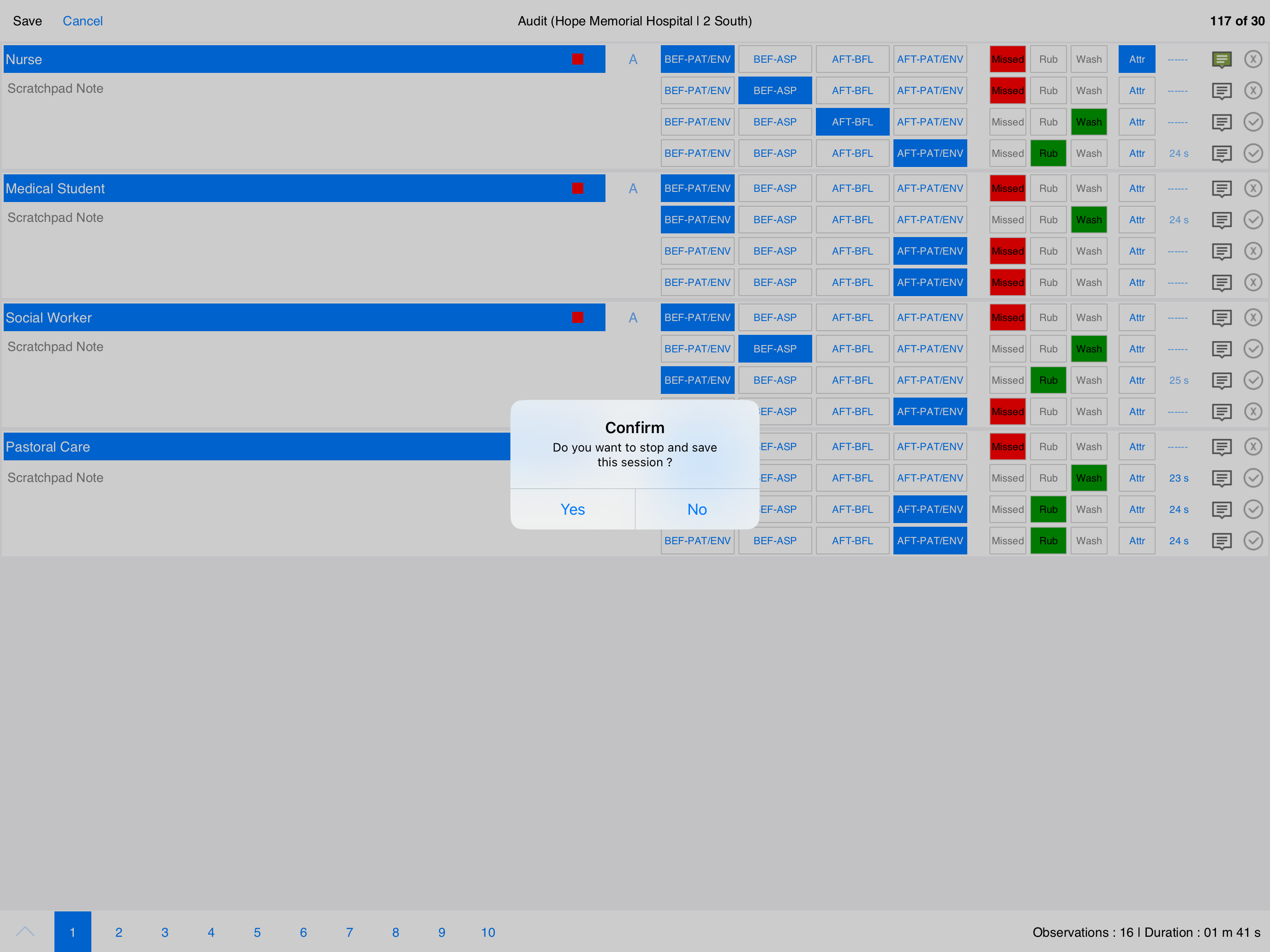
When the audit is complete, press Stop (top left) to save and close the session. To abort an audit in progress press Cancel — the session will be closed but NOT saved. cp2go will prompt to confirm either action.
Tip
It is fine to leave an observation line blank or an entire section empty. cp2go automatically removes any incomplete observations when the audit session is closed.
Audits to Sync
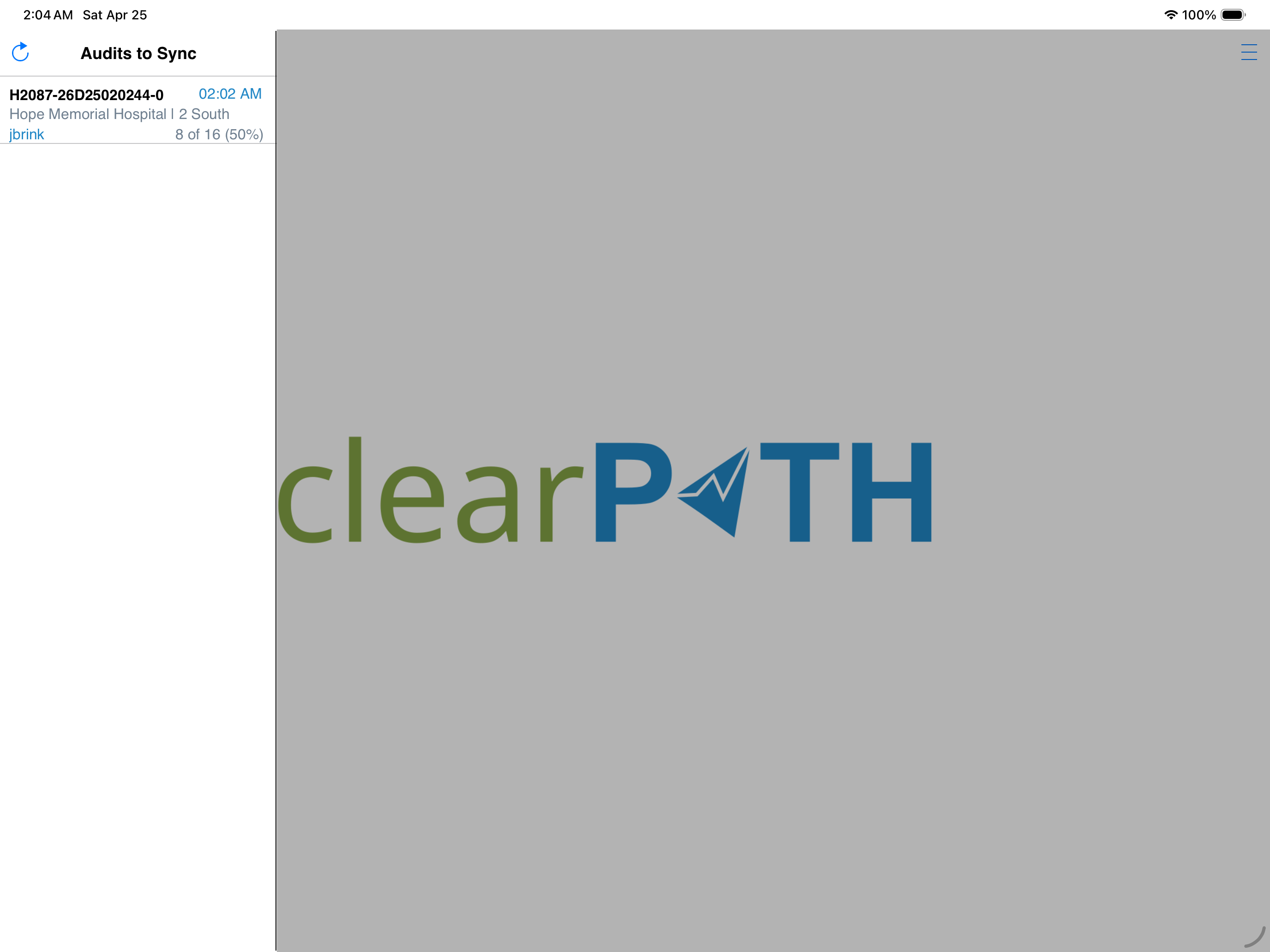
Completed audits that have not been sync’d to clearPath are shown in the left panel on the main screen. cp2go displays the session name, date, facility, patient care area, auditor, and compliance.
Audit Summary
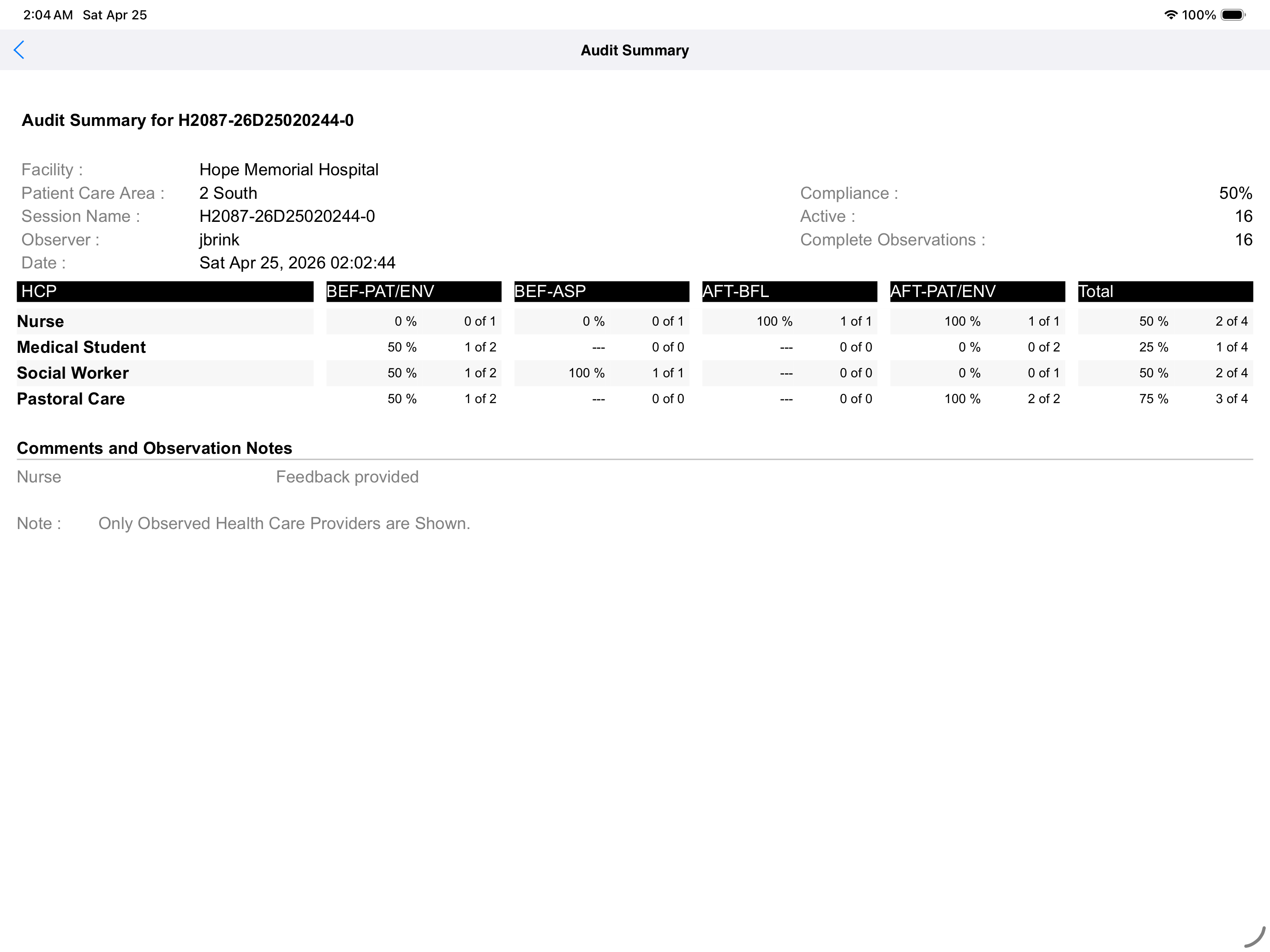
To share audit summary data with staff immediately after the audit is closed, tap on the audit session in the main screen and then tap the Summary button at the bottom right. cp2go rolls up all HCP types seen in the audit, with one line per HCP type broken out by moment.
Mobile Auditing (iPhone / Android Phone)
cp2go on a phone follows the same workflow as on the tablet, presented as a sequence of screens rather than a dual-pane layout.
Home Screen
The main menu provides quick access to start a new audit, view audit results, sync audits, change settings, and open help.
Setup
Creating a New Audit
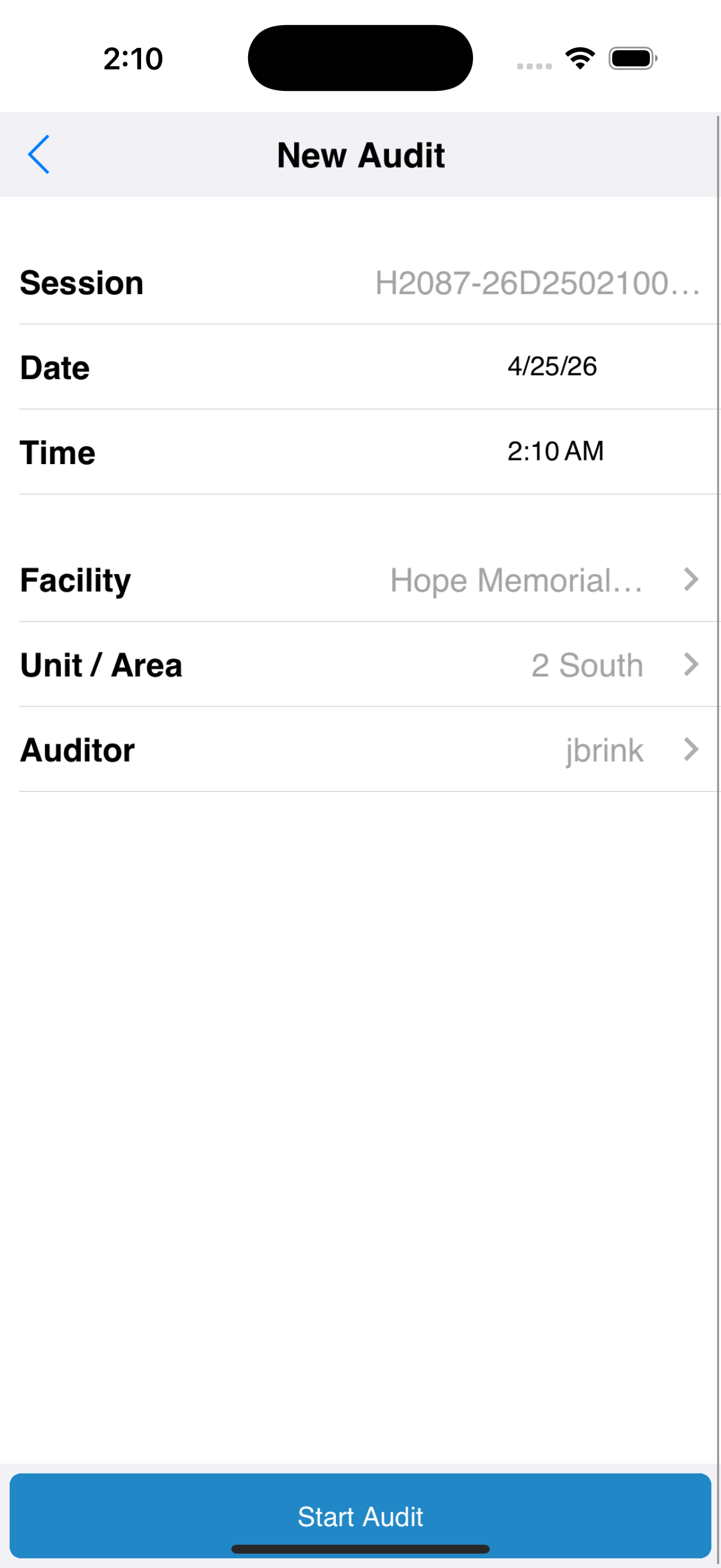
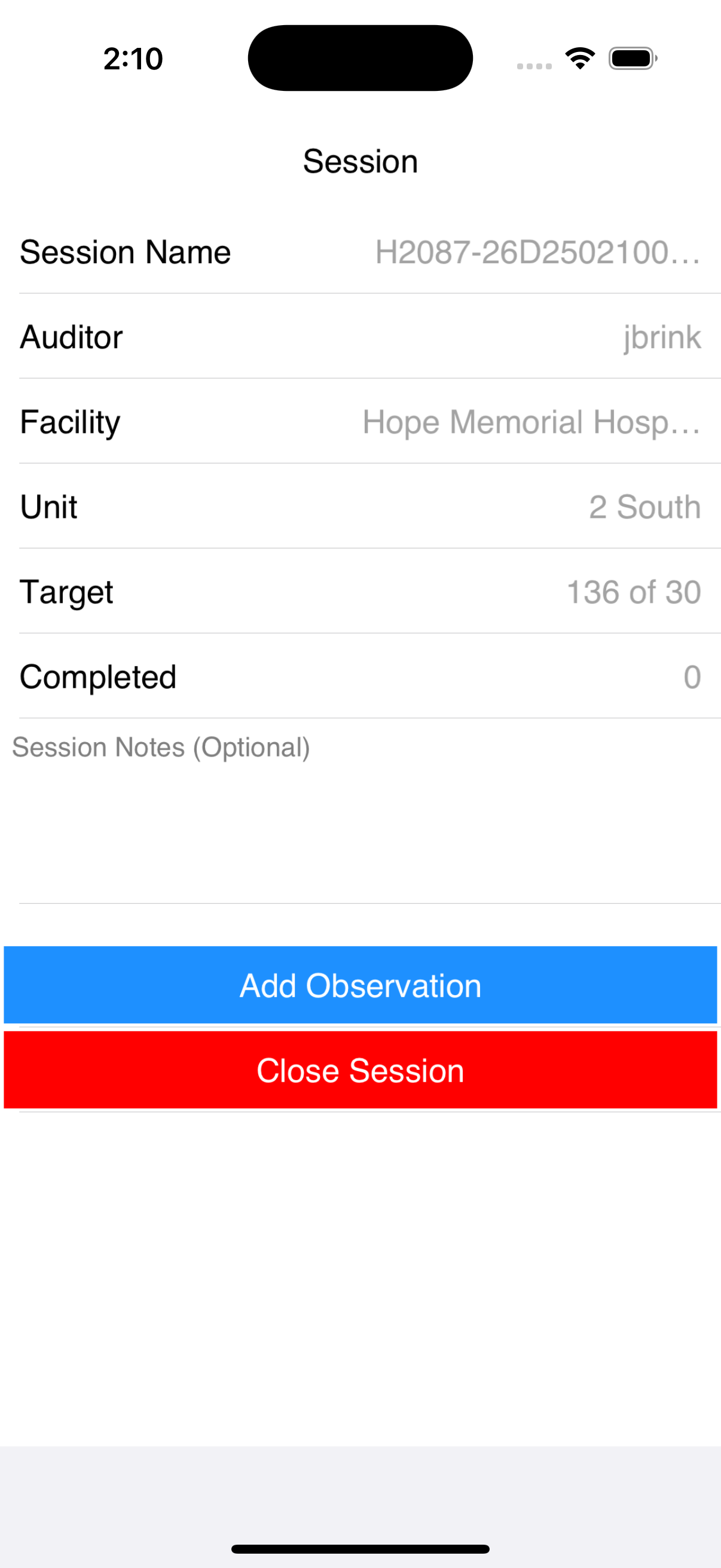
Tap Start New Audit and choose the facility, patient care area, observer, and (optionally) a session comment. Tap Start Session to begin.
Recording Observations
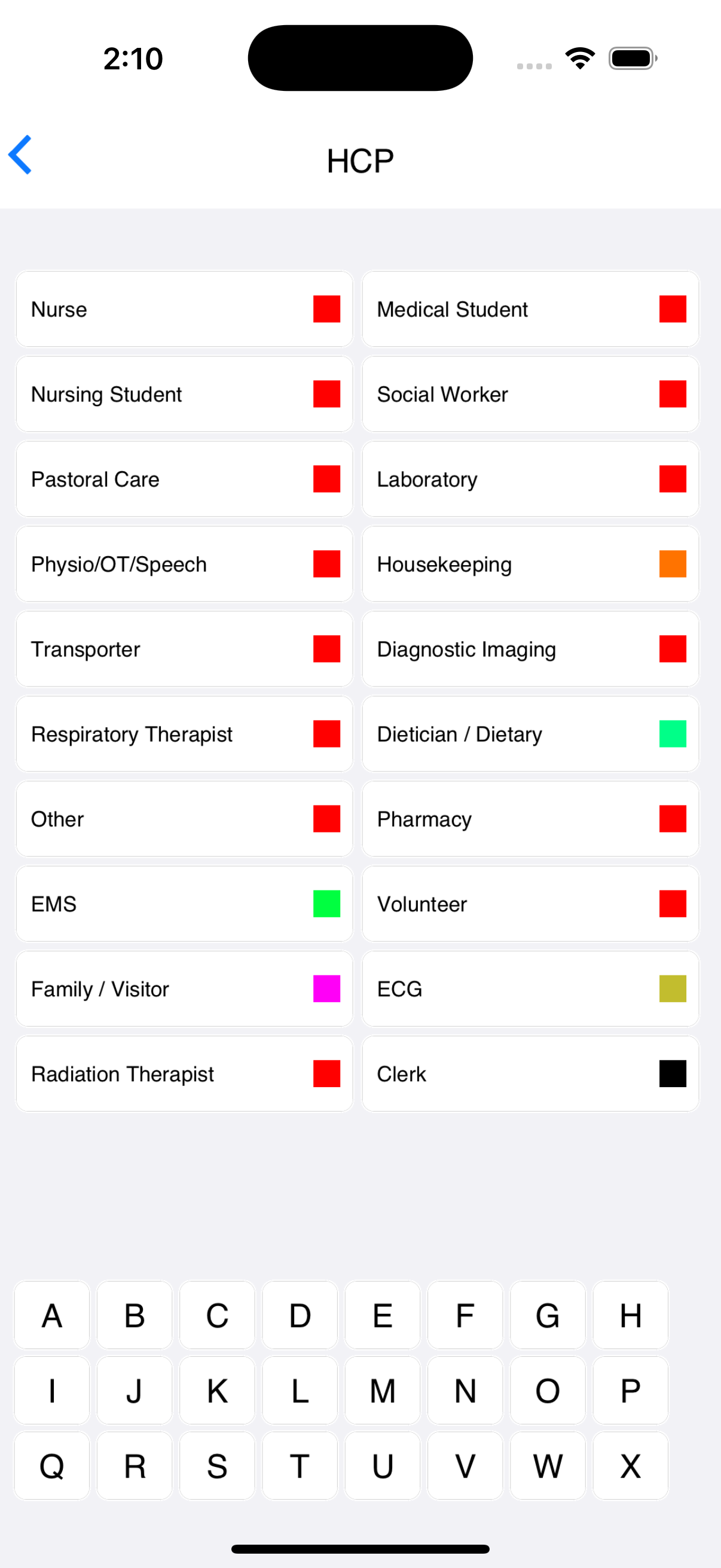
Choose the Health Care Provider Type, the letter, and then record the indicators and Rub/Wash for each observation.
Sync’ing Audits
Sync’ing serves two purposes:
It transfers completed audit sessions from the device to clearPath.
It downloads updated configuration data — auditors, facilities, patient care areas, and health care provider types — from clearPath to the device.
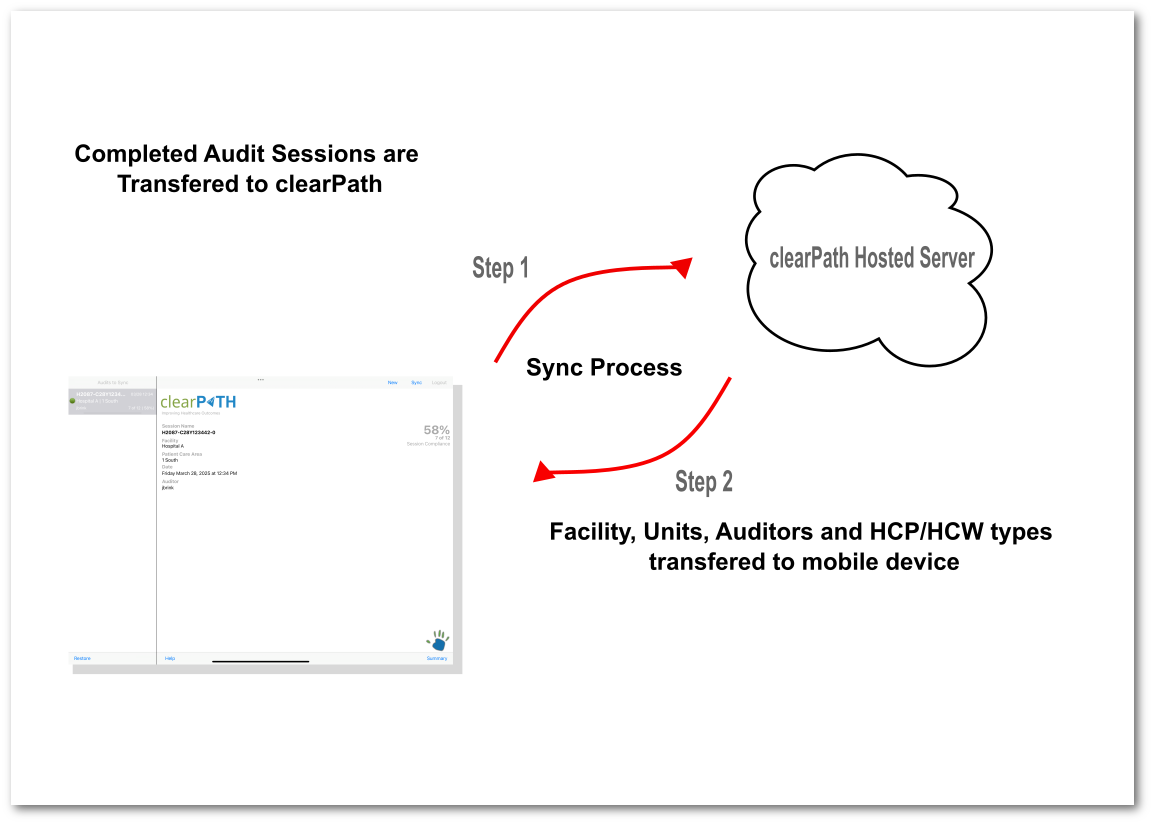
The sync process takes less than 30 seconds. Sync at least once a day after auditing, and any time the device has been idle for a few days. There is no harm in syncing immediately after closing an audit, but it is also fine to wait until lunch or the end of the day.
Web-Based Auditing
Web-based audits are recorded directly in clearPath through a browser, with no application install or sync step. From the main menu choose Hand Hygiene → Audit Sessions → Start New Audit, fill in the audit session fields, and begin recording observations.
Note
Audit sessions left open for more than 8 hours are automatically closed by clearPath as abandoned.
Observation data collected in a web-based session are not included in reports until the audit session is closed.
cp2go vs. Web-Based Audits
cp2go |
Web-Based |
|
|---|---|---|
Requires persistent network connection |
No |
Yes |
Scratch pad notes |
Yes |
No |
Observation comments |
Yes |
No |
Timers on BEF-PAT and AFT-PAT |
No |
Yes |
Sync requirement |
Yes |
No |
Installed software |
Yes |
No |
Software upgrades |
Yes |
No |
Back-date paper audits |
Yes |
No |
Platforms supported |
Windows, iPad, iPhone, Android, iPod Touch |
Any device with a modern web browser |
Questions
If you are having any issues with cp2go or have any questions, please reach out — see Contact Us.