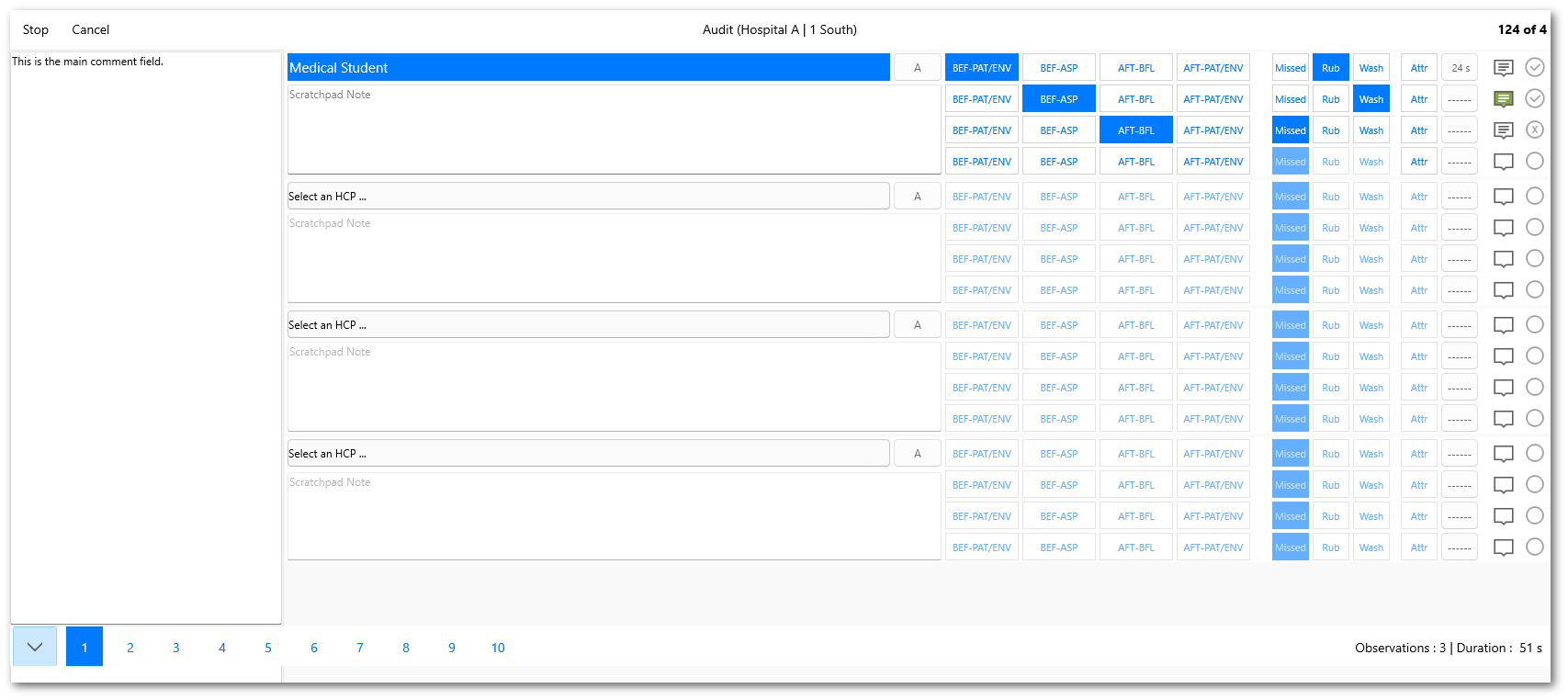
Windows
Icon Functions
Icon |
Alt Icon |
Description |
|---|---|---|

|
Create a New Audit |
|

|
Show Audits |
|

|

|
Setup on Android and Windows Devices |

|
Sync Audits and Refresh Configuration |
|

|
Show / Hide Password on login screen |
|

|
Help Icon (bottom right of main screen) |
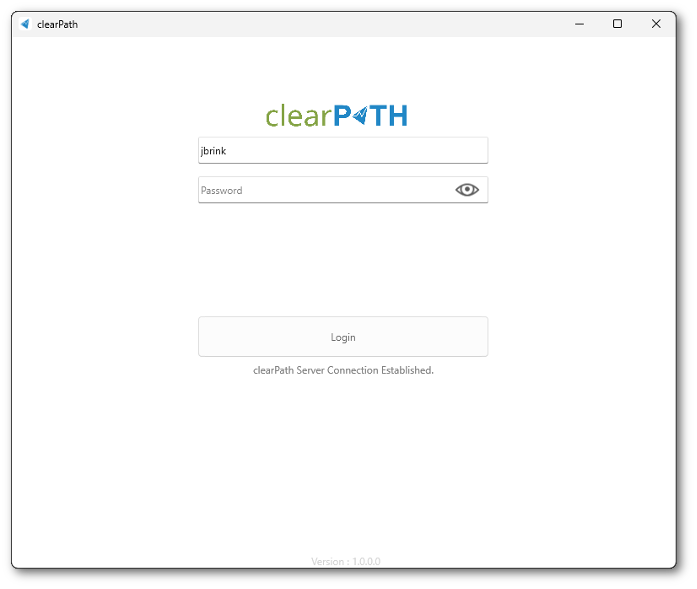
Login
When the cp2go mobile launches it will prompt you for a username and password. If the app has never been used before it will also require you to enter your site URL.
The site URL field will display a red or green bar on the right side of the field to let you know that the URL entered is correct.
cp2go will remember the last user logged in. The password must be entered everytime the application is launched. You can tap on the little eye in the password field to make the password readable.
Press the login button to login to the application
Note
If you believe the URL is correct but cp2go is still showing a red bar in the URL field, open up the browser on your mobile device and enter your site URL into the address bar. It should follow the format https://id.cphs.cloud, where id is your three or four character site name/id. If you do not get to the clearPath login screen, you may have a connection issue or your IT group has blocked the URL.
Note
If you are unable to login and want to reset the application. You can long press on the copyright at the bottom of the screen and the application will automatically reset. You username, password and clearPath url will be removed.
Warning
Resetting the clearPath with unsync’d audits is NOT recommended. The unsync’d audits will be removed/deleted and you will not be able to recover those audits.
Main Screen
Once sucessfully logged into cp2go the application will take you to the main screen. There are three icons on the top of the banner. From left to right Create a new Audit, View/Sync Audits and Setup.
Icon Functions
Icon |
Alt Icon |
Description |
|---|---|---|
|
|
Create a New Audit |
|
|
|
Show Audits |
|
|
|
|
Setup on Android and Windows Devices |
|
|
Sync Audits and Refresh Configuration |
|
|
|
Show / Hide Password on login screen |
|
|
|
Help Icon (bottom right of main screen) |

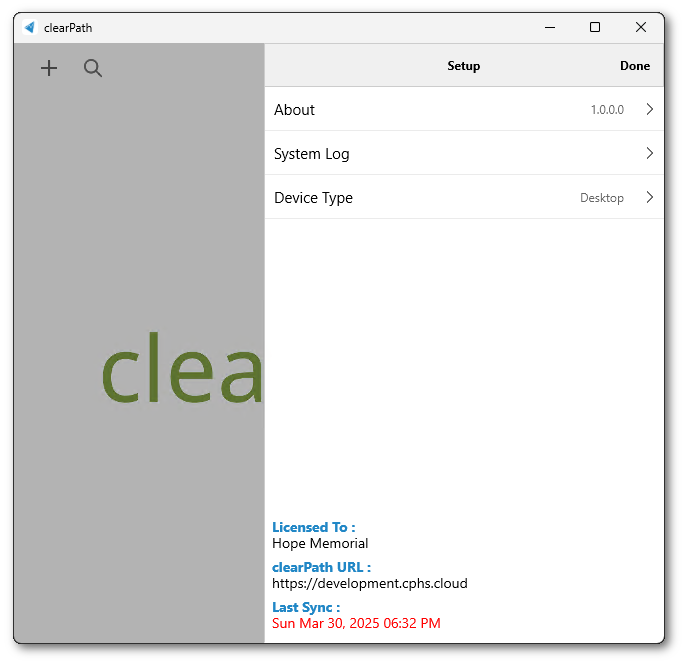
Setup Screen
Note
The device type in Windows is set to Desktop and cannot be changed. The supported device types are Desktop, Tablet and Phone. The device type controls which auditing interface is shown to the user. The software does its best to auto detect the device type and present the best user interface option, but for mobile devices the user can choose to override the setting.
Setup About

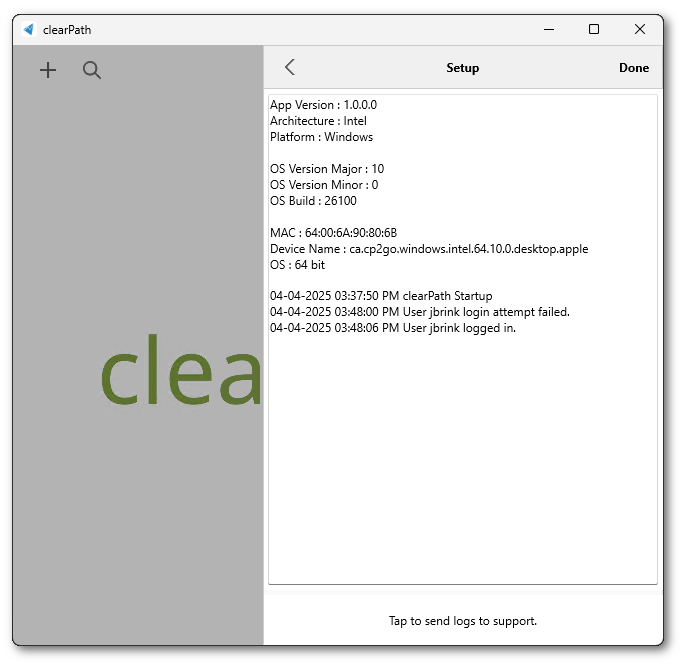
Setup Logs
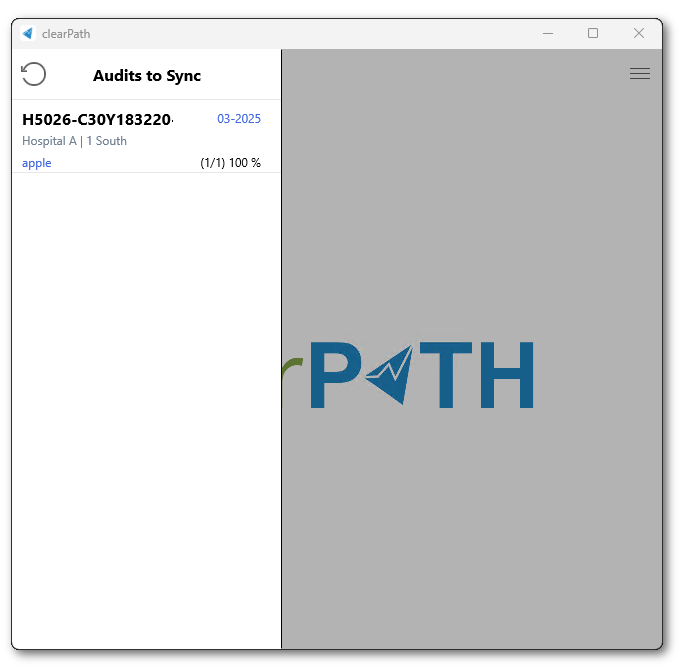
Audits to Sync
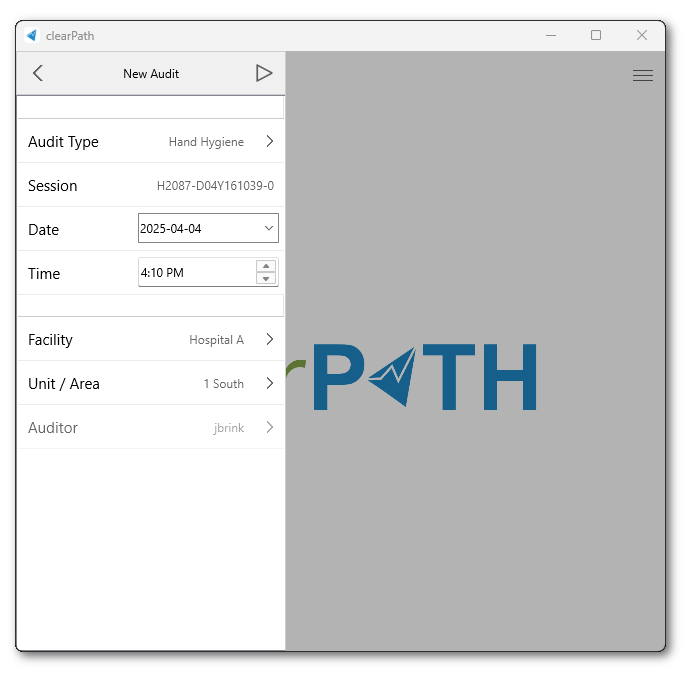
New Audit
Auditing Interface